
Key takeaways
- Who it suits: Practicing architects working on large Revit models, point clouds and rendering.
- Pros: ISV-certified graphics options, very high memory ceiling, serviceable design, strong keyboard.
- Cons: Heavy and large power adapter, short battery life under load, premium tier cost.
The best laptop for architects in 2026 is a 16-inch Windows mobile workstation with 32GB to 64GB of memory and an NVIDIA RTX graphics card, with the Lenovo ThinkPad P16 Gen 3 as the safest overall choice and the ThinkPad P1 Gen 8 as the better pick when you carry a laptop to site visits and client meetings. Autodesk Revit, the main BIM tool in most practices, runs only on Windows, so Mac users need a Windows virtual machine or a different workflow, which is why most picks below are Windows machines.
Our top picks


As an Amazon Associate we earn from qualifying purchases at no extra cost to you.
Quick Comparison of the 7 Picks
| Pick | Best for | CPU and graphics | Memory | Weight | Budget tier |
|---|---|---|---|---|---|
| ThinkPad P16 Gen 3 | Best overall for BIM | Core Ultra 9 275HX, RTX PRO 1000 to 5000 | Up to 192GB | From 2.54 kg | Premium |
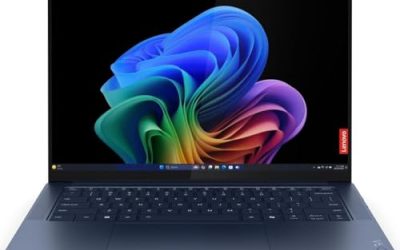
| ThinkPad P1 Gen 8 | Best for site visits | Core Ultra up to 9 285H, RTX PRO 1000 or 2000 | Up to 64GB | From 1.84 kg | Premium |
| Dell Pro Max 16 Plus | Best for firm-managed fleets | Core Ultra 9 285HX, up to RTX PRO 5000 | Up to 128GB | From 2.55 kg | Premium |
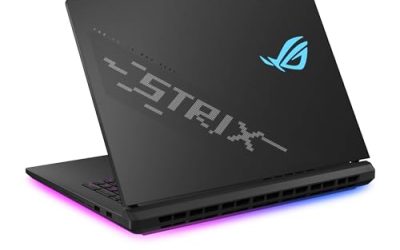
| Lenovo Legion Pro 7i Gen 10 | Best rendering value | Core Ultra 9 275HX, RTX 5080 (16GB) | 32GB reviewed | About 2.65 kg | Upper mid-range |
| Razer Blade 16 (2026) | Best slim high-end Windows | Core Ultra 9 386H, RTX 5060 to 5090 | Up to 64GB | 2.14 kg | Premium |
| ASUS ProArt P16 | Best display for presentations | Ryzen AI 9 HX 370, RTX 5070 | Up to 64GB | 1.85 kg | Premium |
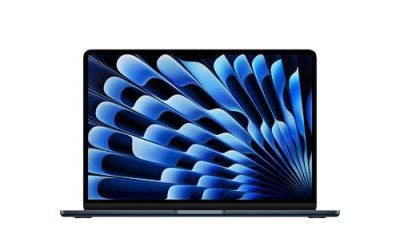
| MacBook Pro 16 (M5 Max) | Best for Mac-first studios | M5 Max with up to 40-core GPU | Up to 128GB | Heavier than the 14-inch | Premium |
Specifications come from Lenovo, Dell, ASUS, Razer and Apple product pages and independent reviews. Configurations vary, so confirm the model code and options in the manufacturer’s configurator.
What an Architect’s Software Stack Demands
Architects juggle several programs with very different needs. Revit and ArchiCAD lean on the CPU and RAM, Rhino and SketchUp depend on single-core speed and graphics drivers, Enscape, Twinmotion, Lumion and V-Ray lean on the GPU, and Adobe tools for presentations need color-accurate screens. A laptop that suits all of them must be balanced, not just powerful in one area.
Revit and BIM: memory first
Autodesk’s published tiers for Revit 2026, as summarized by hardware guides, start at 16GB of RAM for small models, 32GB for balanced work and 64GB or more for large models, along with a DirectX 11 graphics card with 4GB, 6GB and 8GB of video memory for those tiers. Many practitioners use a rule of thumb that memory should be about twenty times the size of the central model. A federated model with architectural, structural and MEP links can use 16GB to 20GB before rendering plug-ins are open, so 32GB is the real floor and 64GB provides comfort for large projects.
The CPU: single-core speed for modeling, cores for exports
Revit’s view regeneration and many modeling operations are limited by single-core speed, so high boost clocks matter. Rendering and simulation, in contrast, spread across many cores. Intel Core Ultra HX chips such as the Core Ultra 9 275HX and 285HX offer both. The Ryzen AI 9 HX 370 and the newer Core Ultra 9 386H are strong in thinner machines.
The GPU: real-time rendering and viewports
Revit itself uses the GPU modestly, though Revit 2026 introduced an accelerated graphics preview that moves more viewport work to the card. Real-time renderers such as Enscape, Twinmotion and Lumion depend heavily on GPU power and video memory. For complex scenes with high-resolution textures, 12GB to 16GB of video memory is useful, and 8GB is the lower limit. Workstation cards such as the RTX PRO line provide certified drivers for Autodesk applications; GeForce cards offer more raw performance for the cost but without ISV certification.
The display and portability
Architects present on-screen to clients, so brightness, color and size matter. A 16-inch 16:10 display provides more vertical space for ribbons and palettes than a 14-inch panel. At the same time, site visits and conference rooms reward lower weight and a battery that lasts through a meeting. This tension explains why many architects own two machines: a heavy desk workstation and a thin travel laptop.
The 7 Best Laptops for Architects in 2026
1. Lenovo ThinkPad P16 Gen 3: Best Overall for BIM
The ThinkPad P16 Gen 3 is a 16-inch workstation that starts at 2.54 kg. Lenovo offers Intel Core Ultra HX processors up to the Core Ultra 9 275HX with 24 cores (8 performance and 16 efficiency), NVIDIA RTX PRO Blackwell graphics from RTX PRO 1000 to RTX PRO 5000 with 24GB, up to 192GB of non-ECC memory (128GB with ECC), up to 12TB of storage, Thunderbolt 5 and an optional 3.2K 120Hz tandem OLED display. Archademia’s 2026 Revit roundup names the P16 Gen 3 the best Revit laptop, and Redrafted observes that many independent architects settle on it once they outgrow consumer hardware.
- Who it suits: Practicing architects working on large Revit models, point clouds and rendering.
- Pros: ISV-certified graphics options, very high memory ceiling, serviceable design, strong keyboard.
- Cons: Heavy and large power adapter, short battery life under load, premium tier cost.
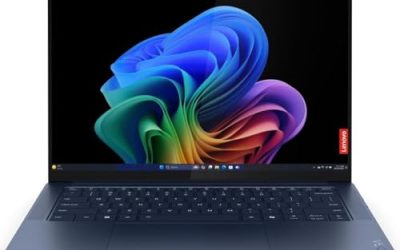
2. Lenovo ThinkPad P1 Gen 8: Best for Site Visits
The P1 Gen 8 trades some raw power for portability. It weighs from 1.84 kg, uses a 16-inch display with a 3.2K tandem OLED option at 40 to 120Hz with pen support, and offers Core Ultra 5 235H to Core Ultra 9 285H processors with NVIDIA RTX PRO 1000 or 2000 Blackwell graphics (8GB of GDDR7). Memory goes to 64GB of LPDDR5x in an LPCAMM2 module, and the 90Wh battery supports rapid charging. It covers Revit models up to mid-size comfortably and runs Enscape for client walkthroughs.
- Who it suits: Architects who attend site meetings and client presentations often and still model in BIM.
- Pros: Light for its class, certified graphics, replaceable memory module, bright display options.
- Cons: 64GB limit, thermally limited compared with the P16, glossy OLED reflections.
3. Dell Pro Max 16 Plus: Best for Firm-Managed Fleets
The Dell Pro Max 16 Plus provides Core Ultra 5, 7 and 9 HX processors, with the Core Ultra 9 285HX the top option, NVIDIA RTX PRO Blackwell graphics up to the RTX PRO 5000 with 24GB of video memory, up to 128GB of DDR5-6400 in a CAMM2 module, and up to three Gen 5 M.2 slots. One configuration measured by reviewers weighed about 2.85 kg with a 280W adapter. Dell includes business management features and vPro support, which IT departments value.
- Who it suits: Medium and large studios with IT management and standardized fleets.
- Pros: Powerful, expandable, enterprise manageability, OLED touchscreen option.
- Cons: Heavy, high cost, reviewers note modest battery life and heat under load.
4. Lenovo Legion Pro 7i Gen 10: Best Rendering Value
Gaming laptops often beat workstations on raw GPU speed for each unit of cost. The Legion Pro 7i Gen 10 uses a Core Ultra 9 275HX and an RTX 5080 Laptop GPU with 16GB of GDDR7, a 16-inch OLED at 2560 x 1600 and 240Hz, and a roughly 99Wh replaceable battery with a 400W adapter. Reviewers list about 5.85 pounds. For Enscape, Twinmotion, Lumion and V-Ray, the speed is excellent, and ArchiCAD or Revit models run well too. The tradeoffs are drivers without ISV certification, a bulky charger and a gaming look that may feel out of place in a client meeting.
- Who it suits: Small practices and visualization specialists who want maximum render speed for the cost.
- Pros: Very strong GPU, 16GB of video memory, effective cooling, good value.
- Cons: Heavy, short battery life, no business support tier, gaming styling.
5. Razer Blade 16 (2026): Best Slim High-End Windows Laptop
The 2026 Razer Blade 16 uses a Core Ultra 9 386H and a range of RTX 5060 to RTX 5090 Laptop GPUs, with the top option having 24GB of GDDR7. Its 16-inch QHD+ OLED runs at 240Hz, and memory goes up to 64GB. It weighs about 4.71 pounds with a 90Wh battery, which is slim for this performance class. The 280W power adapter adds weight, and reviewers have debated the official graphics power ceiling, so look at independent benchmarks for your specific configuration.
- Who it suits: Architects who want strong rendering in a lighter, more presentable chassis.
- Pros: Premium aluminum build, very powerful GPU options, Thunderbolt 5, bright OLED.
- Cons: Premium tier cost, thermal limits in a thin body, no workstation certification.
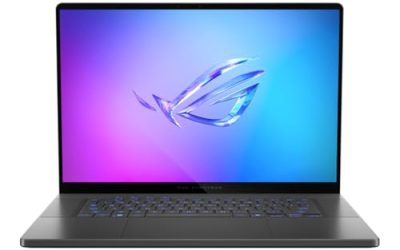
6. ASUS ProArt P16: Best Display for Presentations
The ProArt P16 combines a Ryzen AI 9 HX 370 with an RTX 5070 with 8GB of GDDR7 and up to 64GB of LPDDR5X memory. The 16-inch OLED touchscreen covers 100 percent of DCI-P3 and is available at 3840 x 2400 or at 2880 x 1800 and 120Hz. It weighs about 4.08 pounds, has a 90Wh battery, and supports a stylus for marking up drawings. It is a good match for architects who produce visual presentations and mood boards alongside modeling.
- Who it suits: Design-focused architects, interior designers and students who value screen quality.
- Pros: Excellent OLED, stylus support, relatively light, creator-oriented hardware dial.
- Cons: 8GB of video memory limits heavy scenes, 64GB memory ceiling, no ISV certification.
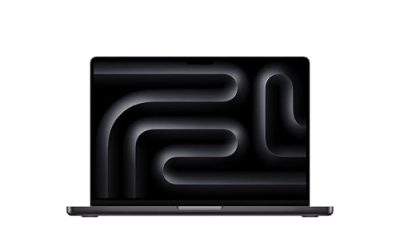
7. MacBook Pro 16-inch (M5 Max): Best for Mac-First Studios
Revit has no macOS version. Autodesk does list Parallels Desktop for Mac as a virtualization option, but a virtual machine costs performance and does not use a certified GPU. The M5 Max chip, however, offers an 18-core CPU, up to a 40-core GPU, up to 128GB of unified memory and 614GB/s of bandwidth, according to Apple, and native Mac tools such as Rhino for Mac, SketchUp, Vectorworks, Archicad and Twinmotion run well. It is the right choice for studios that work primarily in Mac-compatible software and use Revit only for occasional coordination.
- Who it suits: Mac-first designers, concept architects and studios using Rhino, SketchUp or Vectorworks.
- Pros: Long battery life, excellent display, huge unified memory, quiet.
- Cons: No native Revit, no ISV-certified graphics, soldered memory, cost.
Decision Matrix: Practice Type to Laptop
| Your practice | Choose | Memory | Reason |
|---|---|---|---|
| Large BIM models, multi-discipline coordination | ThinkPad P16 Gen 3 | 64GB to 128GB | Certified GPU, ECC option, expandable |
| Frequent site visits and client meetings | ThinkPad P1 Gen 8 | 32GB to 64GB | Lighter, bright screen, good battery |
| Firm with IT department | Dell Pro Max 16 Plus | 64GB | Fleet management, vPro, support |
| Visualization and real-time rendering | Legion Pro 7i or Razer Blade 16 | 32GB to 64GB | Maximum GPU performance |
| Presentation-heavy design practice | ASUS ProArt P16 | 32GB to 64GB | Accurate OLED, stylus support |
| Mac-based concept studio | MacBook Pro 16 (M5 Max) | 48GB or more | Native Mac design software |
Worked Example: Is 32GB Enough for My Revit Model?
Use the twenty-times rule as a starting estimate. A 400MB central model suggests roughly 8GB of memory for that file alone. Add linked models: a 250MB structural link and a 300MB MEP link push the working estimate to around 19GB. The operating system and background apps take 4GB to 6GB, Chrome adds 2GB to 3GB, and Enscape with a medium scene adds 4GB to 8GB. The total comes to roughly 29GB to 36GB, which is why 32GB is borderline for a coordinated project and 64GB is the safer purchase. A small residential model of 80MB with no links, in contrast, would run fine on 16GB, but you will likely work on larger projects within the life of the laptop, so buying for your future workload makes sense.
| Component | Estimated memory |
|---|---|
| 400MB central model (about 20x) | About 8GB |
| 250MB structural link and 300MB MEP link | About 11GB |
| Operating system and background apps | 4GB to 6GB |
| Browser and PDFs | 2GB to 3GB |
| Enscape or Twinmotion scene | 4GB to 8GB |
| Total | 29GB to 36GB |
The twenty-times rule is a practical estimate repeated in hardware guides, not an Autodesk specification, so treat it as a planning aid.
Workstation or Gaming Laptop?
Workstation laptops such as the ThinkPad P-series and Dell Pro Max provide ISV-certified drivers, optional ECC memory, better serviceability and support contracts, and the design aims to run for years under professional use. Gaming laptops provide higher graphics performance per unit of cost and often stronger cooling, but their drivers are tuned for games. For a solo architect or small studio focused on rendering, a gaming laptop is a rational choice. For a firm whose projects depend on stability and warranty response, certified hardware is easier to justify. Whichever you pick, keep Revit and Autodesk add-ins current, and test your own heavy model during the return window.
Ownership Realities
- Thermal throttling: Long exports and renders warm the chassis. A cooling stand or a hard desk surface preserves performance.
- Battery: Expect one to three hours under heavy BIM or rendering work. Carry a high-wattage USB-C charger or the original brick.
- Screen: Matte displays reduce reflections in bright offices. OLED panels look vivid in presentations but can show glare near windows.
- Peripherals: A 3D mouse, external monitors and a dock turn any of these laptops into a desk workstation.
- Backups: Revit central files should live on a server or cloud service with versioning. Do not treat the laptop SSD as the only copy.
- Warranty: Business-tier warranty and on-site service pay off when a laptop fails during a deadline.
Common Mistakes When Buying an Architecture Laptop
The most common mistake is buying for today’s smallest project. Models grow, links accumulate and rendering plug-ins demand more video memory every year, so a laptop that feels fast on a house extension may struggle on a mixed-use building. The second is ignoring the charger: a 280W or 400W brick is heavy and bulky, which matters if you travel weekly. The third is choosing a thin consumer ultrabook with integrated graphics for Revit and rendering, then discovering that viewports stutter. The fourth is forgetting software licensing and plug-in compatibility, since some older add-ins lag behind new Revit releases. Finally, many buyers skip a dock, though one cable to two monitors, a keyboard and network access makes a laptop a far better desk machine.
Frequently Asked Questions
How much RAM does an architect need?
Thirty-two gigabytes is the practical floor for Revit and rendering plug-ins, and 64GB is better for large coordinated models. Sixteen gigabytes only suits small residential projects or occasional use.
Can architects use a MacBook?
Yes, if their main tools run on macOS. Rhino, SketchUp, Vectorworks, Archicad and Twinmotion do. Revit does not run natively, and virtualization is a compromise, so firms that standardize on Revit should choose Windows.
Do I need a workstation graphics card for Revit?
No, Revit runs on GeForce cards, but workstation cards come with certified drivers that reduce rare display and stability problems. Real-time renderers benefit more from raw GPU power and video memory than from certification.
Is a 14-inch laptop enough for architecture work?
It is possible for light modeling, but the Revit interface is crowded, and a 16-inch screen is much more comfortable. Pair a small laptop with an external monitor if you need portability.
What is the best laptop for rendering with Enscape or Twinmotion?
Choose a high-end RTX card with at least 12GB of video memory. The Legion Pro 7i with an RTX 5080 and the Razer Blade 16 with an RTX 5090 are among the strongest options, while the ThinkPad P16 Gen 3 with an RTX PRO 4000 or 5000 offers certified drivers.
Should I buy a laptop or a desktop workstation?
A desktop gives more performance, cooling and expandability for the cost. A laptop gives mobility. Many architects use a powerful laptop with a dock as their only machine, while larger studios keep desktops for rendering and laptops for presentations and site work.
More from Amazon
Programs that pair well with the guide above. Offers and eligibility are set by Amazon and may change.
A free business account with business pricing and bulk-buying tools for work, shop or home office.
Create a business accountFree shipping on eligible items, Prime Video and more. Eligible new members can start with a free trial.
Start a Prime free trialAudiobooks and podcasts to listen to on the go. Eligible new members can start with a free trial.
Try Audible freeAd-free music streaming. Eligible new subscribers can start with a free trial.
Try Music Unlimited freeAs an Amazon Associate we earn from qualifying purchases.
Write Your Review
No reviews yet. Be the first to share your experience!