
Key takeaways
- “100W PD” is usually an input rating. Anker and UGREEN both state that the hub keeps about 15W for its own operation, so a 100W charger gives the laptop roughly 85W. UGREEN’s manual for the 109 model describes a 100W input giving a 90W output, so the two figures differ slightly by model.
- Charging often requires your own charger. The hub passes power through but does not include a wall adapter. A 65W laptop needs a charger of at least 65W plus overhead, so a 100W charger is the safe choice.
- HDMI 4K 60Hz depends on the laptop. Anker’s manual lists 4K 60Hz when the host supports DisplayPort 1.4 and 4K 30Hz when it only supports DisplayPort 1.2. If a monitor looks sluggish, the laptop port is the limit, not the hub.
- Data speed labels differ per port. A 5Gbps USB-A port is fine for a mouse, keyboard and a hard drive, while a 10Gbps port is better for an external SSD.
- Macs treat dual monitors differently. UGREEN notes that on macOS, extended monitors show identical content when connected through its dual-HDMI hub.
The best USB-C hub for most laptops in 2026 is the Anker 555 8-in-1, because it combines a 4K 60Hz HDMI output, 10Gbps data ports, Gigabit Ethernet, SD and microSD slots and about 85W of pass-through charging in a slim body with a built-in cable. If you want to drive two monitors, the UGREEN Revodok Pro 210 is the better value, and if you want a compact hub that matches a MacBook, the Satechi Slim 7-in-1 is the cleaner fit. A hub is the right tool when you need a handful of extra ports at a desk or in a bag, whereas a full docking station suits a permanent multi-monitor setup.
Our top picks


As an Amazon Associate we earn from qualifying purchases at no extra cost to you.
The seven hubs compared
| Hub | Best for | Video | Pass-through charging | Key ports | Price tier |
|---|---|---|---|---|---|
| Anker 555 (8-in-1) | Best overall | HDMI 2.0, 4K 60Hz with a DP 1.4 host | About 85W from a 100W charger | 2 USB-A, 1 USB-C data, Ethernet, SD, microSD | Mid-range |
| UGREEN Revodok Pro 109 (9-in-1) | Best port mix with fast USB | HDMI 2.0, 4K 60Hz | About 85W to 90W | 10Gbps USB-A and USB-C, 5Gbps USB-A, Ethernet, SD/TF | Budget to mid-range |
| UGREEN Revodok Pro 210 (10-in-1) | Dual monitors | 2 x HDMI, dual 4K 60Hz or one 8K 30Hz | About 85W | 5Gbps USB-C and USB-A, 2 USB-A 2.0, Ethernet, SD/TF | Mid-range |
| Satechi Slim 7-in-1 with Ethernet | MacBook-style look, thin build | HDMI 4K 60Hz | Up to 80W out from 100W in | 2 USB-A 10Gbps, Ethernet, SD, microSD | Mid-range to premium |
| Satechi Pro Hub Mini | Pocket hub with USB4 pass-through | Up to 6K 60Hz via USB4 port | Up to 96W | 2 USB-A 5Gbps, USB-C data, Ethernet, audio | Mid-range |
| Baseus Spacemate 11-in-1 | Desk hub with many video outputs | 2 HDMI plus 2 DisplayPort (Windows version) | About 85W from 100W | 10Gbps USB-C and USB-A, Ethernet, audio | Mid-range |
| Anker 332 (5-in-1) | Budget travel hub | HDMI 1.4, 4K 30Hz | About 85W | 2 USB-A 5Gbps, 1 USB-C 5Gbps | Budget |
Hub or dock: the difference that decides what you buy
A hub takes the data and video lanes from one USB-C port and splits them into more ports. It has no power supply of its own, so it draws a small amount of power from the laptop and passes the rest of your charger’s output through. A dock has its own power adapter, can charge the laptop at higher wattage and usually supports several monitors. Hubs are smaller, cheaper and easier to carry, but they share the single USB-C port’s bandwidth, so adding Ethernet, an SSD and a monitor at once means they all compete for the same link.
That shared link is why the numbers on a box need translating. A hub that advertises 4K 60Hz HDMI uses a large part of the video lane, and a hub that advertises 10Gbps on every port cannot deliver 10Gbps on all of them at once. The practical rule is simple: hubs suit one monitor and a few accessories, and docks suit two or more monitors with heavy peripherals.
How to read a hub spec sheet
- “100W PD” is usually an input rating. Anker and UGREEN both state that the hub keeps about 15W for its own operation, so a 100W charger gives the laptop roughly 85W. UGREEN’s manual for the 109 model describes a 100W input giving a 90W output, so the two figures differ slightly by model.
- Charging often requires your own charger. The hub passes power through but does not include a wall adapter. A 65W laptop needs a charger of at least 65W plus overhead, so a 100W charger is the safe choice.
- HDMI 4K 60Hz depends on the laptop. Anker’s manual lists 4K 60Hz when the host supports DisplayPort 1.4 and 4K 30Hz when it only supports DisplayPort 1.2. If a monitor looks sluggish, the laptop port is the limit, not the hub.
- Data speed labels differ per port. A 5Gbps USB-A port is fine for a mouse, keyboard and a hard drive, while a 10Gbps port is better for an external SSD.
- Macs treat dual monitors differently. UGREEN notes that on macOS, extended monitors show identical content when connected through its dual-HDMI hub.
Best overall: Anker 555 USB-C Hub (8-in-1)
The Anker 555 (model A8383) provides a power input, one HDMI port, two USB-A data ports, one USB-C data port, Gigabit Ethernet, an SD slot and a microSD slot. The HDMI 2.0 output reaches 4K 60Hz with HDR and HDCP 2.2 when the host supports DisplayPort 1.4. Per Anker’s documentation, pass-through charging accepts up to 100W and keeps 15W for the hub, which leaves about 85W for the laptop. The USB-C and USB-A data ports run at up to 10Gbps. It is 0.6 inches thick, weighs 4.4 ounces and uses a built-in 7.48-inch cable, so it lies flat next to the laptop.
Who it is for: hybrid workers who want one hub for the desk and the bag.
Pros:
- Both card sizes, wired Ethernet and fast data ports in one slim shell
- HDMI that supports HDR and HDCP, which matters for streaming apps
- Charging pass-through that works with most 100W USB-C chargers
Cons:
- Only one display output, so two monitors need a different hub
- The cable is short and fixed, so it does not suit laptops with ports on the far side of the chassis
Best port mix: UGREEN Revodok Pro 109 (9-in-1)
The Revodok Pro 109 centres on an HDMI 2.0 port at 4K 60Hz, a 100W Power Delivery input and Gigabit Ethernet, with an SD and TF card reader. Listings disagree on the exact USB mix, and UGREEN’s own pages describe the most common arrangement as one 10Gbps USB-A, one 10Gbps USB-C and two 5Gbps USB-A ports. According to the manual, 100W in gives 90W out to the laptop, while UGREEN’s product pages state about 85W because the hub reserves 15W for itself. The USB-C port that accepts power is charge-only and does not carry data or video, and the data ports do not output video either. XDA noted that the hub needs no external power despite having nine ports.
Who it is for: people who plug in an external SSD, a keyboard dongle and a wired network all at once.
Pros: more fast-USB ports than most hubs in this price range, aluminum housing, and no separate power brick.
Cons: one video output, and the port specification varies between regional listings, so verify the exact variant before you buy.
Best for two monitors: UGREEN Revodok Pro 210 (10-in-1)
The Revodok Pro 210 has two HDMI ports that can drive two displays at up to 4K 60Hz, or a single display on the second HDMI port at 8K 30Hz. It adds a 100W Power Delivery input (about 85W reaches the laptop), a 5Gbps USB-C data port, a 5Gbps USB-A port, two USB-A 2.0 ports, Gigabit Ethernet and SD and TF slots rated at up to 104MB/s. It measures 140 x 57 x 16 mm, weighs about 253.5 grams and has an aluminum case with an integrated host cable and a two-year warranty.
Dual video over one USB-C port only works if the laptop’s port can supply two streams. On Windows laptops with enough DisplayPort capacity the two screens extend. On a Mac, both screens show the same image because of macOS limits, according to UGREEN.
Who it is for: Windows users who want two monitors from a hub without buying a dock.
Pros: two HDMI outputs, 8K 30Hz capability, card readers.
Cons: USB-A 2.0 ports are slow for storage, and Mac users will not get extended desktops.
Best slim hub: Satechi Slim 7-in-1 with Ethernet
Satechi’s Slim 7-in-1 connects over a USB-C 3.2 Gen 2 host link and offers a USB-C Power Delivery port that accepts up to 100W and passes up to 80W to the laptop, two USB-A 3.2 Gen 2 ports at 10Gbps, Gigabit Ethernet, a 4K 60Hz HDMI output and micro SD and SD readers. The card readers are UHS-I and reach about 104MB/s. The hub is made to sit flush against a MacBook, with matching Space Gray and black finishes.
One limitation: reviewers, including XDA, point out that the USB-C port is for power only and does not carry data, and they call the hub expensive for what it offers.
Who it is for: MacBook Air and Pro owners who care about appearance and want a thin shape in a backpack.
Pros: premium finish, 10Gbps USB-A ports, a full Ethernet port.
Cons: no USB-C data port, and the price tier is higher than comparable hubs from Anker or UGREEN.
Best pocket hub with USB4: Satechi Pro Hub Mini
The Pro Hub Mini is a small hub that carries a USB4 port, rated for up to 96W charging, display output up to 6K at 60Hz and 40Gbps data. It adds two USB-A 3.0 ports at 5Gbps without charging, a Gigabit Ethernet port, a USB-C data port at 5Gbps and an audio jack. Satechi designed it to pair with M2 MacBook Pro models, and the audio jack does not support high-impedance headphones.
Who it is for: travelers and developers who want a tiny hub with a USB4 passthrough for a high-resolution external display or fast storage.
Pros: USB4 bandwidth, compact size, wired Ethernet.
Cons: no HDMI port in the specification above, so a monitor connects through the USB4 port and needs a cable or adapter, and the 5Gbps USB-A ports are slow for SSDs.
Best desk hub with many outputs: Baseus Spacemate 11-in-1
The Windows version of the Baseus Spacemate has two HDMI 2.0 ports and two DisplayPort 1.4 outputs, with triple 4K supported through MST on Windows. It has one 10Gbps USB-C data port, two 10Gbps USB-A 3.2 ports, one USB-A 2.0 port, Gigabit Ethernet, a 3.5mm combo audio jack and a 100W PD input that gives about 85W to the laptop. The body is aluminum, stands upright, weighs about 485 grams, measures 120.75 x 65.51 mm and has an LED status display and a screen-lock button.
The refresh-rate fine print matters. PCWorld found that three 4K screens ran at 30Hz each, and XDA says triple 4K 30Hz or dual 4K 60Hz requires a host that supports Display Stream Compression, such as Intel 12th-gen or later or an Nvidia 30-series GPU. A single 4K 60Hz display works without it. On macOS the Windows version extends only one external monitor.
Who it is for: Windows laptop users with three small monitors or a dual monitor desk who want a hub-sized device with docking-level video outputs.
Pros: four video ports, fast USB, upright desk design.
Cons: heavy and bulky for travel, and refresh rates depend on the laptop’s graphics.
Best budget: Anker 332 USB-C Hub (5-in-1)
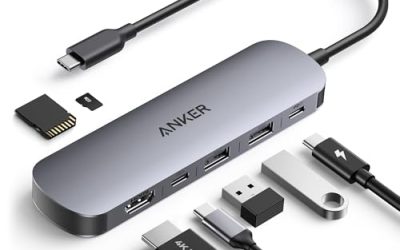
The Anker 332 (model A8355) offers an HDMI 1.4 output at 4K 30Hz, two USB-A 3.2 Gen 1 ports at 5Gbps sharing 4.5W, a USB-C data port at 5Gbps and 7.5W, and a USB-C input that takes up to 100W and delivers up to 85W to the laptop. The USB-C ports do not output video. It measures 3.54 x 2.05 x 0.59 inches and weighs 2.7 ounces, and it supports Windows 10 and 11 and macOS 10.14 and above.
Who it is for: students and commuters who need an HDMI port for presentations and a couple of USB ports.
Pros: small, light, simple, and charging pass-through.
Cons: 4K runs at 30Hz, so the mouse pointer on a 4K monitor feels laggy, and it has no Ethernet or card reader.
Decision matrix
| If you need | Choose | Why |
|---|---|---|
| One 4K 60Hz monitor, Ethernet and card slots | Anker 555 | HDR HDMI, SD and microSD, 85W pass-through |
| Fast external SSD and a keyboard dongle at once | UGREEN Revodok Pro 109 | 10Gbps USB-A and USB-C |
| Two monitors on a Windows laptop | UGREEN Revodok Pro 210 | Two HDMI outputs |
| Thin hub for a MacBook backpack | Satechi Slim 7-in-1 | Flush, slim, 10Gbps USB-A |
| USB4 speed in a small hub | Satechi Pro Hub Mini | 40Gbps port, 96W charging |
| Three monitors from a hub-sized unit | Baseus Spacemate | Four video outputs on Windows |
| Presentations only | Anker 332 | HDMI, two USB-A, lowest tier |
Worked example: what you will actually get from a 100W charger
Suppose you own a 14-inch laptop that normally draws 65W under load and you plug a 100W charger into a hub that reserves 15W. The laptop receives about 85W, which is above its 65W demand, so it charges while you work. Now take a 16-inch laptop with a 140W adapter. The same hub passes at most 85W, so under a heavy workload the battery will still drain slowly, and in some cases the laptop will warn that it is charging at reduced speed. In that case keep the original adapter plugged into the laptop’s second port, or switch to a dock with a higher output.
The same logic applies to bandwidth. A single 4K screen at 60Hz needs roughly 12Gbps of raw video signal, so the hub compresses nothing and simply forwards the laptop’s DisplayPort stream. Two such screens would exceed what a typical USB-C port can carry at that setting, which is why many dual-HDMI hubs cap the second screen or reduce the refresh rate when both are active.
Setup, heat and common mistakes
- Plug the charger into the hub first. This lets the hub negotiate power before the laptop connects, and avoids a brief “unsupported device” prompt.
- Keep the hub on the side away from the CPU vent. Aluminum hubs warm up under video and Ethernet load. Satechi lists automatic shut-off above 40 degrees Celsius on its USB4 hub, so a hub that disconnects in the afternoon may simply be too warm.
- Use a good HDMI cable. An old HDMI 1.4 cable limits a 4K monitor to 30Hz even if the hub supports 60Hz.
- Place Wi-Fi dongles on a USB-A extension cable. 2.4GHz receivers sit close to a busy USB 3 port and can interfere with the signal, so a short extension lowers dropouts.
- Do not copy large files to a 5Gbps port when a 10Gbps port is free. The faster port saves minutes with an NVMe SSD.
What wears first on a hub is the host cable and the USB-C plug, particularly with fixed-cable models like the Anker and UGREEN designs. Avoid hanging the hub from the cable, and replace any hub that becomes loose or intermittent rather than pairing it with a data-critical drive.
Frequently Asked Questions
Can a USB-C hub charge my laptop?
Yes, if it has a Power Delivery pass-through port and you connect a suitable charger. Anker and UGREEN state that a 100W charger results in about 85W reaching the laptop, because the hub uses about 15W itself. Hubs without a pass-through port, such as simple bus-powered adapters, cannot charge the laptop.
Why is my external monitor stuck at 30Hz?
The laptop’s USB-C port or the HDMI cable is usually the cause. Anker’s manual lists 4K 60Hz only for hosts with DisplayPort 1.4, and the Anker 332 is limited to 4K 30Hz by its HDMI 1.4 output. Check your laptop’s port specification and use an HDMI 2.0 cable.
Will a USB-C hub work with a MacBook?
Yes, with limits. Base MacBooks have restrictions on external monitors, and UGREEN notes that the two screens on its dual-HDMI hub mirror each other on macOS. Satechi hubs are built for MacBook fit and look.
Do all USB-C ports support video?
No. Some laptop USB-C ports are data-only or charge-only. If a hub with HDMI shows no picture, look for a DisplayPort or Thunderbolt symbol beside the port, or check the laptop’s manual.
Is a hub safe to leave plugged in all day?
Generally yes, as long as it is not covered and its vents are clear. Hubs get warm during video output and Ethernet use, and some models, such as Satechi’s USB4 hub, shut the ports down if they overheat.
Hub or dock for a home office with two monitors?
A dock is usually better. The UGREEN Revodok Pro 210 and Baseus Spacemate can drive two monitors, but they share a single USB-C link, whereas a docking station with its own power supply handles two screens, wired networking and heavy peripherals more predictably.
More from Amazon
Programs that pair well with the guide above. Offers and eligibility are set by Amazon and may change.
A free business account with business pricing and bulk-buying tools for work, shop or home office.
Create a business accountFree shipping on eligible items, Prime Video and more. Eligible new members can start with a free trial.
Start a Prime free trialAudiobooks and podcasts to listen to on the go. Eligible new members can start with a free trial.
Try Audible freeAd-free music streaming. Eligible new subscribers can start with a free trial.
Try Music Unlimited freeAs an Amazon Associate we earn from qualifying purchases.


Write Your Review
No reviews yet. Be the first to share your experience!