

Key takeaways
- 27-inch 5K (5120×2880): macOS uses 2560×1440 points at exactly 2x. The result is pixel-perfect, with about 218 ppi, and it is the density Apple targets.
- 32-inch 6K (6144×3456): macOS uses 3072×1728 points at exactly 2x, at about 224 ppi, with more working space than a 27-inch 5K.
- 27-inch 4K (3840×2160): the exact 2x mode gives 1920×1080 points, which makes everything look large. Most people choose a scaled mode that looks like 2560×1440, which macOS renders at 5120×2880 internally and then shrinks to 3840×2160. It looks good at about 163 ppi but is a little softer than 5K and asks slightly more of the GPU.
- 31.5-inch 4K: about 140 ppi, where scaled modes look clearly less sharp than a 27-inch 5K screen at normal desk distance.
- 27-inch 1440p: about 109 ppi. macOS shows it at 1x, so text is noticeably coarser than on the MacBook’s own display.
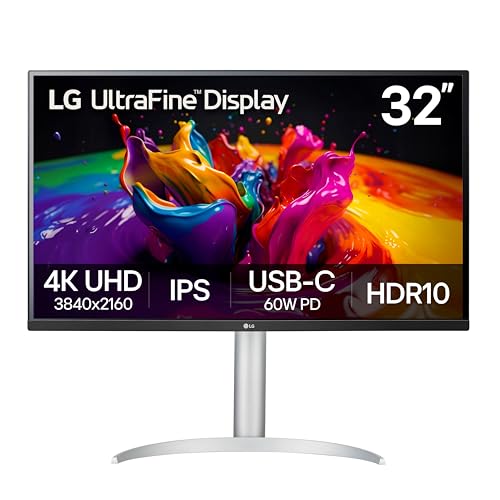
The best USB-C monitor for a MacBook in 2026 is a 27-inch 5K display at about 218 pixels per inch, because macOS draws everything at exactly double scale on it. Apple’s updated Studio Display is the cleanest match, the Samsung ViewFinity S9 is the Windows-brand alternative with a matte finish, and a 4K panel at 27 inches, such as the BenQ MA270U or Dell UltraSharp U2725QE, is the sensible step down. For a bigger canvas, the 32-inch LG UltraFine evo 6K keeps the same sharpness.
MacBooks treat monitors differently from Windows laptops. The operating system renders interface elements at fixed multiples of resolution, so the pixel density of a monitor decides whether text looks crisp or slightly fuzzy. This guide explains the Mac scaling rules, how to match charging wattage and port types to the MacBook Air and MacBook Pro, and which seven USB-C and Thunderbolt monitors suit which workflow. Figures come from Apple’s newsroom and tech specs pages, the makers’ product pages, and published reviews.
Our top picks



As an Amazon Associate we earn from qualifying purchases at no extra cost to you.
Quick comparison of the seven picks
| Pick | Best for | Size and resolution | Pixels per inch | Laptop charging | Price tier |
|---|---|---|---|---|---|
| Apple Studio Display (2026) | Best match for any Mac | 27 in, 5120×2880, 60 Hz, 600 nits | 218 | 96 W over Thunderbolt 5 | Premium |
| Apple Studio Display XDR | Best for HDR and 120 Hz | 27 in, 5120×2880, 120 Hz mini-LED | 218 | 140 W per most sources | Top premium |
| LG UltraFine evo 32U990A | Best large 6K canvas | 32 in, 6144×3456, 60 Hz | 224 | 96 W over Thunderbolt 5 | Premium |
| Samsung ViewFinity S9 (S90PC) | Best 5K alternative with matte finish | 27 in, 5120×2880, 60 Hz, 600 nits | 218 | 90 W over Thunderbolt 4 | Premium |
| BenQ MA270U | Best Mac-tuned 4K | 27 in, 3840×2160, 60 Hz, 400 nits | 163 | 90 W over USB-C | Mid-range |
| ASUS ProArt PA279CV | Best for sRGB creative work | 27 in, 3840×2160, 60 Hz, 350 nits | 163 | 65 W over USB-C | Mid-range |
| Dell UltraSharp U2725QE | Best 4K for MacBook Pro 16 | 27 in, 3840×2160, 120 Hz IPS Black | 163 | 140 W over Thunderbolt 4 | Premium |
Why pixel density matters on a Mac
macOS renders the interface at a “points” resolution and then doubles it on high-density screens. This is called HiDPI or Retina scaling. When a monitor’s native resolution is exactly twice the points resolution, every pixel lines up and text looks sharp.
The scaling arithmetic
- 27-inch 5K (5120×2880): macOS uses 2560×1440 points at exactly 2x. The result is pixel-perfect, with about 218 ppi, and it is the density Apple targets.
- 32-inch 6K (6144×3456): macOS uses 3072×1728 points at exactly 2x, at about 224 ppi, with more working space than a 27-inch 5K.
- 27-inch 4K (3840×2160): the exact 2x mode gives 1920×1080 points, which makes everything look large. Most people choose a scaled mode that looks like 2560×1440, which macOS renders at 5120×2880 internally and then shrinks to 3840×2160. It looks good at about 163 ppi but is a little softer than 5K and asks slightly more of the GPU.
- 31.5-inch 4K: about 140 ppi, where scaled modes look clearly less sharp than a 27-inch 5K screen at normal desk distance.
- 27-inch 1440p: about 109 ppi. macOS shows it at 1x, so text is noticeably coarser than on the MacBook’s own display.
The rule of thumb: for text-heavy work on a Mac, 27-inch 5K or 32-inch 6K is the gold standard, 27-inch 4K is a good compromise, and anything below that is a clear compromise.
What to check on the Mac side
1. Ports and cable type
Current MacBooks connect through USB-C ports that support Thunderbolt. Apple’s tech specs list two Thunderbolt 4 ports on the MacBook Air with the M5 chip and three Thunderbolt 5 ports on the 14 and 16-inch MacBook Pro with M5 Pro or M5 Max. A Thunderbolt monitor such as the Studio Display, LG 32U990A or Samsung S9 uses a Thunderbolt cable; a monitor with a plain USB-C DisplayPort Alt Mode port, like the BenQ MA270U, works with the same ports through an ordinary USB-C cable. For the 6K LG panel, LG says the supplied Thunderbolt 5 cable is required for full resolution.
2. How many external displays your Mac supports
Apple lists up to two external displays for the M5 MacBook Air, up to three for the M5 Pro MacBook Pro and up to four for the M5 Max. Resolution limits apply: the Air supports two displays at up to 6K at 60 Hz or 4K at 144 Hz, or one at up to 8K at 60 Hz. If you plan to chain a 6K display with a second monitor, check Apple’s tech specs page for your exact chip.
3. Charging wattage
The 16-inch MacBook Pro with M5 Pro or M5 Max ships with a 140-watt USB-C adapter, according to Apple. A monitor that supplies 96 watts or less will keep that laptop topped up in light work but may not match a full-power charge under heavy rendering. Smaller MacBooks have lower power needs. Use the monitor’s wattage rating next to the adapter that came with your MacBook as a guide.
A worked example: a MacBook Pro 16 drawing 120 watts during a video export while connected to a 96-watt monitor loses 24 watts net. With a 100 Wh battery, that deficit empties the battery in roughly four hours (100 divided by 24). On a 140-watt source, the battery holds steady. For email and browsing at 30 watts, even 65 watts is more than enough.
4. Mac-specific software features
BenQ’s MA270U adds an M-book color mode and a Display Pilot utility that lets you change brightness and volume from the Mac keyboard. Apple’s Studio Display adds a camera, microphones and speakers that appear natively in macOS. The LG and Samsung panels rely on the standard macOS Displays settings, which is fine, but they lack the integrated brightness syncing of the Apple displays unless the monitor supports DDC control.
5. Matte versus glossy finish
Apple’s display glass is glossy by default, with an optional nano-texture finish. The Samsung S9 and the BenQ MA270U use matte coatings that cut reflections in bright rooms. If your desk faces a window, a matte finish is worth more than a few extra nits of brightness.
6. Color accuracy needs
Photographers and video editors should check the monitor’s gamut and calibration. The Studio Display XDR covers P3 and Adobe RGB, the LG 32U990A covers about 98 percent DCI-P3 and 99.5 percent Adobe RGB, and the ASUS ProArt PA279CV targets 100 percent sRGB and Rec. 709 with Delta E below 2.
Decision matrix: match the monitor to your Mac and work
| Your Mac and work | Choose | Why |
|---|---|---|
| Any Mac, wants the simplest, sharpest setup | Apple Studio Display | 218 ppi, camera, speakers, 96 W pass-through |
| MacBook Pro, HDR video and fast motion | Apple Studio Display XDR | 120 Hz, mini-LED, 2000 nits HDR peak |
| MacBook Pro, wants more workspace | LG UltraFine evo 32U990A | 32-inch 6K at 224 ppi |
| Mac in a bright room, wants a matte 5K | Samsung ViewFinity S9 | 5K panel with a matte finish and Thunderbolt 4 |
| MacBook Air or Pro, 4K at a moderate tier | BenQ MA270U | M-book mode, 90 W, keyboard brightness control |
| Web, print and photo work in sRGB | ASUS ProArt PA279CV | Delta E below 2 factory calibration |
| MacBook Pro 16, wants high refresh and charging | Dell UltraSharp U2725QE | 140 W charging with a 120 Hz 4K panel |
Best match for any Mac: Apple Studio Display (2026)
Apple announced an updated Studio Display on March 3, 2026. It remains a 27-inch 5K panel (5120×2880) at 60 Hz with up to 600 nits of brightness. The update moves it to two Thunderbolt 5 ports (up to 120 Gb/s), with the upstream port providing 96-watt pass-through charging and the downstream port connecting accessories or daisy-chaining up to four additional Studio Displays. It includes a 12-megapixel Center Stage camera with Desk View, a three-microphone array and a six-speaker sound system.
Because it is made for macOS, scaling is exact and brightness follows the Mac’s keyboard keys. A nano-texture glass option is available for bright rooms.
- Who it is for: Mac users who want pixel-perfect text, a camera and speakers in the monitor, and zero configuration.
- Pros: 218 ppi, Thunderbolt 5 daisy-chain, excellent camera and speakers, seamless Mac integration.
- Cons: premium tier, 60 Hz and 600 nits are modest for the tier, limited ports, and no HDR depth compared with the XDR model.
Best for HDR and 120 Hz: Apple Studio Display XDR
The Studio Display XDR is a 27-inch Retina XDR panel with 5120×2880 resolution at 218 ppi, a 120 Hz refresh rate with Adaptive Sync from 47 to 120 Hz, and a mini-LED backlight with 2,304 local dimming zones. Apple quotes up to 1,000 nits SDR and 2,000 nits peak HDR, with a contrast ratio of 1,000,000:1 and coverage of P3 and Adobe RGB. It has two Thunderbolt 5 ports and two USB-C ports. Most sources, including MacRumors and OWC, say it passes through up to 140 watts, though EveryMac lists 96 watts, so confirm on Apple’s page before relying on the figure for a 16-inch MacBook Pro.
It replaces the discontinued Pro Display XDR in Apple’s lineup, and a nano-texture glass option exists for an additional cost.
- Who it is for: video colorists, HDR editors and Mac users who want ProMotion-like motion on a desk monitor.
- Pros: mini-LED HDR, 120 Hz, wide gamut, Thunderbolt 5, high charging power.
- Cons: the highest tier on this list, and its features are wasted on basic office use.
Best large canvas: LG UltraFine evo 32U990A
LG’s 32-inch UltraFine evo is a 6K (6144×3456) Nano IPS Black monitor at 224 ppi, 60 Hz, with 450 nits of SDR brightness and VESA DisplayHDR 600. It covers up to 98 percent DCI-P3 and 99.5 percent Adobe RGB with true 10-bit color and a 2,000:1 contrast ratio. It has two Thunderbolt 5 ports, one DisplayPort 2.1, one HDMI 2.1, two downstream USB-C ports and one upstream USB-C, with built-in speakers and a tilt, height and pivot stand. Thunderbolt 5 supports up to 96 watts of laptop charging and daisy-chaining of dual 6K displays.
LG states that a Thunderbolt 5 or USB-C with DisplayPort 2.1 source is needed for full resolution and charging, and the included Thunderbolt 5 cable is required. Retail listings put the weight around 21 pounds, so plan for a sturdy desk.
- Who it is for: editors, designers and developers who want a big, sharp workspace on a MacBook Pro.
- Pros: 6K sharpness, wide color gamut including Adobe RGB, Thunderbolt 5 daisy-chain, height-adjustable stand.
- Cons: premium tier, 60 Hz, heavy, and older MacBooks without Thunderbolt 5 may not reach full resolution.
Best matte 5K alternative: Samsung ViewFinity S9 (S90PC)
The ViewFinity S9 is a flat 27-inch IPS panel at 5120×2880 (218 ppi), 60 Hz, 600 nits, 1000:1 contrast, 10-bit color with HDR10, 99 percent DCI-P3 and factory calibration to Delta E 2 or below. Its matte display cuts reflections. Connectivity includes one Thunderbolt 4 port with 90-watt charging, one mini DisplayPort and three USB-C downstream ports. Samsung includes a 4K camera in the box, and the monitor has speakers plus smart TV apps through Tizen and AirPlay support.
It matches the Apple 5K resolution, so macOS scaling is pixel-perfect. A reviewer comment noted the rear of the panel can get warm after a couple of hours, and the smart features are an acquired taste in an office.
- Who it is for: Mac users who want 5K sharpness with a matte finish and a bundled webcam.
- Pros: exact 5K scaling, matte coating, 90 W charging, webcam included.
- Cons: premium tier, 60 Hz, smart-TV software you may not want, and 90 W is below what a MacBook Pro 16 ships with.
Best Mac-tuned 4K: BenQ MA270U
The MA270U is built for MacBooks. It is a 27-inch 4K IPS panel with a Nano Matte coating, 400 nits, 1200:1 contrast, 99 percent sRGB and 95 percent P3, running at 60 Hz. The upstream USB-C port provides 90 watts of power delivery with DisplayPort Alt Mode, and the monitor adds two HDMI 2.0 ports, two USB-A downstream ports and a 15-watt USB-C downstream port. M-book mode uses BenQ’s Color Lab technology to bring the picture close to the MacBook’s own display, and Display Pilot software lets you adjust brightness and volume from the Mac keyboard.
At launch the USB-C port ran 4K at only 30 Hz on Apple silicon Macs, and a firmware update fixed that, so update the monitor before judging it. The height stand offers 115 mm of adjustment, with tilt, swivel and pivot.
- Who it is for: MacBook Air and Pro owners who want 4K with Mac-specific conveniences at a moderate tier.
- Pros: M-book color match, keyboard control, matte finish, 90 W charging, flexible stand.
- Cons: 60 Hz only, brightness is average, 4K needs scaled modes for comfortable text sizes.
Best for sRGB creative work: ASUS ProArt PA279CV
The ProArt PA279CV is a 27-inch 4K IPS monitor at 163 ppi with 60 Hz, 350 nits, 5 ms response and 1000:1 contrast. ASUS and reviewers report 100 percent sRGB and Rec. 709 coverage, factory calibration to Delta E below 2, Calman verification, and DCI-P3 support. The main USB-C port carries video, data and up to 65 watts of power. There are two HDMI 2.0 ports, one DisplayPort 1.2 and a USB hub. The stand has 150 mm height adjustment, tilt, swivel and pivot.
One review notes there is no Adobe RGB mode, so it is aimed at web and screen work rather than print. At 65 watts it suits a MacBook Air or a 14-inch MacBook Pro in everyday work better than a 16-inch model under load.
- Who it is for: photographers and designers producing for screens who need predictable sRGB at a moderate tier.
- Pros: factory calibration, 4K sharpness, good stand, USB hub.
- Cons: 65 W is modest, 60 Hz, no Adobe RGB, and the plain design lacks Mac-specific software.
Best 4K for a 16-inch MacBook Pro: Dell UltraSharp U2725QE
The U2725QE pairs a 27-inch 4K panel at 120 Hz with a Thunderbolt 4 port that supplies up to 140 watts, which matches the 140-watt adapter Apple ships with the 16-inch MacBook Pro. That makes it the only 4K model here that can fully power that laptop from the monitor. Dell lists 99 percent DCI-P3 and 100 percent sRGB, a USB KVM switch and 2.5 Gb Ethernet. Mac users get 120 Hz scrolling only if the Mac and cable negotiate the higher refresh mode, so set the rate manually in System Settings under Displays.
The trade-off is density: at 163 ppi it is sharper than 1440p but softer than a 5K panel, and macOS will use a scaled mode for comfortable text size.
- Who it is for: MacBook Pro 16 owners who want one cable for video, data and full-power charging.
- Pros: 140 W charging, 120 Hz, KVM, Ethernet, daisy-chain support.
- Cons: premium tier, not as sharp as 5K, and glossy-looking IPS Black may reflect in bright rooms.
Setting up a monitor on macOS
- Connect with the right cable. Use the Thunderbolt cable included with a Thunderbolt monitor, and a certified full-featured USB-C cable for others.
- Open System Settings and choose Displays. Select the new monitor and pick a resolution mode. For a 5K or 6K monitor, the default is correct. For a 4K monitor, choose a scaled mode that looks like 2560×1440 if you want more space.
- Set the refresh rate. For monitors that support 100 or 120 Hz, choose the rate in the Refresh Rate menu.
- Calibrate color if you need to. Choose a color profile, such as Display P3 or sRGB, to match the monitor’s mode. For BenQ, use M-book mode in Display Pilot.
- Check Night Shift and True Tone. These work only on supported displays. Turn off any monitor-level eye-care modes if colors look inconsistent.
- Arrange displays. In the Arrangement tab, drag the display icons so the cursor moves between screens naturally and choose which screen holds the menu bar.
Ownership realities: what to expect after the first month
Most Mac monitor issues come from sleep and wake behavior, cable quality and firmware. If a screen stays black after waking, unplug and replug the cable, and update the monitor firmware. Intermittent flicker usually traces to a long or non-certified cable. Glossy glass shows fingerprints, so keep a microfiber cloth handy, and never spray cleaner directly on a panel. Hardware calibration tools matter if you work in color: even factory-calibrated panels drift slightly over thousands of hours, so a periodic check keeps results consistent. If you daisy-chain Thunderbolt displays, remember that bandwidth is shared, so a chain of two 6K displays uses most of a Thunderbolt 5 link.
Frequently Asked Questions
Will a 4K monitor look blurry on a MacBook?
Not blurry, but slightly softer than a 5K panel when you use a scaled mode. At 27 inches and 163 pixels per inch, a 4K display looks sharp for most people. The default 2x mode makes interface elements look large, so many users choose a scaled setting that looks like 2560×1440.
Do I need a Thunderbolt monitor for a MacBook?
No. A USB-C monitor with DisplayPort Alt Mode works with any MacBook USB-C or Thunderbolt port. Thunderbolt monitors add daisy-chaining, faster data and, for 5K or 6K panels, sometimes the bandwidth needed for full resolution.
Can a monitor charge my MacBook?
Yes, through USB-C power delivery. Check the wattage: 65 watts is fine for light work on a MacBook Air, 90 to 96 watts suits most MacBook Pro 14 use, and 140 watts matches the 16-inch MacBook Pro adapter.
How many external displays can my MacBook run?
Apple lists two for the M5 MacBook Air, three for the M5 Pro MacBook Pro and four for the M5 Max. Check the Apple tech specs page for your chip, because resolution and refresh limits apply to each configuration.
Is the Studio Display worth it over third-party monitors?
It is the easiest and most seamless choice, with exact scaling, a camera, speakers and brightness control from the keyboard. Third-party 5K and 6K panels such as the Samsung S9 and LG 32U990A match or beat it in some specs, such as matte finish or screen size, at the cost of less integration.
What is the best USB-C monitor for a MacBook Air?
A 27-inch 4K or 5K display with 65 to 96 watts of power delivery. The BenQ MA270U is a practical Mac-tuned choice, and the Studio Display is the premium option. The Air supports two external displays according to Apple, so you can add a second screen later.








Write Your Review
No reviews yet. Be the first to share your experience!