

Key takeaways
- Who it is for: anyone who wants a single-cable desk with a sharp, fast panel and enough power to run even large laptops.
- Pros: 140 W charging, 120 Hz, IPS Black contrast, KVM, 2.5 GbE, daisy-chain support.
- Cons: premium tier, HDR is limited without local dimming, and it is heavy.
The best USB-C monitor for most laptops in 2026 is the Dell UltraSharp U2725QE: a 27-inch 4K, 120 Hz IPS Black panel with Thunderbolt 4, 140 watts of power delivery and a built-in KVM switch. If you only need a simple one-cable monitor at a lower tier, the Dell S2725QC (65 watts) or the BenQ GW2786TC (65 watts) covers a thin-and-light laptop. The number that decides your pick is wattage: the monitor must deliver at least what your laptop draws under load, or the battery drains even while plugged in.
This guide explains how USB-C monitors work, how to match power delivery to your laptop, and which seven models suit which buyers. Specs come from the manufacturers’ product pages and spec sheets and from published review coverage; where sources disagree, the text says so.
Our top picks


As an Amazon Associate we earn from qualifying purchases at no extra cost to you.
Quick comparison of the seven picks
| Pick | Best for | Panel | USB-C power delivery | Extras | Price tier |
|---|---|---|---|---|---|
| Dell UltraSharp U2725QE | Best overall | 27 in, 3840×2160, 120 Hz IPS Black | up to 140 W (Thunderbolt 4) | KVM, 2.5 GbE, daisy-chain | Premium |
| Dell UltraSharp U3225QE | Best large screen | 31.5 in, 3840×2160, 120 Hz IPS Black | up to 140 W (Thunderbolt 4) | KVM, 2.5 GbE, 10 Gbps USB ports | Premium |
| Dell S2725QC | Best 4K value | 27 in, 3840×2160, 120 Hz IPS | up to 65 W | Dual 5 W speakers | Budget to mid-range |
| BenQ GW2786TC | Best budget home office | 27 in, 1920×1080, 100 Hz IPS | up to 65 W | Speakers, microphone, daisy-chain | Budget |
| Lenovo ThinkVision P27QD-40 | Best for business laptops | 27 in, 2560×1440, 120 Hz IPS | up to 140 W | 2.5 GbE, USB hub, DP out | Mid-range to premium |
| LG UltraFine 27UP850K-W | Best color-for-money middle | 27 in, 3840×2160, 60 Hz IPS | up to 90 W | 95% DCI-P3, DisplayHDR 400 | Mid-range |
| MSI MPG 321URX QD-OLED | Best for gaming laptops | 31.5 in, 3840×2160, 240 Hz QD-OLED | up to 90 W | KVM, HDMI 2.1, DisplayPort | Premium |
How a USB-C monitor works
A USB-C monitor carries three things on one cable: the video signal (through DisplayPort Alternate Mode, or tunneled over Thunderbolt or USB4), power flowing from the monitor to the laptop, and USB data so the monitor’s built-in hub, webcam or keyboard ports reach the laptop. The result is a laptop that docks with a single plug.
The laptop’s USB-C port must support video output. A port that only charges or transfers data will not display anything. Look for a DisplayPort or Thunderbolt symbol beside the port, or check the laptop’s spec sheet. Thunderbolt 4 ports always support video, and so do USB4 ports in practice.
Not all USB-C monitors accept the same cable. A monitor that lists a Thunderbolt 4 upstream port (like the Dell U2725QE and U3225QE) accepts a Thunderbolt cable and also works with ordinary USB-C DisplayPort laptops. A monitor with a USB-C DisplayPort Alt Mode port (like the S2725QC) works only with laptops that output DisplayPort over USB-C, though that covers nearly all current models.
How to choose: the buyer’s checklist
1. Match power delivery to the laptop
Power delivery is the key spec. The monitor must supply at least what the laptop uses at full load. Thin ultrabooks usually come with 45 to 65 watt chargers. Mainstream 14 and 15-inch laptops often use 65 to 100 watts. Performance 16-inch laptops commonly use 140 watts or more. A practical rule is to choose a monitor with power delivery equal to or greater than the charger that came with the laptop. Using a lower-wattage monitor still works, but the laptop may discharge slowly under heavy load.
A worked example: a laptop that ships with a 100-watt charger, running a video call and a browser at about 40 watts, will charge happily from a 65-watt monitor with 25 watts to spare. Start a video export that pulls 95 watts and the same monitor leaves a 30-watt deficit. A 70 Wh battery would last about 2.3 hours (70 divided by 30) from full before shutting down. With a 90-watt monitor the deficit shrinks to about 5 watts and the battery lasts nearly 14 hours, effectively holding steady. With a 140-watt monitor the laptop never discharges.
2. Choose resolution by screen size
Pixel density determines how sharp text looks. A 27-inch 1080p panel has about 82 pixels per inch, which looks coarse for text. A 27-inch 1440p panel is about 109 ppi, which is a clean, common standard. A 27-inch 4K panel is about 163 ppi, which is sharp and works well at scaled resolutions. A 31.5-inch 4K panel is about 140 ppi, which looks good at normal viewing distance with scaling at 125 to 150 percent. If you read text all day, 4K at 27 inches or 1440p at 27 inches is the sweet spot.
3. Refresh rate and panel type
For office work 60 Hz is fine, but 100 or 120 Hz makes scrolling and cursor movement noticeably smoother. IPS Black panels improve contrast to roughly 3000:1 compared with the typical 1000:1 of standard IPS. QD-OLED offers deep blacks and very fast response but costs more and can show burn-in over many years of static content, which is why MSI includes a warranty covering burn-in on the MPG 321URX.
4. Hub features that save desk clutter
The best USB-C monitors double as docks. Look for downstream USB-A and USB-C ports, Ethernet, and a KVM switch that lets one keyboard and mouse control two computers. The Dell U2725QE and U3225QE include a KVM and 2.5 Gb Ethernet, the Lenovo P27QD-40 also includes 2.5 GbE, and the MSI MPG 321URX includes a KVM.
5. Color accuracy and brightness
For photo or video work, check color gamut (DCI-P3 or sRGB coverage) and factory calibration. For daily office use, brightness of 350 to 450 nits is plenty. The Dell S2725QC rates 350 nits, the Lenovo P27QD-40 also 350 nits, and the LG 27UP850K-W 400 nits.
6. Stand and ergonomics
Height adjustment and pivot matter over an eight-hour day. Dell’s UltraSharp and Lenovo’s ThinkVision lines include tilt, swivel, height and pivot. The BenQ GW2786TC offers 130 mm of height adjustment, and the Lenovo P27QD-40 offers 155 mm. Budget models sometimes limit the stand to tilt only, so check before buying.
Decision matrix: which monitor fits your laptop
| Your laptop and use | Choose | Why |
|---|---|---|
| Performance 16-inch laptop, needs 140 W | Dell U2725QE or U3225QE, or Lenovo P27QD-40 | 140 W power delivery |
| Ultrabook with a 65 W charger, wants sharp text | Dell S2725QC | 4K at 120 Hz with 65 W charging |
| Student or home office, tight budget | BenQ GW2786TC | 65 W USB-C, speakers, microphone |
| Photo or creative work, 90 W laptop | LG 27UP850K-W | 95% DCI-P3 and 90 W charging |
| Gaming laptop | MSI MPG 321URX | 4K 240 Hz QD-OLED with 90 W USB-C and KVM |
| Business laptop, two computers, ethernet | Lenovo P27QD-40 or Dell U2725QE | 2.5 GbE and USB hub, KVM on the Dell |
| Large screen for spreadsheets and timelines | Dell U3225QE | 31.5-inch 4K panel |
Best overall: Dell UltraSharp U2725QE
The U2725QE is a 27-inch 4K UHD (3840×2160) IPS Black monitor running at 120 Hz with a refresh range from 48 to 120 Hz. Dell’s specs list 99 percent DCI-P3 and 100 percent sRGB, 3000:1 contrast and DisplayHDR 600, with typical brightness near 450 nits and peaks of 600 nits (retailers quote the figures differently). The Thunderbolt 4 upstream port supports DisplayPort 1.4 with DSC and 140-watt EPR power delivery, up from 90 watts and 60 Hz on the previous model.
The hub side is generous: HDMI 2.1, DisplayPort 1.4 in and out, a downstream Thunderbolt 4 port (15 watts), USB 10 Gbps ports, 2.5 Gb Ethernet, and a USB KVM that shares a keyboard and mouse between two computers. Thunderbolt daisy-chaining supports up to two additional 4K monitors. It weighs 7.06 kg with the stand and carries a three-year warranty.
- Who it is for: anyone who wants a single-cable desk with a sharp, fast panel and enough power to run even large laptops.
- Pros: 140 W charging, 120 Hz, IPS Black contrast, KVM, 2.5 GbE, daisy-chain support.
- Cons: premium tier, HDR is limited without local dimming, and it is heavy.
Best large screen: Dell UltraSharp U3225QE
The U3225QE is the 31.5-inch version of the same idea: 3840×2160, 120 Hz, an enhanced IPS Black panel with 3000:1 contrast, DisplayHDR 600 with a 600-nit peak, 99 percent DCI-P3 and 100 percent sRGB, and an average Delta E under 1.5 according to reviewers. The Thunderbolt 4 upstream port provides up to 140 watts, with a downstream Thunderbolt 4 port for daisy-chaining, HDMI 2.1, DisplayPort in and out, 2.5 Gb Ethernet, a KVM switch and 10 Gbps USB ports. It has no speakers.
PCWorld, cited in review coverage, found its color accuracy the best among close rivals. At 31.5 inches the pixel density is about 140 ppi, so text is sharp at 125 to 150 percent scaling. Reviewers note the HDR image looks flat because the backlight has no local dimming zones.
- Who it is for: spreadsheet users, editors and anyone who wants extra screen area on a single display.
- Pros: large 4K panel, 140 W charging, strong color accuracy, rich connectivity.
- Cons: premium tier, no speakers, limited HDR, and a desk footprint that needs space.
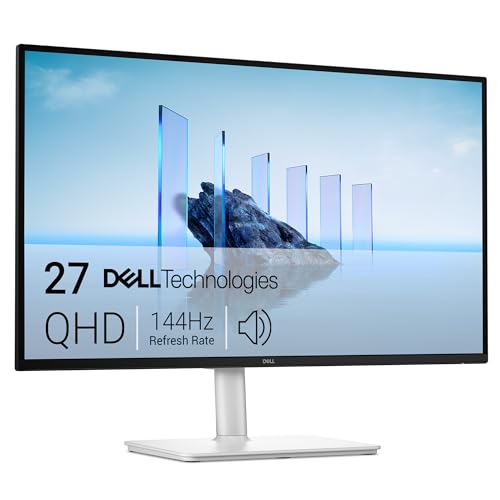
Best 4K value: Dell S2725QC
The S2725QC is a 27-inch 4K IPS monitor at up to 120 Hz with FreeSync Premium, 350 nits, 1500:1 contrast, 99 percent sRGB and a matte finish. The upstream USB-C port is 5 Gbps with DisplayPort 1.4 Alt Mode and up to 65 watts of power delivery, with a downstream USB-C port at 15 watts. It also has two HDMI ports that support 4K at 120 Hz, two USB-A ports, and dual 5-watt speakers. Dell’s spec sheets list only USB-C and HDMI video inputs, even though some retailers mention DisplayPort.
At 163 ppi text is crisp, and 65 watts suits ultrabooks and most 13 to 14-inch laptops. Sources disagree on response time (4 ms versus 8 ms), which is typical of how makers define it. It uses a TUV Rheinland four-star eye comfort rating.
- Who it is for: ultrabook owners and students who want 4K sharpness without a premium monitor.
- Pros: 4K at 120 Hz, two HDMI ports, speakers, simple one-cable setup.
- Cons: 65 W is too little for performance laptops, fewer hub features, no KVM or Ethernet.
Best budget home office: BenQ GW2786TC
The GW2786TC is a 27-inch 1080p IPS monitor with a 100 Hz refresh rate, 99 percent sRGB and 250 nits. BenQ lists 65 watts of USB-C power delivery, DisplayPort Alt Mode, an HDMI 1.4 port, a DisplayPort 1.2 input, DisplayPort out for daisy-chaining, two USB-A downstream ports and a 3.5 mm audio output. It has dual 2-watt speakers and a noise-cancelling microphone, which helps video calls without an extra webcam microphone. The stand gives 130 mm of height adjustment, tilt, swivel and pivot.
The 1080p resolution on 27 inches is coarse for text (about 82 ppi), so this is a pick for people who value price and convenience over sharpness. It is flicker-free and certified for low blue light.
- Who it is for: students and home-office users who want a one-cable monitor at the lowest tier.
- Pros: 65 W charging, microphone and speakers, full ergonomic stand, daisy-chain support.
- Cons: 1080p is not sharp at 27 inches, 250 nits is modest, HDMI 1.4 limits some features.
Best for business laptops: Lenovo ThinkVision P27QD-40
The P27QD-40 is a 27-inch QHD (2560×1440) IPS monitor with a 24 to 120 Hz refresh range, 350 nits, 1500:1 contrast and 10-bit color (8-bit plus FRC), factory-calibrated to 99 percent sRGB per Lenovo. The main USB-C port runs at USB 10 Gbps with USB PD 3.1 up to 140 watts and DisplayPort 1.4 Alt Mode, and it doubles as the USB upstream. Other ports include four USB-A (5 Gbps), HDMI 2.1, DisplayPort in and out, a 15-watt USB-C downstream port and 2.5 Gb Ethernet. The stand offers 155 mm of height adjustment.
Lenovo’s documentation warns that the 140-watt port should be used with approved products and the cable in the box. Note that an older Lenovo PSREF version lists a 5 Gbps USB-C port, while newer sheets list 10 Gbps, so use the latest sheet.
- Who it is for: business laptop users who want 140 W charging, Ethernet and a solid stand.
- Pros: 140 W power delivery, 2.5 GbE, 1440p sharpness, 120 Hz, excellent ergonomics.
- Cons: QHD is less sharp than 4K at 27 inches, no KVM mentioned in the spec sheet, and the 140 W port has cable restrictions.
Best color-for-money middle: LG UltraFine 27UP850K-W
The 27UP850K-W is a 27-inch 4K IPS monitor with 95 percent DCI-P3, VESA DisplayHDR 400, 400 nits, 1200:1 contrast and a 5 ms response time at 60 Hz. The USB-C port offers 90 watts of power delivery with data. Other ports include two HDMI, one DisplayPort, a headphone output and two USB 3.0 downstream ports, with built-in 5-watt speakers, FreeSync and a tilt, height and pivot stand.
At 90 watts it covers most 14 and 15-inch laptops and many 16-inch models in light use. Reviewers describe reasonable color and an uncluttered design. The 60 Hz refresh rate and absence of a KVM mark it as a no-frills panel.
- Who it is for: creative hobbyists and professionals on a budget who want wide color and 4K sharpness.
- Pros: 90 W charging, 95% DCI-P3, 4K, adjustable stand, speakers.
- Cons: 60 Hz only, DisplayHDR 400 is modest, limited hub features.
Best for gaming laptops: MSI MPG 321URX QD-OLED
The MPG 321URX is a 31.5-inch 4K QD-OLED monitor at 240 Hz with a 0.03 ms response time, FreeSync Premium, 99 percent DCI-P3, true 10-bit color and VESA DisplayHDR 400 True Black. Peak brightness reaches about 1000 nits in a small window, 500 nits at 10 percent and 250 nits full screen. It offers USB-C with DisplayPort Alt Mode and 90 watts of power delivery, DisplayPort 1.4 with DSC, two HDMI 2.1 ports and a USB hub with KVM. MSI backs it with a three-year warranty that covers burn-in.
RTINGS recommended it over a rival if USB connectivity matters, because of the 90-watt USB-C and KVM. A gaming laptop that draws 150 watts or more under load will still need its own charger during heavy play, since 90 watts is lower than a gaming laptop’s peak draw.
- Who it is for: gaming-laptop owners who want one cable for work and a high-refresh OLED for play.
- Pros: very fast OLED, excellent contrast, KVM, 90 W USB-C, burn-in warranty.
- Cons: premium tier, 90 W is too little for a gaming laptop under load, text rendering on QD-OLED is slightly less crisp than IPS.
Setup steps for a clean one-cable desk
- Identify the right laptop port. On laptops with several USB-C ports, use the one with a Thunderbolt or DisplayPort symbol.
- Use the cable in the box. Especially for 140-watt monitors, an uncertified cable can overheat or limit power. Lenovo explicitly advises using the supplied cable.
- Set the monitor’s input. Select the USB-C input in the on-screen menu if it does not switch automatically.
- Enable high refresh. Set 100 or 120 Hz in the display settings and confirm the monitor’s USB mode supports it. Some monitors reduce refresh when the USB hub runs at a higher speed.
- Choose scaling. Set 125 to 150 percent for a 27-inch 4K screen if text appears small.
- Update firmware. Update the laptop BIOS and the monitor firmware if compatibility issues, such as flickering or lost signals, appear.
Ownership realities: what goes wrong over time
Most USB-C monitor problems come from cables and power negotiation rather than the panel. A marginal cable can cause flicker, intermittent signal loss or reduced charging. Laptops that sleep and wake sometimes fail to bring the display back, which usually clears with a firmware update. Keep an eye on the monitor’s USB hub speed setting: enabling a fast USB data mode can reduce the video bandwidth available on a USB-C link, which is why some monitors limit refresh rate when the hub is active. On OLED panels, enable pixel refresh and avoid leaving a static taskbar at full brightness. Clean any screen with a soft microfiber cloth and avoid spraying liquid directly onto the panel.
Frequently Asked Questions
How many watts of USB-C power delivery do I need?
Match or exceed your laptop’s original charger. A 45 to 65 watt ultrabook is fine with a 65-watt monitor, a mainstream 14 or 15-inch laptop is comfortable at 90 watts, and a performance 16-inch laptop usually needs 140 watts. If the monitor delivers less than the laptop’s peak draw, the battery will slowly drain under heavy load.
Will any USB-C cable work?
No. The cable must support video (DisplayPort Alt Mode, USB4 or Thunderbolt) and the power level you need. Use the cable that came with the monitor, especially for 100 to 140 watts.
Is 4K worth it on a 27-inch monitor?
Yes for text-heavy work. At about 163 pixels per inch, 4K text is noticeably sharper than 1440p at 109 ppi or 1080p at 82 ppi. If you game on a modest laptop, 1440p can be easier to drive.
Can I connect two laptops to one USB-C monitor?
Yes, if the monitor has multiple inputs. Models with a KVM switch, such as the Dell U2725QE and U3225QE or the MSI MPG 321URX, let you share one keyboard and mouse between two computers and switch with a button.
Do USB-C monitors work with both Windows and Mac laptops?
Generally yes, because the standards are the same. Mac laptops may have different external display limits, and fractional scaling behaves differently, so a monitor with high pixel density, such as a 4K panel at 27 inches, usually looks best.
Why is my laptop not charging from the monitor?
The most common causes are a monitor that supplies less power than the laptop needs, a cable that does not support the wattage, or a laptop port that does not accept charging. Try the cable supplied with the monitor and a different laptop port.







Write Your Review
No reviews yet. Be the first to share your experience!