

Key takeaways
- Work in a dim room and set the screen to a fixed brightness of about 120 nits for print proofing, so previews match paper.
- Turn off True Tone and Night Shift while making color decisions, then turn them back on for comfort.
- Use an external color-managed monitor at your desk and treat the laptop as the field tool.
For most photographers, the best MacBook Air for photo editing in 2026 is the 13-inch M5 model with 24GB of unified memory and at least 1TB of storage, or the 15-inch M5 with the same memory if you want more canvas for retouching. The Air runs Lightroom Classic, Photoshop and Capture One comfortably on a fanless body, but the memory and SSD you choose matter more than the chip tier, and its screen is a good P3 panel rather than an HDR reference display.
This guide is built around configurations rather than a single model, because that is how Apple sells the Air. The same laptop behaves very differently with 16GB and 512GB than with 32GB and 2TB once a catalog reaches tens of thousands of RAW files. The specs below come from Apple’s published tech specs for the MacBook Air with M5, the MacBook Neo and the MacBook Pro, and the workflow advice reflects how Adobe and Capture One describe their own memory and GPU use.
Our top picks


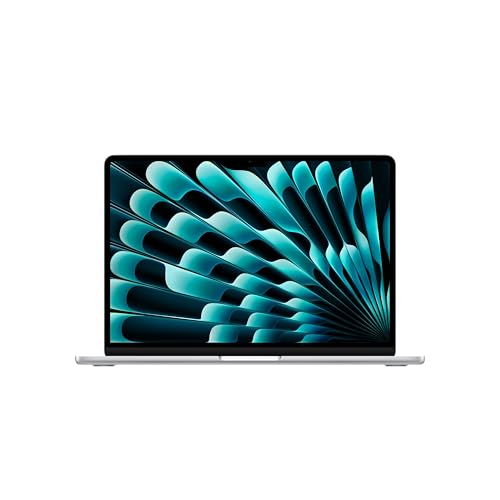

As an Amazon Associate we earn from qualifying purchases at no extra cost to you.
Quick Comparison of the Best MacBook Air Configurations for Photo Editing
| Pick | Best for | Chip and memory | Display | Storage to choose | Price tier |
|---|---|---|---|---|---|
| 13-inch Air M5, 16GB | Hobbyists, JPEG and light RAW work | M5, 10-core CPU, 16GB | 13.6-inch, 2560×1664, 500 nits, P3 | 512GB plus an external SSD | Mid-range |
| 13-inch Air M5, 24GB | Best overall for enthusiasts | M5, 10-core CPU, 10-core GPU, 24GB | 13.6-inch, 2560×1664, 500 nits, P3 | 1TB | Upper mid-range |
| 15-inch Air M5, 16GB | Larger canvas for less money | M5, 10-core CPU, 10-core GPU, 16GB | 15.3-inch, 2880×1864, 224 ppi, 500 nits | 512GB plus an external SSD | Upper mid-range |
| 15-inch Air M5, 32GB | Heavy catalogs, stacking, panoramas | M5, 10-core CPU, 10-core GPU, 32GB | 15.3-inch, 2880×1864, 224 ppi, 500 nits | 2TB | Premium |
| 13-inch Air M5, 32GB | Travel photographers who want maximum memory in the lightest body | M5, 10-core CPU, 32GB | 13.6-inch, 2560×1664, 500 nits, P3 | 1TB to 2TB | Premium |
| MacBook Neo | Culling, quick edits, students (not a pro editing machine) | A18 Pro, 6-core CPU, 8GB | 13-inch, 2408×1506, 500 nits, sRGB | 512GB | Budget |
| MacBook Pro 14-inch M5 | Step-up for HDR editing and a card slot | M5, 10-core CPU, 10-core GPU, 16GB to 32GB | 14.2-inch XDR, 3024×1964, up to 1600 nits HDR peak | 1TB or more | Premium |
Best Overall: 13-Inch MacBook Air M5 With 24GB and 1TB
The 13-inch Air with the M5 chip is the configuration most photographers should start from. Apple lists a 10-core CPU with four super cores and six efficiency cores, an 8- or 10-core GPU, a 16-core Neural Engine and 153GB/s of memory bandwidth. The 13.6-inch Liquid Retina display runs at 2560×1664 with 500 nits of brightness and wide P3 color, which covers nearly everything a print or web workflow needs.
The reason to pick 24GB over the 16GB base is headroom. Lightroom Classic caches previews and Photoshop keeps history states in memory, and Apple silicon shares one pool between CPU and GPU. Once you open a 45-megapixel RAW file, add a few layers and keep a browser and a tethering app open, 16GB can start to swap to the SSD. That is not a failure, because Apple’s SSDs are fast, but 24GB keeps editing fluid and lets the machine age more gracefully. Memory cannot be upgraded later, so this is the most important purchase decision.
Who it suits: wedding and event shooters who edit on the road, travel photographers, and anyone who works from a single laptop with a catalog of around 30,000 to 80,000 images. Main trade-off: the display tops out at 500 nits and has no mini-LED HDR, so highlight judgment on HDR gain-map files is approximate.
Best Value Starting Point: 13-Inch MacBook Air M5 With 16GB
The base 16GB configuration is a realistic choice for hobbyists who shoot 20 to 26 megapixel files, edit in Lightroom and rarely stack layers in Photoshop. Apple raised the entry memory on the Air to 16GB, which removes the old 8GB bottleneck, and the same chip and display are used across the 13-inch range. Pair it with an external SSD for the catalog and archive, and keep the internal 512GB for the operating system, applications and the current month of work.
Who it suits: students, enthusiasts and travelers who want the lightest, quietest kit. Main trade-off: if you later move to high-resolution bodies or heavy Photoshop composites, you cannot add memory, so buy 24GB if there is any doubt.
Best Bigger Screen: 15-Inch MacBook Air M5 With 16GB
The 15-inch Air uses the same M5 chip family, with a 10-core CPU and 10-core GPU, but a 15.3-inch Liquid Retina display at 2880×1864 and 224 pixels per inch. For photo work the extra area is the point. Panels, filmstrips and the histogram sit beside a larger image, so you do less zooming and panel hiding. It weighs about 3.3 pounds (1.51 kg) according to Apple, which is still light for a 15-inch machine, and battery life is rated at around 18 hours of video playback.
Who it suits: retouchers, portrait photographers and anyone who found the 13-inch screen cramped. Main trade-off: it costs more than the 13-inch and the display brightness and gamut are the same, so you pay for size rather than image quality. Treat 16GB as the minimum and move to 24GB if you edit large RAW files daily.
Best for Heavy Catalogs: 15-Inch MacBook Air M5 With 32GB and 2TB
Apple lets you configure the Air with up to 32GB of unified memory and up to 4TB of storage. A 32GB, 2TB 15-inch is the strongest Air for photography: it holds a large working library locally, handles focus stacking, HDR merges and panorama stitching with room to spare, and still sits silent on a desk. Because the Air has no fan, long exports and AI denoise passes eventually settle at a lower sustained speed than a MacBook Pro, which is the honest ceiling of this design.
Who it suits: landscape and real estate photographers who merge many frames, and professionals who want one machine without moving up to the Pro. Main trade-off: once memory and storage are maxed, the gap to a 14-inch MacBook Pro narrows, and the Pro brings a brighter XDR screen, an SD card reader and active cooling.
Best Lightest Travel Setup: 13-Inch MacBook Air M5 With 32GB
If every ounce counts, the 13-inch Air with 32GB is the smallest way to get a generous memory pool. It suits photographers who cull and edit in hotel rooms and on trains, and who tether to a laptop for client review. Choose 1TB if you carry a rugged external SSD, and 2TB if the laptop is your only copy during a trip, though you should always keep a second backup.
Main trade-off: the 13.6-inch screen is small for detailed retouching, so plan to connect an external monitor at the desk. The Air supports external displays through its Thunderbolt 4 ports, and a color-managed monitor is a better investment than extra internal storage.
Budget Alternative: MacBook Neo for Culling and Light Edits
The MacBook Neo uses an A18 Pro chip with a 6-core CPU, 5-core GPU and 8GB of memory, a 13-inch 2408×1506 display at 500 nits and sRGB color, and about 16 hours of battery life. It is a good laptop for students and casual shooters, but Apple designed it for everyday use, not for professional color work. The sRGB panel cannot show the wider P3 colors that many cameras and printers can capture, and 8GB of memory is tight for large RAW files and Photoshop layers.
It makes sense as a culling and review machine, or for editing JPEGs and small RAW files from a phone or a compact camera. Main trade-off: no wide gamut and limited ports, so it is the wrong choice if clients or print labs expect accurate color.
Best Step-Up: MacBook Pro 14-Inch M5
If the Air’s limits worry you, the 14-inch MacBook Pro with the M5 chip is the next logical step. Apple lists a 14.2-inch Liquid Retina XDR display at 3024×1964 and 254 ppi, with 1000 nits sustained brightness and 1600 nits peak for HDR content, plus an optional nano-texture finish that cuts reflections for outdoor editing. It adds HDMI, an SDXC card slot, Thunderbolt 5 and MagSafe, and a 72.4Wh battery rated at up to 24 hours of video streaming. The base configuration starts at 16GB and 1TB, and can be raised to 32GB of memory.
Who it suits: photographers who deliver HDR images, shoot tethered for long sessions, or want to ingest cards directly. Main trade-off: it is heavier and costs more than an Air with the same memory.
How to Choose Memory and Storage for Photo Editing
The table below maps common situations to a configuration. These are practical starting points based on how photo applications use memory and cache, not strict limits.
| Your situation | Memory | Internal storage | Notes |
|---|---|---|---|
| JPEG and light RAW, up to 24MP, Lightroom only | 16GB | 512GB | Keep the catalog and archive on an external SSD |
| RAW from 33 to 50MP, Lightroom plus Photoshop | 24GB | 1TB | Best balance for most buyers |
| Stacking, panoramas, large composites | 32GB | 1TB to 2TB | Consider a MacBook Pro for sustained exports |
| High-resolution medium format (100MP) | 32GB | 2TB | Files of 100MB or more fill drives quickly |
| Client-facing HDR or print proofing | 24GB to 32GB | 1TB | Consider the MacBook Pro XDR display or an external reference monitor |
A Worked Storage Calculation
Storage is where many photographers underbuy. Suppose you shoot 300 frames a week with a 45-megapixel camera that writes RAW files of roughly 50MB each. That is about 15GB a week, or roughly 780GB a year, before sidecar files, Lightroom previews and exported JPEGs. Smart previews and a standard preview cache can add 5 to 15 percent. A 1TB drive holds one year of work with almost no space for apps, while a 512GB drive fills in about six months.
This is why the sensible plan is a working drive and an archive. Keep the current year on the internal SSD, move finished years to an external NVMe SSD, and keep a second backup elsewhere. Apple charges a premium for internal upgrades, so choose the internal size for your active year and use external storage for the rest.
A second example shows how fast it grows for event work. A wedding photographer who delivers 12 weddings a year at 3,000 frames each, shooting 33-megapixel RAW files of about 40MB, writes roughly 1.4TB of originals annually. No Air internal drive holds that comfortably, so the workflow has to be built around an external archive from day one, with only the active jobs and the Lightroom catalog on the laptop.
Display, Color and What the Air Can and Cannot Show
The Air’s Liquid Retina panel covers the P3 gamut, supports True Tone and reaches 500 nits, which is enough for indoor editing and web delivery. It does not have the mini-LED XDR panel of the MacBook Pro, so it cannot show the full range of HDR gain maps that newer cameras and phones now produce. If your work is mostly sRGB and Display P3 for web, social and standard print, the Air is accurate enough after a hardware calibration. Calibrating with a colorimeter, as Datacolor and Calibrite recommend in their documentation, matters more than the choice between 13 and 15 inches.
- Work in a dim room and set the screen to a fixed brightness of about 120 nits for print proofing, so previews match paper.
- Turn off True Tone and Night Shift while making color decisions, then turn them back on for comfort.
- Use an external color-managed monitor at your desk and treat the laptop as the field tool.
Ports, Card Readers and Accessories You Will Need
The MacBook Air provides two Thunderbolt 4 ports, MagSafe charging and a headphone jack. It has no built-in SD card slot, so photographers need a USB-C card reader. Choose a reader that supports UHS-II or CFexpress for your media, because a slow reader can add many minutes to every import. Because the ports are on one side, plan a compact hub or a dock for desk use that connects a monitor, a card reader and power in one cable.
- A UHS-II or CFexpress Type B card reader that matches your camera media.
- A rugged external NVMe SSD for the archive, ideally with its own backup copy.
- A hardware calibrator for the built-in display or an external monitor.
- A sleeve or padded case, since the thin aluminum body marks easily in a camera bag.
Thermals and Sustained Performance
The Air has no fan, so heavy tasks such as exporting hundreds of RAW files, running AI denoise on a batch or generating 1:1 previews can cause the chip to reduce speed after several minutes. For ordinary editing, which comes in short bursts, this is rarely noticeable, and the benefit is silence in a quiet studio or hotel room. If you regularly run exports of several hundred images, schedule them while you do something else, or consider a MacBook Pro whose fans let the chip hold its speed.
Software Notes: Lightroom, Photoshop and Capture One on Apple Silicon
Lightroom Classic, Photoshop and Capture One all run natively on Apple silicon, and recent releases take advantage of the GPU and Neural Engine for tasks such as Enhance, AI masking and noise reduction. Adobe’s system requirements guidance recommends at least 16GB of RAM for Lightroom Classic and more for large Photoshop documents, and photographers generally find the practical sweet spot above those minimums. Keep the Lightroom catalog on the fastest drive, store the preview cache on internal storage, and purge the cache periodically. Use the latest macOS release, because performance fixes for camera RAW support arrive through system and application updates.
A Sensible Editing Workflow for a Fanless Laptop
Working with the Air’s strengths makes it feel faster than the spec sheet suggests. Import with standard previews, then cull on the built-in display before touching adjustments, since culling is light work that the Air handles without heat. Build 1:1 previews only for the selects, apply masks and noise reduction in a single pass rather than repeatedly, and export in batches while the laptop is plugged in. Close apps you do not need, because background browsers and cloud sync clients compete for the same memory pool as your editor.
- Import to the internal SSD, with a second copy written to an external drive at the same time.
- Cull with a viewer or Lightroom’s Library module, rejecting weak frames early.
- Edit the selects, using presets and synchronized settings so each image needs fewer adjustments.
- Run heavy AI tools, such as denoise, last and on a limited number of frames.
- Export and archive, then move finished jobs off the internal drive to keep at least 20 percent free.
Mistakes to Avoid When Buying an Air for Photography
- Choosing 16GB because the upgrade feels expensive and then outgrowing it within two years. Memory and storage are fixed at purchase.
- Putting the whole catalog on the internal SSD and leaving less than 20 percent free, which slows both the system and the catalog database.
- Expecting HDR reference accuracy from a 500-nit panel.
- Ignoring the card reader until the first shoot.
- Skipping a backup. An SSD can fail, and a laptop can be lost or stolen.
Frequently Asked Questions
Is the MacBook Air good enough for professional photo editing?
Yes, for most workflows. An M5 Air with 24GB of memory handles Lightroom Classic and Photoshop well, and many working photographers use one. The limits are sustained heavy exports because it has no fan, and the 500-nit display, which is not an HDR reference screen.
Should I buy the 13-inch or 15-inch Air for photo editing?
Choose the 13-inch for portability and the 15-inch for comfort. The chip, color gamut and brightness are the same, so the decision comes down to screen size and weight. If you retouch for hours, the 15-inch is easier on your eyes and workflow.
How much memory do I need in a MacBook Air for Lightroom?
16GB is workable for modest files and catalogs. 24GB is the recommended point for most enthusiasts and professionals, and 32GB makes sense if you stack frames, build panoramas or work with very high resolution files. Memory cannot be upgraded later.
Does the MacBook Air have an SD card slot?
No. It has two Thunderbolt 4 ports and MagSafe, so you need a USB-C card reader. The 14-inch and 16-inch MacBook Pro models include an SDXC slot if built-in ingest matters to you.
Is the MacBook Neo a good alternative for photographers?
It is a capable budget laptop for culling and light edits, but its sRGB display and 8GB of memory make it a weak fit for professional color work and large RAW files. For serious editing, start with an Air with at least 16GB, preferably 24GB.


Write Your Review
No reviews yet. Be the first to share your experience!