

Key takeaways
- Soldered memory is permanent. Apple laptops and many thin Windows laptops cannot be upgraded. Buy the memory you will need in three years.
- Glossy OLED reflects light. Editing in a bright room means matching your lighting rather than turning the brightness up.
- Calibration drifts. Even a good panel changes over months. A hardware colorimeter is a one-time purchase that keeps prints matching the screen.
- Battery wear is faster on large OLED laptops. A 75Wh pack drains quickly at full brightness, so edit plugged in when color accuracy matters.
- Storage fills quietly. Lightroom previews and Photoshop scratch files can consume tens of gigabytes without warning. Clear them seasonally.
The best budget laptop for photo editing in 2026 is the MacBook Air with the M5 chip if you can stretch to it, because it pairs 16GB of memory with a wide-gamut P3 display and a fanless body. If you want Windows, a 100% DCI-P3 OLED model such as the ASUS Vivobook S16 OLED or an Acer Swift Go 16 OLED gives you the most color accuracy for the money of any budget class. Skip basic 1080p IPS panels unless you plan to edit on a calibrated external monitor.
“Budget” in this guide means the lower and middle price tiers of the current market, not a specific number. Photo editing is unusual because the screen matters as much as the processor, and a cheap laptop usually saves money on exactly the part you stare at. The picks below are chosen by display coverage, memory, and what happens when your catalog grows, using manufacturer spec sheets and published review measurements rather than guesswork.
Our top picks


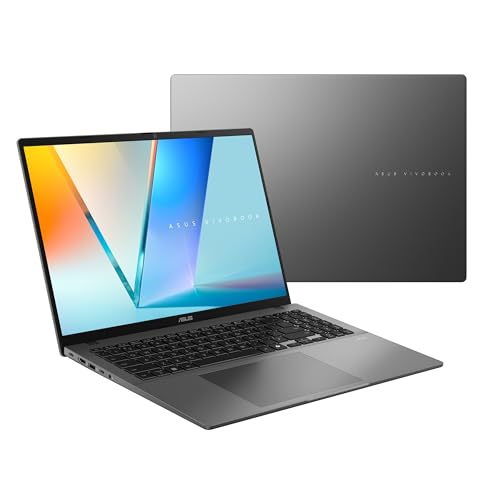
As an Amazon Associate we earn from qualifying purchases at no extra cost to you.
Quick Comparison of the Budget Picks
| Pick | Best for | Display | Memory | Weight / battery |
|---|---|---|---|---|
| MacBook Air 13-inch (M5) | Best overall value | 13.6-inch, 2560 x 1664, P3, 500 nits | 16GB unified, up to 32GB | 53.8Wh, fanless, up to 18 hours video per Apple |
| ASUS Vivobook S16 OLED | Best Windows screen | 16-inch OLED, 3200 x 2000, 120Hz, 100% DCI-P3 (S5606) | 16GB class | About 1.5 kg, 75Wh |
| Acer Swift Go 16 OLED | Large OLED for less | 16-inch OLED, 120Hz, resolution varies by generation | 16GB class | About 1.5 to 1.6 kg, 65Wh to 75Wh |
| Acer Aspire 14 AI | Cheapest capable pick | 14-inch, 1920 x 1200 (IPS or OLED variants) | 16GB LPDDR5X, soldered | 65Wh, 1.24 kg (OLED) to about 1.4 kg (IPS) |
| Lenovo ThinkPad E16 Gen 3 | Upgradeable RAM and storage | 16-inch WUXGA IPS or WQXGA option | 8GB to 64GB depending on build | 48Wh, about 1.62 kg |
| MacBook Neo | Lightest editing on a Mac | 13-inch, 2408 x 1506, 500 nits | 8GB, fixed | 36.5Wh, 1.23 kg |
| ASUS ProArt PX13 | Stretch pick for color work | 13.3-inch 3K OLED, 100% DCI-P3, Pantone Validated | 32GB LPDDR5X, RTX 4060 | 73Wh, about 3.04 lb |
What Actually Matters for Photo Editing on a Budget
Lightroom Classic, Photoshop, Capture One and Affinity Photo behave differently, but they all stress the same four parts. In order of importance for a budget buyer, they are the display, the memory, the storage, and only then the processor.
Display: gamut first, resolution second
A display that covers roughly 100% of DCI-P3 or the P3 gamut shows nearly every color a camera captures and a modern monitor or phone can reproduce. A basic budget IPS panel often covers only a portion of sRGB. One published review of the ThinkPad E16 Gen 3 criticized its base panel at around 62% sRGB, which is why that laptop is better paired with a calibrated external monitor or the higher-end WQXGA option. For travel edits and quick culling, a wide-gamut OLED or the MacBook’s P3 screen is the practical fix.
Resolution matters less than coverage. A 14-inch 1920 x 1200 screen is sharp enough to judge focus at 100% zoom, and a 16-inch 3200 x 2000 panel simply gives you more room for panels and tool palettes.
Memory: the real performance limit
Here is a worked example. A 24-megapixel image is 6000 x 4000 pixels, or 24 million pixels. In 16-bit RGB, each pixel uses 6 bytes, so one full-size layer holds about 144 million bytes, or roughly 137 MB. A document with 20 full-size pixel layers therefore needs about 2.7 GB for the layers alone, before history states, smart objects, the operating system, and a browser with a dozen tabs. On an 8GB machine that headroom disappears quickly, and Photoshop falls back to its scratch disk, which is much slower than memory. This is why every reputable 2026 roundup treats 16GB as the practical minimum.
Storage: plan for the catalog, not the OS
A 45-megapixel raw file is commonly around 50 MB. A 10,000-photo catalog at that size is about 500 GB before previews, exports and edited files. A 512GB internal drive is enough for the application, the current job’s files and the Lightroom catalog with smart previews, provided the full archive lives on an external SSD. If you work from internal storage only, plan for 1TB.
Processor: efficient beats fast on a budget
Modern efficient chips are plenty for photo work. Apple’s M5, recent Intel Core Ultra chips and AMD Ryzen AI parts all handle Lightroom exports and Photoshop filters comfortably. Raw conversion, noise reduction and masking benefit from more cores, but a dedicated GPU is a luxury at this level. The ProArt PX13 below is the exception, and it is a stretch pick for a reason.
Best Overall: MacBook Air 13-inch (M5)
Apple announced the M5 MacBook Air in March 2026. Per Apple’s tech specs, it uses a 10-core CPU, a 16-core Neural Engine, and 16GB of unified memory as standard, configurable to 24GB or 32GB. Storage starts at 512GB. The 13.6-inch Liquid Retina display is 2560 x 1664 at 224 ppi with 500 nits of brightness and a P3 wide-gamut color space, so Photoshop colors line up with a calibrated external display in a way most budget Windows panels cannot match.
Who it suits: students, hobbyists, wedding and event shooters who cull and deliver on the road, and anyone who wants the cheapest Mac that is not compromised on memory. Apple rates battery life at up to 18 hours of video playback, and independent measurements have reported results close to that figure.
Trade-offs: the body is fanless, so a long batch export or heavy AI denoise pass can throttle the chip after several minutes. Ports are limited to two Thunderbolt 4 connections and a headphone jack, so an SD card reader is a practical accessory. Memory and storage are fixed at purchase, so choose the 24GB model if your files are large.
Best Windows Display: ASUS Vivobook S16 OLED
The Vivobook S16 OLED is the budget Windows laptop that most directly answers the color-accuracy problem. The S5606 generation uses a 16-inch 3.2K (3200 x 2000) OLED at 120Hz with 100% DCI-P3 coverage per ASUS, a 75Wh battery and a weight of about 1.5 kg. One published video-rundown measurement from ITPro came in at just over nine hours, which is respectable for a 16-inch OLED.
Check the exact model before buying, because ASUS sells several Vivobook S16 generations at once. The 2026 S3607 refresh uses Intel Core Ultra Series 3 and lists a different panel and a 70Wh battery, so confirm the display and DCI-P3 figure on the spec sheet. Look for 16GB or more of memory and a 512GB SSD.
Who it suits: Windows users who want a big, vivid screen for culling and retouching. The trade-off is brightness and sustained speed, since thin chassis designs trade peak performance for portability.
Best Large OLED for Less: Acer Swift Go 16 OLED
The Swift Go 16 is Acer’s thin-and-light 16-inch with an OLED panel. The 3.2K 120Hz version, based on the SFG16-72 with a Core Ultra processor, has a 3200 x 2000 screen and a 65Wh battery at roughly 1.55 to 1.6 kg. Newer generations such as the SFG16-73 changed the panel to 2048 x 1280 at 120Hz and the battery to 75Wh in some builds, so the exact model matters more than the name.
Who it suits: buyers who want a large OLED at a lower tier than the Vivobook or the MacBook. Reviews describe its color coverage as strong for the class. The trade-off is that its trackpad, speakers and chassis feel more modest than the premium brands, and the sharpest panel is not offered in every region.
Best Cheapest Capable Pick: Acer Aspire 14 AI
The Aspire 14 AI with a Core Ultra 5 226V pairs 16GB of soldered LPDDR5X with a 65Wh battery and Thunderbolt 4 in a body that weighs about 3.1 pounds in IPS form and 1.24 kg in the OLED A14-53M variant. Roundups of 2026 budgets often cite it as proof that a capable Photoshop machine exists in the lowest tier.
The strategy is to buy the OLED variant if you can find it, because the base 1920 x 1200 IPS screen is the weak link. Memory cannot be upgraded later and tops out at 16GB, so this laptop is best for JPEG-heavy and light raw work rather than massive stacked files.
Best for Upgradeability: Lenovo ThinkPad E16 Gen 3
The E16 is a business laptop, and its advantage for editors is practical. Lenovo’s specification lists Intel Core 5 210H and Core Ultra options plus AMD Ryzen choices, a 16-inch WUXGA panel as standard, and a WQXGA 2560 x 1600 option at 400 nits. Core 5 210H builds use two DDR5 SODIMM slots, and one reviewed unit also had two M.2 slots, so you can add memory and storage later. Lunar Lake builds, in contrast, have soldered 16GB.
The weak points are the base display and the 48Wh battery. If you buy this one, pick the QHD panel and plan on a hardware calibrator. Weight is about 1.62 kg, and the keyboard is among the best in the class, which helps if you also write captions, invoices and client emails.
Lightest Mac Option: MacBook Neo
Apple’s MacBook Neo, released in March 2026, uses an A18 Pro chip with a 6-core CPU and 5-core GPU, 8GB of unified memory, and 256GB or 512GB of storage. Its 13-inch display is 2408 x 1506 at 219 ppi and 500 nits, and the weight is 1.23 kg. The battery is 36.5Wh, with Apple citing up to 16 hours of video playback and 11 hours of wireless web.
It is a good first computer and is perfectly fine for light JPEG edits, social media photography and quick Lightroom adjustments. It is a poor fit for large raw catalogs and stacked Photoshop files because memory is fixed at 8GB. Ports are a single 10Gbps USB-C with DisplayPort and a USB 2.0 port, so card readers will be slow. Most guides treat the MacBook Air as the minimum Apple machine for serious editing.
Stretch Pick for Color Work: ASUS ProArt PX13
If the budget has some room, the ProArt PX13 (HN7306) is a compact creator laptop. The WV configuration uses a Ryzen AI 9 HX 370 with 12 cores, an RTX 4060 with 8GB of GDDR6, 32GB of LPDDR5X memory, and a 13.3-inch 3K (2880 x 1800) OLED touchscreen with 100% DCI-P3 coverage, Pantone Validation and stylus support, per ASUS. It carries a 73Wh battery and weighs about 3.04 pounds.
Because it has a dedicated GPU, it accelerates AI masking, generative tools and GPU-heavy filters faster than the integrated-graphics picks above. The trade-off is cost and fan noise under load, and it is the choice for a user who edits professionally but cannot afford the biggest workstation.
Decision Matrix by Situation
| Your situation | Choose | Why |
|---|---|---|
| Mostly Lightroom, travel often, want to edit anywhere | MacBook Air 13-inch (M5) | 16GB base, P3 screen, long battery |
| Windows only, color accuracy is the priority | Vivobook S16 OLED | 100% DCI-P3 OLED at a moderate tier |
| Need to expand RAM or storage later | ThinkPad E16 Gen 3 (Core 5 or Ryzen build) | SODIMM and M.2 slots |
| Lowest tier but must run Photoshop | Aspire 14 AI, OLED variant | 16GB, light, long battery |
| JPEG and social media only | MacBook Neo | Light and quiet, but 8GB limits large files |
| Client work with AI tools and large layered files | ProArt PX13 | Dedicated GPU, 32GB, calibrated OLED |
Ownership Realities That Cost Money Later
- Soldered memory is permanent. Apple laptops and many thin Windows laptops cannot be upgraded. Buy the memory you will need in three years.
- Glossy OLED reflects light. Editing in a bright room means matching your lighting rather than turning the brightness up.
- Calibration drifts. Even a good panel changes over months. A hardware colorimeter is a one-time purchase that keeps prints matching the screen.
- Battery wear is faster on large OLED laptops. A 75Wh pack drains quickly at full brightness, so edit plugged in when color accuracy matters.
- Storage fills quietly. Lightroom previews and Photoshop scratch files can consume tens of gigabytes without warning. Clear them seasonally.
Setup That Helps Budget Hardware Perform
- Use smart previews. They let Lightroom edit at lower resolution while the full raw files stay on an external drive, which cuts load on both memory and storage.
- Limit history states. Lowering Photoshop’s history count reduces memory pressure on 16GB machines.
- Turn off unneeded GPU effects on integrated graphics if the interface stutters while panning at high zoom.
- Calibrate once per month. A colorimeter profile ensures that the screen matches your exports.
- Export in batches overnight. Fanless machines throttle during long exports, so schedule them while the laptop is idle.
How to Judge a Budget Panel Before You Commit
Marketing pages rarely tell you what a photo editor needs to know, so use this short checklist when comparing listings.
- Look for a gamut number. “100% DCI-P3” or “P3 wide color” is a meaningful claim. “NTSC 45%” or no figure at all usually means a basic sRGB-class screen.
- Check the panel type per configuration. Many laptop families ship with both IPS and OLED options under one name, and the cheaper configuration quietly uses the weaker screen.
- Confirm brightness. 300 nits is fine in a dim room, while 500 nits helps when you edit near a window or on a train.
- Note the refresh rate and finish. A 120Hz panel makes brush strokes and zooming feel smoother, and matte finishes reduce glare at the cost of slightly lower contrast.
- Plan for an external display. If the laptop has a single video-capable port, you may need a dock to connect a reference monitor and a card reader at the same time.
When two laptops tie on the checklist, choose the one with more memory. Screen quality and RAM are the two upgrades you cannot add after purchase on most thin laptops, and both decide whether the machine still feels fast in three years.
Frequently Asked Questions
How much RAM do I need for photo editing in 2026?
16GB is the practical minimum for Lightroom and Photoshop. With 8GB the applications open, but large layered files push the system into scratch-disk use that slows everything down. Choose 32GB if you edit panoramas, focus stacks, or high-megapixel raw files.
Is OLED good for photo editing?
Yes, if the panel covers close to 100% of DCI-P3 and you calibrate it. OLED gives deep blacks and strong contrast, but glossy screens reflect room light and brightness can be limited in bright rooms. Pair it with a hardware calibrator for the best results.
Do I need a dedicated GPU for Lightroom and Photoshop?
Not at a budget tier. Integrated graphics in Apple, Intel and AMD chips handle everyday editing, and a dedicated GPU mainly speeds up AI features, large filters and video work. It is worth the extra cost only if you rely on those tools daily.
Is the MacBook Neo enough for photo editing?
It handles light edits, but 8GB of fixed memory limits large raw catalogs and layered files. Reviewers consistently recommend the MacBook Air as the minimum for serious work. Treat the Neo as a very portable option for casual editors.
Should I buy a cheap laptop and an external monitor instead?
That can be a smart plan. A modest laptop with a calibrated external display gives you accurate color at your desk, while the laptop screen is used only for travel and rough edits. Check that the laptop supports an external display at the resolution you want.
How much storage should a photo editing laptop have?
512GB is the lower limit for a laptop that stores only active work, with the archive on an external SSD. If you keep the whole catalog internally, choose 1TB. Remember that raw files at 45 megapixels commonly average about 50 MB each.


Write Your Review
No reviews yet. Be the first to share your experience!