

Key takeaways
- Pros: excellent battery, 120 Hz touch display on every model, quiet, light, strong build, 3:2 aspect ratio suits documents.
- Cons: Windows on Arm still has occasional compatibility gaps for niche drivers and older software, the screen is LCD rather than OLED, and the premium price is steep for the base storage.
The best touchscreen laptop for most people in 2026 is the Microsoft Surface Laptop 13.8-inch, because every configuration has a 120 Hz touch display, it weighs 2.96 pounds and Microsoft rates it for up to 20 hours of video playback. If you want an OLED panel and more raw power, the Dell XPS 14 (2026) and Samsung Galaxy Book6 Pro are the strongest Windows alternatives, while the Acer Chromebook Plus Spin 514 is the pick for a touch-first laptop with a tablet-style hinge. The right choice depends on whether you value battery life, screen quality, size or software compatibility most.
Our top picks
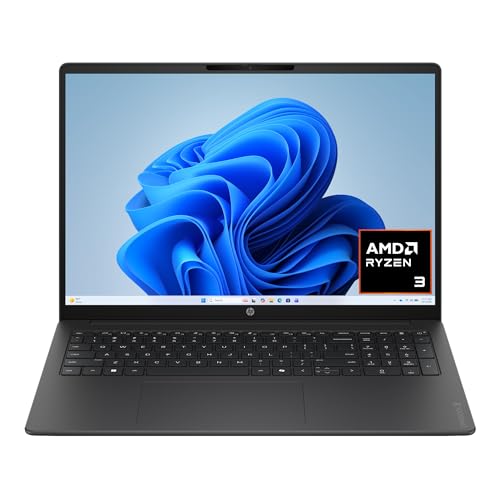


As an Amazon Associate we earn from qualifying purchases at no extra cost to you.
Quick Comparison of the Best Touchscreen Laptops
| Pick | Best for | Touch display | Weight | Battery | Price tier |
|---|---|---|---|---|---|
| Microsoft Surface Laptop 13.8-inch (8th Edition) | Best overall | 13.8-inch 2304 x 1536, 120 Hz | 2.96 lb | 54 Wh, up to 20 hours rated | Premium |
| Microsoft Surface Laptop 15-inch (8th Edition) | Best large screen | 15-inch 3270 x 2180, 120 Hz | 3.67 lb | 66 Wh, up to 19 hours rated | Premium |
| Dell XPS 14 (2026) | Best OLED for work and creative use | 14-inch 2880 x 1800 OLED, 20-120 Hz | 3.0 lb (OLED) | 70 Wh | Premium |
| Samsung Galaxy Book6 Pro 14-inch | Best lightweight AMOLED | 14-inch 2880 x 1800 AMOLED, 30-120 Hz | 2.73 lb | 67.18 Wh, up to 30 hours video rated | Premium |
| Samsung Galaxy Book6 Pro 16-inch | Best big AMOLED | 16-inch 2880 x 1800 AMOLED | 3.51 lb | 78.07 Wh | Premium |
| Lenovo ThinkPad X1 Carbon Gen 13 | Best for business | 14-inch touch IPS or 2.8K OLED options | About 2.17 lb | 57 Wh | Premium |
| Acer Chromebook Plus Spin 514 | Best budget-friendly convertible | 14-inch WUXGA or WQXGA+, 16:10 | 2.99 lb | 70 Wh, up to 17 hours rated | Mid |
Figures come from manufacturer spec pages and published reviews. Battery numbers are manufacturer ratings unless stated, and real-world results are usually lower at high brightness.
Do You Actually Need a Touchscreen on a Laptop?
A touchscreen is worth paying for if you annotate documents, sketch, present from the screen, use a tablet-style mode, or just prefer tapping and scrolling. It is less useful if you spend the day in spreadsheets and code, because a trackpad and keyboard are faster for precise work. Touch also has hidden costs: a glossy glass layer reflects more light, the digitizer uses a little extra power, and some models only offer touch on their highest-priced display option.
Before you buy, check three things. First, confirm that the exact configuration you are ordering includes touch, since several laptops sell touch and non-touch panels under the same model name. Second, check the display type, because OLED looks richer but can have shorter runtimes at high brightness than a good IPS panel. Third, check whether you want a stylus. Windows laptops with Microsoft Pen Protocol or USI support work with active pens, while a few models only respond to finger touch.
Best Overall: Microsoft Surface Laptop 13.8-Inch (8th Edition)
The 2026 Surface Laptop comes in 13-inch, 13.8-inch and 15-inch sizes, and all of them use Snapdragon X2 chips and touchscreens, per Microsoft. The 13.8-inch model offers the Snapdragon X2 Plus (10-core) or X2 Elite (12-core), a 13.8-inch PixelSense HDR touchscreen at 2304 x 1536 and 120 Hz, a weight of 2.96 pounds (1,342 grams), and a 54 Wh battery rated for up to 20 hours of video playback.
Notebookcheck reviewed the X2 Plus configuration and measured almost 19 hours in its Wi-Fi test at 150 nits and a little over 8.5 hours at full brightness, about 4.5 hours more than the previous generation. It also found that a 65 W adapter is enough and praised the bright screen and comfortable keyboard and trackpad. Owners on retail sites mention near-silent operation.
Who it is for: students, professionals and travelers who want an all-day laptop with a sharp 3:2 touch display and a quiet fanless-feeling experience.
- Pros: excellent battery, 120 Hz touch display on every model, quiet, light, strong build, 3:2 aspect ratio suits documents.
- Cons: Windows on Arm still has occasional compatibility gaps for niche drivers and older software, the screen is LCD rather than OLED, and the premium price is steep for the base storage.
Best Large Touchscreen: Microsoft Surface Laptop 15-Inch (8th Edition)
If you want the same experience on a bigger canvas, the 15-inch Surface Laptop uses a 15-inch PixelSense touchscreen at 3270 x 2180 and 120 Hz. Microsoft lists a 3.67-pound weight, a 66 Wh battery rated for up to 19 hours, up to 64 GB of memory, a removable SSD, Wi-Fi 7 and a microSD slot. The Snapdragon X2 Plus and X2 Elite options match the smaller model.
The larger 3:2 panel gives more vertical space for documents, timelines and web pages than a 16:9 screen of the same diagonal, which is why it suits multitasking with two windows side by side. The cost is that it is a heavier laptop than the 13.8-inch model, and it is priced accordingly.
- Pros: huge sharp display, removable SSD, microSD slot, strong battery rating, up to 64 GB memory.
- Cons: same Arm compatibility caveats, higher price, 3.67 lb is less portable.
Best OLED for Work and Creative Use: Dell XPS 14 (2026)
The 2026 Dell XPS 14 is the pick when screen quality and performance matter more than the lowest weight. The OLED option is a 14-inch 2880 x 1800 touch panel with a 20 to 120 Hz variable refresh rate. Digital Trends lists 400 nits in SDR, up to 525 nits in HDR and 100 percent DCI-P3 coverage. Reviewed configurations use the Core Ultra X7 358H with Arc B390 graphics, 32 GB of LPDDR5x and a 1 TB SSD, or the Core Ultra 7 355 with 16 GB and 512 GB. Notebookcheck also lists a Core Ultra 5 325 version.
It has three USB4 or Thunderbolt 4 ports, Wi-Fi 7, Bluetooth 6.0, a headphone jack and a 70 Wh battery with a 100 W USB-C adapter, but no SD card slot. The OLED model weighs 3 pounds, and the 2K LCD model weighs 3.05 pounds. Important: the cheaper 1920 x 1200 panel is non-touch, so touch is tied to the OLED upgrade.
Battery results depend on the panel. Tom’s Hardware called battery life on the 1920 x 1200 model incredible, and Dell claims up to 27 hours of video playback on the IPS model. Engadget’s OLED unit lasted 10 hours 21 minutes in PCMark 10’s Modern Office run. Reviews praise the OLED, the speakers and the haptic touchpad, and criticize the typing feel, the price and the weight relative to rivals.
- Pros: beautiful OLED, strong Intel graphics, haptic touchpad, three high-speed ports, 70 Wh battery.
- Cons: touch only on the OLED option, shorter OLED runtime, no SD slot, keyboard feel divides reviewers, expensive.
Best Lightweight AMOLED: Samsung Galaxy Book6 Pro 14-Inch
The Galaxy Book6 Pro is Samsung’s flagship Windows laptop, and the 14-inch version is the lighter of two sizes. Per Samsung, it has a Dynamic AMOLED 2X touchscreen at 2880 x 1800 that adapts between 30 and 120 Hz, with 500 nits in SDR and up to 1,000 nits in HDR. It uses Intel Core Ultra X7, Ultra 7 or Ultra 5 processors with 16 GB or 32 GB of LPDDR5X and 256 GB, 512 GB or 1 TB of storage.
The 14-inch model is about 11.6 mm thick and weighs 2.73 pounds (1.24 kg), with a 67.18 Wh battery and 65 W USB-C charging. Samsung quotes up to 30 hours of video playback, a claim you should treat as a best case. Tom’s Guide called it an early contender for a favorite Windows laptop of 2026.
- Pros: very light for a 14-inch, bright AMOLED touchscreen, thin body, big battery for its size.
- Cons: 30-hour rating is optimistic, premium pricing, glossy screen reflects in bright rooms.
Best Big AMOLED: Samsung Galaxy Book6 Pro 16-Inch
The 16-inch Galaxy Book6 Pro keeps the same AMOLED touch panel technology and processor options but with a bigger body. It is about 11.9 mm thick and weighs 3.51 pounds (1.59 kg), with a 78.07 Wh battery and 65 W USB-C charging. That is a good fit for people who want a large, bright touch display for video, photo review and split-screen work without moving to a heavy workstation.
Choose it over the 14-inch model if you work at a desk most of the day and travel occasionally. Choose the 14-inch if you commute with the laptop daily.
- Pros: large AMOLED touch display, big battery, thin for 16 inches.
- Cons: heavier than 14-inch rivals, premium price.
Best for Business: Lenovo ThinkPad X1 Carbon Gen 13
The ThinkPad X1 Carbon Gen 13 is the choice for professionals who want a touch option inside a lightweight, serviceable business laptop. ITPro lists four display options: three 1920 x 1200 60 Hz IPS panels (touch, non-touch, or non-touch with a privacy filter) and a 2.8K 120 Hz OLED with touch. Reviewed units used the Core Ultra 7 258V, Arc 140V graphics and 32 GB of memory with a 57 Wh battery.
Weight is about 2.17 pounds in several reviews, with some listing 2.13 pounds depending on configuration. Ports include two Thunderbolt 4 USB-C, two USB-A, HDMI 2.1, a headphone jack and a nano-SIM slot, with Wi-Fi 7 and Bluetooth 5.4. Battery results vary with the panel: Laptop Mag measured 11 hours 28 minutes in a web-browsing run, while Thurrott saw about 9 hours in real-world use. Reviewers call the 57 Wh battery small for an OLED laptop, so choose the IPS touch panel if runtime matters more than contrast. Note that Lenovo has since introduced a newer Gen 14 model, so compare current availability before ordering.
- Pros: very light, best-in-class keyboard, ports including HDMI and USB-A, optional OLED touch, business security features.
- Cons: smaller battery, OLED runtime trade-off, mediocre speakers, high price.
Best Touch Laptop on a Budget Path: Acer Chromebook Plus Spin 514
The Acer Chromebook Plus Spin 514 (2026) is a 14-inch convertible with a 360-degree hinge, so it can switch between laptop, tablet, display and tent modes. Per Acer, it weighs 1.36 kg (2.99 pounds), is 15.5 mm thick and has a 70 Wh battery with fast charging, rated for up to 17 hours of web browsing on WUXGA models. Trusted Reviews measured 13 hours 32 minutes with half brightness and a looping 1080p video, and Chrome Unboxed reported two workdays between charges.
It uses an Arm-based MediaTek Kompanio Ultra chip, and the unit Trusted Reviews examined had 12 GB of RAM and 256 GB of UFS storage. The touch display is 16:10 and available as WUXGA (1920 x 1200) or WQXGA+ (2800 x 1800), both with Gorilla Glass and an anti-fingerprint coating. Brightness is about 300 to 340 nits per retailer and review figures. It supports USI 2.0 styluses, although none is included. The chassis meets MIL-STD-810H, ports include two USB-C and two USB-A, and there is no HDMI port. Wi-Fi 7 is included.
Keep in mind that this is ChromeOS, so it runs web apps, Android apps and Linux apps rather than Windows software. It suits students and families, and it is not the right choice if you need Windows-only programs.
- Pros: true tablet-style hinge, great battery, light, stylus support, MIL-STD-810H build.
- Cons: ChromeOS only, 60 Hz panel on the reviewed unit, no HDMI, the price is high for a Chromebook.
Decision Matrix: Match the Laptop to Your Situation
| If you need | Choose | Reason |
|---|---|---|
| Longest battery with touch | Surface Laptop 13.8-inch | Almost 19 hours measured at 150 nits by Notebookcheck |
| Best OLED and Intel graphics | Dell XPS 14 OLED | Core Ultra X7 with Arc B390 and a 2880 x 1800 panel |
| Lightest 14-inch AMOLED | Galaxy Book6 Pro 14-inch | 2.73 lb and 1,000-nit HDR peak |
| Biggest workspace | Surface Laptop 15-inch or Galaxy Book6 Pro 16-inch | 15 to 16 inches of sharp touch display |
| Corporate deployment | ThinkPad X1 Carbon Gen 13 | Management, ports and a touch IPS option |
| Tablet mode and stylus on a Chromebook | Acer Chromebook Plus Spin 514 | 360-degree hinge and USI 2.0 pen support |
| Heavy Windows-only software | Dell XPS 14 or ThinkPad X1 Carbon | x86 Intel platforms avoid Arm compatibility questions |
How to Evaluate a Touchscreen Laptop Before You Buy
- Confirm touch in the exact configuration. Read the spec line for the SKU, not just the model name. The XPS 14, for example, ties touch to the OLED option.
- Check brightness in nits. A touch panel is glossy glass, so aim for at least 400 nits SDR if you work near windows.
- Look at the refresh rate. A 120 Hz touch display makes scrolling and inking feel more responsive, and variable refresh (such as 30 to 120 Hz) saves battery.
- Compare aspect ratio. 3:2 and 16:10 give more vertical room than 16:9, which helps documents and web pages.
- Decide on processor platform. Arm laptops (Snapdragon X2) deliver the best battery but need app compatibility checks. Intel Core Ultra laptops run legacy software without questions.
- Test the hinge and weight in a store if you can. A touchscreen laptop gets poked, so a stiff hinge that does not wobble matters more than on a non-touch model.
Worked Example: What Touch Costs You in Battery
Battery capacity divided by average power draw gives runtime. A 54 Wh battery lasting 19 hours implies an average draw near 2.8 watts, which is only possible with an efficient chip and a dimmed screen. Raise the brightness to maximum and Notebookcheck measured just over 8.5 hours on the same laptop, which implies about 6.4 watts. The display is the biggest variable, not the touch digitizer, so lowering brightness is the cheapest way to add hours. Applying the same math to a 70 Wh battery, a 10-watt average draw gives 7 hours, while a 5-watt draw gives 14 hours.
Ownership Realities and Care
- Fingerprints: use a soft microfiber cloth. Avoid ammonia-based cleaners, which can degrade the coating on touch glass.
- Accidental touches: if the screen reacts when you type, check the palm rejection settings and keep a clean surface.
- Hinges: repeated poking of the screen stresses the hinge, so pick a model that stays put when you tap.
- Repairs: touch displays cost more to replace than non-touch panels, which is a reason to consider accidental damage coverage on an OLED laptop.
- Software updates: keep touch and pen drivers current, because most touch bugs after major updates are fixed by firmware or driver patches.
Frequently Asked Questions
Are touchscreen laptops worse for battery life?
Slightly, but the display panel and brightness matter much more than the touch layer. A 120 Hz variable refresh panel and an efficient chip can make a touch laptop last longer than an older non-touch one.
Is OLED or IPS better on a touchscreen laptop?
OLED offers deeper contrast and more vivid color, which suits media and creative work. IPS usually runs cooler and can last longer on a charge, so it is a sensible choice for long workdays. Match the choice to your daily use.
Do touchscreen laptops work with a stylus?
Many do, but it depends on the pen standard. Some use Microsoft Pen Protocol, and Chromebooks like the Acer Spin 514 support USI 2.0 pens, usually sold separately. Check the pen compatibility list before buying.
Is a Snapdragon X2 laptop a good choice for touch?
Yes, if your software is compatible. The Surface Laptop shows strong battery life and quiet operation, but you should verify that critical apps and drivers run natively or well under emulation.
Can I turn off touch if I do not like it?
On Windows, you can disable the touchscreen device in Device Manager. On ChromeOS, touch can be turned off in the settings or with a keyboard shortcut on some models.
Which size is best for a touchscreen laptop?
Thirteen to 14 inches balance portability and screen space for most people. Move to 15 or 16 inches if you split the screen between windows all day and mostly work at a desk.


Write Your Review
No reviews yet. Be the first to share your experience!