

Key takeaways
- Who it is for: Students, home users and light office workers who want a dependable all-rounder.
- Pros: Good balance of performance and battery life, generous storage for the tier, long update support.
- Cons: Plain styling, and the display is functional rather than outstanding.
A Chromebook is the better buy if your work happens in a web browser, Google Workspace, streaming and Android apps, and you want a fast, secure, low-maintenance machine that is easy on your budget. A Windows or Mac laptop is the better buy if you need desktop software such as full Adobe or Microsoft Office apps, local development tools, serious gaming or specialized professional programs. For most students and light office users, a Chromebook Plus covers everything. For everyone else, a traditional laptop avoids compromises.
This guide compares the two categories side by side, explains what has changed with Chromebook Plus hardware, and lists seven real models, three Chromebooks and four laptops, that illustrate where each category wins. Prices appear as tiers only, since promotions change often.
Our top picks


As an Amazon Associate we earn from qualifying purchases at no extra cost to you.
Quick Comparison
| Factor | Chromebook (Chromebook Plus) | Windows or Mac laptop |
|---|---|---|
| Operating system | ChromeOS with Google apps, Android apps and Linux support | Windows 11 or macOS with full desktop software |
| Typical RAM | 8GB to 16GB on Chromebook Plus | 16GB to 32GB or more |
| Typical storage | 128GB to 512GB, plus cloud storage | 512GB to 2TB |
| Boot and update experience | Fast boot, automatic background updates | Slower boot, larger updates |
| Security model | Sandboxed apps, verified boot, fewer malware targets | Strong security but needs antivirus habits on Windows |
| Offline use | Possible with setup, best with Android and offline-enabled web apps | Full offline capability |
| Gaming | Android and cloud gaming only | Full PC gaming on models with discrete GPUs |
| Price tier | Budget to premium | Budget to premium |
What Chromebook Plus Changed
Older Chromebooks earned a reputation for sluggish processors, small screens and low storage. Chromebook Plus fixed much of that by setting a hardware floor. Chromebook Plus models require at least an Intel Core i3 or equivalent processor, 8GB of RAM, a 1080p IPS display and a 1080p webcam, and reviews also cite 128GB of storage as a minimum. That baseline brings these machines in line with entry-level Windows laptops for typical use while keeping ChromeOS advantages such as quick startup and simple management.
The result is that a modern Chromebook Plus is a legitimate everyday computer, not a school-only device. If your main tools are Gmail, Docs, Sheets, Slides, Zoom, Netflix, Canva, browser-based project tools and Android apps, you will rarely hit a limit.
Three Chromebooks Worth Knowing
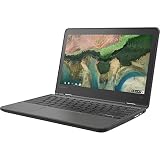
Acer Chromebook Plus 514
Frequently named the best overall or best value Chromebook, the Chromebook Plus 514 pairs an Intel Core 3 N355 processor with 8GB of RAM and a large SSD in a 14-inch body. One roundup lists a 512GB drive and about 13 hours of battery, and notes update support through June 2035, though you should confirm the update date on the exact model’s listing, as it varies by device.
- Who it is for: Students, home users and light office workers who want a dependable all-rounder.
- Pros: Good balance of performance and battery life, generous storage for the tier, long update support.
- Cons: Plain styling, and the display is functional rather than outstanding.
Lenovo Chromebook Plus 14
This is the premium option. Reviewers list a MediaTek Kompanio Ultra 910 processor, 16GB of RAM, 256GB of UFS storage and a 14-inch 1920×1200 OLED display, at about 2.75 pounds with around 14 hours of battery in review coverage. OLED on a Chromebook makes it a pleasant media device as well as a work machine.
- Who it is for: Users who want the best screen and performance available on ChromeOS.
- Pros: OLED display, 16GB of memory, light weight, long battery life.
- Cons: Premium tier for a Chromebook, and Arm-based processor limits some Linux workloads.
Acer Chromebook Plus Spin 714
A convertible with an aluminum chassis, an Intel Core Ultra 5 processor, Thunderbolt 4 and stylus support in the model reviewers describe. The 2-in-1 design makes it useful for note-taking and drawing, and Thunderbolt 4 allows single-cable docking to a monitor.
- Who it is for: Creative users and professionals who want a premium, flexible Chromebook.
- Pros: Premium build, Thunderbolt 4, touchscreen and pen support.
- Cons: Higher cost than clamshell Chromebooks, and lower battery life than the Arm-based models.
Other notable options include the Samsung Galaxy Chromebook Plus with a 15.6-inch FHD AMOLED screen, Intel Core i3 100U and 8GB of RAM at about 2.5 pounds; the Lenovo Chromebook Plus 2-in-1 Gen 10 with an Intel Core 3, 8GB of RAM and a 14-inch 1920×1200 touchscreen; the HP Chromebook Plus 14 with a Core 3 N355, 8GB of RAM and a 1920×1200 IPS panel; and the ASUS Chromebook Plus CX34 as an entry point.
Four Laptops That Show Where Windows and Mac Win
Dell XPS 14 (2026)
A premium Windows ultraportable with Intel Core Ultra Series 3 processors, up to a 2.8K OLED display, about 3 pounds of weight and three Thunderbolt 4 ports. It handles photo editing, spreadsheets and light video work with integrated Arc graphics. It is the type of machine to buy when you need desktop apps and long-term performance headroom.
HP OmniBook X 14
A thin 14-inch Windows laptop with a 3K OLED touchscreen, an Intel Core Ultra 7 and 24GB of RAM in the widely listed configuration, at about 2.9 pounds. It sits above Chromebooks in memory and processing power while staying portable, and runs full Windows software.
ASUS Vivobook S 14 OLED
A mid-range Windows laptop with Intel or AMD options and a 3K OLED panel on selected variants. It is a sensible step up for students who need Windows software such as full Microsoft Office, engineering tools or Python development environments without paying premium prices. Specifications vary by part number, so verify the exact configuration.
ASUS ROG Zephyrus G14 (2026)
For tasks Chromebooks cannot do at all. It has a 14-inch 2880×1800 OLED at 120Hz, an Intel Core Ultra 9 386H and graphics up to an RTX 5080, at about 1.5 kg. PC gaming, 3D modeling, GPU-based video rendering and local AI work need hardware like this, which is far beyond a Chromebook’s scope.
Where Chromebooks Win
- Speed of setup: Sign in with a Google account and your apps, bookmarks and files appear.
- Maintenance: Updates install in the background, and a restart takes seconds. A Powerwash resets a device to factory condition in minutes.
- Security: Verified boot and sandboxed apps reduce the chance of malware, which also removes the need for third-party antivirus software.
- Battery life: Many models run 10 to 14 hours in review coverage, thanks to lightweight software.
- Price-to-performance: At the budget tier, a Chromebook feels faster than a Windows laptop with the same hardware, because the operating system is lighter.
- Administration: Schools and small businesses can manage devices centrally through Google’s admin tools.
Where Laptops Win
- Software range: Full Adobe Creative Cloud, desktop Microsoft Office, AutoCAD, SolidWorks, Visual Studio and most professional tools run on Windows or macOS and not on ChromeOS.
- Gaming: Steam, Epic and most PC game launchers need Windows. A Chromebook is limited to Android titles and cloud streaming, which depends on connection quality.
- Peripheral support: Specialized printers, audio interfaces and scientific devices often lack ChromeOS drivers.
- Storage and offline work: Large local libraries, offline video editing and big data files suit a laptop with 1TB or more.
- Multitasking headroom: Laptops with 16GB to 32GB of RAM handle dozens of tabs, virtual machines and heavy apps better.
Performance in Everyday Tasks
Raw benchmark numbers matter less than how a device behaves with your real workload. A Chromebook Plus with 8GB of RAM handles a dozen browser tabs, a video call and a document comfortably. The limit appears when you open thirty tabs, several web apps and a streaming video at once, because ChromeOS discards background tabs to free memory and you will see pages reload. A 16GB model such as the Lenovo Chromebook Plus 14 reduces that effect considerably.
A Windows laptop with 16GB of RAM keeps more in memory and can run heavier programs side by side, but it also runs more background services, so an entry-level Windows machine with 8GB can feel slower than a Chromebook with identical hardware. This is why spec-for-spec comparisons often mislead: the Chromebook is optimized for a narrow set of tasks, while the laptop is optimized for flexibility. Pick the one that matches your actual workload and plan memory accordingly: 8GB is workable on ChromeOS for light use, 16GB is the better target on Windows or macOS.
Screens, Keyboards and Build to Check
- Resolution: Look for at least 1920×1200 on a 14-inch screen. The taller 16:10 shape gives more room for documents than 16:9.
- Panel type: IPS is the Chromebook Plus standard. OLED, as on the Lenovo Chromebook Plus 14 and the Samsung Galaxy Chromebook Plus, gives deeper contrast but costs more and can reflect more light in bright rooms.
- Touch and 2-in-1: Convertibles such as the Acer Chromebook Plus Spin 714 and Lenovo Chromebook Plus 2-in-1 Gen 10 suit note-taking and tablet-style reading.
- Keyboard: Choose a keyboard with firm key travel if you type long documents. A backlit keyboard helps in lecture halls and on flights.
- Ports: USB-C charging on both sides is convenient. Thunderbolt 4 on premium models allows docking to a monitor.
- Webcam and microphones: A 1080p webcam is standard on Chromebook Plus. For frequent video calls, it is worth confirming the camera quality in reviews.
Android Apps, Linux and Cloud Gaming on Chromebooks
ChromeOS now supports three kinds of apps beyond the browser. Android apps from the Google Play Store run on most recent models, which gives access to mobile versions of Microsoft 365, Zoom, Kindle, streaming services and many educational apps. Linux support lets developers install command-line tools, code editors and some desktop applications in a contained environment. Cloud gaming services run in the browser and stream games from remote servers, which can deliver a good experience on a fast connection but depends on network quality and a subscription.
These options narrow the gap with laptops, but they do not erase it. Android apps designed for phones may feel awkward on a large screen, Linux tools run best on models with enough RAM and storage, and cloud gaming adds latency compared with a local GPU. If a feature is central to your work, verify it on the specific model before buying.
Decision Matrix
| Your situation | Better choice | Reason |
|---|---|---|
| Middle or high school student | Chromebook Plus | Works with school Google accounts and is easy to manage |
| College student in humanities or business | Either | Most coursework is web-based, but check required software |
| Engineering, architecture or design student | Windows laptop | CAD and 3D programs run on Windows |
| Work entirely in Google Workspace | Chromebook Plus | Seamless integration and low cost |
| Video editor or photographer | Windows or Mac laptop | Full desktop editors and local storage |
| Gamer | Gaming laptop | Discrete GPU and PC game library |
| Parent buying a shared family computer | Chromebook Plus | Profiles, safe browsing and simple upkeep |
| Traveler who wants long battery life | Chromebook Plus or Arm laptop | Both offer excellent efficiency |
Worked Example: Cost Over Four Years
Total cost of ownership matters more than sticker price. Suppose a student buys a mid-range Chromebook Plus and replaces it after five years, while another buys a premium Windows laptop and keeps it for the same time. The Chromebook tier saves money up front, needs no antivirus subscription and often has no paid operating-system upgrades. The Windows laptop costs more but may avoid the need for a second machine if the student later needs desktop software. A simple rule: if you can name a specific program you need that does not run on ChromeOS, buy the laptop. If you cannot, the Chromebook is almost always the cheaper way to get the same daily results.
Also factor in lifespan. Many newer Chromebook models advertise long automatic update windows measured in years, and Google has been extending support periods, but every model has a fixed expiration date after which it stops receiving updates. Check the Auto Update Expiration date for any model you consider, and prefer devices with the longest remaining window.
Compatibility Checklist Before You Buy
- List every program you use weekly. Search each one for a web version, Android version or ChromeOS support.
- Check your school or employer policy. Some require Windows-only software or managed Windows devices.
- Check peripherals: your printer, scanner, headset and external drives.
- Confirm file formats: Office files open in Google Docs and Sheets but advanced macros and complex formatting may not carry over.
- Test the web version of your key apps before deciding. If they work well, a Chromebook is a safe choice.
- Decide on storage: if you keep large files locally, choose at least 256GB on a Chromebook or 512GB on a laptop.
Managing a Switch from Laptop to Chromebook
If you are moving from a laptop, plan the transition in three steps. First, move your files into Google Drive or another cloud folder and confirm they open in browser editors. Second, replace desktop programs with web or Android equivalents and note any gaps. Third, keep your old laptop for a few weeks as a fallback before you sell or recycle it. This approach reveals missing workflows early, when they are cheap to fix, and it keeps a safety net for any task that turns out to need desktop software. Most users report that the first week feels different, then settles into routine because the interface is simple and updates require no attention.
Ownership Realities
- Updates: ChromeOS updates are automatic, but each model has an end date. Windows laptops depend on the operating system version and manufacturer driver support.
- Repair: Chromebooks are simple and generally cheap to repair, though many have soldered memory and storage. Laptops vary widely by model.
- Battery wear: Lithium batteries degrade after several hundred charge cycles on any laptop. Avoid keeping a device at 100 percent charge while plugged in for months.
- Data: On a Chromebook, keep important files in Google Drive. On a laptop, use a backup service or an external drive.
- Resale: Premium Windows and Mac laptops keep more resale value than Chromebooks.
Frequently Asked Questions
Can a Chromebook replace a laptop?
For many people, yes. If your daily tasks are browsing, email, documents, video calls and streaming, a Chromebook Plus can fully replace a laptop. If you rely on desktop-only software, gaming or heavy video editing, it cannot.
Can Chromebooks run Windows programs?
Not natively. You can use web versions, Android apps and Linux apps, and some people use cloud-based Windows desktops, but standard Windows programs do not install on ChromeOS.
Do Chromebooks work offline?
Yes, to a degree. Google Docs, Sheets and Gmail can work offline once enabled, and Android apps and downloaded media work without a connection. Features that depend on cloud services need internet.
Are Chromebooks safe from viruses?
They are among the safest consumer computers because of sandboxing and verified boot, but no device is immune to phishing or malicious extensions. Install only needed extensions and keep your account protected with two-factor authentication.
What is Chromebook Plus?
Chromebook Plus is a hardware standard that requires at least an Intel Core i3 or equivalent processor, 8GB of RAM, a 1080p IPS display and a 1080p webcam. It also adds extra features such as AI tools in some models. It is the sensible baseline when shopping.
Which is better for students?
A Chromebook Plus is excellent for K-12 and for college courses that rely on web tools. Students in engineering, design, programming-heavy or media courses should confirm software requirements first and may need a Windows or Mac laptop.


Write Your Review
No reviews yet. Be the first to share your experience!