

Key takeaways
- Pro: 16GB memory and fast UFS 4.0 storage keep the machine responsive for years.
- Pro: OLED color and contrast are a clear step above budget panels.
- Pro: Class-leading battery life in a sub-three-pound body.
- Con: Premium pricing compared with the 8GB Plus models.
- Con: OLED peak brightness of 400 nits is fine indoors but not ideal in direct sun.
The best Chromebook for most students in 2026 is the Lenovo Chromebook Plus 14, because its OLED screen, 16GB of memory and long battery life cover everything from lecture notes to group video calls. If the budget is tight, the Asus Chromebook CM14 handles web-based coursework for far less, and the Lenovo 300e Yoga Gen 4 is the safer choice for younger students who drop things. The picks below are grouped by how a student actually works, with a decision table, a worked cost example and the ownership realities that matter after the first semester.
Our top picks


As an Amazon Associate we earn from qualifying purchases at no extra cost to you.
Quick Comparison of the 7 Picks
| Pick | Best for | Screen | Memory / storage | Weight (approx.) | Rated battery |
|---|---|---|---|---|---|
| Lenovo Chromebook Plus 14 | Best overall | 14-inch 16:10 OLED, 1920×1200, touch | 16GB / 256GB UFS 4.0 | 2.6-2.8 lb | Up to 17 hours |
| Acer Chromebook Plus Spin 514 | Best 2-in-1 for notes and art | 14-inch 16:10 touch, up to 2880×1800 | 12GB or 16GB / 256GB UFS | 2.99 lb | Up to 17 hours |
| Samsung Galaxy Chromebook Plus 15.6 | Best large screen | 15.6-inch FHD AMOLED | 8GB / 256GB | 2.58 lb | Up to 13 hours |
| Acer Chromebook Plus 514 | Best mid-range value | 14-inch 16:10 IPS, 1920×1200, touch | 8GB / up to 512GB | 3.1 lb | Up to 11 hours |
| HP Chromebook Plus 15.6-inch | Best for spreadsheets and a number pad | 15.6-inch FHD, up to 144Hz | 8GB / 128GB UFS | 3.8 lb | Up to 13 hours (HP rating) |
| Asus Chromebook CM14 | Best budget pick | 14-inch FHD, anti-glare | 4GB or 8GB / 64GB eMMC | 3.2 lb | Up to 15 hours |
| Lenovo 300e Yoga Chromebook Gen 4 | Best rugged pick for younger students | 11.6-inch 1366×768 touch | 4GB (up to 8GB) / 32-64GB eMMC | 2.9 lb | Up to 16 hours |
Specifications come from the manufacturers’ product pages and datasheets and from published reviews at the time of writing. Configurations differ by retailer, so always match the exact memory and storage listed on the product page before buying.
How to Choose a Chromebook for School
Four numbers decide whether a student Chromebook stays useful for four years: memory, update date, screen resolution and weight. Everything else is secondary.
Memory: 8GB is the practical floor
Chromebook memory is soldered to the board, so it cannot be upgraded later. A student who keeps a Google Docs file, a research tab, a video lecture and a messaging app open at once will feel a 4GB machine slow down within a year, because the browser and Android or Linux apps all share that pool. Google requires 8GB for the Chromebook Plus certification, which is one reason the Plus label is a handy shortcut. Choose 4GB only for light, single-task use such as a younger child’s reading and typing practice.
Update date: check before you buy
Every Chromebook has an Auto Update Expiration date after which it stops receiving security updates. According to Google, platforms released in 2021 or later receive 10 years of automatic updates, counted from when the hardware platform first launched rather than from the day you buy it. A model built on an older platform can therefore have fewer years left than the box suggests. Look up the exact model on Google’s Auto Update policy page, and prefer a model whose date is at least four to five years away, so the laptop covers a full high school or college stretch.
Screen: 1080p or better, and 16:10 if possible
A 1366×768 panel shows noticeably less of a document or spreadsheet than a 1920×1080 or 1920×1200 panel. The 16:10 shape used by the Lenovo and Acer Plus models adds vertical space, which means fewer scrolls through a long essay or e-textbook page. Anti-glare coatings and 300 nits or more of brightness help in bright classrooms and libraries.
Weight and battery: a school day is 8 to 10 hours
A laptop that weighs under three pounds and carries a full school day on one charge is easier to carry than one that needs a charger in the bag. Manufacturers’ battery claims are usually measured with light workloads, and independent reviews often land lower. Treat 9 to 10 hours as a realistic planning number for a claimed 13 to 17 hours.
Touchscreen and 2-in-1 hinge
A touchscreen is useful for pinching diagrams, signing PDFs and using Android apps. A 360-degree hinge turns the laptop into a tablet for e-books and stylus note-taking. If the student mostly types essays and works in spreadsheets, a standard clamshell is lighter and cheaper.
Decision Matrix: Match the Student to the Chromebook
| Student situation | What matters most | Recommended pick |
|---|---|---|
| College student, long lectures and writing | Screen quality, 8GB+ memory, battery | Lenovo Chromebook Plus 14 |
| Handwritten notes, sketching, e-textbooks | Touch, stylus support, 360-degree hinge | Acer Chromebook Plus Spin 514 |
| Reading and research on a bigger display | 15.6-inch panel without much weight | Samsung Galaxy Chromebook Plus 15.6 |
| High school student on a moderate budget | 8GB memory, 1920×1200 screen, backlit keyboard | Acer Chromebook Plus 514 |
| Heavy spreadsheet or finance coursework | Number pad, large screen | HP Chromebook Plus 15.6-inch |
| Strict budget, web-based schoolwork | Low cost, light weight, 1080p screen | Asus Chromebook CM14 |
| Elementary or middle school, rough handling | Durability, touch, long battery | Lenovo 300e Yoga Chromebook Gen 4 |
Best Overall: Lenovo Chromebook Plus 14
The Lenovo Chromebook Plus 14 is the most complete student Chromebook in this group. It pairs a 14-inch 16:10 OLED touchscreen at 1920×1200 with Lenovo’s published figures of 100 percent DCI-P3 color and 400 nits of peak brightness. It uses a MediaTek Kompanio Ultra 910 processor, 16GB of LPDDR5X memory and 256GB of UFS 4.0 storage, with Wi-Fi 7, two USB-C ports, one USB-A port and a headphone jack.
Lenovo lists a 60Wh battery with up to 17 hours of use and Rapid Charge from a 65W USB-C adapter. Published reviews, including one from PCWorld, report battery runtimes that meet or beat that claim in video-loop style workloads, which makes it one of the few Chromebooks where a full school day plus an evening of homework is realistic. The chassis is about 15.8 mm thick and starts around 2.6 pounds.
Who it is for
College and high school students who want one laptop for the whole degree. The 16GB of memory leaves headroom for dozens of tabs, Linux development tools and Android study apps, and the OLED panel makes long reading sessions more comfortable than a basic IPS display.
Pros and cons
- Pro: 16GB memory and fast UFS 4.0 storage keep the machine responsive for years.
- Pro: OLED color and contrast are a clear step above budget panels.
- Pro: Class-leading battery life in a sub-three-pound body.
- Con: Premium pricing compared with the 8GB Plus models.
- Con: OLED peak brightness of 400 nits is fine indoors but not ideal in direct sun.
Best 2-in-1 for Notes and Art: Acer Chromebook Plus Spin 514
The Acer Chromebook Plus Spin 514 is the pick for students who write by hand or draw. It is Acer’s first Chromebook built on the MediaTek Kompanio Ultra processor and offers a 14-inch 16:10 touchscreen with a 360-degree hinge and USI 2.0 stylus support. Acer’s own configuration list includes a 2880×1800 panel at 60Hz and 340 nits, while some retail versions use a 1920×1200 panel with a 120Hz refresh rate, so check the screen line on the listing.
Memory comes as 12GB or 16GB with 256GB of UFS storage, and Wi-Fi 7 is included. The body weighs about 2.99 pounds (1.36 kg) and is roughly 15.5 mm thin. Acer rates the battery at up to 17 hours. In Engadget’s review, looped video playback ran just over 14 hours, which is still excellent for a convertible.
Who it is for
Students in design, architecture, math or any course with diagrams, who also want a laptop that survives a daily commute. Tent mode is handy for watching lectures on a small desk, and tablet mode works for annotating PDFs.
Pros and cons
- Pro: 360-degree hinge, touch and stylus support in a slim chassis.
- Pro: High-resolution display option for sharp text and art.
- Pro: Ample memory for multitasking and Linux tools.
- Con: Stylus is sold separately on many configurations.
- Con: Costs more than clamshell Plus models with similar processing power for typing.
Best Large Screen: Samsung Galaxy Chromebook Plus 15.6-inch
The Samsung Galaxy Chromebook Plus 15.6-inch is the lightest large-screen option here. Samsung lists a 15.6-inch FHD AMOLED display, an Intel Core 3 100U processor, 8GB of LPDDR5X memory and 256GB of eUFS storage. It weighs about 2.58 pounds (1.17 kg), is about 11.8 mm thick, and includes two USB-C ports, a USB-A port, HDMI, a microSD slot and a headphone jack.
The battery is 68Wh with a Samsung rating of up to 13 hours. Independent reviews measured less, with LaptopMag recording just over 11 hours of web browsing, which is still comfortable for a school day. The display is non-touch and runs at 60Hz, so it suits reading, research and writing rather than tablet-style note-taking.
Who it is for
Students who read a lot of PDFs, work with side-by-side windows or edit photos for class, and who want a big, vivid screen without a heavy bag. The built-in HDMI port and microSD slot also help in presentation-heavy courses.
Pros and cons
- Pro: AMOLED panel with strong color in a very light 15.6-inch body.
- Pro: Full port selection, including HDMI and microSD.
- Pro: Fast storage and 8GB of memory.
- Con: No touchscreen or 2-in-1 hinge.
- Con: The Core 3 100U is quick for schoolwork but not built for heavy video editing.
Best Mid-Range Value: Acer Chromebook Plus 514
The Acer Chromebook Plus 514 delivers the Plus feature set without the premium price. Current configurations use an Intel processor such as the Core i3-N355 or Core 3 with 8GB of LPDDR5X memory, a 14-inch 1920×1200 16:10 IPS touchscreen at about 300 nits, and storage that varies by version up to 512GB. Acer’s spec page lists a weight of about 1.43 kg (3.1 pounds), a 65W charger, a microSD reader and a mix of USB-A, USB-C and HDMI ports.
Acer rates battery life at up to 11 hours. Published reviews of the same family recorded roughly 8.5 to 9.5 hours in video-loop style runs, so expect about a school day with some margin. Reviewers also note the cooling fan can become audible under sustained load, which matters in a silent library.
Who it is for
High school and first-year college students who want 8GB of memory, a good 16:10 screen and a touchscreen without spending flagship money. The backlit keyboard is helpful for evening study.
Pros and cons
- Pro: Plus-certified hardware with a tall 16:10 display.
- Pro: Plenty of ports, including HDMI and microSD.
- Pro: Storage options large enough for offline course files.
- Con: Slightly heavier than the premium picks.
- Con: Fan noise under load; real battery life trails Acer’s claim.
Best for Spreadsheets: HP Chromebook Plus 15.6-inch
The HP Chromebook Plus 15.6-inch is built for students who live in spreadsheets, finance models or long reports. It has a 15.6-inch FHD display, a full keyboard with a numeric keypad, an Intel Core i3-N305 processor with 8 cores, 8GB of LPDDR5 memory and 128GB of UFS storage. Some versions offer a 144Hz refresh rate, which makes scrolling smoother. HP lists two USB-C ports, a USB-A port, a microSD slot and a 1080p webcam with a privacy shutter.
The weight is about 3.8 pounds, the heaviest here, and the 58Wh battery is rated by HP at up to 13 hours 15 minutes in mixed use. Reviewers point out that the panel peaks at around 250 nits with limited color range, so it is better for text than for photo work, and the screen is non-touch.
Who it is for
Business, accounting and economics students who value a number pad and a large workspace over portability, and families who want a single shared laptop for a desk at home.
Pros and cons
- Pro: Full-size keyboard with number pad.
- Pro: 8GB memory and a Plus-class processor.
- Pro: Frequently discounted, which makes it good value.
- Con: Dim, narrow-gamut screen and no touch.
- Con: Heavier and bulkier for daily carry.
Best Budget Pick: Asus Chromebook CM14
The Asus Chromebook CM14 covers web-based schoolwork at the lowest cost in this list. It uses an 8-core MediaTek Kompanio 520 processor with 4GB or 8GB of LPDDR4X memory and 64GB of eMMC storage, a 14-inch 1920×1080 anti-glare display and a 45Wh battery that Asus rates at up to 15 hours. It weighs about 3.2 pounds and includes two USB-C ports, one USB-A port and a microSD reader. Asus also markets the CM14 with a ruggedized design for student use.
TechRadar’s review noted over nine hours of real-world battery life, in line with the claim for light use. The display is a basic non-touch panel at roughly 250 nits, and the Kompanio 520 is not fast enough for heavy multitasking, so choose the 8GB version if it is offered.
Who it is for
Middle and high school students whose schoolwork lives in Google Workspace, learning platforms and web research, and parents who want a low-cost second laptop for a backpack that gets knocked around.
Pros and cons
- Pro: Very low cost for a 1080p screen and all-day battery.
- Pro: Light, simple and quiet with no fan.
- Pro: Useful port mix with USB-C and microSD.
- Con: 4GB versions will slow down with many tabs.
- Con: 64GB eMMC storage fills quickly if you download files.
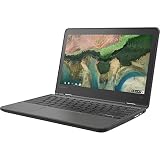
Best Rugged Pick for Younger Students: Lenovo 300e Yoga Chromebook Gen 4
The Lenovo 300e Yoga Chromebook Gen 4 is designed for classrooms, and its datasheet lists MIL-STD-810H durability and Lenovo EDU DuraSpec features. It has an 11.6-inch 1366×768 IPS touchscreen with Corning Gorilla Glass, a 360-degree hinge, a MediaTek Kompanio 520 processor, 4GB of memory (configurable higher) and eMMC storage up to 64GB. A garaged USI 2.0 stylus is optional.
The 47Wh battery is rated at up to 16 hours in Google’s power load test, with Rapid Charge to 80 percent in about an hour on the 65W adapter. Lenovo lists a weight of about 1.33 kg (2.9 pounds). Ports include one USB-C, two USB-A and HDMI, plus Wi-Fi 6.
Who it is for
Elementary and middle school students, and anyone who is hard on devices. The small, low-resolution screen is the trade-off, so it is not the right choice for a student who writes long papers or works in spreadsheets.
Pros and cons
- Pro: Drop and spill resistance suited to school use.
- Pro: Touch, tablet mode and optional stylus.
- Pro: Long rated battery life.
- Con: Low-resolution 11.6-inch display.
- Con: 4GB base memory limits long-term usefulness.
Worked Example: Cost Per School Year
A simple calculation shows how to weigh a cheap laptop against a longer-lasting one. Suppose a premium model costs 650 and stays useful for six years, which works out to about 108 per year. Two basic units at 250 each, replaced after three years, come to about 83 per year. The cheaper path wins only if the student can truly live with slower performance in the second half of that period, and a basic unit that slows down in year two erases most of the saving. The better rule is to estimate how long the laptop must last, and then pay for 8GB or more if that period is longer than three years.
| Scenario | Years needed | Typical choice | Why |
|---|---|---|---|
| Middle school, 2 to 3 years | 2-3 | Lenovo 300e Yoga or Asus CM14 | Low cost and durable; replace at the next school level |
| High school, 4 years | 4 | Acer Chromebook Plus 514 or HP Chromebook Plus 15.6 | 8GB memory handles more tabs as coursework grows |
| College, 4 to 6 years | 4-6 | Lenovo Chromebook Plus 14 or Acer Plus Spin 514 | 16GB and a long update window cover the full degree |
What Chromebooks Can and Cannot Do for Coursework
Chromebooks run ChromeOS, which handles web apps, Google Workspace, Microsoft 365 in the browser, video calls, streaming lectures and many Android apps. Chromebook Plus models add AI features such as writing help and enhanced video call tools, depending on region and account type. Most students never notice the limits, but some courses do.
- Engineering, architecture and video production programs often require Windows or macOS software such as full CAD suites or professional editing tools. Check the course software list before buying.
- Some proctored exam tools and lockdown browsers support Chromebooks, while others do not. Ask the school which testing software it uses.
- Programming students can run a Linux development environment on most modern Chromebooks, which works well on 8GB or more of memory.
- Offline use works for Google Docs, Sheets and Slides once offline mode is turned on, so plan this before a trip or a poor Wi-Fi dorm.
Ownership Realities: What Wears First
Students tend to damage the same parts, so plan for them. Screen hinges loosen on thin laptops that are opened with one hand, keyboards collect crumbs and liquid, and charging ports wear out when the cable is yanked. Battery capacity also fades after a few hundred cycles, though modern Chromebooks usually stay comfortable for several school years.
- Use a padded sleeve rather than squeezing the laptop into a crowded backpack; screens crack from pressure more often than from drops.
- Keep the laptop between 20 and 80 percent charge when possible and avoid leaving it in a hot car.
- Clean the keyboard with compressed air and a slightly damp microfiber cloth, never a soaking wet one.
- Back up files to Google Drive; a Chromebook’s local storage is small and not a safe long-term archive.
- Register the serial number and check whether the manufacturer offers accidental damage coverage, since many school-issued units are managed and repair rules vary.
Setup Steps for a New Student Chromebook
- Sign in with the school Google account on first boot, because school-managed accounts can enforce web filters and app rules that a personal account will not.
- Check for updates under Settings, About ChromeOS, so security fixes install before first use.
- Turn on offline mode for Google Drive so important documents open without Wi-Fi.
- Install only the Android and Linux apps the courses require; every extra app uses storage and memory.
- Set up a screen lock and Find My Device, which makes a lost laptop far less of a disaster.
- Add a protective sleeve and a spare USB-C charger for the school bag.
Frequently Asked Questions
How much RAM does a student Chromebook need?
8GB is the practical minimum for high school and college because memory cannot be upgraded later. 4GB is acceptable only for light tasks such as reading, typing and basic web research for younger students. For programming, many tabs or Linux apps, 16GB is a comfortable choice.
What is a Chromebook Plus?
Chromebook Plus is a Google certification that requires minimum hardware, including at least 8GB of memory, a full HD display and a capable processor. It also unlocks extra AI and video features. It is a quick way to avoid underpowered models, though it is not the only sign of a good laptop.
How long will a Chromebook receive updates?
Google states that Chromebook platforms released in 2021 or later receive 10 years of automatic updates, counted from the platform’s first release. Older platforms get shorter windows. Look up the exact model on Google’s Auto Update policy page before buying, and choose one with several years remaining.
Can a Chromebook replace a Windows laptop for college?
Often yes, for majors that rely on web apps, writing, research and presentations. It is a poor fit if the program requires Windows-only or macOS-only software such as full CAD or professional video editing suites. Ask the department for its software list first.
Is a touchscreen worth it on a student Chromebook?
It is worth it for younger students, for tablet-style reading and for anyone who annotates PDFs with a stylus. A student who mostly types essays can skip it and put the money toward more memory or a better display.
Which is the best cheap Chromebook for students?
The Asus Chromebook CM14 is the budget pick here, ideally in the 8GB configuration if available. For younger children who need a rugged machine, the Lenovo 300e Yoga Gen 4 is the safer budget choice despite its lower-resolution screen.


Write Your Review
No reviews yet. Be the first to share your experience!