

Key takeaways
- A MacBook has very few ports, and the two or three it offers are expected to handle charging, external displays, storage, and networking all at once.
A MacBook has very few ports, and the two or three it offers are expected to handle charging, external displays, storage, and networking all at once. A Thunderbolt dock turns one cable into a full desk: power flows in, monitors light up, and a keyboard, drive, and Ethernet link come along for the ride. The decision this keyword implies is not simply “which dock” but “which generation and which display path.” Thunderbolt 4 and Thunderbolt 5 docks carry far more bandwidth than a basic USB-C hub, and the way a dock drives two monitors differs on Apple silicon.
This guide is for MacBook Air and Pro owners setting up a desk in 2026, from a single 4K monitor to a pair of displays. It uses only the numbers each title states for ports, charging wattage, and video output. Some chips in the MacBook Air support fewer external displays than the Pro models, so check Apple’s specifications for your exact model before buying, and read each listing for which Thunderbolt generation your Mac supports.
Quick Picks
Our top picks


As an Amazon Associate we earn from qualifying purchases at no extra cost to you.
| Product | Best for | Key spec from the title |
|---|---|---|
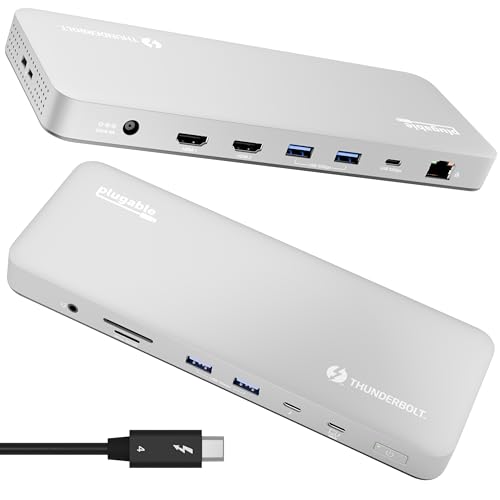
| Plugable Thunderbolt 4 Dock | Driverless MacBook M4/M5 desks | 100W charging, dual 4K HDMI or single 6K |
| Anker Prime TB5 Dock | Maximum bandwidth and charging | Thunderbolt 5, 120Gbps, 140W, 14-in-1 |
| Anker 7-in-2 USB-C Hub | Compact travel and lighter desks | 4K@60Hz HDMI, Thunderbolt 4 compatible |
| Anker Prime 14-in-1 Dock | Dual 4K and high charging output | Dual 4K HDMI, 160W max, 10Gbps |
| Plugable Thunderbolt 5 Dock | High-refresh and 8K displays | Dual HDMI 2.1, 8K60, 4K144, 140W |
| Plugable USB-C DisplayLink Dock | Dual displays on base Macs | Dual 4K 60Hz, DisplayLink, 100W |
| WAVLINK Thunderbolt 4 Dock | Wired networking and certified TB4 | 4K HDMI, 100W PD, 2.5G Ethernet |
How to Choose
Thunderbolt 4, Thunderbolt 5, or plain USB-C
Thunderbolt 4 docks carry 40Gbps and are the safe match for most MacBooks. Thunderbolt 5 docks, which list 120Gbps in the Anker Prime TB5, require a Mac with Thunderbolt 5 support to reach the headline speeds, and otherwise fall back to lower speeds. Plain USB-C docks, including DisplayLink models, handle video differently and do not carry Thunderbolt-level bandwidth. Check the Thunderbolt port label on your Mac, then pick a dock that matches or exceeds it.
Understand how many displays your Mac can run
Apple silicon limits how many external monitors a MacBook can drive natively. Some base chips support a single external display, while Pro and Max chips support more. DisplayLink docks, such as the Plugable USB-C model with DisplayLink, add a software driver to extend displays beyond the native limit. Native Thunderbolt docks like the Plugable TB4 are driverless, which is simpler but follows Apple’s limits. Confirm your chip’s display allowance before assuming dual monitors will work.
Charging wattage and ports
Match the dock’s power delivery to your MacBook. A 100W dock suits MacBook Air and 14-inch Pro use, while 140W and 160W figures make sense for larger Pro models under load. Count the ports you will actually use: two or more USB-A ports for peripherals, an SD slot if you handle photos, and 2.5G Ethernet for fast wired networking, which the WAVLINK and Plugable TB5 list. Budget docks sometimes cut corners with fewer data ports or slower Ethernet.
Cable, power brick, and desk footprint
Placement matters: a dock that sits behind a monitor stand needs a host cable long enough to reach the laptop without strain. A dock needs its own power brick, and big ones are heavy. A fanless design, like the Plugable TB5, runs quietly but may run warm. Check whether the host cable is included and long enough for your desk. Compact hubs, like the Anker 7-in-2, suit a laptop that moves, while full docks are meant to stay put. Keep vents clear and avoid stacking items on top of any dock.
The 7 Best Options
Plugable Thunderbolt 4 Dock for M4/M5 MacBook
Plugable aims this dock at current MacBook owners who want a simple, driverless setup. The title lists 100W charging, support for 4K HDMI dual monitors or a single 6K display, and a multi-port layout with six listed in the visible title.
- Strength: it is explicitly framed for M4 and M5 MacBook Air and Pro, which reduces compatibility guessing.
- Strength: driverless operation means nothing to install.
- Trade-off: dual-monitor support follows the MacBook’s own display limits.
Skip it if you have a base MacBook that supports only one external display. It suits owners of newer MacBooks who want a clean one-cable desk with one or two displays. Because the dock is aimed at current chips, it also makes sense for anyone upgrading from an older Intel MacBook who has not owned a Thunderbolt dock before. Set the dock up near an outlet with room for its power brick, and plug the MacBook in last.
Anker Prime TB5 14-in-1 Thunderbolt 5 Dock
This is the flagship for Thunderbolt 5 laptops. The title lists a 14-in-1 dock with 120Gbps maximum data transfer, up to 8K video, dual display support, 140W maximum charging, and Ethernet.
- Strength: Thunderbolt 5 bandwidth leaves room for multiple fast drives and displays.
- Strength: 140W charging suits larger MacBook Pro models.
- Trade-off: you need a Thunderbolt 5 Mac to use the headline speed, so older Macs will not benefit fully.
Skip it if your MacBook lacks Thunderbolt 5. Creative professionals with the newest machines and high-end monitors will get the most from the bandwidth. A video editor with a fast external SSD, two monitors, and a wired network connection is the kind of user this dock is designed around, and a casual user would be paying for headroom they will rarely touch.
Anker USB-C Hub for MacBook, 7-in-2
The Anker hub is the compact option. The title lists a 7-in-2 hub with 4K@60Hz HDMI, Thunderbolt 4 compatibility, a USB-C port, and two USB-A 5Gbps ports for MacBook Pro and Air.
- Strength: small enough to travel with a laptop bag.
- Strength: 4K@60Hz HDMI gives smooth single-monitor use.
- Trade-off: it is a hub, not a full dock, so it offers fewer ports and no mention of Ethernet.
Skip it if you need two displays or wired networking. It suits MacBook owners who split time between a desk and a coffee shop. Leave the large dock on the desk and keep this hub in the laptop bag, so working away from home never requires unplugging a dozen cables. Check that your Mac still gets charged through the same port if you plan to pass power through.
Anker Prime 14-in-1 Docking Station
This Anker dock is built for dual displays. The title lists a 14-in-1 dock with dual 4K HDMI, 160W maximum output, 10Gbps data transfer, a smart interface, and audio.
- Strength: 160W maximum output gives generous charging headroom.
- Strength: 14 ports cover most desk peripherals and audio.
- Trade-off: the title does not say Thunderbolt, so check the listing for how it connects to the Mac.
Skip it if you need verified Thunderbolt bandwidth. It suits users who want many ports and high power for a busy desk. Photographers, streamers, and anyone with a headset, webcam, microphone, and drives will appreciate having many ports available at once, though they should read the listing closely to confirm the connection type to the Mac.
Plugable Thunderbolt 5 Dock, Dual HDMI 2.1
Plugable’s Thunderbolt 5 dock targets high-refresh displays. The title lists dual HDMI 2.1 up to 8K 60Hz or 4K 144Hz, 140W laptop charging, 16-in-1 ports, 2.5GbE, a fanless design, and a driverless, TAA-compliant build.
- Strength: 4K at 144Hz suits fast-motion work and gaming-style displays.
- Strength: fanless design runs quietly.
- Trade-off: it needs a Thunderbolt 5 machine to reach the highest modes.
Skip it if your Mac is older. It suits users who care about refresh rate and have compatible hardware. Because it is fanless and driverless, it also suits quiet home studios, though buyers should leave airflow around the case since fanless devices shed heat through the body.
Plugable USB-C DisplayLink Docking Station
The DisplayLink dock is the dual-monitor workaround. The title lists dual 4K 60Hz via two HDMI or DisplayPort outputs, support for Mac M1 through M5, and 100W charging.
- Strength: DisplayLink can extend more displays than a base MacBook supports natively.
- Strength: 100W charging fits most MacBooks.
- Trade-off: it relies on a software driver, and protected content may not play on DisplayLink-driven screens.
Skip it if you want a driverless Thunderbolt connection. It suits owners of base-model MacBooks who need two screens. Install the vendor driver before connecting the displays, and expect that some streaming apps may restrict protected video on screens driven this way.
WAVLINK Thunderbolt 4 Dock
WAVLINK is the certified Thunderbolt 4 option with wired networking. The title lists 4K HDMI for dual monitors, 100W PD charging, four USB ports, 2.5G Ethernet, an SD and microSD slot, and Thunderbolt certification.
- Strength: Thunderbolt certification is a useful signal that the dock follows the Thunderbolt specification.
- Strength: 2.5G Ethernet suits fast home or office wired networks.
- Trade-off: it is a Thunderbolt 4 dock, so it does not offer Thunderbolt 5 speeds.
Skip it if you own a Thunderbolt 5 MacBook and want maximum bandwidth. It suits Windows and Mac households that want one dock for both. A shared desk with a MacBook for work and a Windows laptop for personal use gets real value from the Ethernet port and the SD and microSD slots.
Which One Fits Your Situation
You own a newer MacBook Pro with Thunderbolt 5
Choose the Anker Prime TB5 or the Plugable Thunderbolt 5 dock.
You have a MacBook Air and one monitor
The Plugable TB4 or the WAVLINK covers the basics without extra cost. Either one gives you charging, a monitor output, and a few USB ports from a single cable, which is the whole point of a dock.
You need two screens on a base chip
The Plugable DisplayLink dock extends displays beyond the native limit.
You travel with the laptop
The Anker 7-in-2 hub fits in a bag. Keep a full dock at home for the desk and carry this one for the road, so travel days do not require disconnecting a heavy setup.
Common Mistakes
- Assuming every USB-C port is Thunderbolt.
- Expecting dual monitors from a MacBook chip that limits displays.
- Choosing a dock with too few watts for a Pro model.
- Forgetting that the dock needs its own power brick.
- Skipping a check of the listing for host cable length.
Frequently Asked Questions
Do all MacBooks support dual monitors with a dock?
No. The number of native displays depends on the chip. DisplayLink docks can extend further but use a driver.
Is Thunderbolt 5 worth it?
Only if the MacBook has Thunderbolt 5. Otherwise it falls back to lower speeds.
How much power should a dock deliver?
Match the Mac’s charger. 100W suits most Air models and 14-inch Pro, and larger Pros may want 140W or more. A dock that delivers less than the original charger may still work, but charging can be slow under heavy load.
Why does a dock need its own power adapter?
The dock powers its ports and charges the laptop, which takes more power than the laptop alone provides.
More from Amazon
Programs that pair well with the guide above. Offers and eligibility are set by Amazon and may change.
A free business account with business pricing and bulk-buying tools for work, shop or home office.
Create a business accountFree shipping on eligible items, Prime Video and more. Eligible new members can start with a free trial.
Start a Prime free trialAudiobooks and podcasts to listen to on the go. Eligible new members can start with a free trial.
Try Audible freeAd-free music streaming. Eligible new subscribers can start with a free trial.
Try Music Unlimited freeAs an Amazon Associate we earn from qualifying purchases.





Write Your Review
No reviews yet. Be the first to share your experience!