

Key takeaways
- Connections: four rear USB-A ports at 5Gb/s, Gigabit Ethernet, a front USB-C port, a UHS-II SD slot and 3.5mm audio in and out.
- Software: Windows 10 and 11, macOS 10.15.5 and later, ChromeOS 100 and later; a DisplayLink driver is required.
- Weight: about 626g.
For most home offices the best USB-C docking station is the Plugable UD-ULTC4K if you run three monitors, the Anker 575 if you run two and want a compact box, and the Dell Pro Dock WD25TB4 if you have a Dell laptop and want the fastest charging. A good dock turns a messy desk into a one-cable routine: you sit down, plug in a single USB-C cable, and the monitors, keyboard, webcam, wired network and charger all connect at once. The seven docks below cover different monitor counts, laptop brands and desk shapes.
Our top picks


As an Amazon Associate we earn from qualifying purchases at no extra cost to you.
Quick comparison of the best USB-C docks for a home office
| Dock | Best for | Laptop charging | Video outputs | Maximum screens | Network |
|---|---|---|---|---|---|
| Plugable UD-ULTC4K | Three 4K monitors | Up to 100W (96W certified) | 3 HDMI and 3 DisplayPort jacks (three active) | 3 at 4K 60Hz (driver needed) | Gigabit |
| Anker 575 (13-in-1) | Compact dual-monitor desk | Up to 85W | 2 HDMI 2.0, 1 DisplayPort | 2 at 1440p 60Hz, 3 at 1080p | Gigabit |
| Anker 675 (12-in-1 stand) | One monitor, wireless phone charging | Up to 100W | 1 HDMI 2.0 | 1 at 4K 60Hz | Gigabit |
| UGREEN Revodok Pro 12-in-1 | Budget-minded triple screens | 100W input, up to 85W passed to laptop | 2 HDMI and 1 DisplayPort | 2 at 4K 60Hz, 3 at 4K 30Hz | Gigabit |
| Lenovo ThinkPad Universal USB-C Dock (v2) | Windows and ThinkPad offices | Up to 65W for ThinkPads (higher on some notebooks) | 2 DisplayPort 1.4, 1 HDMI 2.0 | Up to 3 per Lenovo | Gigabit |
| Dell Pro Dock WD25TB4 | Dell laptops and four-screen desks | 130W Dell, 96W others | 2 DisplayPort 1.4, HDMI 2.1, USB-C DisplayPort | Up to 4 | 2.5GbE |
| Satechi Thunderbolt 4 Multimedia Pro Dock | Mac and Windows creators | Up to 96W | 2 HDMI 2.1, 2 DisplayPort 1.4 | Up to 4 (Mac: 2) | 2.5GbE |
The numbers come from each manufacturer’s product page, with published reviews used to fill gaps. Retailers sometimes list different figures for a single model, so this guide notes when sources disagree.
What matters in a home-office dock
A remote worker’s dock has a narrower job than a studio dock. It needs to drive one to three monitors, charge a work laptop, connect a webcam, headset and keyboard, and provide a wired network connection that holds up through video calls. Anything beyond that, such as 10Gb/s networking or an 8K output, is usually spending without a payoff.
Three specifications decide whether a USB-C dock works for you. The first is the video path: some docks use native DisplayPort Alt Mode, which is simple but limited to what your laptop’s graphics port can provide, while others use DisplayLink, which adds screens through a driver. The second is power delivery: the dock’s charging number must meet or exceed your laptop charger’s rating. The third is whether your laptop’s USB-C port is full-featured. A port that carries only data cannot output video at all, whatever the dock claims.
Best for three monitors: Plugable UD-ULTC4K
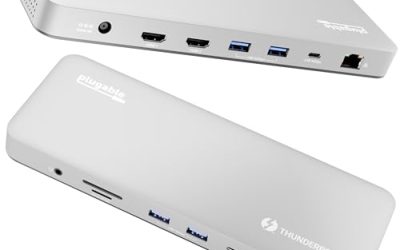
This is the dock to choose when your desk has three screens and your laptop has only a single USB-C port. It carries a DisplayLink DL-6950 chip and, according to Plugable’s page, supports three 4K displays at 60Hz, with two outputs from DisplayLink and one from USB-C Alt Mode. Because the laptop link is USB-C at 10Gb/s, a Thunderbolt port is not required. The current version charges a laptop at up to 100W (certified for 96W) and includes a 135W adapter on newer units; one review notes the adapter can feed the laptop 100W while giving the front USB-C port 20W.
- Connections: four rear USB-A ports at 5Gb/s, Gigabit Ethernet, a front USB-C port, a UHS-II SD slot and 3.5mm audio in and out.
- Software: Windows 10 and 11, macOS 10.15.5 and later, ChromeOS 100 and later; a DisplayLink driver is required.
- Weight: about 626g.
Who it is for: analysts, traders, developers and anyone who keeps email, documents and a video call open side by side. Pros: triple 4K from one cable; works with plain USB-C laptops; flexible HDMI and DisplayPort choices. Cons: driver dependence; compression adds a small CPU load; not intended for gaming, color work or protected streaming.
Best compact dual-monitor dock: Anker 575 13-in-1
Anker’s 575 is a small, light box (about 126 x 89 x 42mm and 370g) with 13 connections. Its video outputs are two HDMI 2.0 ports and one DisplayPort. In single-monitor mode it drives 4K at 60Hz; with two monitors it runs 2560 x 1440 at 60Hz; and with three monitors it runs 1080p at 60Hz. Anker’s own US page lists dual 4K at 30Hz as the dual-display mode, so check the figure for your hardware revision. The upstream USB-C port charges at up to 85W, a USB-C port provides 18W for a phone, and the box includes a 135W adapter and a 1m cable.
- Data: one USB-C port at 10Gb/s (data only), two USB-A at 5Gb/s, Gigabit Ethernet, SD 3.0 and microSD 3.0 slots, and an AUX jack.
- Mac limit: macOS does not support Multi-Stream Transport on this dock, so Mac owners generally get one extended display.
- Warranty: 18 months.
Who it is for: Windows users with two 1440p monitors and limited desk space. Pros: small footprint; three video jacks; SD and microSD slots. Cons: 85W charging is short for big workstation laptops; modest resolution when you add a third screen; Mac users should look elsewhere.
Best for a single monitor and a tidy desk: Anker 675 12-in-1
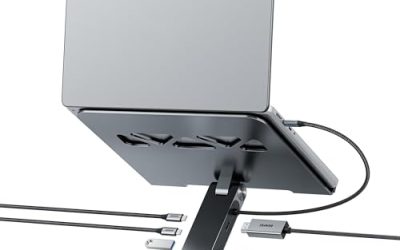
The Anker 675 is the odd one out in this guide because it is also a monitor stand. The dock slides under your display, lifts it to eye level and adds a Qi pad on top rated at 10W (7.5W for iPhone). It comes with a 180W power supply and charges a laptop at up to 100W. Ports include one USB-C host connection, two USB-C at 10Gb/s that share 45W of device charging, three USB-A at 10Gb/s, one HDMI 2.0 output for 4K at 60Hz, Gigabit Ethernet, SD and microSD slots and a 3.5mm jack. It is about 21 inches wide and weighs roughly 3.65 pounds.
- Display support: a single monitor only. HDMI is the one video output and none of the USB-C ports carry video, so this is not the dock for dual-monitor desks.
- Stand function: it saves a separate riser and keeps cables out of sight.
Who it is for: people with one laptop, one external monitor and a phone to charge. Pros: raises the monitor; wireless charger built in; five 10Gb/s USB ports. Cons: single display; large for a small desk; the stand height is fixed.
Best for low spend and three screens: UGREEN Revodok Pro 12-in-1
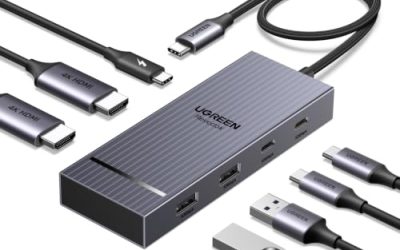
UGREEN sells several docks under the Revodok Pro name, and their specifications differ, so match the model number before you buy. The widely listed CM555 variant (product 55767) has two 4K HDMI outputs and a 4K DisplayPort output, and supports a single 4K screen at 144Hz, two at 60Hz or three at 30Hz. It accepts a 100W USB-C input and passes up to 85W to the laptop, reserving about 15W for the dock itself. Data ports are two USB-C at 10Gb/s and two USB-A 2.0, with Gigabit Ethernet, an AUX jack and SD and TF slots; the warranty is two years. A different model, the Revodok Pro 312, uses DisplayLink and ships with a 100W GaN charger.
- Mac behavior: on macOS all external monitors show the same image, so this is mainly a Windows dock for multi-screen work.
- Triple-screen limit: three screens run at 30Hz, which is tolerable for reference documents but tiring for scrolling.
Who it is for: Windows home workers who want three outputs without the premium of a Thunderbolt dock. Pros: flexible video outputs; strong single-screen refresh rate; solid warranty. Cons: the USB-A ports are slower USB 2.0; mirroring on Mac; model confusion across the product family.
Best for ThinkPads and Windows offices: Lenovo ThinkPad Universal USB-C Dock (v2)
Lenovo’s universal dock is designed for businesses and works with most Windows 10 and newer notebooks with USB-C. Lenovo’s datasheet lists three USB-A 3.1 Gen 2 ports (one with always-on charging), one USB-C at 10Gb/s, two USB 2.0 ports, two DisplayPort 1.4 outputs, one HDMI 2.0 output, Gigabit Ethernet and a 3.5mm combo audio jack. The included 90W adapter charges ThinkPads at up to 65W, and Lenovo says charging can reach 100W on most other USB-C notebooks. The unit measures about 171 x 80 x 30mm and starts at 325g, and it supports MAC address pass-through, Wake-on-LAN and a mirrored power button on most ThinkPads.
- Displays: Lenovo specifies up to three 4K displays at 60Hz, though results depend on your laptop and monitors.
- Part numbers: listings show 40B50090US and the datasheet shows 40B70090 for the v2 dock, so verify the part number and whether your configuration needs a driver on Lenovo’s current datasheet.
- OS support: marketed as Windows-only, so skip it for a MacBook.
Who it is for: ThinkPad owners and managed Windows fleets. Pros: lightweight; three outputs; business features such as MAC pass-through. Cons: modest charging for non-Lenovo machines; Gigabit Ethernet; part-number confusion.
Best for Dell laptops: Dell Pro Dock WD25TB4
If your work laptop is a Dell Latitude or Precision, the WD25TB4 is the straightforward choice. It connects over a single Thunderbolt 4 or USB-C cable (0.83m) and supplies 130W of power to Dell computers and 96W to others from a 180W adapter. The rear has two DisplayPort 1.4 jacks, an HDMI 2.1 jack and a USB-C DisplayPort output, and the dock also has two Thunderbolt 4 ports at 15W each, four USB-A and one USB-C ports at 10Gb/s, and an RJ45 port that reaches 2.5Gb/s. Dell lists support for up to four external displays, with QHD at 60Hz in a four-monitor layout.
- IT features: PXE boot, Wake-on-LAN, MAC address pass-through, Kernel DMA protection and lock slots, which matter if your employer manages the laptop remotely.
- OS support: Windows 10 and 11, several Linux distributions, macOS and ChromeOS.
- Warranty: three years.
Who it is for: hybrid workers whose company issues Dell laptops, and anyone needing four monitors on a Windows machine. Pros: the highest charging wattage for Dell; four-screen capability; long warranty. Cons: larger and costlier than USB-C-only docks; no card reader; the best features target Dell hardware.
Best for creators on Mac and Windows: Satechi Thunderbolt 4 Multimedia Pro Dock
Satechi’s Multimedia Pro dock has 16 ports and works with Mac, Windows and Chromebooks without drivers. It provides two DisplayPort 1.4 outputs and two HDMI 2.1 outputs, one Thunderbolt 4 host port that supplies up to 96W, a USB-C 3.2 port at 10Gb/s, three USB-A ports at 10Gb/s, two more USB-A ports at 5Gb/s, a USB 2.0 port rated at 7.5W for charging, UHS-II-class SD and microSD slots, 2.5GbE and a 3.5mm audio jack. The included power supply is 135W. It has no downstream Thunderbolt ports, which is a deliberate trade for more video outputs.
- Displays: up to four at 4K, 30 or 60Hz, though M-series MacBooks are limited to two external screens.
- Weak point: peripheral charging tops out at 7.5W, including the USB-C jack, so phones charge slowly.
Who it is for: home-office workers who edit photos or video and switch between a Mac and a Windows machine. Pros: four video jacks; 2.5GbE; card readers; no drivers. Cons: no daisy-chain ports; weak device charging; limited by the laptop’s display count.
Which dock suits which desk
| Desk situation | Recommended dock | Reason |
|---|---|---|
| Plain USB-C laptop, three monitors | Plugable UD-ULTC4K | DisplayLink adds screens without Thunderbolt |
| Windows laptop, two 1440p monitors, small desk | Anker 575 | Compact, two HDMI plus DisplayPort |
| One monitor, phone charging, clutter | Anker 675 | Stand and wireless pad in one |
| Windows laptop, three monitors, tight spend | UGREEN Revodok Pro 12-in-1 | Three outputs at a lower tier |
| ThinkPad or managed Windows laptop | Lenovo Universal USB-C Dock | Business features, light body |
| Dell Latitude or Precision | Dell Pro Dock WD25TB4 | 130W charging, four displays |
| MacBook plus occasional Windows laptop | Satechi Multimedia Pro | Driverless on both |
A worked power budget for a typical desk
Power is the usual reason a dock disappoints. Suppose your laptop has a 100W charger, draws about 45W during normal office use with two displays, and spikes to 80W during a video call with screen sharing. A dock that supplies 85W (the Anker 575 or the UGREEN) covers both cases with a small margin. Add a phone charging at 18W from the dock itself and a dock that shares one power supply must split its budget: with the Anker 675, the two downstream USB-C ports share 45W and the laptop still receives its separate share from the 180W supply.
Now take a gaming-class or workstation laptop with a 180W charger. No USB-C dock here replaces that charger at full speed, because USB-C power delivery stops at 100W or 140W. You can still connect through the dock for data and displays, but keep the original charger plugged in for sustained loads. The rule is simple: if the dock’s wattage is at least your laptop’s real draw under load, charging is fine; if not, the battery will slowly drain even when plugged in.
How to choose without wasting money
Check the laptop’s USB-C port
Look for a small DisplayPort or Thunderbolt symbol beside the port, or read the specification sheet. A port marked only for data and charging cannot send video to a dock. If your laptop lacks video over USB-C, only a DisplayLink dock like the Plugable UD-ULTC4K will work.
Count monitors honestly
Two monitors cover almost every home-office task. The third screen is a luxury that costs CPU load if it uses DisplayLink, or resolution if it uses a shared native link. Decide whether you want three screens before paying for the dock that provides them.
Use wired networking for calls
Every dock above includes an Ethernet jack. A wired connection is steadier than Wi-Fi during long meetings, and it frees the wireless adapter for other devices. Gigabit speed is plenty for work; 2.5GbE only helps with fast storage on your local network.
Match the cable length to the desk
Docks ship with cables between 0.7m and 1m. If the dock sits behind a monitor stand and your laptop lives on the right, measure first.
Plan for mixed laptops
If you switch between a work Dell and a personal MacBook, choose a driverless dock with native ports rather than a model that exists for one brand.
Ownership notes and common mistakes
- Keep the original charger as a backup. Docks fail less often than power bricks, but you do not want a dead supply to cost a workday.
- Update drivers and firmware. DisplayLink and dock firmware updates fix flickering and wake problems; check every few months.
- Do not daisy-chain cheap hubs. A hub behind a dock splits bandwidth and power and often causes disconnecting keyboards.
- Use a surge protector. The dock’s controller sits between the laptop and every screen on your desk.
- Heat is normal. Docks run warm; keep them off soft surfaces and away from stacked paper.
- Do not expect Thunderbolt features from USB-C. USB-C docks do not offer external GPUs or 40Gb/s storage, which only Thunderbolt docks can handle.
The commonest purchasing mistake is buying on port count. A 13-in-1 label means little if your desk needs two monitors, Ethernet and a charger. Write down what you plug in daily, then buy the dock that handles that list with a little spare capacity.
Frequently Asked Questions
Do I need Thunderbolt for a home office dock?
No. A USB-C dock covers most home-office needs, including one to three monitors, charging and wired networking. Thunderbolt matters when you want fast external storage, daisy-chained displays or the highest-bandwidth video, none of which is typical for email, documents and video calls.
Why are my monitors blank or mirrored when I plug in the dock?
The usual cause is a USB-C port without video output, or a Mac that does not support the dock’s multi-display method. Try the laptop’s other USB-C ports, update the dock firmware or DisplayLink driver, and confirm the monitors are set to extend in display settings.
Can a USB-C dock charge my laptop and run monitors at the same time?
Yes, that is the main purpose. The dock takes power from its own adapter and passes a portion to the laptop, so the number to check is the dock’s host charging rating against your laptop’s charger.
Is DisplayLink good enough for office work?
For documents, spreadsheets, email and video calls, yes. It uses a driver and some CPU time to compress the picture, so it is a weaker fit for fast video, gaming and color-critical editing.
Will one dock work with both a Mac and a Windows laptop?
Driverless docks such as the Satechi Thunderbolt 4 Multimedia Pro work with both, though Macs may support fewer external displays than Windows laptops. Docks sold for Windows only, such as some Lenovo models, should be avoided if a Mac is in your mix.
How many monitors can a USB-C dock support?
It depends on the dock and the laptop. Native Alt Mode docks usually support one or two screens; DisplayLink docks like the Plugable UD-ULTC4K reach three; premium docks like the Dell WD25TB4 list up to four. Always check what your laptop’s graphics can output.
More from Amazon
Programs that pair well with the guide above. Offers and eligibility are set by Amazon and may change.
A free business account with business pricing and bulk-buying tools for work, shop or home office.
Create a business accountFree shipping on eligible items, Prime Video and more. Eligible new members can start with a free trial.
Start a Prime free trialAudiobooks and podcasts to listen to on the go. Eligible new members can start with a free trial.
Try Audible freeAd-free music streaming. Eligible new subscribers can start with a free trial.
Try Music Unlimited freeAs an Amazon Associate we earn from qualifying purchases.





Write Your Review
No reviews yet. Be the first to share your experience!