

Key takeaways
- Webcam failures: shutters and cameras rarely fail, but a cracked lid or loose hinge on a thin laptop can disrupt framing. Check hinge firmness when you buy.
- Software updates: Zoom regularly updates and some features depend on newer chips. Laptops with a neural engine receive more on-device effects.
- Battery health: constant video calls drain the battery quickly. Plug in when possible to preserve capacity.
- Corporate policies: some employers restrict operating systems or require a managed device, so confirm before buying a personal laptop for work.
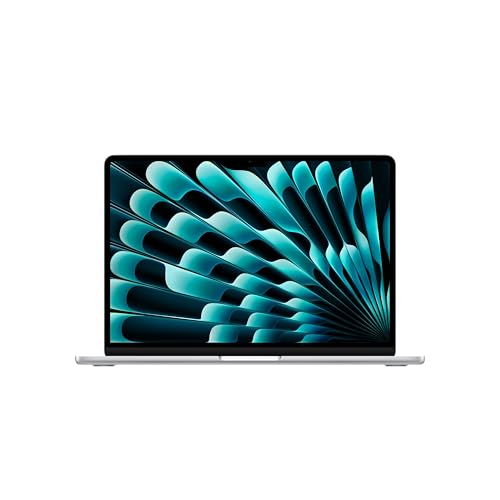
The best laptop for Zoom in 2026 is the 15-inch MacBook Air with the M5 chip if you want a quiet machine with strong audio, and the HP EliteBook Ultra G1i 14 or ThinkPad T14 Gen 6 if you are on Windows and want meeting-focused cameras with privacy shutters. Zoom itself is undemanding, so the right laptop is the one whose camera, microphones, speakers, fan noise and Wi-Fi radio make you look and sound good for hours at a time while screen sharing and running other apps.
This guide ranks seven laptops by how well they serve Zoom-heavy days, translates Zoom’s published requirements into shopping criteria, and includes a bandwidth calculation so you can judge whether your internet connection or your laptop is the weak link. Specifications come from manufacturer spec sheets and reputable reviews. Configurations vary, so check the exact model number before you order.
Our top picks



As an Amazon Associate we earn from qualifying purchases at no extra cost to you.
Quick comparison of the seven picks
| Pick | Best for | Camera | Weight | Battery | Standout call feature |
|---|---|---|---|---|---|
| MacBook Air 15-inch (M5) | Best overall | Center Stage camera | 1.51 kg (3.3 lb) | 66.5 Wh, up to 18 h video | Six speakers, three-mic array, silent |
| HP EliteBook Ultra G1i 14 | Best for hosts and presenters | High-resolution IR camera with shutter | 1.19 kg (2.63 lb) | 64 Wh | Poly Camera Pro framing and effects |
| Lenovo ThinkPad T14 Gen 6 | Best everyday business laptop | 5 MP plus IR, privacy shutter | about 1.38 kg | 52.5 or 57 Wh | Keyboard, ports, Wi-Fi 7 |
| Dell XPS 14 (2026) | Best screen for gallery view | 8 MP webcam | 1.36 kg (3.0 lb) | 70 Wh | 14-inch OLED, 100 percent DCI-P3 |
| Microsoft Surface Laptop 7 (13.8-inch) | Best Windows Studio Effects | 1080p Surface Studio camera | 1.34 kg (2.96 lb) | 54 Wh, up to 13 h active web | 3:2 touchscreen, Windows Hello |
| Acer Chromebook Plus Spin 514 (2026) | Best ChromeOS pick | 5 MP with shutter (retail listing) | about 1.4 kg (3.0 lb) | 70 Wh, 13 h 32 min in a review | Zoom Web App and tablet mode |
| MacBook Pro 14-inch (M5) | Best for hybrid creators | Center Stage camera | 1.55 kg (3.4 lb) | 72.4 Wh, up to 24 h video | HDMI and SD slot for events |
What Zoom actually requires
Zoom publishes modest minimums for its desktop app. According to its system requirements, a dual-core 2 GHz processor and 4 GB of RAM are the baseline, and a quad-core processor at 2.5 GHz or faster with more memory is the recommendation. The company also notes that dual-core laptops share screens at a reduced frame rate, which is why quad-core or better is recommended if you present often. For the browser-based Zoom Web App, ChromeOS devices need at least 4 GB of RAM and Windows or macOS devices at least 8 GB, and the app uses roughly 1 to 1.5 GB of memory during a meeting. In short, almost any current laptop can run Zoom, so the buying decision comes down to everything surrounding it.
The features that separate a good Zoom laptop from a merely adequate one
Camera quality and privacy
Webcams in thin laptops are small, so image quality depends on the sensor, the lens and the image-processing software. Look for 1080p as the floor, a physical shutter for privacy, and framing features that keep you centered when you shift in your chair. An infrared sensor adds fast face sign-in. Treat megapixel claims with caution: processing quality matters more than the number, and sources often disagree on exact figures between configurations.
Microphones and speakers
Clear audio is more important than video. A multi-microphone array with software noise suppression keeps keyboard clatter and room echo out of your voice. Good speakers reduce the need for a headset in small meetings, but a headset is still the best answer for noisy homes and open offices.
Fan noise and thermals
A laptop that spins its fans during a video call is distracting for everyone. Fanless designs such as the MacBook Air stay silent, and efficient Arm and Lunar Lake processors tend to stay quiet under video loads. Gaming laptops are poor choices for calls because their fans are loud and their webcams are often basic.
Wi-Fi and ports
A strong Wi-Fi 6E or Wi-Fi 7 radio improves reliability in crowded buildings. Ports matter if you present in conference rooms: HDMI or USB-C video output plus a reliable adapter saves you from last-minute scrambling.
Display
Zoom’s gallery view can show up to 49 participants on one screen, and a sharp 14- to 15-inch panel makes faces easier to read. A matte or bright screen helps if you sit near a window. A taller 16:10 or 3:2 aspect ratio gives you more room for shared documents next to the video grid.
Best overall: MacBook Air 15-inch (M5)
The 15-inch MacBook Air combines a 15.3-inch display at 2880×1864, Apple’s M5 chip with a 10-core CPU and a 16-core Neural Engine, and 16 GB of unified memory as the base configuration. Per Apple’s spec sheet it has a six-speaker sound system with force-cancelling woofers, a three-microphone array, a 66.5 Wh battery with up to 18 hours of video streaming and a weight of 1.51 kg (3.3 lb). The fanless design means a long call produces no fan noise at all.
Who it suits: professionals who want a call-friendly laptop that is also a good everyday machine. The large speakers make it the best choice here for hosting small group calls without a headset, and the big screen is comfortable for gallery view.
Main trade-off: it is limited to macOS, and Apple’s own two-port selection means you will probably want a hub when presenting. Choose 24 GB of memory if you keep many apps open during calls.
Best for hosts and presenters: HP EliteBook Ultra G1i 14
HP’s EliteBook Ultra G1i 14 is a 1.19 kg (2.63 lb) business laptop with a 14-inch 2880×1800 OLED panel at 120 Hz, 32 GB of LPDDR5X-8533 memory, Wi-Fi 7 and three Thunderbolt 4 ports. Its infrared camera has a physical shutter, and HP’s Poly Camera Pro software provides auto-framing, background replacement and presenter-friendly effects. Reviewers report strong endurance, with Consumer Reports measuring about 17.5 hours of light web browsing from the 64 Wh battery. Sources disagree on camera resolution, reporting figures between about 5 MP and 9 MP depending on the configuration, so confirm before buying.
Who it suits: webinar hosts, sales teams and managers who spend most of the day on camera and want strong meeting software on top of the hardware.
Main trade-off: soldered memory and a premium business price. Also, the Poly features work best when your company uses HP’s management tools.
Best everyday business laptop: Lenovo ThinkPad T14 Gen 6
The ThinkPad T14 Gen 6 has a 5 MP camera with an infrared sensor and a privacy shutter, a 14-inch matte 1920×1200 display, Wi-Fi 7 and up to 64 GB of DDR5 memory. Notebookcheck described the image quality as acceptable for video calls, but nothing special, and measured long battery life on Intel configurations (over 19 hours in a Wi-Fi loop) and about 13 hours 46 minutes on the AMD model. It weighs about 1.38 kg with a customer-replaceable battery.
Who it suits: people who need a dependable work laptop that handles Zoom, spreadsheets and email without drama. The matte screen avoids glare from windows and overhead lights.
Main trade-off: the camera is a safe, average performer, not a standout. If appearance on screen is a priority, pair it with a lighting source or an external webcam.
Best screen for gallery view: Dell XPS 14 (2026)
The XPS 14 has a 14-inch 2880×1800 OLED touchscreen covering 100 percent of DCI-P3, an 8 MP webcam, Wi-Fi 7, three Thunderbolt 4 ports and a 70 Wh battery. It weighs about 1.36 kg (3.0 lb). Dell cites up to 27 hours of Netflix streaming, but independent estimates for office use are closer to 12 to 15 hours. The Core Ultra X7 358H processor and Arc B390 graphics easily handle Zoom, with plenty of power left for background blur and screen sharing.
Who it suits: people who want to see every participant clearly and enjoy a premium display for the rest of the day. The haptic touchpad and CNC aluminum chassis feel high-end.
Main trade-off: a high launch price, and the OLED version trades some battery life for its display.
Best Windows Studio Effects: Microsoft Surface Laptop 7 (13.8-inch)
The Surface Laptop 7 is built around meetings. It has a 1080p Surface Studio camera that supports Windows Studio Effects, such as background blur, automatic framing and eye contact correction, running on the 45 TOPS neural engine so the effects barely affect battery life. The 13.8-inch 2304×1536 touchscreen runs at 120 Hz, the nominal battery is 54 Wh with up to 13 hours of active web use rated by Microsoft, and the laptop weighs 1.34 kg (2.96 lb). It offers two USB-C/USB4 ports, one USB-A port and a Surface Connect port.
Who it suits: Windows users who rely on Zoom, Teams and Outlook all day and prefer a clean software setup. The taller screen shows more of a shared document.
Main trade-off: the Snapdragon processor runs Windows on Arm, so confirm that your VPN, security tools and any specialist software support it.
Best ChromeOS pick: Acer Chromebook Plus Spin 514 (2026)
This convertible Chromebook Plus uses a MediaTek Kompanio Ultra 910 processor with 12 GB of RAM, 256 GB of UFS storage and a 14-inch touchscreen. Trusted Reviews recorded 13 hours 32 minutes of battery life from its 70 Wh battery. A retail listing shows a 5 MP webcam with a privacy shutter. It weighs about 3.0 lb. Because Zoom’s Web App needs only 4 GB of RAM on ChromeOS, this machine has memory to spare.
Who it suits: remote workers and students whose jobs run in the browser and who want a long-lasting laptop that can flip into tablet mode for reading or note-taking.
Main trade-off: you give up desktop-only apps and some Zoom features that depend on the full desktop client. Check your meeting host’s requirements before buying.
Best for hybrid creators: MacBook Pro 14-inch (M5)
The 14-inch MacBook Pro offers three Thunderbolt 4 ports, HDMI, an SD card slot, MagSafe 3 and a 14.2-inch XDR display at 3024×1964. Its 72.4 Wh battery is rated for up to 24 hours of video streaming, and it weighs 1.55 kg (3.4 lb). The active cooling system and 10-core M5 chip handle Zoom with virtual backgrounds while you also run video editing or design applications.
Who it suits: consultants, trainers and creators who present at events, run live sessions and need ports for projectors and capture devices.
Main trade-off: it is heavier and costlier than an Air. If you only join meetings, you will not use the extra capability.
How to choose: a decision matrix
| Your Zoom use | Choose | Why |
|---|---|---|
| Join several meetings a day, work in a quiet room | MacBook Air 15-inch (M5) | Silent fanless design, strong audio |
| Host webinars or sales demos | HP EliteBook Ultra G1i 14 | Camera software and shutter |
| Company-issued laptop on Windows | ThinkPad T14 Gen 6 | Reliability and serviceability |
| Lots of participants and shared documents | Dell XPS 14 or Surface Laptop 7 | Sharp screen, taller aspect ratio |
| Browser-only job, long days away from a charger | Chromebook Plus Spin 514 | Lightweight, long battery |
| Present at venues and edit video | MacBook Pro 14-inch (M5) | HDMI, SD slot, cooling |
A worked bandwidth calculation
A laptop cannot fix a weak connection, so check your network before blaming the hardware. Zoom’s guidance lists about 3.8 Mbps up and 3.0 Mbps down for 1080p video in a one-to-one call, 1.2 Mbps each way for 720p, and roughly 2.0 Mbps down for gallery view with 25 participants and 4.0 Mbps for 49. Suppose you host a 1080p call while screen sharing. Your upload needs about 3.8 Mbps for your video, so budget roughly 5 Mbps up to leave margin. If two other people in your home also stream video at the same time, each using 3 to 5 Mbps, a 20 Mbps connection is quickly saturated. Run a speed test during the busy evening hours, not just in the morning, and if upload speed falls below 8 to 10 Mbps, either lower your Zoom video to 720p or connect by cable. These figures are Zoom’s published planning numbers; real use varies with the number of participants and screen-sharing content.
Getting the best picture and sound
- Position a lamp or window in front of you, slightly above eye level. Good light improves a mediocre webcam more than any hardware upgrade.
- Raise the laptop so the camera sits at eye level. A stack of books or a laptop stand prevents the unflattering upward angle.
- Use a wired headset or earbuds with a microphone in noisy rooms, and keep the laptop’s own microphone for quiet spaces.
- Turn on Zoom’s noise suppression and, if you use virtual backgrounds, choose a plain wall behind you to reduce processing load.
- Close heavy applications such as large spreadsheets and video editors before important calls, and plug into power for presentations.
- Join through a cable or a position near the router when the call matters.
Ownership realities
- Webcam failures: shutters and cameras rarely fail, but a cracked lid or loose hinge on a thin laptop can disrupt framing. Check hinge firmness when you buy.
- Software updates: Zoom regularly updates and some features depend on newer chips. Laptops with a neural engine receive more on-device effects.
- Battery health: constant video calls drain the battery quickly. Plug in when possible to preserve capacity.
- Corporate policies: some employers restrict operating systems or require a managed device, so confirm before buying a personal laptop for work.
Frequently Asked Questions
What are the minimum specs for running Zoom on a laptop?
Zoom’s desktop app lists a dual-core 2 GHz processor and 4 GB of RAM as the minimum, with a quad-core processor recommended, especially for screen sharing. The Web App needs at least 4 GB of RAM on ChromeOS or 8 GB on Windows and macOS.
Is 8 GB of RAM enough for Zoom?
It is enough to run Zoom by itself, but 8 GB can feel tight if you also keep a browser with many tabs and office apps open. Sixteen gigabytes is the safer choice for people who spend all day in meetings.
Do I need a better webcam than the one built into my laptop?
Not usually. A good built-in camera, proper lighting and the right angle produce a professional image. An external webcam is worth it if your laptop’s camera is poor or you need a wider field of view.
Which is better for Zoom, a MacBook or a Windows laptop?
Both work well. MacBooks offer silent operation, strong microphones and speakers, while Windows business laptops such as the EliteBook and ThinkPad add privacy shutters and enterprise management. Choose based on the software your employer supports.
Can a Chromebook run Zoom?
Yes. A Chromebook Plus runs the Zoom Web App and mobile app, and works well for standard meetings. Some advanced features that require the desktop client may be unavailable.
Why does my laptop get hot during Zoom calls?
Video encoding, background effects and screen sharing keep the processor busy. Lowering video resolution, turning off virtual backgrounds and using a laptop stand for airflow can reduce heat and fan noise.


Write Your Review
No reviews yet. Be the first to share your experience!