

Key takeaways
- Student data: a laptop with grades and student information must be encrypted and locked with a strong passcode. Follow your district’s privacy policy and use only approved cloud storage.
- Screen protection: classroom carts, lanyards and crowded desks mean accidental knocks. A padded sleeve is cheaper than a screen repair.
- Hub reliability: cheap hubs fail first. Buy a name-brand hub with HDMI, USB-A and pass-through charging and keep one in your classroom.
- Spare charger: leave a charger at school and one at home so that a forgotten cable never ruins a morning lesson.
- Update schedule: install updates on Friday afternoon rather than before a Monday lesson, so that nothing restarts at the wrong moment.
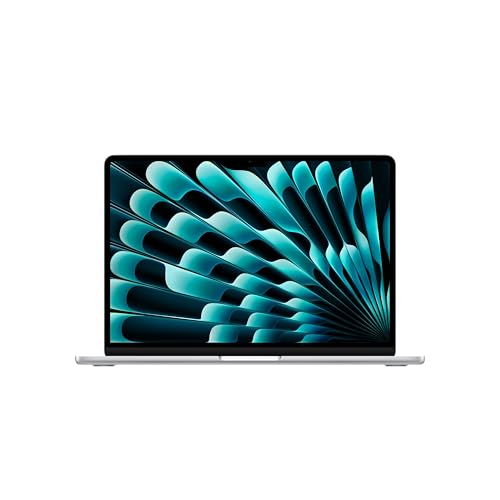
The best laptop for most teachers in 2026 is the MacBook Air with the M5 chip, because it runs silently through a full school day, wakes instantly between periods and ships with 16GB of memory. Teachers on a budget, or in districts built around Google Workspace, are better served by a Chromebook Plus, while those who need Windows for district software should look at the Dell XPS 13 or the Lenovo IdeaPad Slim 3x.
A teacher’s laptop faces different demands than a student’s. It connects to projectors dozens of times a week, runs grading platforms, video lessons and spreadsheets at once, gets carried between classrooms and home, and often has to survive without a charger from the first bell to the last. The seven picks below are chosen for those realities, using manufacturer spec sheets and reputable review outlets. Prices appear only as general ranges.
Our top picks



As an Amazon Associate we earn from qualifying purchases at no extra cost to you.
Quick comparison of the seven picks
| Pick | Best for | Weight | Key specs | Price range |
|---|---|---|---|---|
| MacBook Air 15-inch (M5) | Best overall for all-day teaching | 3.3 lb | M5 chip, 16GB RAM minimum, 512GB SSD, large display | Premium |
| Dell XPS 13 (2026) | Best Windows laptop | 2.2 lb | Core 5 320, 13.4-inch 2560 x 1600 touch, 52Wh battery | Mid-range |
| Lenovo IdeaPad Slim 3x | Best value Windows | Varies by size | Snapdragon X, 16+ hours in lab runs | Entry to mid |
| Lenovo Chromebook Plus 2-in-1 14 | Best for a flexible classroom | Varies | Core 3 N355, 8GB, 128GB UFS, touch 2-in-1 | Entry to mid |
| ASUS Chromebook Plus CX34 | Best cheap workhorse | 3.17 lb | Core i3 or i5, 14-inch 1080p, 50Wh, HDMI and USB-A | Entry |
| MacBook Neo | Best low-cost Mac | 2.7 lb | A18 Pro, 8GB, 13-inch 2408 x 1506, 16-hour rating | Entry |
| Microsoft Surface Laptop 13.8-inch | Best for annotating and presenting | 2.96 lb | Snapdragon X2 Plus, 3:2 touch display, up to 20 hours video | Premium |
What teachers should look for
Most teacher laptop mistakes come from buying for specs on a product page instead of for the classroom. Work through these criteria in order.
Ports and projector compatibility
Many classrooms still use HDMI or VGA projectors and interactive panels. A laptop with a built-in HDMI port, like the ASUS Chromebook Plus CX34, removes the dongle from your routine. Ultraportables such as the Dell XPS 13 and the MacBook Air offer only USB-C, so budget for a compact hub with HDMI and USB-A and keep a spare in your desk drawer.
All-day battery
You will rarely get a chance to charge between periods. Ignore peak claims and ask whether the laptop can run seven to eight hours with the screen at classroom brightness and a video call or projector running. Reviewers recorded about 15 hours on the Dell XPS 13 and more than 16 on the IdeaPad Slim 3x, which leaves comfortable headroom. A Chromebook rated for 10 hours is closer to a single school day.
Memory for real multitasking
A teacher’s typical load is a gradebook, a learning management system, a slide deck, a video call and a dozen browser tabs. That fills 8GB quickly. Reviewers who handle laptops for a living recommend 16GB for teachers, especially if the machine must last through several years of district software changes.
Keyboard and trackpad comfort
Grading comments and report cards mean hours of typing. Choose a laptop with good key travel and a trackpad large enough for precise selection, because small flaws turn into real fatigue by the end of a grading weekend.
Decision matrix by teaching situation
| Your situation | Choose | Why |
|---|---|---|
| Carry between multiple classrooms daily | Dell XPS 13 or MacBook Neo | Under 2.7 pounds at most, easy to carry |
| Grade at a desk for hours | MacBook Air 15-inch | Larger screen reduces window juggling |
| District uses Google Workspace and Chromebooks | ASUS Chromebook Plus CX34 or Lenovo Chromebook Plus 2-in-1 | Native ChromeOS, simple management, low cost |
| Writes on slides or annotates student work | Surface Laptop 13.8-inch | Touch display with a taller shape |
| Paying out of pocket | IdeaPad Slim 3x | Long battery at a lower price |
Best overall: MacBook Air 15-inch with M5
The 15-inch MacBook Air is the larger sibling of the 13-inch model that Tom’s Guide names a top pick for most people. It uses the M5 chip, is offered with 16GB to 32GB of memory and 512GB to 4TB of storage, and weighs about 3.3 pounds, according to the same review. The extra screen area is what teachers notice: side-by-side windows for a gradebook and a rubric are comfortable instead of cramped.
Why it suits teachers: there is no fan, so it never whirs during a quiet test, the battery comfortably outlasts a school day, and macOS updates arrive without the district-managed disruptions that sometimes plague Windows. Apple rates the Air line for up to 18 hours of video streaming, which translates to a full day of mixed classroom work.
Pros: silent, long battery, strong speakers for video clips, solid resale value. Cons: premium price, only USB-C ports so an HDMI adapter is required, and some district-specific Windows software will not run. If your school mandates a Windows-only grading or testing tool, skip this one.
Best Windows laptop: Dell XPS 13 (2026)
At 2.2 pounds and about half an inch thick, the 2026 XPS 13 is the easiest premium Windows laptop to carry from room to room. It has a 13.4-inch 2560 x 1600 touch display with a variable 30 to 120Hz refresh rate, a CNC-machined aluminum shell and a 52Wh battery. Tom’s Hardware recorded nearly 15 hours of runtime, and Engadget logged just under 16 hours in the PCMark 10 office test.
Why it suits teachers: it runs standard Windows software, including the proprietary tools many districts depend on, and the touchscreen makes quick annotations on PDFs easy. Pros: very light, sharp display, large trackpad, good keyboard. Cons: two USB-C ports are all you get, so a hub is mandatory for projectors, the fan can become noisy under heavy load, and the 8GB version is too tight for real multitasking. Choose 16GB.
Best value Windows: Lenovo IdeaPad Slim 3x
Tom’s Guide calls the IdeaPad Slim 3x its budget Windows pick, citing a comfortable keyboard, quick everyday performance and more than 16 hours of battery in lab runs. It is built on a Snapdragon Arm chip, which keeps it cool and quiet, and it sells for less than most thin-and-light rivals.
Why it suits teachers: it covers browsers, Microsoft 365, video calls and document work for a modest outlay, which is ideal if the school does not supply a device. Pros: exceptional battery, good keyboard, accessible price. Cons: a somewhat dim screen that struggles near sunny windows, middling speakers for playing classroom audio, and Windows on Arm may not run older district or gradebook programs. Ask your IT department whether Arm devices are supported before buying.
Best for a flexible classroom: Lenovo Chromebook Plus 2-in-1 14
Best Buy’s teacher listings feature a Lenovo Chromebook Plus 2-in-1 14-inch with an Intel Core 3 N355, 8GB of memory and 128GB of UFS storage. The convertible hinge lets the laptop fold into tablet mode for handing a screen to a student, signing off on a form or reading from a stand during a lesson. PCWorld also highlights Lenovo’s higher-end Chromebook Plus 14 with a 14-inch 1920 x 1200 OLED touchscreen for those who want a richer display.
Why it suits teachers: ChromeOS is simple to manage, boots quickly and works seamlessly with Google Classroom, Docs and Meet. Pros: flexible form factor, touch support, low maintenance. Cons: limited local storage, no desktop Windows or Mac applications, and exact weight and battery life depend on the configuration, so check the spec sheet of the specific model you buy.
Best cheap workhorse: ASUS Chromebook Plus CX34
ASUS specifies the CX34 (CX3402) with an Intel Core i3-1215U or Core i5-1334U, 8GB of LPDDR5 memory in common configurations, a 14-inch 1920 x 1080 anti-glare screen, a 50Wh battery and a 45W USB-C charger. It starts at 1.44 kg (3.17 pounds) and includes two USB-C ports, two USB-A ports, HDMI and a headphone jack.
Why it suits teachers: the HDMI port connects straight to a classroom projector, and the USB-A ports handle clickers, flash drives and older presentation remotes without adapters. Pros: low cost, the best port selection in this list, straightforward ChromeOS. Cons: the 250-nit display is dim, the body is bulkier, and RTINGS recorded a bit under eight hours of light use, so a mid-afternoon top-up may be necessary on long days.
Best low-cost Mac: MacBook Neo
Apple’s MacBook Neo pairs the A18 Pro chip with 8GB of fixed memory, a 256GB drive, a 13-inch Liquid Retina display at 2408 x 1506 and 500 nits, and a 36.5Wh battery rated for up to 16 hours of video streaming. It weighs 2.7 pounds and is half an inch thick. Macworld recorded just over 13 hours in a looped video run.
Why it suits teachers: it brings macOS, Keynote, Pages and a bright display to people who would otherwise skip a Mac for cost. Pros: bright screen, long battery, light body, quick day-to-day performance. Cons: the single 8GB memory option limits heavy multitasking, ports are limited to one fast USB-C, one slower USB-C and a headphone jack, and you will need a hub for projector work.
Best for annotating and presenting: Microsoft Surface Laptop 13.8-inch
The 8th Edition 13.8-inch Surface Laptop uses a Snapdragon X2 Plus processor with an 80 TOPS neural engine, a 2304 x 1536 touch display at 120Hz and a 54Wh battery. Microsoft claims up to 20 hours of video playback, and it weighs 2.96 pounds. Notebookcheck highlights that the screen avoids PWM flicker, which can reduce eye strain over long grading sessions.
Why it suits teachers: the 3:2 display shows more of a worksheet or slide, and touch makes it easy to mark up a PDF. Pros: premium feel, taller screen, long runtime, Wi-Fi 7. Cons: the Arm architecture can run into compatibility gaps with legacy software, ports are limited, and pricing sits near the top of the range.
Classroom care, security and ownership
- Student data: a laptop with grades and student information must be encrypted and locked with a strong passcode. Follow your district’s privacy policy and use only approved cloud storage.
- Screen protection: classroom carts, lanyards and crowded desks mean accidental knocks. A padded sleeve is cheaper than a screen repair.
- Hub reliability: cheap hubs fail first. Buy a name-brand hub with HDMI, USB-A and pass-through charging and keep one in your classroom.
- Spare charger: leave a charger at school and one at home so that a forgotten cable never ruins a morning lesson.
- Update schedule: install updates on Friday afternoon rather than before a Monday lesson, so that nothing restarts at the wrong moment.
Worked example: how long will it really last in your bag?
Assume a seven-hour day with the laptop on for roughly five hours of actual use. If a laptop’s real mixed-use endurance is 65 percent of its rated video runtime, an 18-hour Apple rating yields about 11.7 hours, which covers the day with room to spare. A 10-hour Chromebook rating yields about 6.5 hours, which just misses a five-hour working day plus planning periods. A 16-hour rating yields about 10.4 hours. Use that quick math to decide whether you can leave the charger at home.
School-issued laptop or your own?
Check with your IT department before buying. Many districts issue managed devices and prohibit connecting personal machines to internal networks or grading systems. If you do use a personal laptop, ask which operating systems are supported, whether a VPN is required and whether the machine will be used with the classroom projector or interactive display. Knowing these answers prevents buying a laptop that sits unused. A personal device is most worthwhile for lesson planning, grading at home and building materials, where you control the software.
Teaching tasks and what they demand from the laptop
| Task | Typical load | What helps most |
|---|---|---|
| Grading in a learning management system | Many browser tabs, PDFs and rubrics open at once | 16GB of memory, a bigger or taller screen |
| Live video lessons | Camera, microphone, screen sharing and chat | A quality webcam, quiet fans, stable Wi-Fi |
| Projecting slides | Display output to a panel or projector | HDMI port or a reliable USB-C hub |
| Building lesson materials at home | Document editors, image tools, short video clips | Fast storage, a comfortable keyboard |
| Walking between rooms | Carrying for hours with a bag of papers | Weight under 3 pounds, a sturdy lid |
Common mistakes teachers make when buying
- Buying the cheapest 8GB model. It feels fine in the store, then slows to a crawl once a gradebook, a video call and a slide deck are open together.
- Ignoring the webcam and microphone. Remote conferences and recorded lessons are now routine. A sharp 1080p camera and decent microphones make recorded lessons easier to follow.
- Forgetting the classroom hardware. Check whether your projector or interactive panel needs HDMI, VGA or wireless casting before you commit to a thin laptop with only USB-C.
- Skipping a protective case. Classrooms are busy places, and a laptop on a crowded desk faces more accidents than one in a home office.
- Not asking IT first. Some districts restrict which operating systems may join the school network, and buying an unsupported device wastes money.
How to stretch a teacher laptop over five years
Teachers often keep a personal laptop longer than students do, so plan for five years of use. Buy the highest memory tier you can afford, because memory cannot be upgraded later on almost every model in this guide. Keep the battery between roughly 20 and 80 percent on days when you are near an outlet, since lithium cells age more slowly when they avoid extreme charge levels. Back up lesson plans to a cloud folder and an external drive. Clean the vents and keyboard every term with a soft brush, and reinstall the operating system if the laptop begins to feel sluggish after several years of accumulated programs. Finally, check the manufacturer’s software support window, since a laptop that stops receiving security updates is a risk when it holds student information.
Frequently Asked Questions
What laptop do most teachers need?
Most teachers do well with a 13 to 15-inch laptop with 16GB of memory, a battery that lasts a school day and a keyboard comfortable for long grading sessions. The exact operating system depends on district software.
Is a Chromebook good enough for teaching?
Yes, if your school uses Google Workspace and web-based tools. A Chromebook Plus handles lesson planning, video calls and grading in a browser, but it cannot run desktop-only programs, so check your district requirements first.
Do I need a touchscreen?
It is optional but useful. Touch simplifies annotating PDFs, signing forms and flipping through slides, and a 2-in-1 can double as a tablet during small-group activities.
How much storage do teachers need?
256GB is enough if you keep files in the cloud. Choose 512GB if you store video lessons, large slide decks or photos locally.
Should I buy a Mac or a Windows laptop for teaching?
Choose the platform your district supports. A Mac offers quiet performance and long battery life, while Windows is the safer option if your school relies on Windows-only grading, testing or interactive-board software.
What accessories are worth buying?
A hub with HDMI and USB-A, a padded sleeve, a spare charger and a wireless presenter remote cover most needs. These small items solve the problems teachers hit most often.


Write Your Review
No reviews yet. Be the first to share your experience!