

Key takeaways
- Who it suits: Full-time illustrators, brand designers and anyone who bills for color-critical work.
- Pros: Excellent single-core speed, large memory options, quiet operation in everyday vector work, Thunderbolt 5, HDMI, an SD card slot and MagSafe charging, plus a long battery life.
- Cons: Memory and storage are soldered, so you must configure them correctly at purchase; the weight of about 3.5 pounds is heavier than an Air; the entry cost sits in the premium tier.
The best laptop for Adobe Illustrator in 2026 is a MacBook Pro 14-inch with an M5 Pro chip for most professionals, a MacBook Air with the M5 chip for students and freelancers on a tighter budget, and a Dell XPS 14 or ASUS ProArt P16 if you need Windows. Illustrator is a vector program that leans on fast CPU cores, plenty of memory and an accurate screen far more than on a heavy graphics card, so the right laptop is usually quieter, lighter and cheaper than a gaming or video-editing machine.
Our top picks


As an Amazon Associate we earn from qualifying purchases at no extra cost to you.
Quick Comparison of the 7 Picks
| Pick | Best for | Processor and memory | Screen | Weight | Budget tier |
|---|---|---|---|---|---|
| MacBook Pro 14 (M5 Pro) | Best overall | 18-core CPU, 24GB up to 64GB unified | 14.2-inch Liquid Retina XDR | 1.60 kg (3.5 lb) | Premium |
| MacBook Air 13 (M5) | Best for students on the move | 10-core CPU, 16GB up to 32GB | 13.6-inch, 2560 x 1664 | 1.23 kg (2.7 lb) | Mid-range |
| MacBook Air 15 (M5) | Best value big canvas | 10-core CPU, 16GB up to 32GB | 15.3-inch, 2880 x 1864 | 1.51 kg (3.3 lb) | Mid-range |
| Dell XPS 14 (2026) | Best Windows ultraportable | Core Ultra 7 or X7/X9, 16GB to 32GB | 14-inch 2.8K OLED option | 1.36 kg (3.0 lb) | Premium |
| ASUS ProArt P16 | Best Windows creator screen | Ryzen AI 9 HX 370, up to 64GB, RTX 5070 | 16-inch OLED, 3840 x 2400 or 2880 x 1800 | 1.85 kg (4.08 lb) | Premium |
| ROG Zephyrus G14 (2026) | Best if you also game or render | Core Ultra 9 386H, 32GB, RTX 5070 Ti | 14-inch OLED, 2880 x 1800, 120Hz | 1.58 kg (3.48 lb) | Premium |
| ThinkPad P1 Gen 8 | Best for studios that need reliability | Core Ultra up to 9 285H, up to 64GB | 16-inch, 3.2K tandem OLED option | From 1.84 kg (4.06 lb) | Premium |
Specifications above come from Apple, Dell, ASUS and Lenovo spec sheets and from published reviews of the current generation. Configurations vary by region, so confirm the exact build before you buy.
What Illustrator Actually Needs From a Laptop
Illustrator behaves differently from Photoshop or Premiere Pro. A vector file stores paths, anchor points, gradients, meshes and effects rather than millions of pixels, so the load comes from calculating and redrawing those objects. Four specification areas decide whether your experience is smooth or frustrating.
Single-core CPU speed matters most
Many Illustrator operations, including live effects, path simplification, expanding appearance, Image Trace and boolean operations, are bound by how fast one core can work. That is why a thin laptop with a modern high-clock chip often feels faster in Illustrator than a bulky gaming laptop with more cores. Apple’s M-series performance cores and recent Intel Core Ultra H-series and AMD Ryzen AI chips all handle this well. A Core Ultra 5 or Ryzen AI 7 class chip is the floor for professional work; an M5, Core Ultra 7 or Ryzen AI 9 class chip is the comfortable zone.
Memory sets how complex your files can get
A simple logo opens in a few megabytes, but packaging dielines with embedded images, map artwork with tens of thousands of points, or illustrations with hundreds of live-effect objects can grow past 500MB. Illustrator also keeps undo history and artboard previews in memory, and most designers have Photoshop, a browser with dozens of tabs, Figma and a messaging app open at the same time. Sixteen gigabytes is the practical minimum in 2026, 24GB to 32GB is the sweet spot, and 64GB only pays off for huge technical illustrations or when you also run video or 3D software.
The display decides color confidence
If your work goes to print, you want a panel covering close to 100 percent of DCI-P3, high brightness for outdoor client meetings, and factory calibration. OLED panels give deep blacks and wide gamut, but they can show slight dithering at low brightness and reflect more under glossy coatings. Matte IPS panels are easier on the eyes for ten-hour days. Retina-class pixel density helps because you can inspect hairline strokes without zooming constantly.
The GPU is a bonus, not a requirement
Illustrator uses the GPU for its GPU Performance mode, which speeds up panning, zooming and outline previews on large artwork. Any modern integrated graphics solution handles this for typical files. Adobe’s generative vector features such as Text to Vector Graphic and Generative Shape Fill are processed on Adobe’s servers through Firefly, so they depend on an internet connection and generative credits rather than your local graphics card. A dedicated RTX card only matters if you also edit video, render 3D or play games on the same machine.
The 7 Best Laptops for Adobe Illustrator in 2026
1. MacBook Pro 14-inch (M5 Pro): Best Overall
Apple’s 14-inch MacBook Pro with the M5 Pro chip is the strongest all-round machine for Illustrator. The M5 Pro has an 18-core CPU made of 6 super cores and 12 performance cores, up to a 20-core GPU, and starts at 24GB of unified memory with options up to 64GB and up to 307GB/s of memory bandwidth, according to Apple’s technical specifications. Storage starts at 1TB. The 72.4Wh battery is rated for up to 22 hours of video streaming and 14 hours of wireless web use, and Illustrator sessions sit comfortably between the two. The Liquid Retina XDR display is color managed, bright and sharp enough that you can judge fine strokes by eye.
- Who it suits: Full-time illustrators, brand designers and anyone who bills for color-critical work.
- Pros: Excellent single-core speed, large memory options, quiet operation in everyday vector work, Thunderbolt 5, HDMI, an SD card slot and MagSafe charging, plus a long battery life.
- Cons: Memory and storage are soldered, so you must configure them correctly at purchase; the weight of about 3.5 pounds is heavier than an Air; the entry cost sits in the premium tier.
If you also work with a Wacom tablet or an iPad as a second screen, macOS makes switching between them straightforward. The M5 Max version adds more GPU cores and up to 128GB of memory, but it is overkill for pure vector work.
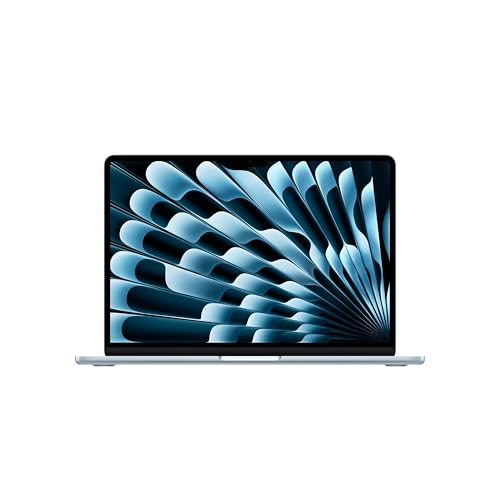
2. MacBook Air 13-inch (M5): Best for Students and Travel
The 13-inch MacBook Air with the M5 chip has a 10-core CPU with 4 super cores and 6 efficiency cores, 16GB of unified memory as the base with 24GB and 32GB options, and a 13.6-inch display at 2560 x 1664 with 500 nits of brightness and wide P3 color, per Apple’s specifications. It weighs 2.7 pounds, has a 53.8Wh battery rated for up to 18 hours of video streaming and 15 hours of wireless web, and has no fan. Because Illustrator rarely sustains a heavy load for long, the lack of active cooling seldom matters.
- Who it suits: Design students, freelance logo designers, and anyone who carries a laptop all day.
- Pros: Very light, silent, excellent battery, strong single-core speed.
- Cons: The 13-inch canvas feels cramped for dense artwork unless you add an external monitor; stepping up to 24GB or 32GB costs extra; sustained heavy workloads such as Image Trace on huge scans may slow after several minutes.
3. MacBook Air 15-inch (M5): Best Value With a Big Canvas
The 15-inch MacBook Air uses the same M5 chip with a 10-core GPU in its base configuration, a 15.3-inch display at 2880 x 1864, and a 66.5Wh battery. It weighs 3.3 pounds, which is close to the weight of the 14-inch Pro, but it gives you more room for artboards and panels. The extra width also allows larger speakers and a more comfortable palm rest, which helps during long drawing sessions.
- Who it suits: Designers who want a large workspace without paying for Pro-level graphics.
- Pros: Large, sharp display; fanless; long battery life; memory options up to 32GB.
- Cons: Only two Thunderbolt ports plus MagSafe, no HDMI or SD slot; peak brightness is lower than the Pro’s XDR screen.
If you only need Illustrator, InDesign and Photoshop at moderate file sizes, this is the model most illustrators should check first.
4. Dell XPS 14 (2026): Best Windows Ultraportable
The 2026 Dell XPS 14 returns with Intel Core Ultra processors, ranging from a Core Ultra 7 355 base to Core Ultra X7 358H and X9 378H options, 16GB to 32GB of LPDDR5X memory, and a 14-inch 2.8K tandem OLED touchscreen at up to 120Hz on higher configurations, according to Dell. It starts at 3.0 pounds, measures about 14.6mm thick and carries a 70Wh battery. Notebookcheck’s review of the Core Ultra 7 355 model recorded roughly 14 hours of Wi-Fi web browsing.
- Who it suits: Windows users who want a premium, light machine with a gorgeous screen.
- Pros: Excellent display option, solid battery life, premium build, light.
- Cons: Integrated Intel Arc graphics only, so no RTX card for 3D or video; memory is soldered; the base model’s 16GB and 512GB are tight for heavy creative work, so choose a higher configuration.
5. ASUS ProArt P16: Best Windows Screen for Color Work
ASUS builds the ProArt P16 (H7606) for creators. It pairs an AMD Ryzen AI 9 HX 370 processor with 12 cores and 24 threads, an NVIDIA GeForce RTX 5070 with 8GB of GDDR7, up to 64GB of LPDDR5X memory and up to 2TB of storage. The display is a 16-inch OLED touchscreen; the launch version is 3840 x 2400 at 60Hz with 100 percent DCI-P3 coverage, while another configuration uses 2880 x 1800 at 120Hz. It weighs about 4.08 pounds and includes a 90Wh battery with a 200W adapter. A dial on the chassis can be mapped to brush size, zoom and similar controls in Adobe apps.
- Who it suits: Windows-based illustrators who also retouch photos or edit video and want a large, accurate screen.
- Pros: Wide-gamut OLED, discrete GPU, stylus-friendly touchscreen, creator-oriented controls.
- Cons: Heavier and thicker than an ultraportable; the 200W adapter is bulky; battery life under load is much shorter than a MacBook’s.
6. ROG Zephyrus G14 (2026): Best If You Also Game or Render
The 2026 ROG Zephyrus G14 in the GU405 configuration uses an Intel Core Ultra 9 386H with an RTX 5070 Ti Laptop GPU with 12GB of GDDR7, 32GB of LPDDR5X memory and a 14-inch 2880 x 1800 OLED at 120Hz. ASUS lists it at about 1.58 kg (3.48 pounds), and Notebookcheck’s review measured 1.568 kg with a 73Wh battery. It is a gaming laptop in a compact body, so you can illustrate by day and play or render at night.
- Who it suits: Illustrators and motion designers who also use Blender, After Effects or games.
- Pros: Powerful GPU in a compact chassis, bright OLED, relatively portable.
- Cons: Fans spin up under heavy load, the 14-inch screen is small for detailed vector work, and the power brick adds noticeable travel weight.
7. Lenovo ThinkPad P1 Gen 8: Best for Studios That Value Reliability
The ThinkPad P1 Gen 8 is a 16-inch mobile workstation starting at 1.84 kg (4.06 pounds). Lenovo offers Core Ultra 5 235H through Core Ultra 9 285H processors, optional NVIDIA RTX PRO 1000 or RTX PRO 2000 Blackwell graphics with 8GB of GDDR7, up to 64GB of LPDDR5x memory in a single LPCAMM2 module, and display choices including a 3.2K tandem OLED touchscreen with pen input and 40 to 120Hz variable refresh. The 90Wh battery supports rapid charging to 80 percent in one hour, per Lenovo’s datasheet.
- Who it suits: Agencies and in-house design teams that need managed, serviceable hardware with business support.
- Pros: Excellent keyboard, replaceable memory module and battery, Thunderbolt 5, strong warranty options.
- Cons: Heavier than a 14-inch ultraportable, glossy OLED can reflect, and configurations with workstation graphics are costly for vector-only work.
Decision Matrix: Match Your Situation to a Laptop
| Your situation | Choose | Memory target | Why |
|---|---|---|---|
| Design student, budget-conscious | MacBook Air 13 (M5) | 16GB minimum | Light, silent and strong single-core speed |
| Freelancer who wants a larger canvas | MacBook Air 15 (M5) | 24GB | More artboard room without Pro-level cost |
| Full-time illustrator, print clients | MacBook Pro 14 (M5 Pro) | 24GB to 48GB | Color-managed XDR display and headroom |
| Windows only, travels weekly | Dell XPS 14 | 32GB | Light OLED laptop with all-day battery |
| Windows plus photo and video work | ASUS ProArt P16 | 32GB to 64GB | Large OLED and RTX graphics |
| Illustration plus gaming or 3D | ROG Zephyrus G14 | 32GB | RTX 5070 Ti in a compact body |
| Agency fleet with IT support | ThinkPad P1 Gen 8 | 32GB to 64GB | Serviceable, certified workstation platform |
Worked Example: How Much Memory Do You Need?
Add up what you keep open rather than guessing. Imagine a packaging designer working on a dieline file that Illustrator reports at 600MB when opened. Illustrator typically needs two to four times a file’s size in working memory once effects, undo history and previews are included, so budget about 1.5GB to 2.5GB for that document. Add 3GB to 5GB for Photoshop with a mockup open, 3GB for a browser with 25 tabs, 1.5GB for Figma or Slack, and 4GB to 6GB for the operating system. The total is roughly 13GB to 18GB. A 16GB machine will start swapping to the SSD, which causes stutter, while a 24GB or 32GB machine stays smooth. This is why 16GB is the minimum, and 24GB or 32GB is the recommended target. These figures are rough planning estimates, not Adobe specifications.
| Item | Typical memory use |
|---|---|
| Illustrator with a 600MB packaging file | 1.5GB to 2.5GB |
| Photoshop with a mockup | 3GB to 5GB |
| Browser, 25 tabs | about 3GB |
| Figma or messaging apps | about 1.5GB |
| Operating system and background tasks | 4GB to 6GB |
| Total | 13GB to 18GB |
Ownership Realities: What Wears and What to Check
- Soldered memory and storage: Every MacBook and most thin Windows laptops here lock RAM and SSD at purchase. The ThinkPad P1’s LPCAMM2 module is the exception. Buy more memory than you think you need.
- Batteries: Lithium cells lose capacity over two to four years of daily use. Keeping charge between about 20 and 80 percent with the built-in battery-care settings slows this.
- OLED care: Use dark mode in toolbars where possible, set the screen to turn off after a few minutes, and avoid leaving static panels at maximum brightness for hours.
- Color calibration: Factory profiles drift. If you deliver print work, a hardware calibrator once or twice a year keeps proofs predictable.
- Stylus and tablet use: A touchscreen helps on Windows convertibles, but most illustrators still prefer a Wacom or Apple Pencil workflow on a separate device.
- External monitor: A 27-inch display with a USB-C connection extends any of these laptops cheaply and is often a better upgrade than a bigger laptop screen.
Common Buying Mistakes
The first mistake is paying for a high-end graphics card you never use. Illustrator rarely taxes it, and the extra power draw means a heavier laptop, a bigger charger and shorter battery life. The second is choosing a glossy or low-gamut screen for print work, then discovering that colors do not match the proofs. The third is buying a base-model 8GB or 16GB configuration because the processor name looks impressive. Memory, not clock speed, is what prevents slowdowns on complex files. The fourth is ignoring ports: if you connect a tablet, external drive and monitor daily, check that the laptop has enough USB-C or Thunderbolt ports or plan for a dock.
A fifth, subtler mistake is treating the spec sheet as the whole story. Two laptops with the same chip can behave differently because of cooling design, power limits and how the screen is tuned. Read recent reviews that measure sustained performance and screen accuracy, and prefer a retailer with an easy return window so you can open your own heaviest file in the first week and see how it behaves.
Frequently Asked Questions
Do I need a dedicated graphics card for Adobe Illustrator?
No. Illustrator runs well on integrated graphics, including Apple silicon, Intel Arc and AMD Radeon. A dedicated NVIDIA card helps with GPU Performance mode on very large files, but only if you also use 3D, video or gaming software. Spend the money on memory and a better display first.
Is a Mac or a Windows laptop better for Illustrator?
Both run the same program with the same features. Macs currently lead on single-core speed, battery life and out-of-box color accuracy, while Windows laptops offer more hardware choices, touchscreens and RTX graphics. Choose the platform your clients, plug-ins and fonts already depend on.
How much RAM do I need for Illustrator in 2026?
Sixteen gigabytes is the minimum for professional work, and 24GB to 32GB is the recommended range if you multitask with Photoshop, InDesign and a browser. Go to 64GB only for very large technical illustrations or if you also edit video.
Is a 13-inch laptop screen too small for vector design?
It works for logos, icons and quick edits, but dense layouts become tedious because you zoom constantly and panels crowd the canvas. A 14-inch to 16-inch screen is more comfortable, and a 27-inch external monitor at your desk makes any laptop feel spacious.
Can I use a touchscreen laptop or an iPad instead?
Illustrator on iPad covers many drawing tasks and syncs with desktop files through cloud documents, but it lacks some desktop features and plug-in support. A touchscreen laptop like the ProArt P16 gives you the full desktop program with pen input, although dedicated pen displays offer better drawing ergonomics.
Do the generative AI features need a powerful laptop?
Adobe’s Firefly-based vector tools run on Adobe’s servers, so a reliable internet connection and available generative credits matter more than local graphics hardware. Check Adobe’s current plan details for how many credits are included.






Write Your Review
No reviews yet. Be the first to share your experience!