

Key takeaways
- 8GB VRAM: student projects and simple product visualisation. Expect to optimise textures.
- 12GB VRAM (RTX 5070 Ti class): good for most freelance work, interiors with moderate texture sets and character scenes.
- 16GB VRAM (RTX 5080 class): comfortable for architectural visualisation and complex environments.
- 24GB VRAM (RTX 5090 class and RTX Pro 5000): large scenes with 8K textures, heavy displacement and big particle caches.
The best laptop for 3D modeling and rendering in 2026 is one with an NVIDIA RTX 5080 or RTX 5090 Laptop GPU, at least 32GB of RAM and a cooling system that holds its clocks for long renders. The Lenovo Legion Pro 7i Gen 10 is the strongest all-round pick for GPU rendering, the ASUS ROG Strix G16 is the sensible value choice, and the MacBook Pro 16 with an M5 Max is the pick if you need very large amounts of memory shared with the GPU. This guide ranks seven options and explains how to choose by software, scene size and budget tier.
Our top picks


As an Amazon Associate we earn from qualifying purchases at no extra cost to you.
Quick Comparison of the 7 Picks
Specs come from manufacturer pages and independent review databases. Configurations vary by region and retailer, so confirm the exact GPU and memory before buying. Price tiers are general market positions, not quotes.
| Pick | Best for | CPU / chip | GPU and VRAM | RAM | Weight | Price tier |
|---|---|---|---|---|---|---|
| Lenovo Legion Pro 7i Gen 10 | Best overall for GPU rendering | Core Ultra 9 275HX | RTX 5090, 24GB (also 5080, 5070 Ti) | Up to 64GB, upgradable | About 6 lb | Premium |
| ASUS ROG Strix G16 | Best value | Core Ultra 9 275HX | RTX 5070 Ti, 12GB | 32GB, upgradable | About 5.8 to 6 lb | Mid-range to premium |
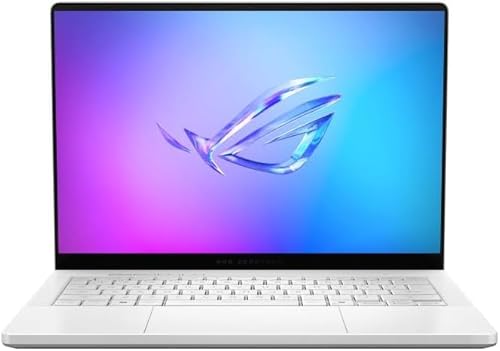
| ASUS ProArt P16 | Best display and portability for artists | Ryzen AI 9 HX 370 | Up to RTX 5090, 24GB | Up to 64GB, soldered | About 4.3 lb | Premium |
| Razer Blade 16 (2026) | Best thin high-power laptop | Core Ultra 9 386H | RTX 5090, 24GB or RTX 5080, 16GB | 32 to 64GB LPDDR5X | About 4.7 lb | Top premium |
| MacBook Pro 16 (M5 Max) | Best for huge scenes in unified memory | M5 Max, 18-core CPU | 32 or 40-core GPU, shared memory | Up to 128GB | About 4.7 lb | Top premium |
| HP ZBook Fury G1i 16 | Best certified, upgradable workstation | Up to Core Ultra 9 285HX | Up to RTX Pro 5000, 24GB | Up to 192GB, four slots | About 5.4 lb | Top premium |
| Dell Pro Max 16 Plus | Best for ISV-certified CAD and simulation | Up to Core Ultra 9 285HX | Up to RTX Pro 5000, 24GB | Up to 128GB CAMM2 | About 5.6 lb | Top premium |
What Matters Most for 3D Modeling and Rendering
Modeling and rendering stress a laptop in different ways, and mixing them up is the most common buying mistake. Understanding which part of your workflow is the bottleneck tells you where to spend.
Modeling is mostly about CPU single-core speed and viewport performance
When you push vertices in Blender, Maya, 3ds Max or Rhino, most operations run on a single CPU core, and the GPU handles the viewport. A fast CPU, such as an Intel Core Ultra 9 HX chip or an Apple M5 Max, keeps sculpting, modifiers and simulations responsive. A mid-range GPU is enough for modeling alone. If you only model and send renders to a farm or desktop, you can save money on the GPU.
Rendering is mostly about GPU compute and VRAM
Renderers such as Cycles, Redshift, V-Ray GPU, Octane and Arnold GPU use the GPU, and they need the whole scene in VRAM. If a scene is larger than VRAM, it either fails or falls back to slower out-of-core methods. Most artists hit the VRAM ceiling before the compute ceiling. In 2026 a practical tiering looks like this.
- 8GB VRAM: student projects and simple product visualisation. Expect to optimise textures.
- 12GB VRAM (RTX 5070 Ti class): good for most freelance work, interiors with moderate texture sets and character scenes.
- 16GB VRAM (RTX 5080 class): comfortable for architectural visualisation and complex environments.
- 24GB VRAM (RTX 5090 class and RTX Pro 5000): large scenes with 8K textures, heavy displacement and big particle caches.
System RAM and storage
Thirty-two gigabytes of RAM is the working minimum for 3D, and 64GB is better if you use ZBrush, Houdini simulations or large Substance Painter projects. Soldered memory cannot be upgraded later, so buy the capacity you need at purchase. Fast NVMe storage matters for cache files and project loading; a laptop with two M.2 slots lets you separate system and scratch drives.
Cooling decides real-world speed
A rendering job can run for hours, so sustained performance matters more than a short benchmark. A thin laptop with a high power rating can throttle after several minutes, while a thicker chassis holds higher clocks. Per the manufacturer’s spec sheets, GPU power ratings in this class range from roughly 110 to 175W, and the same GPU name can perform noticeably differently in different chassis. Tools like Blender’s built-in benchmark and manufacturer power-mode settings help you check what you are getting.
Display and colour accuracy
If you grade textures or deliver final images, you need a display that covers close to 100 percent of DCI-P3 or sRGB. OLED panels offer excellent contrast, and professional models may add factory calibration. Gaming-style panels can be fast but may not be colour-validated, so check the coverage numbers in the specs.
Best Overall: Lenovo Legion Pro 7i Gen 10
The Legion Pro 7i Gen 10 is available with an Intel Core Ultra 9 275HX (24 cores) and RTX 50-series GPUs up to the RTX 5090 with 24GB of GDDR7 at around 175W. The 16-inch OLED panel is 2560×1600 at 240Hz, memory can be upgraded to 64GB, and the chassis includes two M.2 slots. It weighs close to 6 lb before the power brick, which is heavy but is the cost of the cooling headroom.
- Who it suits: freelancers and students who want desktop-class GPU rendering from a single machine.
- Pros: top-tier GPU option, strong sustained cooling, upgradable RAM and storage, a vivid OLED screen.
- Cons: heavy, gaming styling, and battery life drops sharply when rendering. The RTX 5090 configuration sits at the top of the price range.
Best Value: ASUS ROG Strix G16
The 2025 ROG Strix G16 (G615) pairs a Core Ultra 9 275HX with an RTX 5070 Ti with 12GB of GDDR7. ASUS lists a 16-inch 2560×1600 240Hz display, a 90Wh battery and a 280W adapter, and RAM and SSD can be changed without special tools. Weight is about 5.8 to 6 lb depending on the listing. One review roundup found its Blender Cycles time only a few minutes behind far costlier thin laptops in a long scene, which shows how much a well-cooled mid-tier GPU can deliver.
- Who it suits: students, hobbyists and early-career artists who want strong rendering without paying for the top GPU.
- Pros: excellent price-to-performance, upgradable memory, good CPU.
- Cons: 12GB VRAM can limit very large scenes, and the display is not colour-validated for print work.
Best for Colour and Portability: ASUS ProArt P16
The ProArt P16 (H7606) is built for creators. ASUS lists a 16-inch 4K (3840×2400) OLED touch display at 120Hz with PANTONE validation, 100 percent DCI-P3 coverage and up to 1,600 nits peak HDR. Configurations use a Ryzen AI 9 HX 370 and GPUs up to the RTX 5090 Laptop GPU with 24GB. It weighs about 4.3 lb and has a 90Wh battery, an SD Express card reader and a stylus-friendly screen. Reviewers note the GPU power in this chassis is lower than in thicker laptops, so expect somewhat slower sustained renders than in the Legion.
- Who it suits: artists who texture, paint and present work on the same machine, and who travel often.
- Pros: superb colour-accurate screen, light for the GPU, large VRAM option, creative controls.
- Cons: soldered RAM, fan noise under load and a premium price tier.
Best Thin High-Power Laptop: Razer Blade 16 (2026)
The 2026 Blade 16 uses an Intel Core Ultra 9 386H, offers an RTX 5090 with 24GB or an RTX 5080 with 16GB of GDDR7, and has a 2560×1600 240Hz OLED panel with a vapor chamber cooling design. Razer lists the weight at 4.71 lb and a thickness of roughly 15 to 17 mm, with Thunderbolt 5 and Wi-Fi 7. Razer quotes a GPU limit of up to 165W; some reviews report higher figures on their units, so treat exact wattage as configuration-dependent.
- Who it suits: artists who need high-end GPU power in a slim, travel-friendly body.
- Pros: strong performance for the size, polished build, bright OLED screen.
- Cons: memory is soldered, the price sits at the top of this list, and thin chassis run hot under long renders.
Best for Huge Scenes: MacBook Pro 16 with M5 Max
Apple announced the M5 Pro and M5 Max MacBook Pro in March 2026. The M5 Max has an 18-core CPU, a 32 or 40-core GPU, and up to 128GB of unified memory with up to 614GB/s of bandwidth, according to Apple. Because the GPU shares that memory, a scene can use far more than a typical laptop GPU’s 16 or 24GB of VRAM. The M5 generation adds a Neural Accelerator to each GPU core. Apple claims up to 24 hours of battery on M5 Pro models, and the 14-inch M5 Max is rated for up to about 13 hours of wireless web.
- Who it suits: Blender, Cinema 4D, ZBrush, Maya and Houdini users who work with very large scenes and who also value silent operation and battery life.
- Pros: huge memory pool, silent under moderate loads, long battery life, an excellent mini-LED display.
- Cons: no CUDA or OptiX, so some renderers (Octane, Redshift, V-Ray) support is different or limited; check your renderer’s Metal support. Raw ray-tracing speed in Cycles generally trails the top RTX GPUs, and memory cannot be upgraded after purchase.
Best Certified Workstation: HP ZBook Fury G1i 16
HP’s ZBook Fury G1i is a mobile workstation with Intel Core Ultra HX processors up to the Core Ultra 9 285HX and professional GPUs up to the RTX Pro 5000 with 24GB. HP lists up to 192GB of DDR5 across four SODIMM slots and up to four M.2 drives, in a 16-inch body of about 5.4 lb with a 99Wh battery. An 18-inch variant also exists for those who prefer a larger screen.
- Who it suits: studios and engineers that need ISV certification, ECC-class reliability options and expandable memory and storage.
- Pros: massive memory and storage ceiling, serviceable design, professional drivers.
- Cons: premium price tier, and less raw GPU value than a GeForce gaming laptop for pure rendering.
Best for CAD and Simulation: Dell Pro Max 16 Plus
The Dell Pro Max 16 Plus offers Core Ultra 5, 7 or 9 HX processors with vPro, integrated graphics up to the RTX Pro 5000 with 24GB, and a replaceable GPU module. It supports up to 128GB of DDR5 through a CAMM2 module and up to 12TB of storage across three M.2 slots, according to Dell’s listings. Review units used a 3840×2400 OLED panel at 120Hz, and the weight is listed around 5.6 lb with a 96Wh battery. Reviewers note the top GPU is rated at 175W but settles nearer 125W under sustained load.
- Who it suits: engineering and architecture firms running SolidWorks, Revit or simulation alongside rendering.
- Pros: certified drivers, upgradable GPU module, flexible memory.
- Cons: expensive, and the sustained power limit is lower than the rated figure.
Decision Matrix: Match Software and Budget to a Laptop
| Your situation | Recommended pick | Reason |
|---|---|---|
| Blender or Cycles, student budget | ASUS ROG Strix G16 | 12GB VRAM and a strong CPU at the lowest tier here |
| Blender, V-Ray or Redshift, large interiors | Lenovo Legion Pro 7i Gen 10 | 24GB VRAM option and sustained cooling |
| Texture painting and colour-critical output | ASUS ProArt P16 | Validated 4K OLED and touch |
| Frequent travel, still wants an RTX 5090 | Razer Blade 16 (2026) | About 4.7 lb with RTX 5090 option |
| ZBrush, Cinema 4D or Houdini with huge caches | MacBook Pro 16 (M5 Max) | Up to 128GB shared memory |
| SolidWorks, Revit or CATIA plus rendering | Dell Pro Max 16 Plus or HP ZBook Fury G1i | Certified drivers and expandable memory |
A Worked Example: Will Your Scene Fit?
Imagine an interior scene with 40 textures at 4K resolution. An uncompressed 4096 x 4096 RGBA texture uses about 64MB, so 40 textures consume roughly 2.5GB. Add 3 million polygons of geometry (about 1 to 2GB with acceleration structures), plus lighting, displacement and render buffers of 1 to 2GB, and the scene needs around 5 to 7GB of VRAM. A 12GB card handles that comfortably. Upgrade the same scene to 8K textures for hero objects, and a single 8K RGBA texture is about 256MB, so a dozen of them add 3GB more. Add 8GB of scene geometry from a high-density sculpt and you quickly cross 16GB. That is the point where a 24GB GPU or a unified-memory Mac becomes worth the extra cost.
For render time, consider a 20-minute frame on a mid-range GPU. If a faster laptop is about 40 percent quicker, it saves 8 minutes a frame. For a 300-frame animation, that is 40 hours saved, which can justify the higher tier for professionals but not for hobbyists who render a few stills a month.
Ownership Realities and Maintenance
- Thermals: clean the fan intakes every few months with compressed air, and use a stand that lets the base breathe. Dust is the usual reason a rendering laptop slows down after a year.
- Battery: rendering on battery is slow because the GPU is limited. Plug in for any heavy job and enable the manufacturer’s performance mode.
- Power bricks: 280W adapters are heavy. Add the adapter weight to your travel calculation.
- Drivers: use the NVIDIA Studio driver for stability with DCC applications, and update only when your software lists support for a new release.
- Storage: keep at least 20 percent of the SSD free so cache and temp files do not slow the drive.
- Backups: project files are valuable, so back up to an external drive or cloud storage regularly.
Common Mistakes
- Buying a laptop with a powerful GPU but only 16GB of system RAM, then hitting swap during simulations.
- Choosing by GPU name alone. Wattage and cooling change results significantly between models.
- Expecting a Mac to behave like a CUDA machine. Check your render engine’s Apple silicon support first.
- Ignoring display quality when colour matters for the final output.
- Skipping an external monitor. Even the best laptop panel is small for long modeling sessions.
Frequently Asked Questions
How much VRAM do I need for 3D rendering?
Twelve gigabytes handles most freelance work, while 16GB suits complex architectural scenes. Twenty-four gigabytes is the safe choice for 8K textures, heavy displacement or large simulations. If your scenes regularly exceed VRAM, the renderer will slow down or fail.
Is a gaming laptop good enough for 3D modeling?
Yes, for most artists. Gaming laptops offer the best GPU performance per cost and are well supported by Blender, Maya and 3ds Max. Workstation laptops add certified drivers, ECC memory options and upgrade paths that matter mainly for engineering firms.
Should I buy a MacBook Pro or a Windows laptop for 3D?
Choose a Windows laptop with an RTX GPU if you rely on CUDA or OptiX renderers such as Octane, Redshift or V-Ray. Choose a MacBook Pro if you value battery life, silence and large unified memory, and your software supports Metal.
How much RAM is enough for 3D modeling?
Thirty-two gigabytes is the practical minimum, and 64GB is better for ZBrush, Houdini and big Substance Painter files. If the RAM is soldered, buy the amount you will need for the laptop’s whole life.
Does a laptop need a dedicated GPU for modeling only?
For simple modeling and low-poly work, strong integrated graphics or a mid-range GPU is enough. A dedicated GPU becomes important when you render on the laptop, use heavy viewports with many objects, or work with real-time engines.
Can I render on battery?
You can, but speed will be much lower because laptops cap GPU power on battery. For any serious render, plug in and use the maximum performance profile.


Write Your Review
No reviews yet. Be the first to share your experience!