

Key takeaways
- The best docking stations for home offices: six USB-C and DisplayLink docks compared by monitors, ports, power delivery and Mac support.
For most home offices, the Anker Nano 13-in-1 is the best starting point: it drives up to three displays (two HDMI and one DisplayPort), adds a 10 Gbps USB-C port and three USB-A ports, and keeps a detachable 6-in-1 hub you can carry to a coffee shop. If you run a Mac with an Apple silicon chip and want three extended screens, the WAVLINK DisplayLink docks are the more dependable route. A docking station turns one laptop cable into a full desk: monitors, keyboard, network, audio and charging all at once. The six docks below cover triple-monitor, dual-monitor and compact stand-style setups.
Quick List
- Anker Nano 13-in-1 – best for a portable dock with three display outputs and a detachable hub
- TobenONE 18-in-1 (3 HDMI) – best for Windows desks that want triple 4K HDMI and a very long port list
- WAVLINK DisplayLink Dock, Listing A – best for Mac and Windows users who need three extended monitors
- TobenONE 19-in-1 (dual monitor) – best for two-screen desks that need ten USB ports
- PULWTOP 11-in-1 with vertical stand – best for small desks where footprint matters
- WAVLINK DisplayLink Dock, Listing B – best as a second look at the same triple-monitor, DisplayLink design
Which One Is Right for You?
| If you… | Choose |
|---|---|
| Work on a Mac and want three extended displays | WAVLINK DisplayLink Dock (Listing A or B) |
| Carry one dock between home and a shared office | Anker Nano 13-in-1 |
| Run a Windows laptop with three monitors | TobenONE 18-in-1 |
| Have two monitors and a crowd of peripherals | TobenONE 19-in-1 |
| Have a narrow desk or a laptop that sits closed beside the monitors | PULWTOP 11-in-1 with vertical stand |
| Want to compare two DisplayLink listings before buying | WAVLINK DisplayLink Dock, Listing B |
The deciding factor is almost always how many monitors you plan to extend and which operating system drives them. Windows laptops are flexible; Apple silicon Macs are not, and that single fact narrows the field quickly. After that, count the peripherals you plug in every day and choose the dock whose port layout matches your desk.
All 6 Picks in Detail
1. Anker Nano 13-in-1 – Best for a Portable Three-Display Dock
As an Amazon Associate we earn from qualifying purchases at no extra cost to you.

This is the pick for people whose home office is also a travel office. The listing describes a 13-in-1 dock with a detachable 6-in-1 USB-C hub, which means part of the dock can leave the desk while the rest stays plugged into your monitors. It advertises support for three displays through two HDMI ports and one DisplayPort, along with a 10 Gbps USB-C port and three USB-A ports.
Day to day, the appeal is flexibility. At home the dock sits behind your monitors and carries the display, network and USB load; on a work trip you pop off the hub and keep a pocketable adapter for HDMI, USB and charging. Because the listing calls out both HDMI and DisplayPort, it also helps if your monitors are a mismatched pair, for example an older HDMI panel beside a newer DisplayPort one. Before buying, check the three-display wording against your own laptop: how many screens you really get depends on the laptop’s graphics and operating system, not just the dock.
- 13-in-1 dock with a detachable 6-in-1 USB-C hub
- Three display outputs: two HDMI and one DisplayPort
- 10 Gbps USB-C data port plus three USB-A ports
- Audio connection listed; Ethernet and charging wattage – confirm on listing
- Maximum resolution and refresh rate per display – confirm on listing
Pros:
- Detachable hub covers travel without a second purchase
- Mixed HDMI and DisplayPort outputs suit mixed monitor collections
Cons:
- Three-display behavior depends on the laptop’s USB-C video capability and operating system
- Only three USB-A ports, so a heavy peripheral desk may need a hub
Compared with the TobenONE 18-in-1, it trades raw port count for flexibility and brand support documentation.
2. TobenONE 18-in-1 (3 HDMI) – Best for Triple-4K Windows Desks

The TobenONE 18-in-1 leans on volume. Its listing promises three HDMI outputs for triple 4K monitors, nine USB-C and USB-A ports, Ethernet and USB Power Delivery 3.0 pass-through. It is aimed at the buyer who has three identical HDMI monitors and a keyboard, mouse, webcam, headset and drive that all need a socket.
This is a desk-anchor design rather than a travel accessory. A box with this many connections is best parked behind the monitors, with one USB-C cable running to the laptop. Windows users who rely on three matching HDMI monitors will find the cabling straightforward, because every screen uses the same connector and cable type. The caution is on the video side: the listing does not name a display chipset, so read the compatibility notes for your operating system, and expect that a base Apple silicon Mac may not extend all three screens independently.
- 18-in-1 layout with three HDMI outputs for three monitors
- Nine USB-C and USB-A ports in total (split by type – confirm on listing)
- Gigabit-class Ethernet listed; exact speed – confirm on listing
- USB Power Delivery 3.0 for charging the laptop; wattage – confirm on listing
- Whether the third display is native or driver-based – confirm on listing
Pros:
- Three HDMI ports mean no adapters for a standard three-monitor row
- Large port count for crowded desks
Cons:
- Triple extended displays on a Mac are not guaranteed; check the listing’s macOS notes
- No DisplayPort output for monitors that prefer it
Choose it over the Anker Nano when you will never travel with the dock and want every connection on one box.
3. WAVLINK DisplayLink Dock, Listing A – Best for Three Monitors on Mac and Windows

WAVLINK builds this dock around DisplayLink technology, which sends video over USB using a driver instead of relying on the laptop’s built-in display outputs. That matters because Apple silicon Macs with a base chip normally support only one external display, and the DisplayLink approach is the common workaround for extending more. The listing names M1 through M5 and Neo Macs plus Windows, with 100W power delivery, three HDMI and two DisplayPort outputs, six 10 Gbps USB ports and Gigabit Ethernet.
The reason to choose a DisplayLink dock is predictability across laptops. It adds display outputs through software, so a laptop that natively supports only one external monitor can still run several. The cost is the driver: you install DisplayLink Manager, approve screen-recording style permissions on macOS, and accept that a few things, such as protected streaming video, may not play on the DisplayLink screens. For spreadsheets, email, documents, chat and browsers across three panels, that trade-off is routine for many remote workers.
- DisplayLink-based design for three monitors on Mac and Windows
- 100W USB Power Delivery to the laptop
- Three HDMI and two DisplayPort connectors (you choose the combination – confirm on listing)
- Six USB ports rated at 10 Gbps
- Gigabit Ethernet
Pros:
- Designed for the Mac multi-display problem
- Strong power delivery and fast USB ports in one unit
Cons:
- Requires installing the DisplayLink driver and granting macOS screen permissions
- Protected streaming video and 3D or CAD work can behave differently over DisplayLink
It is the closest relative of Listing B and the better pick than the TobenONE docks if a Mac is your main machine.
4. TobenONE 19-in-1 (Dual Monitor) – Best for Two Screens and Many Peripherals

This dock scales back to two 4K HDMI monitors but raises the port count: the listing mentions ten USB-C and USB-A ports, Ethernet and Power Delivery 3.0, packed into a 19-in-1 body. If your desk holds two monitors, a keyboard, a mouse, a microphone, a webcam, a card reader and a backup drive, this is the dock that does not make you unplug something.
Think of this dock as the answer to a very specific complaint: not enough sockets. Home offices accumulate gear, from headsets and microphones to label printers and drives, and the listing’s ten USB-C and USB-A ports absorb all of it without a separate hub. With only two display outputs, it fits the many people who run a single large monitor plus the laptop screen, or two matched monitors. Look at the product page for the split between fast and slow ports, because a mix of 10 Gbps and 5 Gbps or USB 2.0 ports is common at this port count.
- 19-in-1 layout with two 4K HDMI outputs
- Ten USB-C and USB-A ports in total (split by type and speed – confirm on listing)
- Ethernet port; speed – confirm on listing
- USB Power Delivery 3.0 pass-through; wattage – confirm on listing
- 4K refresh rate per display – confirm on listing
Pros:
- Highest USB count in this group
- Dual-monitor focus keeps the setup simple
Cons:
- Only two displays, so triple-monitor users should look elsewhere
- Mac users should confirm that two extended screens are supported on their chip
Pick it over the PULWTOP when port count matters more than desk footprint.
5. PULWTOP 11-in-1 with Vertical Stand – Best for Small Desks
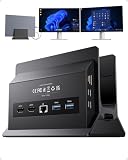
PULWTOP packages its dock with a vertical stand, so the laptop stands on its edge and the whole setup takes up a few inches of desk. The listing describes dual-monitor 4K at 60Hz through two HDMI ports, five 10 Gbps USB ports and 11 functions in total. It suits the person who uses a laptop closed or semi-closed beside external screens.
The stand design changes how the desk feels. With the laptop held upright, you gain the surface space a flat laptop would occupy and the dock sits directly below the machine, so only the monitor and peripheral cables leave it. Heat is worth a thought: a closed or vertical laptop has less open surface to shed heat, so give it airflow and avoid stacking items against it. Check the listing for compatible laptop thickness, because an oversized gaming laptop or a rugged case may not fit the slot.
- 11-in-1 dock built into a vertical laptop stand
- Two HDMI outputs for dual 4K at 60Hz
- Five USB ports rated at 10 Gbps
- Ethernet, card reader and charging details – confirm on listing
- Maximum laptop thickness the stand accepts – confirm on listing
Pros:
- Saves desk area and keeps the laptop upright and tidy
- 10 Gbps ports are fast enough for external SSDs
Cons:
- Fewer ports than the TobenONE 19-in-1
- A vertical stand is a poor fit if you use the laptop screen as a third display
Compared with the Anker Nano, it gives up portability for a cleaner permanent desk.
6. WAVLINK DisplayLink Dock, Listing B – Best for Comparing the Same DisplayLink Design

This second WAVLINK listing carries the same headline features as Listing A: DisplayLink technology, three monitors, Mac M1 through M5 and Neo compatibility, 100W power delivery, three HDMI and two DisplayPort outputs, six 10 Gbps USB ports and Gigabit Ethernet. The listing title does not state how it differs from Listing A, so the practical approach is to compare the full product pages for hardware revision, included power adapter and driver notes.
Because the two WAVLINK listings share the same stated features, the choice often comes down to availability and the fine print on the product page. Look at the included power brick, the DisplayLink chipset revision, the supported macOS and Windows versions, and any firmware notes. If both listings match on those points, the one that is in stock and carries the longer return window is the safer buy. Either way, plan on the same driver installation steps and the same protected-content limits.
- DisplayLink dock for three monitors
- 100W USB Power Delivery
- Three HDMI and two DisplayPort outputs
- Six 10 Gbps USB ports
- Power adapter wattage and chipset revision – confirm on listing
Pros:
- Same Mac-friendly approach as Listing A
- Gives you a second source if one listing is unavailable
Cons:
- Differences from Listing A are unclear from the name alone
- Same DisplayLink driver requirement and protected-content caveats
Treat it as interchangeable with Listing A unless the product page shows a clear difference.
Specs Compared
| Dock | Displays | Video outputs | USB ports | Ethernet | Power delivery |
|---|---|---|---|---|---|
| Anker Nano 13-in-1 | Up to 3 | 2 HDMI + 1 DisplayPort | 10 Gbps USB-C, 3 USB-A | Confirm on listing | Confirm on listing |
| TobenONE 18-in-1 | 3 monitors | 3 HDMI | 9 USB-C/A in total | Yes, speed confirm on listing | PD 3.0, wattage confirm on listing |
| WAVLINK Listing A | 3 monitors | 3 HDMI / 2 DisplayPort | 6 x 10 Gbps | Gigabit | 100W |
| TobenONE 19-in-1 | 2 monitors | 2 HDMI (4K) | 10 USB-C/A in total | Yes, speed confirm on listing | PD 3.0, wattage confirm on listing |
| PULWTOP 11-in-1 | 2 monitors | 2 HDMI (4K at 60Hz) | 5 x 10 Gbps | Confirm on listing | Confirm on listing |
| WAVLINK Listing B | 3 monitors | 3 HDMI / 2 DisplayPort | 6 x 10 Gbps | Gigabit | 100W |
How We Chose These
We worked from the product listings supplied for this page and from manufacturer and standards documentation, then compared what each dock claims on four points: how many displays it drives and over which connectors, how it handles Mac and Windows differences, the number and speed of its USB ports, and how it delivers power to the laptop. We favored docks that state specifications plainly and flagged anywhere a listing leaves a value open. Nothing here is based on lab measurements; where a figure is missing, we say to confirm it on the product page.
What to Look For
Display support and operating system
Start with the number of monitors and the laptop you own. A Windows laptop with a modern USB-C port that supports DisplayPort Alt Mode can usually send two displays through a dock using multi-stream transport or a built-in video chip. Apple silicon Macs behave differently: base M1, M2, M3 and later chips natively support a limited number of external displays, and a dock that does not use DisplayLink typically mirrors extra screens instead of extending them. If you need three independent desktops on a Mac, look for DisplayLink in the listing name and plan to install the driver.
Resolution, refresh rate and cable choice
Two 4K displays at 60Hz is the common target for office work. Check that the listing says 4K at 60Hz per screen, not 30Hz; 30Hz makes cursor movement feel sluggish. HDMI 2.0 handles 4K at 60Hz, while older HDMI 1.4 ports stop at 30Hz. DisplayPort 1.4 is the safer choice for high-refresh monitors. If your monitors have both connectors, use whichever the dock supports at full resolution.
Power delivery and charging headroom
A dock that charges the laptop saves a second cable, but the wattage must cover your machine. A thin ultrabook may need 45W to 65W, while a performance 16-inch laptop may want 100W or more. As a rule of thumb, choose a dock whose power delivery is at least equal to your laptop’s original charger wattage, and remember that the dock reserves some of its own budget for the USB devices it feeds. A 100W dock typically delivers somewhat less to the laptop once peripherals draw power.
USB speed and port mix
Count what you plug in daily. Keyboards, mice and webcams need only basic USB, but external SSDs benefit from 10 Gbps ports. Worked example: a creator with two monitors, a keyboard, a mouse, a microphone, a webcam and an external SSD needs at least six ports, and at least one should run at 10 Gbps. A dock with ten ports and two fast ones fits that desk; a five-port stand dock would fill up immediately.
Networking, audio and safety
Wired Gigabit Ethernet steadies video calls and large uploads. Buy docks that ship with a proper power adapter, keep ventilation around the unit, and avoid covering it with papers: docks that handle high wattage run warm. Use the cable included with the dock, and confirm it is rated for the data and power levels you need.
Planning the desk before you buy
Sketch the cable route before you order. A dock normally sits within arm’s reach of the laptop, and its power adapter needs a wall outlet nearby. Measure the distance from the dock to each monitor, since short HDMI cables are common in the box and a long run may need a replacement high-speed cable. If you share a desk with a standing-desk frame, leave slack so cables do not tug when the height changes. Finally, label the cables on the dock end; when a monitor stops working months later, a quick glance tells you which connector to reseat before you blame the hardware.
Software matters as much as ports. Keep the laptop’s operating system and graphics drivers current, and if the dock uses DisplayLink, keep that driver updated too, because many display glitches after an OS update are solved by a newer driver. Disable aggressive USB power saving in your power settings if peripherals disconnect at random.
Questions
Do I need a Thunderbolt dock for a home office?
Not necessarily. A USB-C dock covers monitors, Ethernet, storage and charging for most desk work. Thunderbolt adds more bandwidth for multiple high-resolution displays and fast external drives, but it costs more and requires a Thunderbolt laptop port.
Why can my Mac only show one external display through a dock?
Base Apple silicon chips limit native external display output, so non-DisplayLink docks can only mirror extra screens. A DisplayLink dock uses a driver to add extended displays beyond that limit.
Will a dock charge my laptop while I work?
Yes, if it supports USB Power Delivery and the wattage meets your laptop’s needs. Compare the dock’s wattage with your original charger, and keep in mind that attached devices share the dock’s power budget.
Is DisplayLink good for video editing or gaming?
It is intended for office work, spreadsheets and video calls. Graphics-heavy tasks such as 3D, CAD and fast games are better served by displays connected directly to the laptop or by a Thunderbolt dock.
Can I use the dock with the laptop lid closed?
Many laptops allow it once an external display and power are connected, but the setting differs by operating system and model. Windows has a lid-close action setting, and some Macs need a keyboard and mouse connected to wake properly.
Why are my monitors stuck at 30Hz?
This usually points to an HDMI 1.4 connection, an older cable, or a dock sharing limited bandwidth across several displays. Try a certified high-speed cable and confirm that the dock lists 4K at 60Hz for the number of screens you are using.
Update History
- October 20, 2026 – Initial publication; product set drawn from current catalog listings.
- Check the product page for current specifications and availability before buying.
Sources
- Manufacturer product and specification pages and retailer listing titles for Anker, TobenONE, WAVLINK and PULWTOP docks
- Retailer listing titles and specification fields
- Apple and DisplayLink documentation on external display support for Apple silicon Macs
- HDMI Licensing and VESA DisplayPort specification summaries for resolution and refresh-rate limits
- USB-IF specification summaries for USB Power Delivery and 10 Gbps USB


Write Your Review
No reviews yet. Be the first to share your experience!