

Key takeaways
- Num Lock: on compact layouts, a number pad overlay on letters such as U, I, O, J, K, L turns letters into digits. Press Num Lock, often paired with Fn, to switch it off.
- Fn Lock: swaps the function row between media keys and F1 to F12. Press Fn and Esc on many models, or Fn plus the key with a padlock icon.
- Caps Lock and Scroll Lock: not usually the cause of total failure, but check the indicator lights.
- Keyboard lock hotkey: some laptops, especially older Lenovo, Asus and Dell business models, include a keyboard or touchpad disable shortcut. Look for a key with a padlock or keyboard icon on the function row and press it with Fn.
- Windows key lock: gaming laptops often have a Windows key lock, typically Fn plus the Windows key, which disables only that key.
If your laptop keyboard is locked and nothing types, start with the fastest fixes: restart the laptop, turn off Filter Keys and Sticky Keys, press the Fn Lock combination for your model, and check whether the problem is the screen lock rather than the keyboard. These four steps solve most “locked keyboard” cases in under five minutes, and none of them needs tools or a repair shop.
A keyboard that seems locked usually falls into one of three groups: a software setting is blocking or changing keys, a driver or system freeze is stopping all input, or hardware has failed. This guide works through them in order, from the easiest check to the hardest repair, with the reason behind each step so you can stop as soon as the keyboard responds.
Our top picks


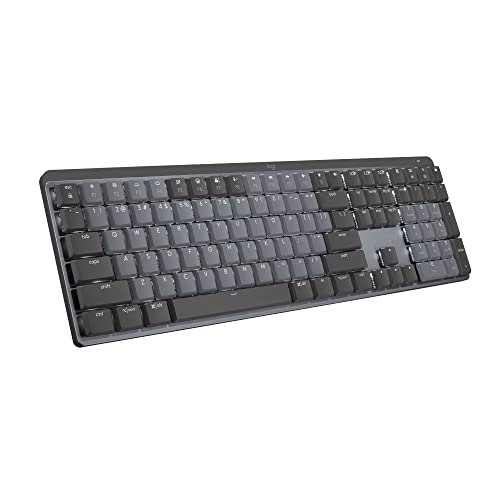

As an Amazon Associate we earn from qualifying purchases at no extra cost to you.
Step 0: Work out what kind of “locked” you have
Before changing settings, spend 30 seconds identifying the symptom. The cause changes the fix.
| Symptom | Most likely cause | Go to |
|---|---|---|
| No keys work, and the mouse or touchpad also does not move | System freeze or crashed process | Force restart |
| Mouse works, but no keys respond | Keyboard driver, Filter Keys or a stuck modifier | Software fixes |
| Only some keys fail, or letters type as numbers | Num Lock, Fn Lock or a layout setting | Lock keys |
| Typing is delayed or keys repeat | Filter Keys, Sticky Keys or heavy CPU load | Accessibility settings |
| Keyboard works at the password screen but not in an app | App focus problem or app freeze | App checks |
| Keyboard does not work in BIOS or on boot | Hardware fault or loose cable | Hardware section |
| Wrong characters appear | Wrong input language or layout | Language settings |
Fix 1: Restart the laptop properly
A restart clears frozen keyboard drivers and background services. If you cannot click Start, press the power button briefly, or hold it for about 10 seconds to force a shutdown when the screen is frozen. Wait 30 seconds, then power on. If the laptop has a removable battery, unplug the charger, remove the battery for 30 seconds, and reconnect it; on most modern models, you can instead press the power button for 30 seconds while unplugged to drain residual charge.
The reason this works: keyboards communicate through a small embedded controller. A glitch in that controller or its driver can leave keys unresponsive until power is fully cycled.
Fix 2: Turn off Filter Keys and Sticky Keys (Windows)
Holding the right Shift key for eight seconds turns on Filter Keys, a Windows accessibility feature that ignores brief or repeated keystrokes. Many people trigger it by accident and conclude the keyboard is locked. Pressing Shift five times triggers Sticky Keys, which can also make typing feel strange.
- Open Settings with the Windows key and I, or click the mouse and use the Start menu.
- Go to Accessibility, then Keyboard.
- Switch off Filter Keys, Sticky Keys and Toggle Keys.
- Turn off the shortcuts that activate them so they cannot trigger again by accident.
If you cannot use the keyboard, do the steps with the mouse or touchpad. If neither works, use the on-screen keyboard from the sign-in screen’s accessibility button.
Fix 3: Check lock keys and Fn Lock
Laptops hide several lock modes that change how keys behave.
- Num Lock: on compact layouts, a number pad overlay on letters such as U, I, O, J, K, L turns letters into digits. Press Num Lock, often paired with Fn, to switch it off.
- Fn Lock: swaps the function row between media keys and F1 to F12. Press Fn and Esc on many models, or Fn plus the key with a padlock icon.
- Caps Lock and Scroll Lock: not usually the cause of total failure, but check the indicator lights.
- Keyboard lock hotkey: some laptops, especially older Lenovo, Asus and Dell business models, include a keyboard or touchpad disable shortcut. Look for a key with a padlock or keyboard icon on the function row and press it with Fn.
- Windows key lock: gaming laptops often have a Windows key lock, typically Fn plus the Windows key, which disables only that key.
Fix 4: Confirm it is not the screen lock
If the screen shows a lock screen or a message asking for a password, the keyboard may work but the system is waiting for sign-in. Press any key or click once to wake the lock screen. If the password field does not appear, press Ctrl, Alt and Delete together, which brings up the secure sign-in screen even when an app is stuck. If the laptop is encrypted with BitLocker or a pre-boot password, the keyboard may use a different layout at that stage than in Windows, so characters you type could be different from what you expect.
Fix 5: Restart the keyboard driver
- Right-click Start and open Device Manager (use the mouse or press Windows plus X, then M).
- Expand Keyboards.
- Right-click the standard keyboard entry and choose Uninstall device. Do not tick “delete the driver” unless offered for a third-party driver.
- Restart the laptop. Windows reinstalls the standard driver on boot.
You can also choose Update driver, then Search automatically for drivers. If a Windows update triggered the problem, open Settings, then Windows Update, then Update history, and look for recent driver or quality updates you can uninstall.
Fix 6: Check for software conflicts
Remote desktop software, macro tools, keyboard remappers, security suites and virtual machines can capture input. Close or uninstall tools you installed shortly before the problem began. Boot into Safe Mode by holding Shift while choosing Restart, then Troubleshoot, Advanced options, Startup Settings and Restart. If the keyboard works in Safe Mode, a startup program or third-party driver is the cause. Re-enable startup items gradually to find it.
Fix 7: Run the Windows keyboard troubleshooter and system checks
- Go to Settings, System, Troubleshoot, Other troubleshooters, and run the Keyboard troubleshooter.
- Run sfc /scannow from an elevated Command Prompt to check for damaged system files.
- Run DISM /Online /Cleanup-Image /RestoreHealth if the scan reports unrepaired files.
- Install pending Windows and manufacturer driver updates from the laptop maker’s support page.
- Update the BIOS only if the manufacturer lists a keyboard or embedded controller fix, and never interrupt the update.
MacBook keyboard locked: the Mac equivalents
- Slow Keys and Sticky Keys: open System Settings, Accessibility, Keyboard, and turn off Sticky Keys and Slow Keys. Slow Keys adds a delay before a keypress registers, which looks like a lag or a lock.
- Restart: choose Apple menu, Restart. If frozen, hold the power or Touch ID button until the screen goes dark.
- Safe mode: on Apple silicon, hold the power button until startup options appear, select the disk, hold Shift and choose Continue in Safe Mode.
- Reset the controller: on Intel Macs, resetting the SMC can restore a stuck keyboard. Apple silicon Macs reset it automatically on restart.
- Bluetooth: if you use an external keyboard, check that it is connected and its batteries are charged.
Chromebook keyboard not responding
Press and hold the Refresh key and tap the Power key to restart the Chromebook. Check for stuck modifier keys by pressing Shift, Ctrl, Alt and Search one by one. Open Settings, Accessibility and turn off Sticky keys. If it still fails, perform a hard reset, which on many models means unplugging, pressing Refresh with Power, then releasing, or following the manufacturer’s recovery steps.
When it is a hardware problem
If the keyboard does not respond in the BIOS or startup menu, or none of the above helps, the cause is probably physical. These are the common failures and what to do about each.
| Hardware cause | Clues | What to try |
|---|---|---|
| Debris under keys | Single keys stick or double type | Turn the laptop off, tilt it, and blow short bursts of air, then wipe with a barely damp cloth |
| Liquid spill | Sticky keys, odd characters, sudden failures after a drink | Power off, unplug, and have a technician inspect it |
| Loose ribbon cable | Whole keyboard dead, random presses, worked before a drop or repair | Professional reseat; opening the case voids some warranties |
| Worn keyboard membrane | Several keys fail, usually on an older laptop | Replace the keyboard module |
| Failed embedded controller or board | Keyboard and some ports or the touchpad all fail | Service from the manufacturer or a repair shop |
| Swollen battery | Keyboard deck bulges, trackpad hard to click | Stop using the laptop and replace the battery safely |
A safe cleaning routine
- Shut down and unplug the laptop.
- Tilt it at about 75 degrees and use short bursts of compressed air across the keys.
- Wipe the keytops with a microfiber cloth lightly dampened with isopropyl alcohol; never pour liquid onto the keyboard.
- Let it dry for at least 15 minutes before turning it on.
Use workarounds while you fix it
- External keyboard: a USB or Bluetooth keyboard is the fastest way to keep working, and it also tells you whether the issue is hardware or software. If the external keyboard works, the internal keyboard or its driver is the issue.
- On-screen keyboard: on Windows, press Windows, Ctrl and O. On a Mac, enable the Accessibility Keyboard in System Settings.
- Voice typing: Windows key plus H on Windows, or Dictation on Mac, lets you enter text by speaking.
Prevent it from happening again
- Avoid eating or drinking over the keyboard, and keep drinks away from the laptop.
- Close the lid gently and never place objects on a closed laptop in a bag, which can press keys and bend the display and cable.
- Keep the system and drivers up to date, but wait a few days after major releases if you rely on the laptop for work.
- Learn the accessibility shortcuts so that you know what you triggered by accident.
- Keep a spare USB keyboard at home for emergencies.
A 10-minute troubleshooting order that saves time
Random fixes waste time and sometimes make things worse. Follow this order, and stop when the keyboard responds.
| Minute | Action | What it rules out |
|---|---|---|
| 0 to 1 | Check that the screen is awake and press Ctrl, Alt, Delete | Simple lock screen or frozen app |
| 1 to 2 | Look at the Caps Lock and Num Lock lights; toggle Fn Lock | Lock-key modes |
| 2 to 4 | Plug in a USB keyboard or use the on-screen keyboard | Tells you if hardware is involved |
| 4 to 6 | Turn off Filter Keys, Sticky Keys and Toggle Keys | Accessibility triggers |
| 6 to 8 | Restart fully, or drain power with a 30-second power button hold | Controller or driver glitch |
| 8 to 10 | Reinstall the keyboard device in Device Manager or try Safe Mode | Driver and software conflicts |
If the external keyboard works but the internal one does not, even after the driver reinstall, you can keep the laptop usable with the external keyboard while you arrange a repair. If both fail, the fault is in the operating system or the laptop’s ports and board.
Special cases worth knowing
The keyboard locks only during games or full-screen apps
Many gaming laptops include a Windows key lock and software such as a manufacturer control center that remaps keys per profile. Check the control center for a game mode setting that disables certain keys, and test with the profile turned off. Overlays from chat, capture or performance tools can also grab input; close them one at a time.
The keyboard locks after waking from sleep
Sleep and hibernation can leave drivers in a broken state, especially after an update. Disable Fast Startup in Power Options, then install the latest chipset and embedded controller drivers from the laptop maker. If the problem continues, check whether a USB selective suspend setting is cutting power to the device and turn that off in advanced power settings.
Only the touchpad and keyboard fail together
When both fail, the shared internal connection is the suspect. On many laptops the keyboard and touchpad connect through the same controller or ribbon, so a loose cable or a controller fault can disable both. This pattern is a strong hint for a hardware service rather than more software resets.
The keyboard types by itself
Ghost keypresses come from a stuck key, spilled liquid, a failing keyboard membrane or a swollen battery pressing from below. Power off, remove any liquid, inspect the underside of the deck and see a technician if the keyboard deck looks warped.
How to tell a software lock from a failed keyboard in 60 seconds
The quickest test is the pre-boot environment. Restart the laptop and tap the BIOS key repeatedly during startup, commonly F2, Delete, F10 or Esc, depending on the brand. If you can move through the BIOS menu with the arrow keys, the internal keyboard, its cable and the embedded controller are alive, and the fault sits in Windows, a driver or a setting. If the BIOS ignores the keys while an external USB keyboard works there, the internal keyboard has a hardware fault.
A second quick test uses a bootable USB drive or the recovery environment. Hold Shift while clicking Restart, then try the keyboard in the blue recovery menu. The same logic applies: working keys there point to software, and dead keys point to hardware.
Keep notes as you go. Write down which keys fail, what you changed and the result of each test. Technicians and support agents can diagnose a problem much faster when you can say, for example, that the keyboard fails in Windows and in the recovery menu but works in the BIOS, which suggests a driver or firmware layer rather than a broken cable.
Finally, check warranty status before opening the laptop. Many manufacturers cover keyboard defects for one year or longer, and some business models include accidental damage plans. Opening the case yourself can complicate a claim, so start with the support site, enter the serial number, and ask for a keyboard replacement if the unit qualifies.
Frequently Asked Questions
Why is my laptop keyboard not typing anything?
The common causes are a frozen system, Filter Keys or Sticky Keys turned on by accident, a driver glitch, or a hardware failure. Restart first, then check accessibility settings, and test with an external keyboard to separate software from hardware.
How do I unlock my laptop keyboard?
Try the model-specific keyboard lock shortcut, usually Fn with a key bearing a padlock icon, and turn off Filter Keys in Accessibility settings. On Windows, you can also restart the keyboard driver in Device Manager. If the laptop was locked with Windows, press Ctrl, Alt and Delete to reach the sign-in screen.
Why do my letters type as numbers?
Your laptop likely has Num Lock turned on, which converts part of the letter keys into a number pad. Press the Num Lock key, often with Fn, or look for a Fn Lock option in the manufacturer’s keyboard utility.
Can a software update lock the keyboard?
Yes. A faulty driver or system update can stop input. Rolling back the driver in Device Manager or removing a recent update usually fixes it, and installing the latest manufacturer driver afterwards may prevent a repeat.
Should I replace the keyboard or the whole laptop?
Replace only the keyboard when a few keys or a cable are at fault and the rest of the laptop still performs well. Consider a new laptop if the board has failed, a spill caused widespread damage, or the repair would exceed the value of an older machine.
Does the keyboard work in the BIOS, and why does that matter?
Yes, a keyboard that works in the BIOS or startup menu but not in Windows points to software or drivers. If it fails there too, the problem is almost certainly hardware, such as a cable, the keyboard module or the embedded controller.


Write Your Review
No reviews yet. Be the first to share your experience!