

Key takeaways
- Chromebooks are the usual casualty. Examplify runs on Windows and macOS but not on ChromeOS, and several proctoring tools behave poorly or are blocked on Chromebooks. If your school does not name Chromebooks as approved, buy a Windows or Mac machine.
- Windows on Arm needs a version check. Snapdragon-based Windows laptops are efficient, but exam software has historically lagged on Arm. Current Examplify releases list Arm support only on recent Windows 11 builds, so verify with the school exam office first.
- Virtual machines are blocked. Exam software typically refuses to launch inside a virtual machine, so do not plan to run Windows inside macOS for exams.
The best laptop for a nursing student in 2026 is a light Windows or Mac notebook with 16 GB of memory, a 14-inch screen, a clear webcam and a battery that lasts a full clinical day, and the MacBook Air 13-inch with the M5 chip and the new Dell XPS 13 are the two strongest all-rounders. Before you buy anything, confirm your program’s exam-proctoring software, because that single requirement rules out Chromebooks and sometimes Windows-on-Arm machines. The rest of this guide covers seven picks by situation, the specification table that matters, and the compatibility checks that save students from an expensive return.
Nursing coursework is a different workload from most majors. You write care plans and reflections, read long PDF textbooks, watch recorded lectures, build slide decks for group presentations, take proctored exams on lockdown software, and carry the machine between campus, a skills lab and a hospital placement. That pattern rewards weight, battery and reliability far more than raw speed. A quiet, cool machine that wakes instantly and survives a backpack for four years will serve you better than a gaming laptop.
Our top picks



As an Amazon Associate we earn from qualifying purchases at no extra cost to you.
Quick comparison of the seven picks
| Pick | Best for | Weight | Screen | Battery | Operating system |
|---|---|---|---|---|---|
| MacBook Air 13-inch (M5) | Best overall | 2.7 lb (1.23 kg) | 13.6-in, 2560 x 1664 | 53.8 Wh, about 15.5 h in one published run | macOS |
| Dell XPS 13 (2026) | Best Windows ultraportable | 2.2 lb (about 1.0 kg) | 13.4-in touch, 2560 x 1600, 120 Hz | 52 Wh, 14.5 to 16 h in published runs | Windows 11 |
| Lenovo ThinkPad E14 Gen 7 | Best keyboard and durability | 1.32 to 1.47 kg | 14-in, 1920 x 1200 base | 48 or 64 Wh, up to 14.5 h | Windows 11 |
| HP OmniBook 5 14 | Best display for the money class | 1.34 kg (2.95 lb) | 14-in OLED, 16:10 | 59 Wh | Windows 11 |
| Acer Swift Go 14 AI | Best lightweight Windows 14-inch | 1.24 kg | 14-in OLED, 1920 x 1200 | 65 Wh, about 20.9 h video loop | Windows 11 |
| Lenovo IdeaPad Slim 5i 14 (Gen 11) | Best budget-tier Windows | 1.34 kg (2.95 lb) | 14-in IPS, 1920 x 1200 | 50 or 60 Wh | Windows 11 |
| MacBook Neo | Best entry-level Mac | 2.7 lb (1.23 kg) | 13.0-in, 2408 x 1506 | 36.5 Wh | macOS |
Step one: check the exam software before you shop
Most nursing programs deliver at least some exams through a locked-down browser or an exam application such as Respondus LockDown Browser, Proctorio or ExamSoft Examplify. Each has its own device rules, and your program can add stricter ones on top. Three rules cover most cases.
- Chromebooks are the usual casualty. Examplify runs on Windows and macOS but not on ChromeOS, and several proctoring tools behave poorly or are blocked on Chromebooks. If your school does not name Chromebooks as approved, buy a Windows or Mac machine.
- Windows on Arm needs a version check. Snapdragon-based Windows laptops are efficient, but exam software has historically lagged on Arm. Current Examplify releases list Arm support only on recent Windows 11 builds, so verify with the school exam office first.
- Virtual machines are blocked. Exam software typically refuses to launch inside a virtual machine, so do not plan to run Windows inside macOS for exams.
Email your program’s technology office or read the student handbook and ask three questions: which exam applications are used, which operating systems are approved, and whether the school supplies loaner devices on exam day. A written answer is worth more than any buying guide, including this one.
Best overall: MacBook Air 13-inch (M5)
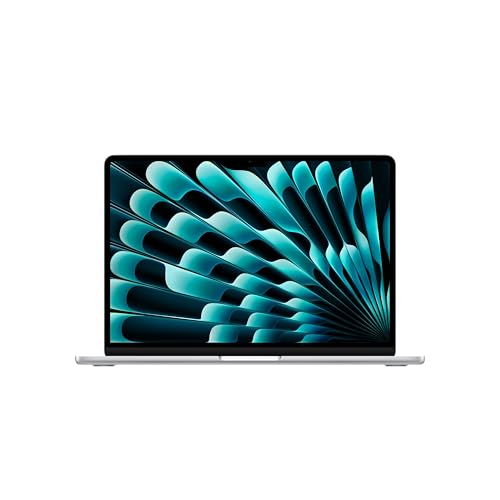
The 13-inch MacBook Air with the Apple M5 chip is the safest all-round choice if your program supports macOS. It weighs 2.7 pounds, has a 13.6-inch Liquid Retina display at 2560 x 1664 and a 53.8 Wh battery, and the base configuration now ships with 16 GB of unified memory and a 512 GB drive according to published reviews. Apple rates battery at up to 18 hours of video, and Tom’s Guide measured just over 15 hours of web browsing, which comfortably covers a lecture block, lab and a library session.
Who it suits: students who want one machine for four years and who will also use it for study apps, flashcards and note taking. The trackpad and speakers are the best in the category, the fanless body is silent in a lecture hall, and macOS runs Examplify and most lockdown browsers.
Trade-off: two Thunderbolt ports and a MagSafe charger mean you need a small hub for a USB-A drive or an SD card, and the memory cannot be upgraded later, so choose 16 GB or more at purchase. Reviewers describe the M5 as a modest step over the M4, so a discounted M4 Air is a sensible alternative if your program accepts it.
Best Windows ultraportable: Dell XPS 13 (2026)
The redesigned XPS 13 is the Windows machine to pick when your program requires Windows and you want a premium feel. It is 12.7 mm thick and 2.2 pounds, which Dell positions as its thinnest and lightest XPS yet, with a 13.4-inch 2560 x 1600 touch display at 120 Hz and a 52 Wh battery. The base model uses an Intel Core 5 320 chip, and independent runs reported roughly 14.5 to nearly 16 hours of office-style battery life.
Who it suits: nursing students who live in Word, PowerPoint, PDF readers and a browser, and who value a lightweight, durable chassis. The touch screen is useful for annotating slides and reading in tablet-like positions.
Trade-off: Engadget and TechRadar both warn that 8 GB of memory is too little for heavy multitasking, so buy the 16 GB configuration. Ports are limited to USB-C, and the base chip does not include Thunderbolt 4, which only appears on the higher Panther Lake configuration. If you need the extra port flexibility, budget for a hub.
Best keyboard and durability: Lenovo ThinkPad E14 Gen 7
The ThinkPad E14 Gen 7 is the practical choice for students who type pages of care plans and reflections. It keeps the ThinkPad keyboard with deep travel, a TrackPoint nub and a physical port selection, and it comes in Intel Arrow Lake, Intel Lunar Lake and AMD Ryzen variants. Notebookcheck measured about 14.5 hours of Wi-Fi browsing on the Lunar Lake model with the 64 Wh battery, and about 12 hours even at maximum brightness. Weight ranges from about 1.32 to 1.47 kg depending on configuration.
Who it suits: students who want a plain, repairable Windows laptop that survives clinical bags and daily commuting. Arrow Lake versions have two memory slots you can upgrade later, while Lunar Lake versions have 32 GB soldered in.
Trade-off: the base screen is a 1920 x 1200 IPS panel rather than OLED, and battery capacity differs between the 48 Wh and 64 Wh variants, so read the exact configuration. Notebookcheck also found the Intel versions preferable to the AMD one for this model.
Best display for the money class: HP OmniBook 5 14
The 2026 OmniBook 5 14 pairs a 14-inch 16:10 OLED panel with a 59 Wh battery in a 1.34 kg (2.95 lb) body. OLED matters for nursing students because you spend hours reading PDFs and slides, and the contrast and sharpness reduce eye strain compared with a dim budget IPS panel. The 2025 Snapdragon predecessor posted extremely long battery runs, and the 2026 models keep the same battery size and similar weight.
Who it suits: students who want a premium screen without moving into the thin-and-light flagship tier. It is a good fit for long library sessions and for watching recorded skills demonstrations.
Trade-off: peak brightness is about 300 nits, so it is not ideal in a sunny courtyard, and HP sells both x86 and Snapdragon versions. Choose the x86 version unless your exam office confirms Arm support.
Best lightweight Windows 14-inch: Acer Swift Go 14 AI
The 2026 Swift Go 14 AI is built around an Intel Panther Lake chip and weighs about 1.24 kg in Trusted Reviews’ measurement. Its 14-inch 1920 x 1200 OLED panel and 65 Wh battery produced almost 21 hours in a PCMark 10 video loop at 150 nits, and Acer quotes up to 22 hours. Those are video-loop numbers, so expect less in mixed use, but the headroom is large.
Who it suits: commuting students who carry textbooks, a stethoscope and a lunch alongside the laptop, and want the lightest Windows option without paying for a business-class chassis.
Trade-off: the OLED panel runs at 60 Hz and weight claims vary slightly between spec sheets and reviews. Confirm the memory and storage tier of the exact model, since regional configurations differ.
Best budget-tier Windows: Lenovo IdeaPad Slim 5i 14 (Gen 11)
The 14-inch IdeaPad Slim 5i Gen 11 launched in May 2026 with an aluminium body, a 1920 x 1200 IPS display, 50 or 60 Wh battery options and a generous port set: two USB-A, two USB-C, HDMI 2.1 and an SD card reader. It weighs 1.34 kg (2.95 lb). For a student on a budget, those ports mean no dongles for a projector, a USB drive or a card reader.
Who it suits: students who need a dependable Windows laptop at a budget tier and plan to keep it for the whole program.
Trade-off: the screen is a standard 60 Hz IPS panel, and battery life varies with the Core Ultra chip and cell size. Earlier IdeaPad Slim 5i generations showed a wide spread between claimed and measured runtime, so look for independent runs of your exact chip.
Best entry-level Mac: MacBook Neo
Apple’s MacBook Neo, released in March 2026, uses an A18 Pro chip with a 6-core CPU and 5-core GPU, 8 GB of memory and 256 or 512 GB of storage. It has a 13.0-inch 2408 x 1506 display, a 36.5 Wh battery, weighs 2.7 pounds and offers one 10 Gbps USB-C port, one USB 2.0 USB-C port and a headphone jack. Apple rates it at up to 16 hours of video and 11 hours of wireless web.
Who it suits: students whose program supports macOS and whose workload is writing, reading and presentations. Macworld rates multi-core performance as roughly M1-class, which is plenty for that work.
Trade-off: 8 GB of non-upgradable memory is the ceiling, and the sparse ports make a hub mandatory. If you expect to run many browser tabs alongside a proctoring app and a video call, step up to the Air.
How to choose: a decision matrix
| Your situation | Choose | Why |
|---|---|---|
| Program supports Mac and you want the longest-lasting machine | MacBook Air 13-inch (M5) | 16 GB base memory, quiet, about 15 h browsing |
| Program requires Windows, wants lightest premium option | Dell XPS 13 (16 GB model) | 2.2 lb, 2.5K touch display |
| You type most of the day | ThinkPad E14 Gen 7 | Best keyboard, upgradeable on Arrow Lake |
| You read PDFs for hours | HP OmniBook 5 14 or Acer Swift Go 14 AI | OLED panels |
| Tight budget, needs ports | IdeaPad Slim 5i 14 | USB-A, HDMI and SD built in |
| Mac needed, light workload only | MacBook Neo | Entry price tier, 2.7 lb |
The specifications that actually matter
Memory
Sixteen gigabytes is the practical target. A browser with a dozen tabs, a video call, a PDF textbook and a lockdown exam application can consume 8 GB on its own. Because most thin laptops now solder the memory, you cannot fix a low-memory purchase later.
Storage
A 512 GB drive is comfortable. Lecture recordings, simulation videos and scanned handouts accumulate, and exam software often needs several gigabytes of free space to download secure exam files. If you go smaller, plan on cloud storage and a USB-C external drive.
Webcam and microphone
Proctored exams and virtual clinical simulations require a clear camera and a working microphone. A 1080p camera is now common on current models, while some budget laptops still ship a 720p camera that looks grainy in poor light. Look for at least a 1080p camera and, ideally, a physical privacy shutter, since exam monitors ask you to show your desk.
Battery and charging
Aim for at least 10 hours of real use. Battery claims are usually video-loop numbers, so cut them by a third for mixed work with video calls. USB-C charging at 65 W or higher lets you share one charger with your phone and tablet.
Weight and size
A 13- or 14-inch laptop under 3.0 pounds is the sweet spot. Larger 15- and 16-inch laptops add screen area but also weight and a larger charger. In a skills lab where bench space is limited, a smaller footprint is a daily advantage.
A worked example: what a clinical day costs your battery
Suppose you carry the laptop for ten hours. Four hours of lecture with notes and a browser draw roughly 6 W, two hours of video lecture or simulation draw 8 W, three hours of a library session with a PDF reader and several tabs draw 7 W, and one hour of a proctored exam with a camera and screen recording draws 12 W. That totals about 24 + 16 + 21 + 12 = 73 watt-hours of energy. A 52 to 65 Wh battery would not cover that if the screen runs near full brightness all day, but with a charger in the library for a single hour, any of the picks above easily finishes the day. A 36.5 Wh battery such as the MacBook Neo gets through roughly half of the same mix, so students on that machine should plan a midday top-up. The lesson is to match battery capacity to your longest stretch away from an outlet, not to the headline hours.
Durability and ownership realities
- Keyboards wear first. A nursing student types thousands of words a week. ThinkPad and MacBook keyboards hold up well, while budget keyboards develop shiny keys and loose switches.
- Hinges and corners take bag damage. Aluminium chassis resist flex better than thin plastic, and a padded sleeve is cheap insurance.
- Spills are common in hospitals and break rooms. Keep drinks off the desk and consider an extended warranty or accidental damage coverage offered by your school.
- Updates. Keep Windows or macOS updated before exam week, because a forced update mid-exam can lock you out of the exam software.
- Accessories to budget for. A hub with USB-A and HDMI, a sleeve, a wireless mouse and a compact charger round out the setup.
Study-day setup steps
- Install your exam software one week before the first exam and run the built-in system check, so you have time to fix permission prompts.
- Turn off notifications and cloud-sync pop-ups before exam day, since many lockdown tools treat them as violations.
- Back up your notes to a cloud service and a USB-C drive, as a lost laptop during clinical rotation can cost weeks of work.
- Keep a spare USB-C cable and charger in your locker, because outlets in simulation labs are often occupied.
- Use a separate user account for study so personal apps do not interfere with proctoring software.
Frequently Asked Questions
Can I use a Chromebook for nursing school?
Often not. Examplify does not support ChromeOS, and many proctoring and lockdown tools are restricted or unreliable on Chromebooks. A Chromebook can work for notes and reading, but you would still need an approved Windows or Mac machine for exams, so buy that first.
Is a MacBook or a Windows laptop better for nursing students?
Either works if your program approves it. Windows is the safer default because every proctoring tool supports it, while a Mac offers longer battery life and a simpler experience. Confirm macOS support in writing before you buy a Mac.
How much memory do I need?
Plan on 16 GB. Eight gigabytes can handle basic note taking, but it struggles once a proctoring app, a video call and many browser tabs are open together. Memory is soldered on most thin laptops, so you cannot add more later.
Should I buy a 2-in-1 or a touch-screen laptop?
A touch screen is a nice extra for annotating slides and reading in bed, but it is not a requirement. Touch and pen features do not help during proctored exams, so spend your budget on memory, battery and weight first.
Do I need a laptop with a discrete graphics card?
No. Nursing software runs well on integrated graphics, and a discrete GPU adds weight, noise and cost without any benefit for coursework. Save that budget for more memory or a better screen.
Can I use a Snapdragon (Arm) Windows laptop?
Possibly, but verify first. Exam applications support Arm only in recent releases and on recent Windows 11 builds, and some lockdown tools still struggle. Ask the school exam office before choosing an Arm model.


Write Your Review
No reviews yet. Be the first to share your experience!