

Key takeaways
- Memory. A common school minimum is 4GB, but reviewers argue that 8GB should be the practical floor because a Classroom tab, a Meet call, and a few documents consume memory quickly. TechRadar suggests at least 8GB for students heading to university.
- Storage type. Chromebooks with eMMC storage are slower and have limited space; UFS or SSD storage opens apps faster and ages better.
- Screen size. Many schools set an 11-inch minimum. A 14-inch screen is more comfortable for split-screen work between Classroom and a document.
- Battery. The device should last a full school day on one charge. Look for 10 hours or more in independent measurements.
- Update support. ChromeOS devices receive security updates until an Auto Update Expiration date. Check it before purchase, because a laptop that stops updating mid-school-year can lose access to school resources.
- Managed or personal. Testing platforms are stricter than Classroom. The College Board’s Bluebook requires ChromeOS 144 as a minimum and, according to one 2026 guide, runs only on school-managed Chromebooks, and DRC INSIGHT does not support unmanaged ChromeOS. Ask the school which devices it supports for exams.
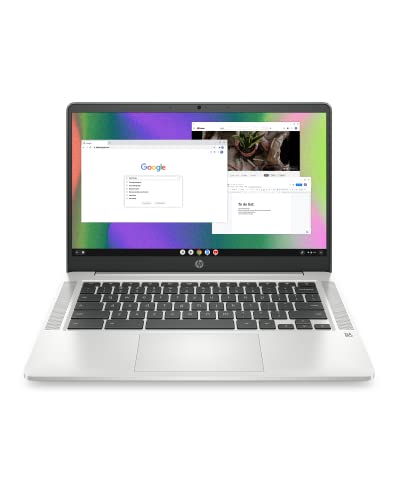
Google Classroom has no strict hardware requirement, because it runs in a web browser, so the best laptop for it is a Chromebook that is reliable, light, and supported with updates for years. For most students the Lenovo Chromebook Plus 14 is the best pick, the Lenovo Flex 5i Chromebook Plus is the best 2-in-1 for school, and the ASUS Chromebook CX15 is the lowest-cost way to get a full-size screen. This guide ranks seven laptops by what actually matters in a classroom: memory, battery, durability, screen, update support, and how well they work with school-managed accounts.
Our top picks



As an Amazon Associate we earn from qualifying purchases at no extra cost to you.
Quick Comparison of the Seven Picks
| Pick | Best for | Processor | Memory / storage | Display | Battery | Price tier |
|---|---|---|---|---|---|---|
| Lenovo Chromebook Plus 14 | Best overall | MediaTek Kompanio Ultra 910 | 12-16GB / 256GB UFS | 14-inch 1920×1200 OLED | 60Wh, up to 17 hours | Upper mid-range |
| Acer Chromebook Plus Spin 514 (2026) | Best convertible with ports | MediaTek Kompanio Ultra 910 | 12-16GB / 256GB UFS | 14-inch touchscreen, up to 2880×1800 | About 70Wh, 14h54 measured | Upper mid-range |
| Lenovo Flex 5i Chromebook Plus | Best 2-in-1 for students | Intel Core i3-1315U | 8GB | 14-inch 1920×1200 touch | Middling | Mid-range |
| ASUS Chromebook Plus CX34 | Best for speed and ports | Intel Core i5 | Plus-class | 14-inch class, 16:9 | About 13 hours | Mid-range |
| ASUS Chromebook CX15 | Best budget, big screen | Intel Celeron N4500 | 4GB | 15.6-inch 1080p | About 10 hours | Budget |
| Lenovo Chromebook Duet 11 | Best tablet for younger kids | MediaTek Kompanio 838 | 4-8GB / 64-128GB eMMC | 10.95-inch 1920×1200 | 29Wh, up to 12 hours | Budget |
| MacBook Neo | Best non-Chromebook option | Apple A18 Pro | 8GB / 256-512GB | 13-inch 2408×1506 | About 13 hours | Budget to mid-range |
What Google Classroom Needs From a Device
Classroom is a web application. Students open assignments, submit work through Docs, Slides, and Sheets, join Meet calls, and take quizzes in Chrome. That means nearly any modern laptop works, but a few practical limits shape the buying decision.
- Memory. A common school minimum is 4GB, but reviewers argue that 8GB should be the practical floor because a Classroom tab, a Meet call, and a few documents consume memory quickly. TechRadar suggests at least 8GB for students heading to university.
- Storage type. Chromebooks with eMMC storage are slower and have limited space; UFS or SSD storage opens apps faster and ages better.
- Screen size. Many schools set an 11-inch minimum. A 14-inch screen is more comfortable for split-screen work between Classroom and a document.
- Battery. The device should last a full school day on one charge. Look for 10 hours or more in independent measurements.
- Update support. ChromeOS devices receive security updates until an Auto Update Expiration date. Check it before purchase, because a laptop that stops updating mid-school-year can lose access to school resources.
- Managed or personal. Testing platforms are stricter than Classroom. The College Board’s Bluebook requires ChromeOS 144 as a minimum and, according to one 2026 guide, runs only on school-managed Chromebooks, and DRC INSIGHT does not support unmanaged ChromeOS. Ask the school which devices it supports for exams.
Best Overall: Lenovo Chromebook Plus 14
PCWorld calls Lenovo’s Chromebook Plus 14 a big step up from the usual budget Chromebook, and Tom’s Guide names it the best Chromebook overall. It is built on a MediaTek Kompanio Ultra 910 chip with an 8-core CPU, an 11-core Immortalis-G925 GPU, and a 50 TOPS NPU, and it is fanless. The reviewed configuration includes 16GB of memory and 256GB of UFS storage, while the base model uses 12GB and a non-touch OLED. The display is a 14-inch 1920×1200 OLED touchscreen, and the ports include two USB-C, one USB-A, and Wi-Fi 7.
It weighs 2.58 pounds without touch and 2.78 pounds with it. The 60Wh battery is rated by Lenovo for up to 17 hours, with PCWorld recording 19 hours on CrXPRT 2 and Tom’s Guide 13 hours 19 minutes in a browsing test. One comparison lists update support through June 2035, which covers a student from middle school through college.
Who it suits: middle school, high school, and college students who want one Chromebook for the long term. Main trade-off: the cost is high for a Chromebook, and reviewers found the function keys hard to read and the AI tools less useful in daily work.
Best Convertible With More Ports: Acer Chromebook Plus Spin 514 (2026)
The 2026 Spin 514 is a 14-inch convertible that folds into tablet and tent modes, which is useful for annotating assignments with a stylus and for sharing a screen across a desk. Trusted Reviews’ unit used the MediaTek Kompanio Ultra 910, 12GB of memory, 256GB of UFS storage, and a 2880×1800 touchscreen that it listed as 60Hz IPS, though other reviewers described an OLED panel, so check the exact configuration. Lower-end models use 1920×1200 screens, and the 120Hz option exists only with the lower resolution. Acer also lists a 16GB model.
It has dual USB-C 3.2 Gen 2 ports, dual USB-A 3.2 Gen 1 ports, and Wi-Fi 7, and it weighs about 2.9 pounds. Trusted Reviews and XDA list a 70Wh battery; Consumer Reports lists 78Wh. Tom’s Guide measured 14 hours 54 minutes, longer than the 13 hours 19 minutes it recorded for the Lenovo, and Geekbench 6 scores were slightly higher than the Lenovo’s.
Who it suits: students who need to plug in a mouse, a USB drive, and a monitor, and who like a convertible. Main trade-off: it is heavier than the Lenovo Chromebook Plus 14 and costs more.
Best 2-in-1 for Students: Lenovo Flex 5i Chromebook Plus
Tom’s Guide picked the Flex 5i as its best overall Chromebook for kids, and Android Central recommends it as the best 2-in-1. It uses an Intel Core i3-1315U, 8GB of memory, and a 14-inch 1920×1200 touchscreen. The reviews list middling battery life and no included stylus among its drawbacks.
Because it runs on an Intel processor, it handles more simultaneous tabs and Android apps than budget Celeron machines, and the convertible hinge supports note-taking and reading. Eight gigabytes is the memory most reviewers consider the sensible floor for students, which is why this model remains popular in classrooms.
Who it suits: middle and high school students who need a flexible, durable laptop that can double as a tablet. Main trade-off: battery life trails the MediaTek models, so keep a charger at school.
Best for Speed and Connectivity: ASUS Chromebook Plus CX34
PCWorld names the CX34 its best overall Chromebook, citing zippy performance from its Intel Core i5 processor, a nice keyboard, a chic design, and a wide range of connections including USB-C, USB-A, HDMI, and a headphone jack. Battery life is about 13 hours, which is not competitive with the longest-lasting MediaTek models, and the 16:9 display feels cramped compared with the taller 16:10 screens on the Lenovo.
The HDMI port is a practical advantage in classrooms and presentations, since you can connect to a projector or monitor without an adapter. The Core i5 also gives more headroom for heavy multitasking, such as a Meet call, several Docs tabs, and a Scratch or Python editor in the browser.
Who it suits: older students, teachers, and families who value speed and ports. Main trade-off: shorter battery life and a less spacious screen.
Best Budget: ASUS Chromebook CX15
PCWorld lists the CX15 as its best budget Chromebook. It has an Intel Celeron N4500 processor, 4GB of memory, and a 15.6-inch 1080p display, with a good design, an enjoyable keyboard, decent speakers, and a very low price tier. The drawbacks are a small touchpad, a slow dual-core processor, 4GB of memory that often holds it back, and a battery of about 10 hours.
It is best for basic Classroom use, such as reading assignments, submitting work, and watching videos. For students who open many tabs or join frequent video calls, 4GB will feel tight, and in that case moving up to an 8GB model is worth it.
Who it suits: families who need a large screen on a strict budget and whose child’s use is light. Main trade-off: performance and battery life. Check the Auto Update Expiration date before buying an older design.
Best Tablet-Style Option: Lenovo Chromebook Duet 11
The Duet 11 is a detachable 10.95-inch Chromebook with a 1920×1200 IPS touchscreen. Specifications list a MediaTek Kompanio 838 octa-core chip built on a 6nm process, 4GB or 8GB of LPDDR4X memory, 64GB or 128GB of eMMC storage, Wi-Fi 6, two USB-C ports, and a 29Wh battery rated for up to 12 hours. The tablet alone weighs about 510g, and a kit with keyboard cover can weigh around 1.1kg. Many bundles include a folio keyboard, a stand, and a USI Pen 2 stylus.
It is lightweight and easy for younger children to carry, and it works well for reading, drawing, and simple assignments. The memory and eMMC limits make it slower for heavy multitasking, so it suits elementary and early middle school more than older students.
Who it suits: younger kids who want a tablet-first device with a keyboard attached. Main trade-off: small screen and limited memory.
Best Non-Chromebook: MacBook Neo
Because Classroom works in any browser, a Mac is a valid option for families who prefer Apple. The MacBook Neo has an A18 Pro chip, 8GB of memory, and either 256GB or 512GB of storage. The 13-inch display is 2408×1506, the weight is 2.7 pounds, and the 36.5Wh battery lasted about 13 hours in Tom’s Hardware and Macworld loops. It has one USB-C 3 port at 10Gb/s and one USB-C 2 port at 480Mb/s.
It offers stronger performance and longer lifespans than most Chromebooks, but it costs more and does not offer the same school-managed account controls that ChromeOS does. Some school testing tools also limit support on personal Macs.
Who it suits: students who also want to use creative Mac apps and keep the same device into college. Main trade-off: cost and school management options.
Decision Matrix by Grade and Use
| Student | Recommended device | Minimum memory | Key reason |
|---|---|---|---|
| Elementary school | Lenovo Chromebook Duet 11 | 4GB | Light, detachable, low cost |
| Middle school | Lenovo Flex 5i Chromebook Plus | 8GB | Touchscreen 2-in-1, durable |
| High school | Lenovo Chromebook Plus 14 | 12GB | OLED, long battery, long updates |
| High school with many peripherals | Acer Chromebook Plus Spin 514 | 12GB | Four USB ports, convertible |
| Fast multitasking, presentations | ASUS Chromebook Plus CX34 | Plus-class | Core i5, HDMI |
| Strict budget, large screen | ASUS Chromebook CX15 | 4GB | 15.6-inch 1080p |
| Wants macOS | MacBook Neo | 8GB | Premium build, 13-hour battery |
How to Check a Chromebook Before You Buy
- Look up the Auto Update Expiration date. Google publishes it for each model. Choose a device that will receive updates through the last year the student will use it, because a model that stops receiving updates cannot be fully managed by school accounts.
- Confirm the school’s rules. Some districts only allow certain models or require district-managed devices for exams. Asking first prevents a return.
- Prefer 8GB or more of memory. A Classroom tab, a video call, and Docs together can exhaust 4GB.
- Check the storage type. UFS or SSD storage is faster and more durable than eMMC.
- Choose touch only if needed. Touchscreens help younger students and note-takers but add weight and reduce battery life slightly.
- Consider repairability. Education-oriented models often have spill-resistant keyboards and reinforced corners.
Setting Up Google Classroom on a Chromebook
Sign in with the school-issued Google account on the first screen so the device inherits the right policies. Open classroom.google.com in Chrome, pin it to the shelf, and use the To-do list to see upcoming assignments. For group projects, enable Chrome sync so bookmarks and extensions follow the account. Install only school-approved extensions, since managed accounts may block others. If the Chromebook is personal, create a separate profile for school so notifications and tabs stay organized.
Ownership Realities
- Battery wear. After two or three years of daily charging, expect shorter runtimes; starting with a larger battery gives a longer usable life.
- Hinges and ports. Convertibles have more moving parts; carry them in a padded sleeve.
- Warranty. Accidental damage coverage makes sense for younger children.
- Storage limits. Chromebooks rely on cloud storage, so keep important files in Google Drive rather than only on the device.
- Offline use. Enable offline access for Docs and Drive so work continues without Wi-Fi.
Which Specs Are Worth Paying For
Think of a Classroom laptop as a tool that needs to be dependable for the whole school year, not as a machine that needs maximum power. Spending is best allocated in a fixed order. First, pay for update support and build quality, because a device that stays secure and survives a backpack is worth more than extra speed. Second, pay for 8GB or more of memory, which is the biggest influence on how smooth the day feels. Third, pay for better storage, since UFS or SSD options load apps and Chrome profiles faster than eMMC. Fourth, consider a nicer display and a touchscreen. Last, pay for the fastest processor, which most students will never fully use in a browser.
Here is a simple example. A seventh grader opens a Classroom tab, a Google Doc with research, a Slides presentation, a YouTube video, and a Meet call. On a 4GB device that setup forces Chrome to discard tabs and reload them, which interrupts work. On an 8GB device the same session stays smooth, and a 12GB or 16GB device leaves headroom for years of heavier web apps. That gap is why most buying guides recommend 8GB as the practical floor even though schools list lower minimums.
Tips for Parents and Teachers
- Label chargers and cases. Shared classrooms lose chargers constantly.
- Teach students to close unused tabs. It extends battery life and keeps lower-memory models responsive.
- Use Google Drive for everything. It protects work if a device is lost or needs repair.
- Restart the Chromebook weekly. Installing updates keeps the device secure.
- Review screen time settings. Family Link and school policies can balance homework and breaks.
Frequently Asked Questions
Does Google Classroom require a Chromebook?
No. Classroom runs in a web browser, so it works on Windows laptops, Macs, and Chromebooks. Chromebooks are popular because they are easy for schools to manage, receive automatic updates, and cost less.
How much RAM does a Chromebook need for Classroom?
Many schools list 4GB as a minimum, but 8GB is a more comfortable target, especially with video calls and many tabs. Students heading to university should consider 8GB or more, according to TechRadar.
What is a Chromebook Plus?
Chromebook Plus is a Google designation for Chromebooks that meet higher hardware standards, with faster processors, more memory, and better displays. Models such as the Lenovo Chromebook Plus 14 and ASUS Chromebook Plus CX34 carry it and support extra AI features.
Can I use a personal Chromebook for school testing?
Often not for high-stakes testing. One 2026 guide reports that the College Board’s Bluebook runs only on school-managed Chromebooks and requires ChromeOS 144 as a minimum. Confirm with your school which devices are allowed.
How long do Chromebooks receive updates?
It depends on the model. Each has an Auto Update Expiration date, and one comparison lists support through June 2035 for the Lenovo Chromebook Plus 14. Check the date before buying so the device stays supported throughout the school years.
Is a 2-in-1 Chromebook better than a regular one?
It is better for note-taking, sketching, and reading, and it works as a tablet for younger children. A regular clamshell is slightly lighter, often cheaper, and better for students who mostly type.


Write Your Review
No reviews yet. Be the first to share your experience!