

Key takeaways
- Best overall clamshell with touch: Dell XPS 14 (2026), 2.8K OLED touch panel
- Best convertible with a pen: Lenovo Yoga 9i 2-in-1 Aura Edition
- Best tablet-style 2-in-1: Microsoft Surface Pro 11
- Best touch laptop that is not a tablet: Microsoft Surface Laptop 7
- Best slim midrange convertible: Lenovo Yoga Slim 9i (Gen 10)
- Best dual-screen: ASUS Zenbook Duo (2026)
- Best for students on a budget: Dell XPS 13 (2026)
- Best flip for office work: HP OmniBook Ultra Flip 14
The best touch screen laptops for most buyers in 2026 are the Dell XPS 14 for a classic clamshell with an OLED touch panel, the Lenovo Yoga 9i 2-in-1 Aura Edition for a true convertible with a pen included, and the Microsoft Surface Pro 11 for people who want a tablet first and a laptop second. If you only want light touch for scrolling and tapping, the Dell XPS 13 is the budget-friendlier route. Everything below is organized by the criteria that actually separate these machines: form factor, panel type, pen support, weight and the way you plan to hold the screen.
A touch screen is not a single feature. It is a bundle of choices about hinge design, display coating, digitizer quality and software. Two laptops can both say “touchscreen” on the spec sheet and feel completely different in use. This guide explains what to compare, where the thresholds sit, and who should skip each model.
Quick picks by buyer type
- Best overall clamshell with touch: Dell XPS 14 (2026), 2.8K OLED touch panel
- Best convertible with a pen: Lenovo Yoga 9i 2-in-1 Aura Edition
- Best tablet-style 2-in-1: Microsoft Surface Pro 11
- Best touch laptop that is not a tablet: Microsoft Surface Laptop 7
- Best slim midrange convertible: Lenovo Yoga Slim 9i (Gen 10)
- Best dual-screen: ASUS Zenbook Duo (2026)
- Best for students on a budget: Dell XPS 13 (2026)
- Best flip for office work: HP OmniBook Ultra Flip 14
How we chose
This list is built from research, not from bench work. We compared manufacturer specification pages, the way major hardware publications describe each model in their 2026 roundups, and the points owners raise most often in buying discussions. A model made the list only if it is a current-generation product with a touch panel as a standard or clearly offered option. Where a specification could not be confirmed, the entry describes the spec class instead of quoting a number, and the table at the end flags those gaps.
The criteria we weighted most heavily were form factor and hinge type, display panel and resolution, pen support, weight, processor class and memory ceiling, and how easy it is to use the touch screen without fingerprints ruining the picture.
What buyers compare when shopping for touch screen laptops
Form factor: clamshell, convertible, detachable or dual-screen
This is the first decision, and it determines almost everything else.
- Clamshell with touch: looks and works like a normal laptop. The screen cannot fold back, so touch is an extra for tapping, scrolling and light annotation. Typing is the priority.
- Convertible (360-degree hinge): the screen folds all the way around into tent, stand and tablet modes. The keyboard stays attached, which means more weight and a keyboard that presses against your lap or table in tablet mode.
- Detachable or tablet-style 2-in-1: the keyboard comes off. It is the lightest to carry as a tablet, but lap use is less stable, and the keyboard cover and pen are often sold separately.
- Dual-screen: two panels, one of which acts as the keyboard area or a second monitor. It is a productivity tool more than a pen device.
Panel type: OLED vs IPS and the glossy-glare trade-off
OLED panels give deep blacks, wide color coverage and fast response, which suits video, photo review and sketching. IPS and similar LCD panels are usually brighter in sustained use on spreadsheets and white documents, and avoid the burn-in concern that some buyers raise about OLED. Almost every touch panel is glossy because the touch layer is bonded under glass, so expect reflections in bright rooms regardless of panel type. If you work near windows, brightness matters more than resolution.
Resolution and refresh rate
For 13- to 14-inch screens, thresholds that make sense in practice:
- Full HD+ (around 1920 x 1200): acceptable at the entry level, but text looks soft when you hold the screen close in tablet mode.
- 2.5K to 2.8K (around 2560 x 1600 or 2880 x 1800): the sweet spot. Sharp at touch distance, and battery drain stays reasonable.
- 4K: beautiful for photo and video work, but it costs battery life and many 4K OLED configurations are limited to 60 Hz.
- 120 Hz or higher: makes scrolling and pen ink feel more fluid. Worth having if you draw or write by hand, optional if you mostly type.
Pen support
Ask three questions: is the pen included, does the laptop store or charge it, and does the screen support the pen at all. Some touch laptops accept only finger touch, while others support an active stylus. If you plan to take handwritten notes, a convertible or tablet-style device that includes the pen saves you a purchase and a compatibility hunt.
Weight and size
Under about 3 pounds is comfortable to hold in one hand in tablet mode for short periods. Between 3 and 3.5 pounds, a convertible is better used flat or propped. Heavier than that, treat touch as a desk-based feature only. Larger 16-inch convertibles exist but they are poor tablets.
Processor, memory and storage
For everyday work and study, a current mid-range chip with 16 GB of RAM is the sensible floor, because soldered memory cannot be upgraded later. If you edit large photos or run many browser tabs alongside design tools, 32 GB is a reasonable ceiling to aim for, and several models below offer it. Plan on at least 512 GB of storage when you save sketches, scans and downloaded course material.
Spec comparison table
| Model | Form factor | Screen | Pen | Best fit |
|---|---|---|---|---|
| Dell XPS 14 (2026) | Clamshell | 14-inch 2.8K OLED touch | Finger touch focus | Premium everyday work |
| Dell XPS 13 (2026) | Clamshell | 13.4-inch 2560 x 1600 touch (not OLED) | Finger touch focus | Light, value-focused users |
| Lenovo Yoga 9i 2-in-1 Aura Edition | 360-degree convertible | 14-inch OLED, 2.8K 120 Hz or 4K 60 Hz options | Pen included | Writers, artists, travelers |
| Lenovo Yoga Slim 9i (Gen 10) | Slim ultraportable | 14-inch OLED touch | Check configuration | Midrange portability |
| Microsoft Surface Pro 11 | Detachable tablet | 13-inch, optional OLED | Surface Pen supported | Tablet-first, note-taking |
| Microsoft Surface Laptop 7 | Clamshell | 13.8-inch and 15-inch touch | Finger touch focus | Quiet, light office work |
| ASUS Zenbook Duo (2026) | Dual-screen | Two 14-inch 3K 144 Hz OLED touch panels | Stylus supported | Multitaskers |
| HP OmniBook Ultra Flip 14 | 360-degree convertible | 14-inch OLED touch | Pen supported | Flexible office use |
The 8 best touch screen laptops in 2026
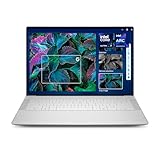
1. Dell XPS 14 (2026) – best overall clamshell with touch
Spec line: 14-inch touch display, 2.8K OLED panel · premium aluminum build · current-generation Intel processor class · large haptic touchpad design.
The XPS 14 is the pick for people who spend most of the day typing and want touch as a convenience, not a lifestyle. The OLED panel is the headline: it looks richer than LCD alternatives for video and photos, and 2.8K resolution keeps text crisp. Hardware publications consistently rank it near the top of 2026 touch lists for performance and battery endurance.
Best for: professionals, photo editors who do not need a pen, and anyone who wants a sharp OLED panel in a standard laptop body.
Skip if: you want to fold the screen into tablet mode or draw with a pen. It is a clamshell.
- Pros: excellent display, strong performance class, premium feel.
- Cons: OLED configurations draw more power than basic LCD, no tablet mode, premium tier price.
As an Amazon Associate we earn from qualifying purchases at no extra cost to you.
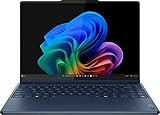
2. Lenovo Yoga 9i 2-in-1 Aura Edition – best convertible with a pen
Spec line: 14-inch OLED touchscreen · 2.8K 120 Hz or 4K 60 Hz option · up to 32 GB memory · 360-degree hinge · pen included.
This is the model to start with if you want to flip the screen and write or sketch. Having the pen in the box matters more than it sounds. Third-party stylus pairing can be hit or miss, while an included pen is matched to the digitizer. The 2.8K 120 Hz configuration is the balanced choice; the 4K version is sharper, but it is limited to 60 Hz and demands more from the battery.
Best for: students who take handwritten notes, artists, frequent travelers who want one device for typing, reading and annotating.
Skip if: you want the lightest possible tablet. A convertible with a full keyboard is heavier than a detachable.
- Pros: pen included, high memory ceiling, flexible modes, high-quality OLED.
- Cons: heavier than detachables, 4K option capped at 60 Hz.
3. Microsoft Surface Pro 11 – best tablet-style 2-in-1
Spec line: 13-inch display, optional OLED · Snapdragon X series processors · up to 32 GB RAM · detachable keyboard · Surface Pen supported.
The Surface Pro 11 is the benchmark for tablet-first Windows computing. It switches smoothly from reading and drawing to typing, and the optional OLED screen has strong color accuracy. It uses Arm-based Snapdragon X silicon, which delivers long battery life and quiet operation, but you should check that any specialized software you depend on runs natively or well under emulation.
Best for: note-takers, travelers, people who read and annotate documents all day.
Skip if: you type on your lap often, or you rely on niche Windows applications or drivers that are not yet well supported on Arm. Also note that the keyboard cover and pen are typically sold separately, which raises the real cost of the setup.
- Pros: best tablet mode in the group, optional OLED, portable.
- Cons: accessories add cost, lap use is less stable, Arm compatibility check required.

4. Microsoft Surface Laptop 7 – best touch laptop for light office work
Spec line: 13.8-inch and 15-inch touch display options · Snapdragon X series processors · traditional clamshell body.
If the idea of a detachable keyboard stresses you out but you want a touch screen that is accurate and bonded well, this is the simple solution. It is a conventional laptop with a responsive touch panel and the same Arm-based platform as the Surface Pro. It is an easy recommendation for office users who annotate PDFs with a finger and move on.
Best for: office workers and students who want long battery life and quiet operation.
Skip if: you need a fold-back hinge or heavy GPU performance.
- Pros: clean design, two sizes, comfortable keyboard class.
- Cons: no tablet mode, Arm app compatibility to verify.

5. Lenovo Yoga Slim 9i (Gen 10) – best slim midrange convertible-class pick
Spec line: 14-inch OLED touchscreen · slim ultraportable chassis · current-generation processor class.
TechRadar-style roundups place this model at the midrange 2-in-1 slot. It is thin, travels well, and brings an OLED panel to a lower tier than the flagship Yoga. Confirm the exact configuration before you buy, because pen support and hinge behavior can differ between Yoga lines.
Best for: commuters who want OLED in a slim body.
Skip if: you need a pen in the box. Check the listing details first.
- Pros: thin, OLED display, travel friendly.
- Cons: configuration differences between sellers, fewer premium extras than the Yoga 9i.

6. ASUS Zenbook Duo (2026) – best dual-screen
Spec line: two 14-inch 3K OLED touch panels · 144 Hz refresh · detachable keyboard · stands for dual-screen use.
The Zenbook Duo is not a typical touch laptop. It gives you two full touch displays, so you can stack a document on top and a reference or chat window below. For multitasking it is excellent. For handwriting, it is less natural than a convertible, and it is a premium-tier machine that weighs more than a single-screen ultrabook.
Best for: analysts, coders, traders and anyone who normally uses two monitors.
Skip if: you want something light for a commute, or you buy a laptop mainly for pen input.
- Pros: two sharp 144 Hz panels, flexible layouts, portable second screen.
- Cons: premium pricing, heavier, battery use is higher with both screens on.

7. Dell XPS 13 (2026) – best for students on a budget
Spec line: 13.4-inch 2560 x 1600 touch display · Intel Core 5 320 class processor · about 2.2 lb (1 kg) · reported battery endurance over 14 hours in independent evaluation by publications.
This XPS keeps the touch panel and long battery life but moves to a non-OLED screen and a lower-tier processor to hold the cost down. For a student who primarily writes, browses and joins video calls, it is a very efficient package. The 2.5K panel is sharp enough for reading, and the weight makes it easy to carry all day.
Best for: students, light office use, buyers who want a very portable Windows touch laptop.
Skip if: you need OLED color depth or heavy multicore performance for video exports.
- Pros: very light, sharp display, strong battery life.
- Cons: not OLED, entry processor class limits heavy workloads.

8. HP OmniBook Ultra Flip 14 – best flip for office work
Spec line: 14-inch OLED touch display · 360-degree flip hinge · pen support · business-friendly feature set.
HP’s flagship flip is the modern successor to the Spectre x360 line that many buyers remember. It targets office users who want a convertible with decent speakers and a good webcam. Verify current configuration details and processor generation before you commit, as HP refreshes the line often.
Best for: office workers who join many video calls and occasionally annotate.
Skip if: you want the broadest memory options. Compare memory ceilings with the Yoga 9i.
- Pros: flexible hinge, OLED panel, office-oriented features.
- Cons: configurations change frequently, some specifications should be double-checked at purchase.

Decision matrix: match your use to a form factor
| If you mostly… | Choose | Why | Avoid |
|---|---|---|---|
| Type documents and want touch for scrolling | Clamshell (XPS 14, XPS 13, Surface Laptop 7) | Best keyboard stability, lowest weight penalty | Detachables |
| Write or sketch by hand | Convertible or detachable (Yoga 9i, Surface Pro 11) | Screen lies flat, pen supported | Clamshell touch only |
| Read, annotate and carry for hours | Detachable (Surface Pro 11) | Lightest tablet mode | Heavy dual-screen |
| Run two documents side by side | Dual-screen (Zenbook Duo) | Built-in second display | Single 13-inch screens |
| Watch the budget | XPS 13 or a midrange Yoga Slim | Touch plus battery life without flagship price | 4K OLED tiers |
Worked example: how pen and keyboard accessories change the real cost
A common mistake is comparing sticker prices of devices that include different things. Here is the step-by-step logic to normalize them.
- List what you need: a keyboard, a pen and a way to protect the screen. Mark each as “included” or “sold separately” for every model on your shortlist.
- For a detachable such as the Surface Pro 11, count the keyboard cover and pen as add-ons. For a convertible such as the Yoga 9i, the keyboard is built in and the pen is included, so no add-ons apply.
- Move each model into a tier word: entry-level, mid-range or premium. A detachable at a mid-range base tier can slide into the premium tier once you add the OLED option, the keyboard and the pen.
- Re-rank by total tier, not base tier. In practice the convertible with the pen included often lands equal to or below a detachable with accessories, even though its headline tier looks higher.
- Finally, check battery and weight against your day. If your bag is the limiting factor, take the lighter detachable. If your lap is the limiting factor, take the convertible.
The point is that the base tier hides the real purchase. Normalizing for accessories prevents buying the device that looked cheaper but costs more once it works the way you intended.
How to choose: thresholds for touch screen laptops
These cut-offs turn the form-factor decision into a short checklist.
- Form factor: choose a clamshell if you type most of the day, a 360-degree convertible if you write or sketch on the screen weekly, a detachable only if tablet use is your main mode, and a dual-screen only if you normally work with two monitors.
- Weight: a convertible under about 3.3 pounds is comfortable to hold in tablet posture. Above about 4 pounds, treat it as a laptop that happens to flip.
- Panel: OLED for contrast and color, but glossy; IPS with a 100 percent sRGB rating for glare control. Aim for roughly 400 nits or more of brightness if you sit near windows.
- Resolution: 2K to 2.8K at 14 inches is sharp enough for text; 4K mainly drains the battery.
- Memory: 16 GB for Windows, 8 GB only for ChromeOS or light web work.
- Pen: confirm whether it is in the box, which pen standard the digitizer uses, and whether the laptop has a silo or magnet to store it.
- Platform: Arm laptops give long battery life but need a software compatibility check; Intel and AMD laptops are the safer default.
- Budget: add the cost of a pen, a keyboard cover for detachables and a screen protector before comparing totals.
If a laptop passes the form factor, weight and pen checks, the remaining choice is mostly screen taste and budget tier.
Touch screen care and safety tips
- Cleaning: power the laptop off, then wipe with a slightly damp microfiber cloth. Do not spray liquid directly onto the screen, and avoid harsh solvents that can strip coatings.
- Screen protectors: a matte protector reduces glare but can slightly soften OLED sharpness and add pen friction. Choose one made for your exact model.
- OLED care: avoid leaving a static high-contrast image at full brightness for hours. Use the system sleep and screen timeout settings and a moving wallpaper or dark mode.
- Hinge handling: for convertibles, fold the screen with both hands near the hinge rather than pulling on a corner.
- Pen storage: use the built-in garage, magnet or sleeve if your model offers one, so the pen is not lost and any rechargeable cell stays charged.
- Battery: a laptop with a built-in lithium battery should not be left in a hot car or covered while charging. If the chassis bulges or the trackpad lifts, stop using it and contact the manufacturer.
Common mistakes to avoid
- Buying a touch laptop expecting it to behave like a tablet, then discovering the clamshell cannot fold.
- Choosing 4K OLED without checking battery life and refresh rate limits.
- Ignoring memory. Soldered RAM cannot be upgraded, so buy the amount you will need in three years.
- Forgetting accessories on detachables.
- Assuming Arm-based Windows laptops run every program. Check your essential software first.
More touch screen laptops worth shortlisting
Eight picks leave real gaps: mid-range convertibles, a flip with a pen in the box, a large-screen option, and a ChromeOS convertible for cloud-based work. These six models appear repeatedly in current touch-laptop roundups and fill those gaps.
Acer Swift 14 AI: best value Arm clamshell with touch
Spec line: 14.5-inch 2.5K 120 Hz touchscreen · Qualcomm Snapdragon X Plus 10-core · 16 GB LPDDR5X · 1 TB SSD · Wi-Fi 7 · fingerprint reader.
It is a traditional laptop with a taller 16:10-style panel, a fast refresh rate and an efficient Arm chip, so the touch screen feels smooth when scrolling pages and tapping menus.
Best for: buyers who want a mid-range, light clamshell for documents, browsing and calls, with touch as a convenience.
Skip if: you need a fold-back hinge for pen work, or you rely on Windows software that does not run well on Arm.
Pros: Sharp, fast display, 16 GB memory and 1 TB storage in this configuration, efficient chip.
Cons: No tablet mode, Arm compatibility must be checked, and graphics power is modest.

Lenovo Yoga 7i 2-in-1 (14-inch): best mid-range convertible
Spec line: 14-inch 2K OLED touchscreen · Intel Core Ultra 5 322 class · 16 GB LPDDR5X · 1 TB SSD · Wi-Fi 7 · Thunderbolt 4 · 360-degree hinge.
This is the lower-tier sibling of the Yoga 9i: you get the flip hinge and OLED panel without the flagship configuration, which makes tablet posture affordable.
Best for: students and professionals who want a convertible for reading, annotating and presenting without paying for a flagship.
Skip if: you want a pen in the box as a given; stylus inclusion varies by seller and configuration, so confirm it in the listing.
Pros: OLED panel, flexible hinge, solid memory and storage in this configuration, Thunderbolt 4.
Cons: Heavier than a clamshell, OLED uses more power on bright pages, and glossy glare in sunlit rooms.

HP OmniBook X Flip 14: best flip with a stylus listed
Spec line: 14-inch 2K OLED touchscreen · AMD Ryzen AI 5 430 class (up to 50 TOPS) · 16 GB LPDDR5X · 512 GB SSD · Wi-Fi 7 · Bluetooth 6.0 · stylus listed.
HP positions this as a lower-tier flip than the Ultra model, and the listing includes a stylus, which removes the guesswork about pen pairing.
Best for: note-takers who want a flip-style convertible with pen input and an OLED panel at a mid-range tier.
Skip if: you need the broadest memory ceiling; 16 GB is the configuration referenced here.
Pros: OLED touch, stylus listed, current Wi-Fi standard, AI-class chip.
Cons: Configurations change between sellers, and battery life varies with brightness and refresh rate.

ASUS Vivobook Flip 14: best budget-minded OLED flip
Spec line: 14-inch OLED touchscreen · Intel Core Ultra 7 256V · 16 GB RAM · 1 TB SSD · Thunderbolt 4 · Copilot+ PC class · 360-degree flip design.
It brings an OLED panel and a Lunar Lake class chip into a flip body, aiming at buyers who want tablet posture without moving into the premium Zenbook range.
Best for: students and light creators who want a 2-in-1 with an OLED panel and 1 TB of storage.
Skip if: you want a pen in the box or an aluminum premium build; check accessory details with the exact listing.
Pros: OLED display, 16 GB memory and 1 TB storage in this configuration, Thunderbolt 4.
Cons: Mid-range build feel, and glossy OLED glare in bright rooms.

LG Gram 17 (touch): best large-screen touch laptop
Spec line: 17-inch 2.5K WQXGA touchscreen · Intel Core Ultra 7 258V · 32 GB LPDDR5X · 1 TB SSD · Wi-Fi 7 · Intel Arc graphics.
The Gram line is built around low weight for its size, which matters because touch on a big panel means reaching across more screen.
Best for: buyers who want a roomy canvas for spreadsheets, timelines and side-by-side documents, and who mostly stay at a desk.
Skip if: you need tablet mode or a pen-first device; this is a clamshell, and a 17-inch body is awkward on a small tray table.
Pros: Large sharp display, 32 GB memory in this configuration, light for a 17-inch class, strong multitasking.
Cons: Premium tier, big footprint, and no folding hinge.

Acer Chromebook Plus Spin 714: best ChromeOS convertible
Spec line: 14-inch WUXGA IPS touchscreen (100% sRGB) · Intel Core Ultra 5 115U · 8 GB RAM · 256 GB SSD · ChromeOS · 2-in-1 hinge.
ChromeOS with a touch panel and a flip hinge is a simple, secure combination for browser-based work, and the sRGB-rated IPS screen avoids the glare of some OLED panels.
Best for: students and office workers whose tools are web apps, Google Workspace and Android-style apps, and who want a flip design at an entry-level to mid-range tier.
Skip if: you need Windows or macOS desktop software, or you want an OLED display.
Pros: Flexible hinge, simple software, 256 GB storage, rated sRGB coverage.
Cons: 8 GB memory limits heavy multitasking, and local software options are narrower than Windows.

All 14 touch screen laptops compared
Every laptop in the guide, with form factor, panel and pen status. Pen support varies by seller and configuration, so confirm it in the exact listing.
| Laptop | Form factor | Screen | Pen | Best fit |
|---|---|---|---|---|
| Dell XPS 14 (2026) | Clamshell | 14.5-inch OLED touch | Finger touch | Premium everyday work |
| Lenovo Yoga 9i 2-in-1 Aura Edition | 360-degree convertible | 14-inch OLED, 2.8K or 4K | Pen included | Writers, artists, travelers |
| Microsoft Surface Pro 11 | Detachable tablet | 13-inch, optional OLED | Surface Pen supported | Tablet-first note-taking |
| Microsoft Surface Laptop 7 | Clamshell | 13.8-inch or 15-inch touch | Finger touch | Light office work |
| Lenovo Yoga Slim 9i (Gen 10) | Slim ultraportable | 14-inch OLED touch | Check configuration | Midrange portability |
| ASUS Zenbook Duo (2026) | Dual-screen | Two 14-inch 3K OLED touch | Stylus included in some listings | Multitaskers |
| Dell XPS 13 (2026) | Clamshell | 13.4-inch touch (not OLED) | Finger touch | Light, value-focused |
| HP OmniBook Ultra Flip 14 | 360-degree convertible | 14-inch OLED touch | Pen supported | Flexible office use |
| Acer Swift 14 AI | Clamshell | 14.5-inch 2.5K 120 Hz touch | Finger touch | Value Arm clamshell |
| Lenovo Yoga 7i 2-in-1 | 360-degree convertible | 14-inch 2K OLED touch | Check listing | Mid-range convertible |
| HP OmniBook X Flip 14 | 360-degree convertible | 14-inch 2K OLED touch | Stylus listed | Flip with pen |
| ASUS Vivobook Flip 14 | 360-degree convertible | 14-inch OLED touch | Check listing | OLED flip, mid-range |
| LG Gram 17 (touch) | Clamshell | 17-inch 2.5K touch | Finger touch | Large-screen desk use |
| Acer Chromebook Plus Spin 714 | 360-degree convertible | 14-inch WUXGA IPS touch | Check listing | ChromeOS web work |
Frequently asked questions
Is a touch screen laptop worth it?
Yes, if you annotate, sketch, read in tablet mode or simply like tapping and scrolling; no, if you only type. Touch adds a few ounces and some battery draw but is rarely a major penalty.
Many buyers say touch becomes a habit within a week for scrolling long documents and web pages. If you never use it, a non-touch model may deliver a lighter or longer-lasting machine at the same tier.
Does a touch screen drain the battery faster?
Slightly, mostly because of the display type and resolution rather than the touch layer. OLED and 4K panels use more power than 2.5K LCD panels.
For longer endurance, choose a 2.5K to 2.8K panel, lower the brightness a little and enable the power-saving mode when you work unplugged.
Is OLED or IPS better for a touch laptop?
OLED wins on contrast and color; IPS wins on sustained brightness for white documents and carries no burn-in concern. Pick OLED for media and creative work, IPS for all-day spreadsheets.
Both options are glossy on most touch laptops, so reflections are a factor either way.
Do all touch laptops work with a pen?
No. Some only accept finger touch. Check whether the screen supports an active stylus and whether the pen is included before buying.
Convertibles such as the Yoga 9i 2-in-1 Aura Edition ship with a pen, while detachables like the Surface Pro 11 usually treat it as a separate purchase.
Can I use a touch screen laptop as a tablet?
Only convertibles and detachables truly work as tablets. A clamshell lets you touch the screen but does not fold or detach.
Detachables are the lightest in tablet mode. Convertibles feel heavier because the keyboard stays attached.
What size is best for a touch screen laptop?
Thirteen to 14 inches balances portability and workspace. Larger screens are better for desk use but awkward as tablets.
If you hold the device a lot, aim for under three pounds. A dual-screen laptop trades weight for extra workspace.
Are Arm-based touch laptops a good idea?
They can be, thanks to strong battery life and quiet operation, but verify that your key apps and drivers are supported before buying.
Surface Pro 11 and Surface Laptop 7 use Snapdragon X series processors. Mainstream apps generally work, while niche or driver-heavy software may not.
How do I clean a touch screen safely?
Power off, then wipe with a lightly dampened microfiber cloth. Never spray liquid on the screen or use harsh chemicals.
A dry cloth handles most fingerprints. Use only a screen-safe cleaner if smudges remain.
Bottom line
Choose the Dell XPS 14 if you want a premium clamshell with OLED touch, the Lenovo Yoga 9i 2-in-1 Aura Edition if you want a flip-and-write convertible with the pen included, and the Microsoft Surface Pro 11 if you want the lightest tablet-style experience. Pick the Dell XPS 13 when budget and weight matter most, and consider the ASUS Zenbook Duo only if you truly need a second screen. Match the form factor to your habits first, then fine-tune panel type and memory.
More from Amazon
Programs that pair well with the guide above. Offers and eligibility are set by Amazon and may change.
A free business account with business pricing and bulk-buying tools for work, shop or home office.
Create a business accountFree shipping on eligible items, Prime Video and more. Eligible new members can start with a free trial.
Start a Prime free trialAudiobooks and podcasts to listen to on the go. Eligible new members can start with a free trial.
Try Audible freeAd-free music streaming. Eligible new subscribers can start with a free trial.
Try Music Unlimited freeAs an Amazon Associate we earn from qualifying purchases.




Write Your Review
No reviews yet. Be the first to share your experience!