

Key takeaways
- Processor: at least eight strong cores with boost clocks near or above 4.5 GHz. Toolpath calculation is largely CPU-bound, and many operations still depend on single-thread speed, so a fast 8-core part can beat a slower 16-core one on a single job.
- Memory: 32 GB is the practical minimum for professional work and 64 GB is comfortable for multi-part fixtures and full machine models. 16 GB works for learning and simple 2.5-axis parts but runs out quickly once a vise, fixtures and a tool library are loaded into simulation.
- Graphics: Autodesk lists 4 GB of video memory as a baseline for Fusion, and 8 GB or more helps with large assemblies. Machine simulation and shaded verification use the GPU heavily.
- Storage: a 1 TB NVMe drive at minimum. Stock models, tool libraries and posted G-code add up, and model files for complex parts can reach hundreds of megabytes.
- Display: 16 inches or larger helps when reading toolpath detail, although most programmers pair the laptop with an external monitor at their desk.
The best CNC programming laptop in 2026 is a Windows machine with a high-clock Intel Core Ultra HX or comparable processor, 32 GB of RAM or more, a workstation or RTX-class GPU with at least 8 GB of VRAM, and a fast NVMe drive. Of the seven picks below, the HP ZBook Fury G1i 16 and the Lenovo ThinkPad P16 Gen 3 are the strongest all-round choices for shop-floor programmers who live in Mastercam, Fusion, SolidCAM or similar CAM software, while the Lenovo LOQ 15 is the sensible way in when the budget is tight.
CNC programming is a lopsided workload. Drawing a part and setting up operations is light. Calculating toolpaths, running a verification simulation on a five-axis job, and regenerating a large surfacing strategy after a design change are heavy, and they hit the processor first and the graphics card second. That is why a laptop that looks ordinary on a spec sheet can feel slow in CAM, and why a gaming laptop with a strong CPU sometimes beats a certified workstation on a tight budget.
Our top picks


As an Amazon Associate we earn from qualifying purchases at no extra cost to you.
Quick comparison of the seven picks
| Pick | Best for | CPU | GPU | Max RAM | Display |
|---|---|---|---|---|---|
| HP ZBook Fury G1i 16 | Heavy five-axis work and large assemblies | Up to Core Ultra 9 285HX (24 cores) | RTX PRO Blackwell 1000 to 5000 (up to 24 GB) | 192 GB | 16-inch, up to 3840×2400 at 120 Hz |
| Lenovo ThinkPad P16 Gen 3 | Programmers who type all day | Core Ultra 200HX series (up to 24 cores) | Up to RTX PRO 5000 Blackwell (24 GB) | 192 GB | 16-inch |
| Dell Pro Max 16 Premium | Lighter workstation with ISV support | Core Ultra 9 285H vPro (45 W) | Up to RTX PRO 3000 Blackwell (12 GB) | 64 GB | 16-inch |
| Lenovo ThinkPad P1 Gen 8 | Carrying between shop and office | Core Ultra 5 235H to Ultra 9 285H | RTX PRO 1000 or 2000 Blackwell (8 GB) | 64 GB | 16-inch, up to 3.2K OLED |
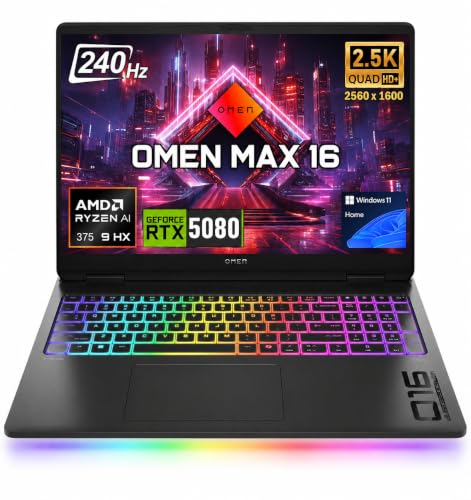
| Lenovo Legion Pro 7i Gen 10 | Maximum speed for the money | Core Ultra 9 275HX | RTX 5080 (16 GB, 175 W) | 64 GB (as configured) | 16-inch OLED, 2560×1600, 240 Hz |
| Lenovo LOQ 15 (RTX 5050) | Students and entry-level programmers | Core i5/i7 HX or Ryzen 7 250 | RTX 5050 (8 GB) | 96 GB across 2 slots | 15.6-inch, 1920×1080, 144 Hz |
| Apple MacBook Pro 14 (M5 Pro) | Fusion and cloud-first workflows, Mac users | M5 Pro, 15 or 18 cores | 16 or 20-core integrated | 64 GB unified | 14.2-inch Liquid Retina XDR |
The specifications above come from the manufacturers’ published sheets and established laptop databases. Configurations vary by region and retailer, so compare the exact model number before buying.
What CAM software actually asks of a laptop
Most mainstream CAM packages, including Mastercam, require 64-bit Windows 10 or 11. Autodesk Fusion is the exception: it also runs on macOS and leans on cloud sync, so network quality matters as much as the chip. The hardware targets that experienced programmers and software publishers cite are consistent:
- Processor: at least eight strong cores with boost clocks near or above 4.5 GHz. Toolpath calculation is largely CPU-bound, and many operations still depend on single-thread speed, so a fast 8-core part can beat a slower 16-core one on a single job.
- Memory: 32 GB is the practical minimum for professional work and 64 GB is comfortable for multi-part fixtures and full machine models. 16 GB works for learning and simple 2.5-axis parts but runs out quickly once a vise, fixtures and a tool library are loaded into simulation.
- Graphics: Autodesk lists 4 GB of video memory as a baseline for Fusion, and 8 GB or more helps with large assemblies. Machine simulation and shaded verification use the GPU heavily.
- Storage: a 1 TB NVMe drive at minimum. Stock models, tool libraries and posted G-code add up, and model files for complex parts can reach hundreds of megabytes.
- Display: 16 inches or larger helps when reading toolpath detail, although most programmers pair the laptop with an external monitor at their desk.
Do you need a certified workstation?
ISV (independent software vendor) certification means the manufacturer and the software publisher have validated the driver and hardware combination. It reduces the odds of a graphics glitch or crash during a long simulation, and it gives you a support path if something misbehaves. It is a stability benefit, not a requirement; plenty of programmers run CAM on consumer RTX laptops without trouble. Choose certification when an unexplained crash costs real machine time, and choose a gaming-class laptop when you want more raw CPU and GPU for the money and can tolerate a little more driver housekeeping.
Best overall: HP ZBook Fury G1i 16
The ZBook Fury G1i 16 is built for sustained load. It offers up to a Core Ultra 9 285HX with 24 cores, RTX PRO Blackwell graphics from the 1000 class up to the 5000 class with 24 GB of memory, four M.2 NVMe slots, and up to 192 GB of memory in the 16-inch model. A 280 W power adapter gives the processor and GPU room to run at full speed during long toolpath calculations instead of throttling after a minute.
Who it is for: programmers who regularly handle large assemblies, five-axis surfacing, or simulation of full machine models, and shops that standardize on certified hardware.
Pros: exceptional sustained performance, very high RAM and storage ceilings, a 120 Hz 4K-class panel option, ECC memory options in some configurations, and a large chassis with strong cooling.
Cons: it is big and heavy and carries a large power brick, and the workstation pricing tier puts a fully configured unit well above consumer laptops. Battery life under load is short, which is normal for this class.
Best for daily typing comfort: Lenovo ThinkPad P16 Gen 3
The ThinkPad P16 Gen 3 pairs Intel Core Ultra 200HX processors, with up to 24 cores and a 5.5 GHz boost, with GPUs up to the RTX PRO 5000 Blackwell and memory up to 192 GB non-ECC or 128 GB ECC. Storage can reach 12 TB across three PCIe Gen 5 M.2 slots with RAID options. Lenovo reduced the power adapter to 180 W from the previous generation’s 230 W, so the very top GPU configuration can be power-limited under combined CPU and GPU load. Reviewers note that the RTX PRO 5000 alone can draw up to 175 W, which is worth knowing if you plan to max it out.
Who it is for: programmers who write and edit a lot of macros, post-processor code and G-code and want the ThinkPad keyboard and TrackPoint, plus certified drivers.
Pros: excellent keyboard, huge expansion headroom, certification for the major CAD and CAM applications, and serviceable internals.
Cons: thick and heavy, and the lower-wattage adapter limits the highest-end GPU configurations compared with the HP.
Best lighter workstation: Dell Pro Max 16 Premium
Dell has moved its workstation branding from Precision to Pro Max. The 16 Premium is the thinner, lower-power model: a 45 W Core Ultra 9 285H vPro processor, up to 64 GB of memory, and graphics capped at the RTX PRO 3000 Blackwell with 12 GB. Ports include two Thunderbolt 5 and one Thunderbolt 4 connection plus HDMI 2.1. The faster HX-class machine in the line is the Pro Max 16 Plus, which succeeds the Precision 7680 and is the one to look at if you need maximum GPU headroom.
Who it is for: programmers who move between the office and the shop, want an ISV-supported platform, and do mostly 3-axis and 4-axis work with moderate simulation.
Pros: lighter and easier to carry than HX workstations, modern Thunderbolt 5, and strong single-thread speed from the H-class CPU.
Cons: fewer cores than the HX machines, so large batch toolpath regeneration takes longer, and the GPU ceiling is lower than on the previous Precision 5690.
Best thin-and-light: Lenovo ThinkPad P1 Gen 8
The P1 Gen 8 starts around 1.84 kg and offers Core Ultra 5 235H through Core Ultra 9 285H processors, optional RTX PRO 1000 or RTX PRO 2000 Blackwell graphics with 8 GB, memory up to 64 GB of LPDDR5x-7467 in a single LPCAMM2 module, and two M.2 slots supporting up to 8 TB. The 16-inch screen options include a 3.2K tandem OLED touch panel. A 90 Wh battery and Thunderbolt 5 ports round out the package.
Who it is for: programmers who travel between customer sites and the shop and need a presentable machine that can still run Mastercam or Fusion competently.
Pros: light for a workstation, a premium display, good battery life for the class, and certified graphics options.
Cons: the 8 GB GPUs and 45 W-class processor mean heavy five-axis simulation will be slower than on an HX machine, and memory is capped at 64 GB.
Best performance for the money: Lenovo Legion Pro 7i Gen 10
This is a gaming laptop, but its numbers fit CAM well: a Core Ultra 9 275HX with 24 cores and a 5.4 GHz boost, an RTX 5080 with 16 GB of GDDR7 running at 175 W, DDR5-6400 memory in 32 GB or 64 GB configurations, and a 16-inch 2560×1600 OLED panel at 240 Hz. It weighs roughly 2.65 kg.
Who it is for: independent programmers and small shops that want workstation-class speed without workstation pricing and are comfortable with consumer drivers.
Pros: very fast CPU and GPU, generous cooling, a fast display, and a strong cost-to-performance ratio.
Cons: no ISV certification, a gamer aesthetic, fans that get loud under load, and non-ECC memory.
Best budget pick: Lenovo LOQ 15 with RTX 5050
The LOQ 15 is the entry route into serious CAM work. Configurations use an RTX 5050 with 8 GB of GDDR7 and processors that include the Intel Core i5-13450HX, i7-13650HX, i7-14700HX or the AMD Ryzen 7 250. The 15.6-inch 1080p panel runs at 144 Hz, memory goes up to 96 GB across two slots, and the weight is about 2.4 kg. Because configurations vary a lot, choose one with at least 32 GB of RAM and an HX-series Intel chip for CAM.
Who it is for: students, hobbyist machinists, and new programmers learning Fusion or Mastercam who do not yet need to simulate complex machines.
Pros: affordable, upgradeable RAM and storage, and enough GPU memory for most 3-axis work.
Cons: a mid-grade display, plastic build, and older processor generations, so very large toolpath jobs run slower than on newer HX laptops.
Best for Mac users: Apple MacBook Pro 14 (M5 Pro)
The 14-inch MacBook Pro with M5 Pro offers a 15-core or 18-core processor, a 16-core or 20-core GPU, 24 GB of unified memory configurable to 48 GB or 64 GB, a 14.2-inch Liquid Retina XDR display, a 72.4 Wh battery, three Thunderbolt 5 ports, HDMI and an SD card slot. It weighs about 1.6 kg.
Who it is for: programmers who work in Fusion, which runs natively on macOS, or who design in Rhino or FreeCAD and send work to a shop PC. It is also a strong second machine for email, drawings and reviewing models away from the desk.
Pros: outstanding battery life, a superb screen, quiet operation, and fast single-thread performance.
Cons: Mastercam and many shop post-processors are Windows-only, so you would need a remote Windows machine or virtualization with its own limits. Check your CAM vendor’s current macOS support before you buy.
How to choose with numbers
Use this decision matrix to map your work to a class of laptop.
| Your typical work | Minimum RAM | GPU memory | CPU class | Suggested pick |
|---|---|---|---|---|
| Learning, 2.5-axis milling, simple turning | 16 to 32 GB | 4 to 8 GB | 6 to 8 strong cores | Lenovo LOQ 15 |
| 3-axis and 4-axis production, mid-size assemblies | 32 GB | 8 GB | 8 to 16 cores | ThinkPad P1 Gen 8, Dell Pro Max 16 Premium |
| 5-axis surfacing, full machine simulation | 64 GB | 12 to 16 GB | 16 to 24 cores | Legion Pro 7i, ZBook Fury G1i 16 |
| Large assemblies, multi-user shop standard | 64 to 128 GB | 16 to 24 GB certified | 24 cores | ZBook Fury G1i 16, ThinkPad P16 Gen 3 |
| Fusion on macOS, remote Windows for CAM | 32 to 64 GB | Integrated 16 to 20 core | 15 to 18 cores | MacBook Pro 14 (M5 Pro) |
A worked example: what a bigger CPU saves you
Suppose a surfacing operation takes 12 minutes to calculate on an 8-core laptop and your daily workflow regenerates it eight times as you adjust stepovers and tool axes. That is 96 minutes of waiting. If a 24-core HX machine cuts the calculation to 7 minutes, you spend 56 minutes, saving 40 minutes a day, or about 3.3 hours a week. Real speedups vary because not every operation scales across cores, but if a laptop saves even half that time, the extra cost of a stronger machine pays back quickly for someone who bills programming hours.
Ownership realities and common mistakes
- Thermals decide sustained speed. A thin laptop can score well in a short benchmark and then drop its clocks during a ten-minute toolpath calculation. Larger chassis such as the ZBook Fury and ThinkPad P16 hold their speed longer.
- Buy RAM up front if it is soldered. The MacBook Pro and some thin ThinkPads have limited or non-user-upgradeable memory. Workstation models with SODIMM slots can be upgraded later.
- Power adapters matter. If the adapter is smaller than the combined processor and GPU demand, the laptop throttles on battery or under combined load. Always use the original adapter in the shop.
- Keep drivers stable. On certified workstations, install the vendor-validated graphics driver listed by your CAM publisher instead of the newest release.
- Plan for backups. Programs, tool libraries and post-processors represent hours of work. Use cloud sync plus a local external drive.
- Do not overspend on the display. Many programmers dock to a 27-inch monitor. Spend the savings on RAM and CPU.
- Shop dust is real. A laptop that travels onto a machine-shop floor collects fine particles in its fans. Clean the vents with compressed air on a regular schedule and keep it off the machine enclosure.
Setting up a laptop for CAM: a short checklist
- Update Windows and the BIOS before installing CAM software, since firmware often improves power management and thermals.
- Install the graphics driver your CAM vendor recommends and confirm that the CAM software uses the discrete GPU in the Windows graphics settings, not the integrated one.
- Set the power plan to high performance when plugged in so the processor can sustain its boost clocks.
- Move tool libraries, post-processors and templates to a synced folder so a replacement laptop can be productive in an afternoon.
- Run a verification simulation on a large job and watch temperatures; if clocks fall sharply, raise the laptop on a stand and clean the vents.
Frequently Asked Questions
How much RAM do I need for CNC programming?
32 GB is the practical target for professional work because simulation, fixtures and large part models consume memory quickly. Choose 64 GB if you run five-axis jobs or keep several CAD files open. 16 GB is only suitable for learning or simple parts.
Is a gaming laptop good enough for Mastercam or Fusion?
Yes, for most users. A modern gaming laptop with an HX-class processor and an RTX GPU runs CAM software well and often costs less than a certified workstation. The tradeoffs are the lack of ISV certification, non-ECC memory and louder fans.
Does CAM software use the GPU or the CPU more?
Toolpath calculation relies mainly on the CPU, while verification, simulation and rendering use the GPU. If you can only upgrade one component, prioritize the CPU for calculation speed and make sure the GPU has at least 8 GB of video memory.
Can I use a MacBook for CNC programming?
You can for Fusion, which runs natively on macOS, and for design in tools like Rhino. Mastercam and many other CAM packages are Windows-only, so a Mac usually needs a remote or virtual Windows setup. Verify support with your CAM vendor first.
Do I need a 4K screen?
No. A 1080p or 1600p panel is fine for toolpath work, particularly if you connect an external monitor at your desk. Spend the money on memory and processor instead.
How long should a CNC programming laptop last?
A well-specified machine should serve four to five years. Buy more RAM and storage than you need today, because CAM models and software requirements grow with each release.




Write Your Review
No reviews yet. Be the first to share your experience!