

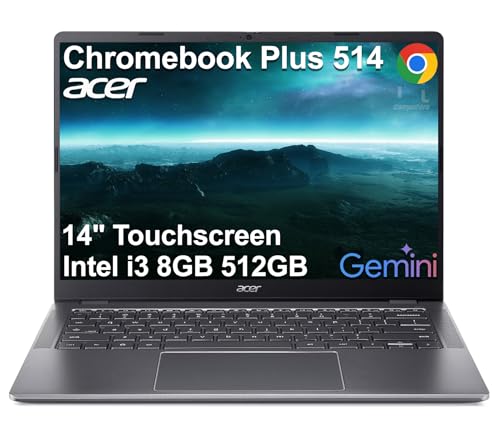
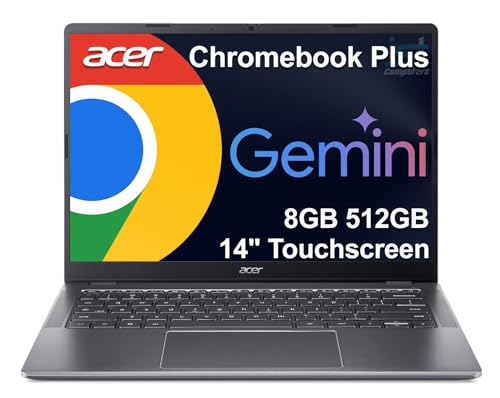
The best Chromebook for most people in 2026 is a Chromebook Plus model such as the Acer Chromebook Plus Spin 514 or the ASUS Chromebook Plus CX34, which add faster processors, 8 GB or more of RAM and better screens than basic Chromebooks. The Lenovo Chromebook Plus 14 is the premium pick with an OLED display, and the Acer Chromebook Plus 514 is the value choice. If you only need email, web and streaming, a basic Chromebook still works, but Plus models stay usable for longer.
Our top picks


As an Amazon Associate we earn from qualifying purchases at no extra cost to you.
Quick comparison of the picks
| Pick | Best for | Screen | Chip class | RAM / storage | Form | Price tier |
|---|---|---|---|---|---|---|
| Acer Chromebook Plus Spin 514 | Most people, convertible | 14-inch touchscreen, 360-degree | MediaTek Kompanio or Intel by version | 8 to 12 GB / 128 to 256 GB | 2-in-1 | Mid-range |
| ASUS Chromebook Plus CX34 | All-round daily use | 14-inch Full HD | Intel Core i3 or i5 | 8 to 16 GB / 128 to 256 GB | Clamshell | Mid-range |
| Lenovo Chromebook Plus 14 | Premium, OLED | 14-inch OLED | MediaTek or Intel class | 16 GB / 256 GB | Clamshell | Upper |
| Acer Chromebook Plus 514 | Best value | 14-inch Full HD | Intel Core i3 or Ryzen class | 8 GB / 128 to 256 GB | Clamshell | Budget to mid |
| Samsung Galaxy Chromebook Plus | Thin and light with AMOLED | 15.6-inch AMOLED | Intel class | 8 GB / 256 GB | Clamshell | Mid to upper |
Specifications vary by retailer configuration, and several models come with different chips in different regions. Confirm the exact SKU on the manufacturer’s spec page.
Best overall: Acer Chromebook Plus Spin 514
The Spin 514 flips into tablet mode and carries a touchscreen, making it flexible for notes, reading and video. Reviewers have praised its battery life and balanced performance. The trade-off is that different versions use different chips, so verify what you are buying.
Best clamshell all-rounder: ASUS Chromebook Plus CX34
The CX34 has a solid keyboard, Full HD screen and Intel processor that handles many tabs well. It has no flip hinge. The build is practical rather than premium.
Best premium: Lenovo Chromebook Plus 14
An OLED display, fanless design and strong battery life make this the most enjoyable to use. It costs significantly more than other Chromebooks, so it makes sense only if you spend most of your day on it.
Best value: Acer Chromebook Plus 514
It delivers the core Plus experience, meaning 8 GB of RAM, a Full HD screen and an HD webcam, at a price that suits families and schools. The trade-off is a plastic body and an average display.
Best large screen: Samsung Galaxy Chromebook Plus
A thin 15.6-inch laptop with an AMOLED screen that suits media and document work. It is light for its size but less affordable and less widely available.
Chromebook or Chromebook Plus?
| Feature | Basic Chromebook | Chromebook Plus |
|---|---|---|
| Processor | Celeron, Pentium or entry MediaTek | Core i3 / Ryzen 3 class or better |
| RAM | 4 GB common | 8 GB minimum |
| Storage | 32 to 64 GB | 128 GB minimum |
| Display and camera | HD possible | Full HD display and 1080p camera |
| AI and editing features | Limited | Included, such as enhanced photo editing |
Per Google’s published Chromebook Plus requirements, these are the minimum hardware targets; individual models usually exceed them.
How to choose
- Student or child: choose a rugged model with a spill-resistant keyboard and a 2-in-1 for note taking.
- Remote worker: Chromebook Plus with 16 GB RAM if you live in browser tabs and video calls.
- Lasting support: check the Auto Update Expiration date, which shows how long Google will update the model. Newer devices offer up to about ten years of updates.
- Linux or Android apps: pick 8 GB or more RAM and 128 GB storage.
Worked cost example
A Chromebook that receives ten years of updates and costs 500 works out to 50 per year, while a 250 model with five years of updates costs the same 50 per year. Update lifespan matters as much as the sticker price.
Ownership realities
- Offline files: most data lives in the cloud, so confirm that Google Drive offline sync is set for the files you need while traveling.
- Back up local files. Files in the Downloads folder are only on the device; a failed drive loses them. Copy them to an external drive or cloud storage.
- Windows-only apps do not run. Check that your required software works in a browser, Android or Linux.
- Battery: most last 10 to 14 hours, falling over time; check for replacement options at the maker.
Choosing a Chromebook Step by Step
Chromebooks reward a short, honest look at how you work. Answer the questions below in order and the right model from this guide usually becomes obvious.
- List your daily tasks. Browser tabs, documents, streaming, video calls and school portals all run well. Specialist desktop programs do not. If your list contains anything that needs Windows or macOS, test a web or Android alternative before you buy.
- Decide between clamshell and 2-in-1. A flip hinge, as on the Acer Chromebook Plus Spin 514, helps with note taking, reading and sharing a screen across a table. If you type most of the day, a clamshell such as the ASUS Chromebook Plus CX34 is lighter on the wallet and simpler.
- Pick a screen that suits your eyes. The OLED display on the Lenovo Chromebook Plus 14 and the AMOLED panel on the Samsung Galaxy Chromebook Plus look noticeably richer than a standard Full HD panel. If you mostly read text and browse, an ordinary IPS screen is perfectly comfortable.
- Match memory to your tab habits. Light users are comfortable on the 8 GB class. People who keep dozens of tabs open, run Linux tools or join long video meetings gain from the 16 GB class.
- Check the update expiration date. This single line on the spec page tells you how many years the laptop will stay secure and current. It matters more than a small processor difference.
- Choose storage by where your files live. If you keep files in cloud storage, a modest drive is plenty. If you download media, install Android apps or use Linux, take the larger option.
Who Should Skip a Chromebook
Chromebooks are excellent tools, but they are not universal. Consider another kind of laptop in these cases.
- Professional software users. Video editing suites, advanced spreadsheet add-ins, CAD tools and some accounting programs are built for Windows or macOS. Web versions exist for some, but they are often limited.
- PC gamers. Cloud gaming works on a good connection, and Android games run, but the library of native titles is far smaller than on a Windows laptop.
- People with unreliable internet and no offline plan. Chromebooks work offline for many tasks, but setup is required. If you cannot prepare ahead, a traditional laptop is less hassle.
- Anyone tied to a specific peripheral. Some printers, scanners, drawing tablets and audio interfaces lack Chrome OS drivers. Check compatibility with the maker before you commit.
- Users who want a lot of local storage. The drives are small compared with many Windows laptops, and external drives are needed for large photo or video libraries.
Compatibility and Setup Checks
Apps you rely on
Open each important service in a browser on your current computer. If it works there, it will work on a Chromebook. For apps without a web version, search the Google Play store for an Android version and read the reviews, since some phone apps are awkward on a laptop screen.
Printers and external devices
Most modern wireless printers connect without drivers. Older USB printers might need a workaround. Check mice, headsets, webcams and external monitors too. Standard USB and Bluetooth devices almost always work.
Accounts and sign-in
A Chromebook is built around a Google account, and signing in restores bookmarks, extensions and settings. School and work accounts may be managed by an administrator who can restrict features, so ask which restrictions apply before you buy a personal device for managed use.
Ports and displays
Count the USB-C and USB-A ports and check for an HDMI port or plan on a small adapter. If you will use an external monitor, make sure the laptop supports video output through its USB-C port. Wi-Fi standard matters little unless your router is recent.
Linux and Android features
These features require a setup step in settings. They work best with at least 8 GB of memory and plenty of free storage, because the extra software shares resources with Chrome OS itself.
Lifespan, Care and Long-Term Ownership
A Chromebook can last many years if you treat it as a managed appliance rather than a disposable gadget.
- Updates are the clock. When automatic updates end, the machine still works but stops receiving security fixes. Plan to replace it before that date if you handle sensitive information.
- Battery wear. Like all lithium batteries, they lose capacity over time. Avoid leaving the device plugged in at full charge in a hot room for months.
- Keep storage tidy. When a drive is nearly full, the system slows. Delete old downloads and move large files to the cloud or an external drive.
- Restart weekly. Many users never power down. A restart clears stuck extensions and applies pending updates.
- Review extensions. Too many browser extensions slow even a good laptop. Remove ones you no longer use.
- Physical care. Plastic bodies such as the Acer Chromebook Plus 514 handle a school bag well but benefit from a padded sleeve. Keep hinges clean and avoid lifting the screen by one corner.
Common Problems and Quick Fixes
| Problem | Likely cause | Fix |
|---|---|---|
| Slow with many tabs | Memory pressure or heavy extensions | Close unused tabs, disable extensions, consider the 16 GB class next time |
| Wi-Fi keeps dropping | Router distance or channel congestion | Move closer, restart the router, forget and rejoin the network |
| Touchscreen not responding | Software glitch | Restart, then use the hardware reset steps listed by the maker |
| Battery drains in sleep | Background Android apps | Uninstall unused apps and check battery usage in settings |
| Cannot open a file type | No built-in viewer | Use a web app, install an Android app or convert the file |
| Sign-in problems | Account or network restriction | Check the account status on another device and try a different network |
Scenario-Based Picks from This Guide
- A student who takes notes by hand: the Acer Chromebook Plus Spin 514, thanks to its flip hinge and touchscreen.
- A parent buying for a family computer: the Acer Chromebook Plus 514, which covers the core Plus experience at the friendliest tier.
- A remote worker who lives in video calls: the Lenovo Chromebook Plus 14, for its extra memory, display and fanless quiet.
- Someone who watches a lot of video and reads long documents: the Samsung Galaxy Chromebook Plus, because the large AMOLED screen is the main attraction.
- A budget-conscious professional who wants a keyboard to type on: the ASUS Chromebook Plus CX34, a clamshell with a Full HD screen and a solid keyboard.
More Questions Buyers Ask
Can I use a Chromebook for school and university?
Often yes. Most coursework platforms, video lectures and document tools work in a browser. Check your course requirements first, since some programs require Windows-only software or special exam-monitoring tools that may not support Chrome OS.
Can I install Microsoft Office on a Chromebook?
You can use the web versions of the popular office tools in a browser, and Android versions are available in some cases. They cover everyday editing well, but advanced features such as complex macros are not fully supported.
Does a Chromebook need antivirus software?
Not in the traditional sense. Chrome OS verifies its own system at startup and sandboxes apps. Staying safe mostly means keeping the system updated, using strong passwords with two-factor sign-in and being careful with extensions and links.
What happens to my files if I reset or lose the laptop?
Files stored in cloud storage are safe and return when you sign in on another device. Files saved only in the local Downloads folder are lost with a reset or a failed drive, so move anything important to the cloud or an external drive.
Is a touchscreen worth having on a Chromebook?
For students, artists and anyone who uses Android apps, yes. Tapping and scrolling feel natural and the tablet mode is handy for reading. If you only type and browse, a non-touch clamshell can be lighter and simpler.
How do I know if a used Chromebook is a good deal?
Look up its auto update expiration date first. A cheap used model that stops getting updates in a year or two is poor value. Also check the battery health, the keyboard condition and whether the device is still enrolled in a school or business management system, which can lock it.
Can two people share one Chromebook?
Yes. Each person signs in with their own account, which keeps bookmarks, files and settings separate. A guest mode is also available for visitors, and it erases everything when the session ends. For families, this makes a single shared laptop practical, and parental controls can be attached to a child’s account through the family settings.
Is it worth waiting for a newer model?
Only if the update promise is the deciding factor. New releases usually extend the update window and bring modest speed gains, but a current model that already offers many years of support, 8 GB of memory and a Full HD screen will serve most people well. Buy when you need the laptop, and check the expiration date rather than chasing the newest name.
Frequently Asked Questions
What does Chromebook Plus mean?
It is a Google-certified tier with minimum hardware requirements, including stronger processors, 8 GB of RAM, 128 GB of storage and a Full HD screen and camera, along with extra AI and creative features.
Can a Chromebook replace a Windows laptop?
For web-based work, schooling, streaming and light office tasks, yes. If you rely on specialist Windows software such as certain accounting or design programs, it will not.
How long do Chromebooks get updates?
Newer models are guaranteed updates for up to about ten years from release, while older ones may be limited to five or fewer. The exact date is on Google’s auto update policy page.
Do Chromebooks work offline?
Yes, to a degree. Gmail, Docs and Drive offer offline modes, and Android apps and downloaded media work without internet. Enable offline access before you travel.
Are Chromebooks secure?
They have sandboxing, verified boot and automatic updates, which makes them resistant to common malware. Sensible practices such as strong passwords and two-factor sign-in are still needed.





Write Your Review
No reviews yet. Be the first to share your experience!