

Key takeaways
- RAM is the first limit. A Windows 11 guest runs comfortably in 4GB to 8GB, a Linux server guest in 1GB to 4GB, and a Kubernetes lab node in 4GB or more. The host needs 4GB to 8GB for itself. Hit the ceiling and the machine starts swapping to disk, which makes every VM crawl.
- Cores come second. Assign 2 to 4 virtual cores per guest and leave at least 2 cores for the host. A 16-core processor runs far more simultaneous labs than a 6-core one.
- Storage speed matters more than size. Virtual disks do random reads and writes constantly. A PCIe 4.0 or 5.0 NVMe drive makes snapshots, clones and boots feel instant. A VM-heavy lab needs 1TB at minimum, and 2TB if you keep many images and snapshots.
- Firmware features. The laptop must support Intel VT-x or AMD-V and second-level address translation, and let you enable them in the BIOS. Nearly all current business and workstation laptops do. Nested virtualization, needed to run a hypervisor inside a VM for labs such as OpenStack or Hyper-V in a guest, depends on the hypervisor and the CPU, so check your software’s documentation.
- Sustained cooling. Lab sessions load all cores for hours. Thin laptops with low-power chips throttle sooner than thicker workstation designs.
The best laptop for virtualization in 2026 is one with at least 32GB of RAM, preferably 64GB or more, a CPU with 8 or more performance-capable cores, a fast NVMe SSD and hardware virtualization enabled in the firmware. For most people, the Lenovo ThinkPad P1 Gen 8 offers the best mix of memory capacity, cooling and Linux and Windows support, while the HP ZBook Ultra G1a is the choice if you want up to 128GB of memory in a 14-inch body. Memory, not clock speed, decides how many virtual machines you can run at once.
Our top picks



As an Amazon Associate we earn from qualifying purchases at no extra cost to you.
Quick comparison of the seven picks
| Pick | Best for | Max RAM | Key specs | Price tier |
|---|---|---|---|---|
| Lenovo ThinkPad P1 Gen 8 | Best overall | 64GB LPCAMM2 | Core Ultra 7/9 H-series, RTX PRO options, up to 8TB SSD, 90 Wh battery | Premium |
| HP ZBook Ultra 14 G1a | Most memory per pound | 128GB soldered | Ryzen AI Max+ PRO 395, 16 cores, about 1.5 kg | Premium |
| Dell Pro Max 16 Plus | Best for heavy lab workloads | 128GB CAMM2 | Core Ultra HX processors, up to 12TB across three M.2 slots, 96 Wh battery | Premium |
| Framework Laptop 16 (Ryzen AI 300) | Best upgradeable big-screen pick | 96GB SO-DIMM | Ryzen AI 9 HX 370, 12 cores, 85 Wh battery, two SSD slots | Mid-range to premium |
| Framework Laptop 13 (Ryzen AI 300) | Best portable upgradeable pick | 96GB SO-DIMM | Up to 12 cores, 61 Wh battery, under 1.3 kg | Mid-range |
| Lenovo ThinkPad T14 Gen 6 | Best business-class value | 64GB SODIMM | Ryzen AI 7 PRO or Core Ultra, about 1.39 kg, replaceable battery | Mid-range to premium |
| Lenovo ThinkPad E16 Gen 3 | Best budget lab laptop | 64GB DDR5 | 16-inch, two memory slots, about 1.63 kg | Mid-range |
What virtualization actually needs
Virtual machines divide your laptop’s physical resources. Each guest gets a slice of RAM that is reserved while it runs, a number of virtual CPU cores that share the host’s cores, and a disk image on your SSD. That makes the requirements easy to reason about, and they point to different priorities than gaming or video editing.
- RAM is the first limit. A Windows 11 guest runs comfortably in 4GB to 8GB, a Linux server guest in 1GB to 4GB, and a Kubernetes lab node in 4GB or more. The host needs 4GB to 8GB for itself. Hit the ceiling and the machine starts swapping to disk, which makes every VM crawl.
- Cores come second. Assign 2 to 4 virtual cores per guest and leave at least 2 cores for the host. A 16-core processor runs far more simultaneous labs than a 6-core one.
- Storage speed matters more than size. Virtual disks do random reads and writes constantly. A PCIe 4.0 or 5.0 NVMe drive makes snapshots, clones and boots feel instant. A VM-heavy lab needs 1TB at minimum, and 2TB if you keep many images and snapshots.
- Firmware features. The laptop must support Intel VT-x or AMD-V and second-level address translation, and let you enable them in the BIOS. Nearly all current business and workstation laptops do. Nested virtualization, needed to run a hypervisor inside a VM for labs such as OpenStack or Hyper-V in a guest, depends on the hypervisor and the CPU, so check your software’s documentation.
- Sustained cooling. Lab sessions load all cores for hours. Thin laptops with low-power chips throttle sooner than thicker workstation designs.
Best overall: Lenovo ThinkPad P1 Gen 8
The ThinkPad P1 Gen 8 is a 16-inch mobile workstation that balances capacity and portability. Lenovo’s spec sheet lists Core Ultra 7 255H, 265H and Core Ultra 9 285H processors with up to 16 cores, up to 64GB of LPDDR5x-7467 in a single LPCAMM2 module, Intel Arc integrated graphics or NVIDIA RTX PRO 1000 and 2000 Blackwell options, two M.2 slots for up to 8TB of PCIe Gen 5 storage and a 90 Wh customer-replaceable battery. Ports include two Thunderbolt 5, one Thunderbolt 4, HDMI 2.1 and a USB-A port. It starts at about 1.84 kg.
Phoronix reviewed it for Linux use and noted that Lenovo certifies Linux on it, including Red Hat Enterprise Linux 10, which matters if your VMs and host are Linux. The 64GB ceiling is the one limit: it cannot go higher, and the single LPCAMM2 slot means you should order the full 64GB at purchase if your labs are large. It also draws less power than a thick HX-class workstation, so very long all-core runs may throttle. The trade-offs are a premium price tier and the lack of a built-in Ethernet port, so budget for a Thunderbolt dock or adapter.
- Pros: 64GB capacity, fast Gen 5 SSD options, strong Linux support, large battery, quality screens including tandem OLED.
- Cons: 64GB cap, no built-in Ethernet, premium price tier, thin-chassis thermals.
Most memory per pound: HP ZBook Ultra 14 G1a
The ZBook Ultra G1a is the unusual choice: a 14-inch machine with the Ryzen AI Max+ PRO 395, 16 Zen 5 cores and up to 128GB of unified LPDDR5x memory. Reviews from HotHardware, Laptop Mag and Moor Insights describe 8000 to 8533 MT/s memory, a 14-inch 2880×1800 120 Hz OLED touch display, a 74.5 Wh battery and a weight of about 1.5 kg. Configurable power ranges from 45 W up to about 120 W.
For virtualization, the draw is memory: 128GB lets you run a dozen small Linux guests, a domain controller lab, and several Windows clients at once on a machine you can carry. The memory is soldered, so choose capacity when ordering. The integrated graphics share that pool of RAM, though the amount assigned to graphics can be reduced in firmware to leave more for VMs. Trade-offs include a premium price tier, battery life that one reviewer measured near 6 hours 46 minutes in a web test, and a grainy webcam. Sources also differ on how much memory the GPU can claim, which is a reason to configure it in the BIOS rather than assume.
- Pros: up to 128GB, 16 cores, compact body, strong sustained performance for its size.
- Cons: soldered memory, very high price tier, mediocre webcam, battery life only fair.
Best for heavy lab workloads: Dell Pro Max 16 Plus
The Dell Pro Max 16 Plus is the thick, cooled option for people who run labs all day. StorageReview and ServeTheHome describe configurations with Core Ultra 5 245HX, Ultra 7 265HX and Ultra 9 285HX processors, memory from 16GB to 128GB of DDR5 on a CAMM2 or CSoDIMM module, NVIDIA graphics up to RTX PRO 5000 Blackwell with 24GB, up to 12TB across three Gen 5 M.2 slots, and a 96 Wh battery. Dell lists vPro Enterprise on these processors.
Who it suits: engineers building multi-node clusters, Kubernetes training environments and security labs, where 64GB or 128GB of RAM and three SSD slots remove all storage worries. With HX-series chips and a larger thermal design, it holds high all-core speeds longer than the P1. Trade-offs are weight and bulk, high power draw that shortens battery life under load, and a premium price tier. A discrete GPU is optional; for pure virtualization, an integrated graphics configuration saves cost and power.
- Pros: up to 128GB, three SSD slots, strong cooling, 96 Wh battery, vPro management.
- Cons: heavy, expensive, GPU options are wasted on virtualization-only users.
Best upgradeable big-screen pick: Framework Laptop 16 (Ryzen AI 300)
The Framework Laptop 16 with Ryzen AI 300 processors offers something workstation laptops often do not: socketed memory and repairability. Framework lists the Ryzen AI 7 350 and Ryzen AI 9 HX 370 (12 cores), up to 96GB of DDR5-5600 across two SO-DIMM sockets, an M.2 2280 slot up to 8TB plus a second 2230 slot, an 85 Wh battery and a 16-inch 2560×1600 display up to 165 Hz. A discrete GPU module is optional.
Who it suits: people who want to start with 32GB and add more later, or who value being able to replace parts. Choosing the model without a discrete GPU saves heat and money for a virtualization-only machine. Trade-offs are a mid-range to premium price tier, modest firm backing compared to business lines, and a design with more moving parts than a sealed workstation. Check Framework’s current support notes for nested virtualization and Linux distributions, as community documentation is detailed but not an official certification.
- Pros: 96GB socketed RAM, two SSD slots, modular parts, large battery, good keyboard.
- Cons: no vendor certifications like ISV workstations, discrete GPU module adds cost, heavier than 14-inch rivals.
Best portable upgradeable pick: Framework Laptop 13 (Ryzen AI 300)
The Framework Laptop 13 with Ryzen AI 300 offers the same memory freedom in a smaller body. The 13.5-inch 3:2 laptop supports up to 96GB of DDR5-5600 across two SO-DIMMs, has one PCIe 4.0 M.2 slot up to 8TB, a 61 Wh battery and weighs under 1.3 kg. Processors include the Ryzen AI 5 340, AI 7 350 and AI 9 HX 370.
It suits students and engineers who need a travel-friendly lab: a Linux host with several guests, a Docker environment, or a small Active Directory practice setup. Reviewers noted battery life of roughly 9 to 11 hours and some fan noise, so it is not a silent machine under load. The single SSD slot limits storage expansion compared with larger models, so use a fast external drive for image archives. The trade-offs are the single drive slot, more fan noise and a mid-range price tier.
- Pros: 96GB socketed memory in a 1.3 kg body, easy repairs, choice of ports, strong multi-core CPU option.
- Cons: one SSD slot, fans audible under load, battery life only fair.
Best business-class value: Lenovo ThinkPad T14 Gen 6
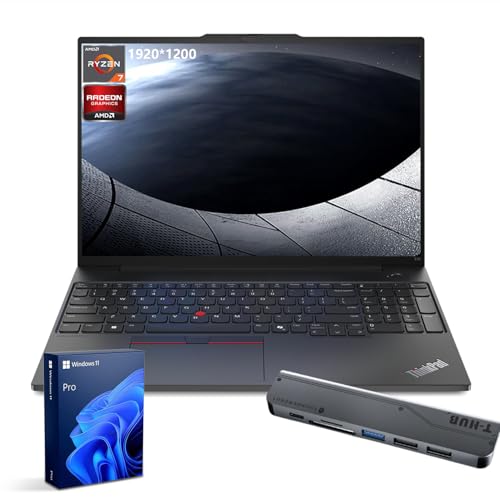
The T14 Gen 6 gives you socketed memory in a light business laptop. According to Lenovo’s datasheet, the AMD version has two DDR5 SODIMM slots supporting up to 64GB, a 57 Wh customer-replaceable battery, two USB4 ports, two USB-A ports, HDMI 2.1 and RJ45 Ethernet. It weighs about 1.39 kg and tops out at the Ryzen AI 7 PRO 350.
It suits sysadmins and students who run a handful of guests: a Windows 11 client, a Windows Server guest and a couple of Linux boxes. With 64GB installed it handles more, though the 8 cores of the top AMD chip limit large simultaneous labs. The built-in Ethernet port is a bonus for bridged networking. Trade-offs are a smaller cooling system than a workstation and only one SSD slot of up to 2TB, so store large image sets on an external NVMe drive.
- Pros: socketed RAM, Ethernet, light, swappable battery, durable keyboard.
- Cons: 8 cores at most, one SSD slot, higher price than the E-series.
Best budget lab laptop: Lenovo ThinkPad E16 Gen 3
If you want the lowest sensible price tier for virtualization, the E16 Gen 3 is the answer. It has a 16-inch 16:10 display, a platform supporting up to 64GB of DDR5 across two slots, a weight of about 1.63 kg and Intel Core Ultra options. Installing your own RAM is typically cheaper than ordering high capacity from the factory.
It suits certification students working through labs for CompTIA, Cisco or Microsoft exams, and developers who run Docker and a few VMs. Trade-offs are plastic construction, a modest cooling system that makes sustained heavy loads louder, and fewer advanced display and port options. Confirm the memory configuration before ordering because available slots can vary by region, and check that hardware virtualization is enabled in the BIOS after setup.
- Pros: low price tier, 64GB capacity, large screen, good keyboard.
- Cons: basic cooling, plastic body, configurations vary by region.
Sizing the machine: a worked example
Suppose you plan a security lab with one Windows Server domain controller (4GB), two Windows 11 clients (4GB each), three Linux servers (2GB each) and a Kali attack box (4GB). The guests total 4 + 8 + 6 + 4 = 22GB. Add 8GB for the host operating system, a browser and your tools, and the lab needs 30GB, so a 32GB laptop would be at its limit and 64GB gives comfortable headroom. For vCPUs, those seven guests at two virtual cores each need 14 virtual cores. Virtual cores can be oversubscribed on a host because guests are rarely all busy, but an 8-core host will feel the load during a scan, while 12 to 16 cores will not.
For disk, count 40GB to 60GB per Windows guest and 10GB to 20GB per Linux guest: about 3 x 50 + 4 x 15 = 210GB. Add snapshots, which can double usage, and a 1TB SSD is the practical floor with room to grow.
Decision matrix
| Your lab | Guests at once | RAM | Cores | Suggested laptop |
|---|---|---|---|---|
| Certification study, one or two guests | 1-3 | 16-32GB | 6-8 | ThinkPad E16 Gen 3, Framework 13 |
| Developer with Docker and Linux VMs | 3-6 | 32-64GB | 8-12 | ThinkPad T14 Gen 6, Framework 16 |
| Security or network lab | 6-12 | 64GB | 12-16 | ThinkPad P1 Gen 8, Framework 16 |
| Cluster, Kubernetes or OpenStack lab | 10-20 | 96-128GB | 16+ | HP ZBook Ultra G1a, Dell Pro Max 16 Plus |
Host and software choices that affect your pick
- Windows with Hyper-V or WSL2. Both are built into Windows 11 Pro and rely on the same virtualization features. Run Windows 11 Pro rather than Home for full Hyper-V.
- VMware Workstation and VirtualBox. Both run on Windows and Linux hosts. Broadcom has changed VMware licensing in recent years, so check current terms for personal and commercial use before you commit to a workflow.
- Linux with KVM. KVM performs close to bare metal. ThinkPad and Framework laptops have broad Linux support, and the P1 Gen 8 carries certified Linux options.
- Apple Silicon Macs. They run ARM guests very efficiently through tools like Parallels, UTM and VMware Fusion, but they do not run x86 guests natively. If your labs depend on x86 Windows Server or older tools, choose an Intel or AMD laptop.
Ownership realities
- Heat and noise. Sustained multi-VM loads keep fans spinning. Use performance mode on a desk and raise the laptop for airflow.
- Memory choices are permanent on some models. The ZBook Ultra G1a is soldered and the P1 Gen 8 takes a single LPCAMM2 module, so decide on capacity at purchase.
- SSD wear. Snapshot-heavy labs write a lot. Pick drives with high endurance ratings, keep 15 to 20 percent free space, and archive finished labs to external storage.
- Power draw. A lab left running on battery will drain it fast. Plug in during long sessions and use the manufacturer’s charge-limit setting for longevity.
- Backups. Export key VMs or snapshot trees to an external drive so a lost laptop does not erase weeks of configuration work.
Frequently Asked Questions
How much RAM do I need for virtualization?
16GB handles one or two light guests, 32GB suits most developers and students, and 64GB or more is better for multi-VM labs. Add up the guests’ memory and reserve 8GB for the host. Memory runs out before processing power in most lab setups.
Do I need to enable virtualization in the BIOS?
Yes, in many cases. Intel VT-x or AMD-V is usually available but may be off by default. Enter the firmware setup, find the virtualization option and enable it, then confirm it in Task Manager under the CPU tab on Windows.
Is a MacBook good for running virtual machines?
It is excellent for ARM guests such as Linux ARM builds and Windows on ARM, with strong efficiency. It cannot natively run x86 guests, so labs built around x86 images are better on an Intel or AMD laptop.
Does a graphics card matter for virtualization?
Not for most labs. Servers and clients run fine on integrated graphics. A discrete GPU only matters if you pass it through to a guest for machine learning or graphics work, and that needs specific hypervisor support.
How many CPU cores should I assign to each VM?
Two virtual cores is enough for most guests, and one core suits small Linux servers. Leave at least two physical cores for the host, and avoid giving one guest more cores than the host can spare, since that can slow every VM.
Is 1TB of storage enough for a VM lab?
For most labs, yes. A set of ten guests with snapshots can fit in 300GB to 500GB. If you collect many images or train with large datasets, use 2TB or an external NVMe drive.


Write Your Review
No reviews yet. Be the first to share your experience!