

Key takeaways
- Company file size. A file with a few thousand transactions opens quickly on anything. A file that has run for ten years, with hundreds of thousands of lines, a big item list and many attachments, rewards a fast SSD and more RAM because reports and rebuilds read the whole file repeatedly.
- Single-core speed. QuickBooks Desktop leans on one fast core for most operations. Modern mid-range chips are plenty, which is why spending extra on a high-wattage gaming processor does little for accounting work.
- Memory headroom. The accounting file is rarely the only thing open. Browser tabs for the bank portal, a spreadsheet, a PDF of invoices and a video call add up, and 16GB keeps all of it responsive.
- Keyboard and numpad. Entering invoices and bills is a typing job. A 16-inch chassis usually carries a dedicated numeric keypad, which saves real time over a day of data entry.
- Screen real estate. Registers, reports and the Home page crowd a small display. A 16:10 panel at 1920×1200 or higher shows more rows without scrolling.
The best laptop for QuickBooks in 2026 is a Windows machine with a quad-core Intel or AMD processor, 16GB of RAM, an SSD and a 16-inch screen with a full numeric keypad, and the ThinkPad E16 Gen 3 fits that description better than most. If you only use QuickBooks Online, almost any current laptop works, including a MacBook Air or a Chromebook Plus, because the work happens in a browser tab. The right choice depends on three questions: do you run QuickBooks Desktop or Online, how large is your company file, and do you enter numbers all day.
Our top picks


As an Amazon Associate we earn from qualifying purchases at no extra cost to you.
Quick comparison of the seven picks
| Pick | Best for | Key specs | Price tier |
|---|---|---|---|
| Lenovo ThinkPad E16 Gen 3 | Best overall, data entry | 16-inch 16:10, numpad, about 1.63 kg, up to 64GB DDR5 | Mid-range |
| Lenovo ThinkPad T14 Gen 6 | Best for business reliability | 14-inch, two DDR5 SODIMM slots (up to 64GB), about 1.39 kg, 57 Wh battery | Premium |
| Dell Pro 14 Plus | Best for managed office fleets | 14-inch 1920×1200, Core Ultra options, vPro on some models | Mid-range to premium |
| Lenovo ThinkPad E14 Gen 7 | Best compact value | 14-inch, up to 64GB DDR5, dual M.2 slots, about 1.34 kg | Mid-range |
| Apple MacBook Air 15-inch (M5) | Best for QuickBooks Online and Mac users | 10-core M5, 16-24GB, about 3.3 lb, up to 18 hours | Premium |
| Acer Aspire 14 AI | Best budget Windows pick | 14-inch 1920×1200, 65 Wh battery, about 1.4 kg | Budget |
| Lenovo Chromebook Plus 14 | Best for QuickBooks Online only | OLED display, MediaTek Kompanio Ultra 910, long battery life | Budget to mid-range |
What QuickBooks actually asks of a laptop
Intuit’s published requirements for QuickBooks Desktop Enterprise list Windows 10 (64-bit) or Windows 11, a minimum of 8GB of RAM with 16GB recommended, and a processor of at least 2.4 GHz, with a quad-core 2.8 GHz or faster chip recommended. Windows 8.1, Windows in S mode and Linux are not supported. QuickBooks Online is far lighter: Intuit lists a recent Windows PC with an Intel Core i5 class processor and 4GB of RAM as the recommended baseline, and the app runs in a current browser such as Chrome, Edge, Firefox or Safari.
Those are floors, not comfort levels. The real bottlenecks are less obvious than the spec sheet suggests, and they explain why a business laptop often beats a flashier consumer model for bookkeeping.
- Company file size. A file with a few thousand transactions opens quickly on anything. A file that has run for ten years, with hundreds of thousands of lines, a big item list and many attachments, rewards a fast SSD and more RAM because reports and rebuilds read the whole file repeatedly.
- Single-core speed. QuickBooks Desktop leans on one fast core for most operations. Modern mid-range chips are plenty, which is why spending extra on a high-wattage gaming processor does little for accounting work.
- Memory headroom. The accounting file is rarely the only thing open. Browser tabs for the bank portal, a spreadsheet, a PDF of invoices and a video call add up, and 16GB keeps all of it responsive.
- Keyboard and numpad. Entering invoices and bills is a typing job. A 16-inch chassis usually carries a dedicated numeric keypad, which saves real time over a day of data entry.
- Screen real estate. Registers, reports and the Home page crowd a small display. A 16:10 panel at 1920×1200 or higher shows more rows without scrolling.
Best overall: Lenovo ThinkPad E16 Gen 3
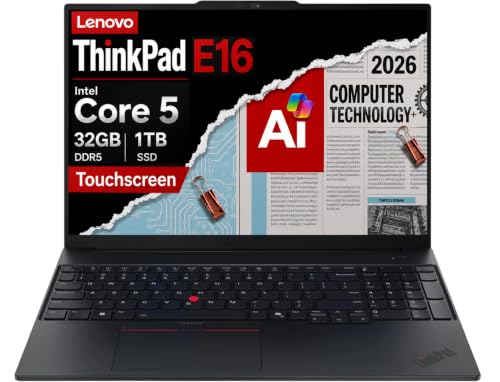
The ThinkPad E16 Gen 3 is the pick for anyone whose day is mostly typing numbers. It has a 16-inch 16:10 anti-glare screen, with Full HD and 2.5K 120 Hz options listed by Lenovo, and it carries a full-size numeric keypad that the 14-inch models lack. It weighs about 1.63 kg, and the platform supports up to 64GB of DDR5 in two slots, so a 16GB configuration can be upgraded later when the company file grows.
Who it suits: bookkeepers, small accounting practices and owners who sit at a desk. The ThinkPad keyboard is the reason many accountants stay loyal to the brand, and the larger touchpad (about 11.5 by 6.7 cm) makes working in registers easier. The main trade-off is portability: at 16 inches it is a desk machine that travels occasionally, not a laptop to carry daily. Choose the Intel or AMD configuration with 16GB and a 512GB SSD at minimum, and pick the 2.5K panel only if you spend long hours in reports.
- Pros: numeric keypad, upgradeable memory, strong keyboard, large touchpad, business-grade durability.
- Cons: heavier than 14-inch rivals, base screen is merely adequate, plastic-heavy body compared with the T-series.
Best for business reliability: Lenovo ThinkPad T14 Gen 6
The T14 Gen 6 is the machine to buy if the laptop must last five years without drama. Per Lenovo’s datasheet, the AMD version has two user-upgradeable DDR5 SODIMM slots supporting up to 64GB, a 57 Wh customer-replaceable battery, two USB4 ports, two USB-A ports, HDMI 2.1 and optional RJ45 Ethernet. It starts around 1.39 kg. The Intel version uses Core Ultra processors with similar port and battery logic.
For accounting, the standout features are the replaceable battery and keyboard, the real Ethernet port for stable connections to a QuickBooks server or file share, and the fingerprint reader for quick sign-in to sensitive financial data. Reviewers have called out its upgradeable memory as rare in 2026, since many thin laptops now solder RAM to the board. The trade-off is price relative to the E-series, and a 14-inch screen with no numpad. Pair it with a USB numeric keypad if you enter a lot of numbers, which costs little and keeps the chassis compact.
- Pros: socketed RAM, replaceable battery, Ethernet, fingerprint reader, light for its class.
- Cons: higher price tier, no numpad, base display is a basic IPS panel.
Best for managed offices: Dell Pro 14 Plus
The Dell Pro 14 Plus is Dell’s current mainstream business line, and Dell lists configurations with Core Ultra 5 and Core Ultra 7 processors, 16GB to 32GB of memory, 512GB SSDs, and a 14-inch 1920×1200 display in touch and non-touch versions. Some models carry vPro, which matters when an outside IT provider manages the laptop remotely. Retail listings quote battery life near 18 hours on the low-power configurations.
Who it suits: firms that buy several laptops at once and want standardized deployment, remote management and a multi-year business warranty. For a one-person bookkeeping business it is more machine management than needed, but its steady performance suits QuickBooks Desktop well. Memory is configuration-dependent and some versions use soldered LPDDR5x, so choose 32GB if you expect a large file; you cannot always add it later. Compare the exact configuration, because the line includes both soldered and socketed memory variants.
- Pros: remote-management options, long battery life on efficient configurations, clean business design, touch option.
- Cons: memory upgradeability varies by configuration, confusing model naming, no numpad.
Best compact value: Lenovo ThinkPad E14 Gen 7
The E14 Gen 7 shares the E16’s keyboard philosophy in a lighter body. Lenovo lists a 14-inch WUXGA IPS screen with a 2.8K 120 Hz option, up to 64GB of DDR5-5600, dual M.2 SSD slots and a 48 Wh or 64 Wh battery. It weighs from about 1.34 kg, has Wi-Fi 6E, HDMI 2.1, Gigabit Ethernet and a Thunderbolt 4 USB-C port. It has no numeric keypad.
It suits the accountant who works from client offices and needs one laptop that survives a bag. The dual SSD slots are a quiet bonus: you can keep a local backup drive of company file copies inside the machine, or separate the operating system from data. The trade-off is that the base screen is only adequate; choose the higher-resolution panel if you sit in reports all day. Pair it with an external monitor at the desk and the lack of a numpad stops mattering.
- Pros: light, two SSD slots, up to 64GB RAM, wired Ethernet, good keyboard.
- Cons: no numpad, base screen is average, battery size varies by configuration.
Best for QuickBooks Online and Mac users: Apple MacBook Air 15-inch (M5)
The MacBook Air with the M5 chip is the best option if your accounting lives in QuickBooks Online or you use the Mac version of QuickBooks. Engadget and Tom’s Guide list a 10-core M5, 16GB to 24GB of memory, storage from 512GB to 4TB, two Thunderbolt 4 ports, MagSafe 3 and battery life up to 18 hours. The 15-inch model weighs about 3.3 lb and has a roomy display for wide reports.
A caution that matters: QuickBooks Desktop for Windows does not run natively on macOS, and running it through virtualization adds cost, licensing and complexity. Intuit’s Mac product and QuickBooks Online are the safe routes. If your accountant or clients send Windows company files, confirm compatibility before buying. The trade-offs are the premium price tier, limited ports without a hub, and the lack of a numeric keypad, so a Bluetooth keypad is a sensible accessory.
- Pros: fast, silent, excellent battery, large bright display, strong resale value.
- Cons: no native Windows QuickBooks Desktop, memory is not upgradeable, premium price tier.
Best budget Windows pick: Acer Aspire 14 AI
For a startup, a sole proprietor or a part-time bookkeeper, the Acer Aspire 14 AI offers a 14-inch 16:10 1920×1200 IPS screen, a 65 Wh battery and a weight near 1.4 kg. Listings show variants with Intel Core Ultra 5 and Snapdragon X processors, and configurations with 16GB or 32GB of memory. Reviewers rate it as a capable machine for browser-based work, spreadsheets and documents.
The choice of processor matters here. For QuickBooks Desktop, pick an Intel Core Ultra configuration, since QuickBooks is built for x86 Windows and Snapdragon models rely on emulation for such software. For QuickBooks Online either variant is fine. The trade-offs are plastic construction, a keyboard that is good rather than great, and memory that is typically soldered, so buy 16GB at minimum from the start.
- Pros: large battery, 16:10 screen, low price tier, light.
- Cons: plastic build, soldered memory, processor choice affects software compatibility.
Best for QuickBooks Online only: Lenovo Chromebook Plus 14
If you never open a desktop accounting application, a Chromebook Plus handles QuickBooks Online, Google Sheets, bank portals and email without effort. Engadget’s 2026 roundup describes the Lenovo Chromebook Plus 14 as having an OLED display, a MediaTek Kompanio Ultra 910 chip, strong performance, a favored keyboard and over 14 hours of video playback, with about 10 hours of standard workday use.
The deal-breaker is software: ChromeOS cannot run QuickBooks Desktop, and some payroll or import tools expect Windows. Check every tool you use, including receipt scanners and bank-feed utilities, before committing. If all of it is browser-based, this is the lightest, simplest and cheapest way to run the books, and ChromeOS updates are automatic, which lowers maintenance for a non-technical owner.
- Pros: long battery, OLED screen, automatic updates, simple security model.
- Cons: no QuickBooks Desktop, limited offline use, some accounting add-ons need Windows.
Decision matrix: match your situation to a laptop
| Your situation | Choose | Why |
|---|---|---|
| Heavy data entry at a desk, QuickBooks Desktop | ThinkPad E16 Gen 3 | Numpad, large screen, upgradeable RAM |
| Accountant who travels to clients | ThinkPad E14 Gen 7 or T14 Gen 6 | Light, tough keyboards, Ethernet, strong battery |
| Office with several laptops and an IT provider | Dell Pro 14 Plus | Remote management, standard warranty options |
| QuickBooks Online and Apple ecosystem | MacBook Air 15-inch M5 | Speed, battery, display |
| Tight budget, Windows needed | Acer Aspire 14 AI (Intel version) | Adequate specs at the lowest tier |
| Everything is in a browser | Lenovo Chromebook Plus 14 | Simple, light, long battery |
How to size RAM and storage for your company file
A practical way to size the machine is to look at your company file and your habits, then add headroom. Work through these steps.
- Check the file size. In QuickBooks Desktop, the Product Information window shows file details, and the file on disk tells you the rest. Under 200MB is a small file, 200MB to 1GB is mid-sized, and above 1GB is large.
- Count concurrent apps. List what stays open during a normal day: QuickBooks, a browser with perhaps ten tabs, a spreadsheet, a PDF reader and a messaging app. This typically uses 6GB to 9GB on Windows 11.
- Add headroom. Multiply by 1.5 for growth and background updates. A small file with a typical workday lands near 12GB, which is why 16GB is the practical minimum and 32GB the safe choice for large files or multi-user hosting.
- Size storage for backups. A 1GB company file with daily local backups kept for 30 days needs about 30GB for the copies alone. A 512GB SSD handles this comfortably, but 256GB leaves little after Windows, updates and documents.
Worked example: a firm with a 600MB file, ten browser tabs and a spreadsheet uses about 8GB in normal work. With a 1.5x allowance that is 12GB, so 16GB is correct. If the same firm hosts the file for three coworkers from this laptop, Intuit’s server guidance suggests at least 8GB just for hosting five users, so move to 32GB.
Ownership realities that decide the winner
- Security. Financial data deserves a fingerprint reader or IR camera, full-disk encryption and automatic updates. Business lines such as ThinkPad and Dell Pro include these by default; many budget models leave encryption features to Windows Pro.
- Windows edition. Choose Windows 11 Pro over Home. BitLocker drive encryption and domain features make audits and client requirements easier.
- Ports. A bookkeeper often connects a monitor, a scanner and a check printer at once. Look for two USB-C and at least one USB-A port, or plan a dock.
- Battery wear. Laptops that sit plugged in at a desk lose battery capacity faster if kept at 100 percent. Use the manufacturer’s charge limit setting, which ThinkPad and Dell utilities provide, and a replaceable battery on the T14 extends the machine’s life.
- Warranty. A one-year consumer warranty is thin for the machine that holds your clients’ books. Business lines offer on-site and multi-year options worth considering.
The most common mistake is buying for CPU benchmarks. A gaming laptop with a discrete graphics card wastes battery and adds noise without speeding up an accounting program. A second mistake is buying a Qualcomm-based Windows laptop and discovering later that an older payroll or add-in tool does not run. A third is skimping on the SSD and using an external USB drive for the company file, which risks corruption if the cable is bumped during a write.
Setting up the laptop for QuickBooks
- Install all Windows updates first, then install QuickBooks and its updates so the program and system are current.
- Store the company file on the internal SSD, never on a USB stick or a cloud-sync folder that can lock files mid-write.
- Schedule automatic backups to a second drive and a cloud destination, and verify a restore once.
- Turn on BitLocker or the equivalent encryption and set a short screen-lock timeout.
- Add an external monitor if your desk allows it; a second screen for reports beside the register saves clicks.
- Keep one spare charger at the office and one in your bag, since a dead laptop during a payroll deadline is the costliest failure.
Peripherals that matter more than the CPU
Bookkeeping speed comes from the whole desk, not only the laptop. A 24-inch external monitor at 1920×1080 or higher lets you keep the register on one screen and bank statements on the other. A USB-C dock with Ethernet turns the laptop into a desktop in one cable. A basic flatbed or sheet-fed document scanner removes the habit of photographing receipts on a phone. A small uninterruptible power supply protects the company file from a write interrupted by a power cut, which is one of the common causes of file damage in older office buildings.
If you use a check printer or a label printer, confirm driver support for Windows 11 before you buy the laptop, since printers older than a decade sometimes lack current drivers. Chromebook and Mac buyers should do the same check, because driverless printing is not universal for specialist devices.
Frequently Asked Questions
How much RAM do I need for QuickBooks Desktop?
Intuit lists 8GB as the minimum and 16GB as the recommended amount for the client computer. For a large file, multi-user hosting or heavy multitasking, 32GB gives comfortable headroom. Because many thin laptops solder memory, buy the capacity you will need on day one.
Can I use a MacBook for QuickBooks?
Yes, with QuickBooks Online in a browser or with Intuit’s Mac version of the desktop product. QuickBooks Desktop for Windows does not run natively on macOS. If your accountant requires a Windows company file, verify compatibility before you buy a Mac.
Do I need a laptop with a numeric keypad?
You do not need one, but it speeds up data entry noticeably. 16-inch laptops like the ThinkPad E16 Gen 3 include a full keypad. On a 14-inch model, an inexpensive USB or Bluetooth numeric keypad solves the problem.
Is a Chromebook good enough for QuickBooks Online?
A Chromebook Plus runs QuickBooks Online in Chrome without trouble, and it is simple to maintain. It cannot run QuickBooks Desktop, and some add-ons or payroll utilities may require Windows, so list your tools before choosing.
Does a graphics card help QuickBooks?
No. QuickBooks relies on CPU speed, memory and storage rather than graphics, so integrated graphics are enough. Money is better spent on RAM, a larger SSD or a better screen.
How long should an accounting laptop last?
A business-class laptop with 16GB or more of RAM and a quality SSD commonly serves four to six years. Replaceable batteries, upgradeable memory and a multi-year warranty, as found on the ThinkPad T14, extend that lifespan.


Write Your Review
No reviews yet. Be the first to share your experience!