

Key takeaways
- Press the Windows key to open Start and type the name of what you need, such as Device Manager.
- Use Tab and the arrow keys to move between controls, Space to toggle, and Enter to select.
- Press Windows key + I to open Settings.
- Press Alt + F4 to close a window, and Windows key + X to open the quick-link menu where Device Manager sits.
To fix a laptop touchpad that is not working, first check whether it was switched off by a function-key shortcut or a setting, then restart the laptop, update or reinstall the touchpad driver, and check the BIOS if the pad is still dead. Most failures come from a disabled toggle, a driver glitch after an update, or a connected mouse that tells the system to ignore the pad. Only after those checks does it make sense to suspect hardware such as a loose ribbon cable or a swollen battery pressing from below.
The steps below are ordered from the quickest and safest to the most involved. Each includes the reason it works, so you can stop as soon as the pad responds. The instructions focus on Windows 11 and Windows 10 laptops, with notes for Chromebooks and Macs at the end.
Our top picks


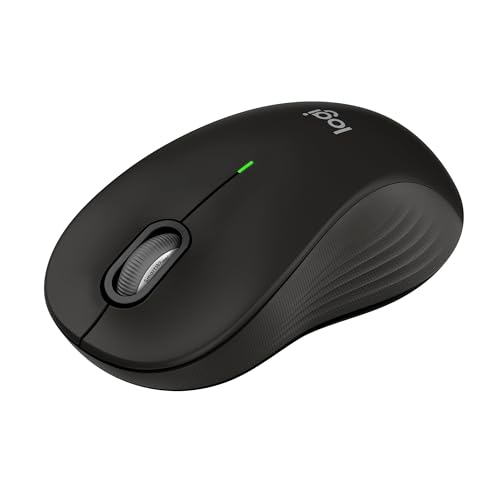
As an Amazon Associate we earn from qualifying purchases at no extra cost to you.
Quick diagnosis table
| What you see | Likely cause | First thing to try | Time needed |
|---|---|---|---|
| Pointer frozen, keyboard works | Touchpad disabled with a function key | Press the touchpad toggle key (often F5, F6, F7 or F9) or a double tap on the top-left corner | 1 minute |
| Pad stopped after a Windows update | Driver conflict | Roll back or reinstall the driver in Device Manager | 10 minutes |
| Pad works only with no mouse plugged in | “Leave touchpad on when a mouse is connected” is off | Turn that setting on in Touchpad settings | 2 minutes |
| Pointer jumps or clicks by itself | Dirty surface, damp fingers, palm rejection, or a ghost-input driver issue | Clean the pad, adjust sensitivity | 5 minutes |
| Pad works in BIOS but not in Windows | Software or driver fault | Reinstall driver, run system file repair | 20 minutes |
| Pad dead in BIOS too | Hardware fault, loose cable or swollen battery | Inspect internally or seek repair | Varies |
| Click does not register but movement works | Tap-to-click off, or mechanical click assembly failing | Enable tap settings, then check for lifting of the pad | 5 minutes |
Step 1: Check the obvious toggles
Many laptops have a dedicated key to disable the touchpad, designed to prevent accidental touches while typing. It often sits on the F-row with a symbol of a pad with a line through it. Some models need the Fn key held together with it. Press it once and test the pointer. A few laptops, especially some HP models, use a small light in the top-left corner of the pad; double-tapping it turns the pad on or off, and an amber light means the pad is disabled.
The reason to start here is simple: this is the most common cause, and it takes seconds. If your laptop has a toggle and the pad responds after pressing it, you are done.
Step 2: Restart and test without peripherals
Hold the power button to shut down fully, unplug the charger and any USB devices, wait about thirty seconds, then start again. A restart clears temporary driver states that can leave the pad unresponsive. Note that Windows Fast Startup can keep a faulty driver state alive across a normal shutdown, so choose Restart rather than Shut down, since restart performs a complete reload.
If the pad works after a restart, but fails again later, note what happened just before: a sleep cycle, an update, a docking event or a specific app. That clue tells you whether to focus on power settings or a driver.
Step 3: Check Windows touchpad settings
- Open Settings, then go to Bluetooth and devices, and select Touchpad (on Windows 10, open Devices and then Touchpad).
- Make sure the main Touchpad switch is on.
- Look for the option to leave the touchpad on when a mouse is connected and turn it on if you use a USB or wireless mouse.
- Check sensitivity. A very low setting or an aggressive palm-rejection setting can make the pad seem dead for light touches.
- Open the Mouse settings and confirm the primary button and pointer speed are reasonable.
If the Touchpad page is missing from Settings, Windows does not detect the pad as a precision touchpad. That points toward a driver issue and takes you to the next step.
Step 4: Navigate without a working touchpad
If you need to reach settings without a pointer, use the keyboard.
- Press the Windows key to open Start and type the name of what you need, such as Device Manager.
- Use Tab and the arrow keys to move between controls, Space to toggle, and Enter to select.
- Press Windows key + I to open Settings.
- Press Alt + F4 to close a window, and Windows key + X to open the quick-link menu where Device Manager sits.
A USB or Bluetooth mouse makes this easier and is a useful backup while you troubleshoot.
Step 5: Update, roll back or reinstall the driver
Drivers are a leading cause of touchpad faults, especially after a major Windows update. In Device Manager, expand “Mice and other pointing devices” and “Human Interface Devices.” Look for an entry such as a precision touchpad, a manufacturer-specific pad (Synaptics, Elan, Alps or similar) or an I2C HID device.
- Update: Right-click the touchpad entry and choose Update driver, then search automatically.
- Roll back: If the problem started after an update, open the entry’s Properties, go to the Driver tab and choose Roll Back Driver if the option is available.
- Uninstall and restart: Right-click and choose Uninstall device, then restart. Windows reinstalls a generic driver at startup. Do not tick the box to delete the driver software unless you have the manufacturer’s package ready.
- Install the manufacturer driver: Visit your laptop maker’s support page, enter the model number or service tag, and download the touchpad driver for your exact Windows version. Manufacturer packages often include the gestures and settings utility.
Also check the chipset and serial IO (I2C) drivers on the same support page. Many modern laptops connect the pad over an I2C bus, and an outdated Intel serial IO or AMD I2C driver can disable the pad even when the touchpad driver is correct.
Step 6: Check the device status and power management
In Device Manager, double-click the touchpad entry and read the Device status box. A message such as “This device cannot start (Code 10)” suggests a driver or hardware communication problem, while “Windows has stopped this device” (Code 43) often indicates a hardware or firmware fault. On the Power Management tab, if you see “Allow the computer to turn off this device to save power,” untick it. Power saving can fail to wake the pad after sleep on some systems.
Also check that the device is not showing a down-arrow icon, which means it is disabled. Right-click it and choose Enable device.
Step 7: Repair system files and install updates
Corrupted system files can break input drivers. Open Terminal as an administrator and run sfc /scannow, then, if problems remain, run DISM /Online /Cleanup-Image /RestoreHealth. Restart afterward. Also open Windows Update, install pending updates (including optional driver updates when listed) and restart. Microsoft and laptop makers sometimes release fixes for touchpad bugs introduced by earlier updates.
Step 8: Test in the BIOS or UEFI
This test separates software from hardware. Restart and press the BIOS key shown during startup (commonly F2, F10, Delete or Esc). Many BIOS screens do not accept touchpad input, but some do, and some firmware shows an internal pointing device setting.
- Look for an option called Internal Pointing Device, Touchpad, or Pointing Device and set it to Enabled or Basic.
- Some laptops offer an Advanced mode for touchpad that must match the operating system (Basic versus Advanced). If it is set incorrectly, the pad may stop working in Windows.
- Resetting the BIOS to defaults can restore a setting changed by a firmware update.
If the pointer moves inside the BIOS but not in Windows, you have a software problem. If it does not move at all in an environment where the keyboard works and the pad option is enabled, suspect hardware.
Step 9: Clean the pad and check for physical causes
Capacitive touchpads read the electrical charge of your finger. Grease, moisture, hand lotion or a thin film of dust interferes with that reading and causes jumpy or non-responsive behavior. Power off, wipe the surface with a lint-free cloth lightly dampened with water or a small amount of isopropyl alcohol, and dry it fully. Avoid soaking the edges, because liquid can seep under the pad.
Also check for physical signs: a pad that is visibly raised at one edge, a case that has bulged near the pad, or a click that feels mushy or stuck. A swollen lithium-ion battery under the palm rest can push the pad upward and stop the click from working. A bulging battery is a safety hazard; stop charging the laptop, power it off and get it serviced by a qualified technician. Do not puncture or press on it.
Hardware causes compared
| Hardware cause | Typical clue | DIY feasible? | Fix |
|---|---|---|---|
| Loose touchpad ribbon cable | Pad works after a bump, fails again, or died after a repair or drop | Yes, with a service manual | Reseat the flat cable after removing the battery connection |
| Failed touchpad module | Dead in BIOS and Windows, cable is seated | Often yes | Replace the module |
| Swollen battery | Raised palm rest, stiff or uneven click | Battery replacement only if comfortable and safe | Replace the battery, stop using the old one |
| Liquid damage | Erratic behavior after a spill | Rarely | Professional cleaning or replacement |
| Motherboard fault | Other ports or inputs also fail | No | Professional board repair |
Reseating a cable is usually a low-cost repair. Power off, unplug the adapter, disconnect the battery connector first, then locate the touchpad ribbon, flip up the small locking tab on the connector and push the cable in fully before locking it again. Use plastic tools and do not pull the cable at an angle.
Fixes for specific problems
Touchpad scrolls or zooms erratically
Open the Touchpad settings and reduce sensitivity or turn off the three-finger and four-finger gestures you do not use. Clean the surface. In some cases an external device such as a docking station or a charger with poor grounding introduces electrical noise; try unplugging them to see if the behavior stops.
Taps do not register as clicks
Check that tap-to-click is on in Settings. If physical clicks work but taps do not, the setting is the cause. If neither works, test the left and right click areas separately; one corner may have a worn click mechanism.
Touchpad stops after sleep
Disable power saving for the device as described above, update the BIOS and the chipset driver, and test whether disabling Fast Startup in Power options helps. Fast Startup saves driver state, which can reload a bad state.
Touchpad does not work in a game or app
Some full-screen apps disable the touchpad or capture the cursor. Check the app’s settings and try windowed mode. A mouse is generally better for gaming anyway.
Chromebooks and Macs
Chromebooks: Restart the device, then check Settings under Device and Touchpad. Hold Refresh and press Power to perform a hardware reset, which clears many stuck states. If the pad is still dead after an update, a powerwash (a factory reset) can help, but back up local files first. Some Chromebooks also let you disable the pad with a keyboard shortcut.
Macs: Open System Settings and check Trackpad. If the pad does not click, check the battery condition, since a swollen battery commonly causes trackpad problems on MacBooks. Restart, reset the SMC or its equivalent on older Intel models, and make sure macOS is up to date. On Apple silicon models a simple restart handles most firmware states.
When to stop and get it repaired
Seek professional help if the pad is dead in the BIOS with the option enabled, if the case is bulging, if there was liquid exposure, or if you are not comfortable opening the laptop. Check your warranty first; a failing touchpad on a laptop inside the warranty period is typically covered. Before handing over the laptop, back up your files and note any symptoms so the technician can test efficiently.
Meanwhile, an external mouse costs far less than most repairs and keeps you working. A small wireless mouse or a wired USB mouse needs no driver on current systems, and you can leave the touchpad off to avoid accidental taps while typing.
How to prevent touchpad problems
- Install driver updates from the laptop maker, not only from generic sources, and keep a note of which version works.
- Create a restore point before major updates so you can roll back.
- Keep liquids away and wipe the pad occasionally with a dry lint-free cloth.
- Do not stack heavy objects on a closed laptop, which can press the case against the pad assembly.
- Replace aging batteries when the case starts to flex or the laptop no longer sits flat on a desk.
Worked example: a pad that died after an update
Imagine a laptop whose pointer froze the morning after a large Windows update. The toggle key does nothing, and Settings has no Touchpad page. Following the order above, you restart, find the pad listed with a warning icon in Device Manager, roll the driver back, and the pointer returns within a minute. If the rollback button is greyed out, you instead install the maker’s package for the exact model, then the serial IO driver from the same page. Total time is usually under half an hour, and no parts are needed. Keep a note of the working driver version so you can repeat the fix after the next big update.
Frequently Asked Questions
Why did my laptop touchpad suddenly stop working?
The most common reasons are an accidental disable shortcut, a driver problem after an update, or a setting that turns the pad off when a mouse is connected. Restarting and checking those three things resolves the majority of cases. Hardware faults are less common and usually show up as a pad that is dead even in the BIOS.
How do I unlock my touchpad on a laptop?
Try the touchpad toggle key on the F-row, often with the Fn key, or double-tap the small indicator spot in a corner of the pad if your model has one. You can also open Touchpad settings in Windows and switch the pad on. If neither works, move on to drivers.
Can I use the keyboard to fix a dead touchpad?
Yes. Press the Windows key, type Device Manager, and use the arrow keys, Tab and Enter to find the pointing device and choose Update driver or Uninstall device. Windows key + I opens Settings, where you can use Tab to reach the touchpad toggle.
Is a touchpad that stops after a Windows update a known issue?
Driver conflicts after major updates do happen. Rolling back the driver, installing the latest version from the laptop maker, or waiting for the next cumulative update often solves it. Creating a restore point before updates gives you an easy way back.
Can a bad battery stop a touchpad from working?
A swollen battery can press against the underside of the pad and prevent the click mechanism from working or damage the pad assembly. It is a safety concern, so stop charging and seek service. Do not try to flatten or puncture it.
Should I replace the touchpad or buy a new laptop?
If only the touchpad module has failed, replacement is usually inexpensive compared with a new laptop. If the machine is old, has other problems or the repair quote approaches the value of a comparable replacement, buying new makes more sense. Use an external mouse in the meantime.


Write Your Review
No reviews yet. Be the first to share your experience!