

Key takeaways
- Raise the laptop to eye level. A stand or a stack of books removes the unflattering upward angle and helps your posture.
- Put the light in front of you. A window or desk lamp behind the screen gives a better image than any sensor upgrade.
- Use a headset in noisy rooms. Even a basic wired headset beats built-in microphones in open offices.
- Close heavy apps. Photo editors and large spreadsheets compete with the call for memory and the CPU.
- Plug into Ethernet when you can. A wired connection stabilizes audio more than any laptop upgrade.
The best laptop for Skype-style video calling in 2026 is the 13-inch MacBook Air with the M5 chip for most people, with the ThinkPad X1 Carbon Gen 13 Aura Edition as the Windows alternative built around meetings. What matters is not raw speed: a sharp camera, clean microphones, a quiet fan, a stable Wi-Fi 7 radio and a battery that lasts through back-to-back calls decide how you look and sound on screen.
One note before the picks. Microsoft retired the consumer Skype app in 2025 and pointed users toward Teams, so many readers searching for a “Skype laptop” now mean any laptop that handles Teams, Zoom, Google Meet, WhatsApp or FaceTime-style calling well. Every recommendation below fits all of those services, because they stress a laptop in the same way: camera processing, noise suppression, screen sharing and long sessions on battery.
Our top picks



As an Amazon Associate we earn from qualifying purchases at no extra cost to you.
Quick comparison of the seven picks
| Pick | Best for | Weight | Battery | Camera and call features | Price tier |
|---|---|---|---|---|---|
| MacBook Air 13-inch (M5) | Best overall | 1.23 kg (2.7 lb) | 53.8 Wh, up to 18 h video | Center Stage framing, studio-style mics | Premium |
| ThinkPad X1 Carbon Gen 13 Aura Edition | Best for meetings | about 0.98 to 1.09 kg | 57 Wh | 1080p camera, optional 8MP, privacy shutter, IR login | Premium |
| Dell XPS 14 (2026) | Best Windows screen | 1.36 to 1.38 kg | 70 Wh | Good camera, no physical shutter | Premium |
| MacBook Pro 14-inch (M5) | Best for calls plus creative work | 1.55 kg (3.4 lb) | 72.4 Wh, up to 24 h video | Large speakers and mic array, HDMI and SD slot | Premium |
| MacBook Neo | Best budget Mac | 1.23 kg (2.7 lb) | 36.5 Wh, up to 16 h video | 1080p FaceTime HD camera | Budget to mid-range |
| Acer Swift Go 14 AI (2026) | Best value Windows ultraportable | 1.12 kg (Acer figure) | 71 Wh, claimed up to 22 h | OLED screen, AI noise reduction | Mid-range |
| Acer Chromebook Plus 514 | Best cheap call machine | about 1.45 kg (3.2 lb) | 50 Wh, up to 12 h | Browser-based calling with Chromebook Plus camera effects | Budget |
Specifications above come from the manufacturers’ own spec sheets and the reputable reviews that cite them; configurations vary by region, so confirm the exact variant before you buy.
What actually makes a laptop good for video calls
The camera is half the story
Most laptop webcams still use small sensors, so the difference between a flattering image and a grainy one often comes from the image-signal processor and the software on top of it. A 1080p camera paired with good processing beats a 4K sensor with none. Apple’s Center Stage framing keeps you centered as you move, and Windows laptops with a neural processing unit can apply background blur, eye-contact correction and automatic framing through Windows Studio Effects. Those effects run on the NPU rather than the CPU, so they barely touch battery life or fan noise.
Microphones and speakers
People forgive a soft picture faster than a muffled voice. Look for a three-microphone array or better, plus software noise suppression that removes keyboard clatter and room echo. Speaker quality matters when you are on a call without headphones: a laptop with a wide, clear midrange lets you hear a colleague without turning the volume to the maximum, which in turn limits the feedback that microphones pick up.
Wi-Fi and connectivity
Dropped frames on a call are usually a Wi-Fi problem rather than a processor problem. Wi-Fi 6E or Wi-Fi 7 gives a cleaner connection in busy apartments and offices, and every Windows and Mac pick in this list carries one of them except the budget Chromebook, which relies on its own Wi-Fi 6 class radio. If you work from a desk, a USB-C or Thunderbolt dock with an Ethernet port removes the wireless variable entirely and lets you connect an external camera and monitor with one cable.
Sustained performance and quiet fans
A video call is a long, steady load: camera encoding, decoding several participant streams, screen sharing and background effects all at once. Efficient chips such as Apple silicon, Intel’s Core Ultra series and Snapdragon X processors handle this without spinning fans up loudly. A fan surge in the middle of a presentation is audible to everyone on the call, which is why thin and efficient generally beats thick and powerful for this use.
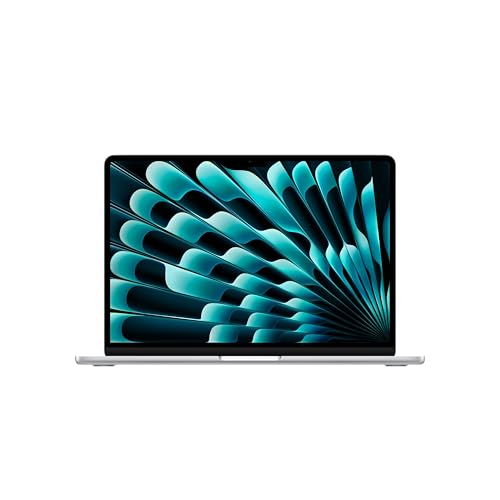
Best overall: MacBook Air 13-inch (M5)
Apple announced the 13-inch MacBook Air with the M5 chip in March 2026. According to Apple’s tech specs it carries a 10-core CPU, a 16-core Neural Engine, 16GB of unified memory as standard (configurable to 24GB or 32GB), and a 512GB SSD base. It weighs 1.23 kg (2.7 lb), has a 13.6-inch Liquid Retina display at 2560 by 1664 and 500 nits, and supports Wi-Fi 7. The battery is 53.8 Wh with Apple rating up to 18 hours of video streaming.
For calling, the Air is the easy answer because it has no fan at all. It stays silent in a two-hour meeting, the speakers and microphones are among the best in any thin laptop, and Center Stage framing works without any configuration. Continuity features let you hand a call to an iPhone and back if you are walking out of the house.
Who it is for: remote workers, students, and anyone who wants one laptop that handles calls, documents and light creative work for years. Pros: silent operation, excellent mics and speakers, long battery, strong resale value. Cons: only two Thunderbolt 4 ports plus MagSafe, a 60Hz display, and memory and storage cannot be added after purchase.
Best for meetings on Windows: ThinkPad X1 Carbon Gen 13 Aura Edition
Lenovo built the Aura Edition around Intel’s Core Ultra 200V series, and reviewers describe it as the lightest X1 Carbon yet at roughly 0.98 to 1.09 kg depending on the display and cellular options. It has two Thunderbolt 4 ports, two USB-A ports, HDMI and a headphone jack, so you can plug into a conference-room display or a projector without a dongle. The standard camera is 1080p with a physical privacy shutter and an infrared sensor for Windows Hello face login, and an optional 8MP camera is offered. Display options include a 2.8K 120Hz OLED panel and a 1920 by 1200 IPS touchscreen.
The shutter matters more than it sounds. In a shared workspace it lets you prove the camera is closed, and it removes the need for sticky covers. The keyboard is also among the best on any thin laptop here, which helps if you take notes during calls.
Who it is for: managers, consultants and sales staff who spend their day in meetings and travel regularly. Pros: real ports, shutter, excellent keyboard, light chassis, strong security features. Cons: the 57 Wh battery is modest, so OLED models average around eleven hours in published web-browsing measurements, and cooling is limited under sustained heavy loads.
Best Windows display: Dell XPS 14 (2026)
The 2026 XPS 14 returned with Intel Core Ultra options up to the X7, Intel Arc integrated graphics, and a 14-inch 2.8K OLED touch panel at 120Hz. It weighs about 1.36 kg for the OLED version, carries a 70 Wh battery with 100W charging, and has three Thunderbolt 4 ports with Wi-Fi 7 and Bluetooth 6.0. Reviewers praised the build and the screen, and criticized the shallow keyboard and the lack of a camera shutter and card reader.
Video calls on this laptop look good mostly because the screen does: faces on an OLED panel are rich and the black levels make shared slides easier to read. If you present often, the 70 Wh battery gives more headroom than most 14-inch ultraportables. Battery results vary a lot by display: independent measurements place the OLED version well below the LCD version in endurance.
Who it is for: professionals who want a premium Windows machine with a standout display for calls, content and light photo work. Pros: beautiful screen, large battery, sleek build, three fast ports. Cons: no USB-A, HDMI or card slot, no camera shutter, keyboard travel is short. Choose the LCD variant if you value battery life over contrast.
Best for calls plus creative work: MacBook Pro 14-inch (M5)
If your days mix calls with video editing, music, photography or software builds, the 14-inch MacBook Pro with the base M5 chip is the one to look at. Apple lists a 72.4 Wh battery with up to 24 hours of video streaming, a 14.2-inch Liquid Retina XDR display at 3024 by 1964, three Thunderbolt 4 ports, an SDXC slot, HDMI and MagSafe, and a weight of 1.55 kg (3.4 lb). Memory starts at 16GB and goes to 32GB.
The advantage over the Air is a bigger speaker system, a brighter and smoother display, and active cooling that lets the chip sustain heavy loads without throttling. Screen sharing a demo while a build runs in the background is exactly the kind of mixed workload where the Pro stays comfortable.
Who it is for: creators, developers and trainers who stream or record themselves. Pros: excellent screen and speakers, real ports, very long battery. Cons: heavier and thicker than the Air, and the price tier is higher for capabilities a pure meeting user will never need.
Best budget Mac: MacBook Neo
Apple’s MacBook Neo, released in March 2026, uses the A18 Pro chip with a 6-core CPU, 8GB of unified memory that cannot be expanded, and a 256GB or 512GB SSD. It weighs 1.23 kg, has a 13-inch Liquid Retina display at 2408 by 1506, a 36.5 Wh battery rated for up to 16 hours of streaming, and a 1080p FaceTime HD camera. It has one USB-C port at 10Gbps with DisplayPort support, a second USB-C at USB 2.0 speed and a headphone jack.
For video calling the Neo is more than capable: the same macOS call features, the same microphone quality class and a camera that handles typical indoor lighting well. The compromise is the fixed 8GB of memory. That is enough for a browser, a call app and a document, but a person who keeps dozens of tabs open and screen shares simultaneously will feel it.
Who it is for: students, parents and light office users who want a Mac for calls and everyday work. Pros: low entry cost for a Mac, silent operation, long battery, good camera. Cons: a single fast port, memory cannot be upgraded, and 8GB limits heavy multitasking.
Best value Windows ultraportable: Acer Swift Go 14 AI (2026)
The 2026 Swift Go 14 AI uses Intel’s newer Panther Lake generation, with Core Ultra 5 325, Core Ultra 7 355 and higher options. Acer lists a weight of 1.12 kg, dimensions of 310 by 218.9 by 15.6 mm, a 71 Wh battery with a claimed endurance of up to 22 hours, and OLED panels. Independent reviewers measured more than 20 hours in video-loop runs, which is remarkable for a Windows laptop of this size.
That endurance suits a call-heavy day: you can go from a morning meeting through an afternoon workshop without finding a socket. The NPU supports AI noise removal and background effects at low power draw.
Who it is for: hybrid workers and students who want a light OLED Windows laptop without paying business-laptop prices. Pros: very light, huge battery, OLED screen, modern chip. Cons: speakers are average, the chassis feels less rigid than business models, and configurations differ by country.
Best cheap call machine: Acer Chromebook Plus 514
The Chromebook Plus 514 is a straightforward browser-based laptop. Acer’s AMD Ryzen version has a 14-inch WUXGA (1920 by 1200) screen, 8GB of LPDDR5X memory, a 128GB SSD, a 50 Wh battery rated for up to 12 hours and a weight of about 3.2 lb. Chromebook Plus models add camera effects, background blur and noise cancellation inside ChromeOS, so Google Meet, Zoom’s web client and Teams in the browser all behave well.
If your calls happen in a browser and your files live in cloud storage, a Chromebook removes a whole class of problems: no driver updates, quick boot and automatic security patches.
Who it is for: older relatives, schools, and anyone who wants a dependable call device at a low price tier. Pros: low cost, simple, long enough battery. Cons: limited local software, a middle-of-the-road camera, and some desktop call apps are not available.
How to choose: a decision matrix
| Your situation | Choose | Why |
|---|---|---|
| Eight or more call hours a day, mostly in a browser or Teams | MacBook Air M5 or X1 Carbon | Silent or near-silent cooling and strong mics |
| Shared offices, privacy-sensitive work | ThinkPad X1 Carbon Gen 13 | Physical shutter and IR login |
| Presenting with slides and demos | Dell XPS 14 or MacBook Pro 14 | Bright screen, headroom for screen sharing |
| Travelling with one charge for a full day | Acer Swift Go 14 AI or MacBook Air M5 | Real-world 15 hours or more |
| Tight budget, browser-only calls | Acer Chromebook Plus 514 or MacBook Neo | Enough performance without paying for unused power |
A worked battery example
Suppose you have six calls of 45 minutes each, with short gaps, which is 4.5 hours of active video. A laptop that sustains about 9 hours of video-call use will finish the day with roughly half the charge left. Video calls use more power than plain video playback because the camera, encoder and microphone run constantly, so real endurance is usually 60 to 70 percent of the manufacturer’s video-streaming rating. Applying that range, a 15-hour streaming rating gives 9 to 10.5 hours of calling, while a 10-hour rating gives 6 to 7 hours, which is not enough for a long back-to-back day without a charger.
Setup tips that improve every call
- Raise the laptop to eye level. A stand or a stack of books removes the unflattering upward angle and helps your posture.
- Put the light in front of you. A window or desk lamp behind the screen gives a better image than any sensor upgrade.
- Use a headset in noisy rooms. Even a basic wired headset beats built-in microphones in open offices.
- Close heavy apps. Photo editors and large spreadsheets compete with the call for memory and the CPU.
- Plug into Ethernet when you can. A wired connection stabilizes audio more than any laptop upgrade.
Durability and ownership realities
Webcams rarely fail, but hinges and batteries do. Business laptops such as the ThinkPad X1 Carbon are put through military-style durability procedures by the manufacturer, while consumer ultraportables rely on thin chassis that can flex. Every pick here has a non-replaceable or hard-to-replace battery, so plan on three to four years of strong endurance before capacity drops. Use a charge limit if the software offers one when the laptop is docked all day, and keep firmware updated because camera and microphone tuning often improves through updates.
Frequently Asked Questions
Is Skype still available in 2026?
Microsoft retired the consumer Skype app in 2025 and directed users to Teams, which can carry over contacts and chat history. The laptops in this guide work with Teams, Zoom, Google Meet and every other common calling service, so the recommendation does not depend on which app your contacts use.
How much RAM do I need for video calls?
8GB is the practical minimum for a browser plus a call app, but 16GB is the sensible target because browsers, background effects and shared documents all use memory. If you pick a machine with fixed memory, such as a MacBook, choose the 16GB option unless money is tight.
Does a 4K webcam make a difference?
Rarely. Most call services compress video to 720p or 1080p, so a 4K sensor adds little. Lighting, lens quality and image processing matter more than megapixels.
Is a Chromebook good enough for Zoom and Teams?
Yes for browser-based meetings. Chromebook Plus models run Zoom and Teams through the browser or as web apps, and ChromeOS adds background blur and noise cancellation. If your employer requires a desktop client that only exists for Windows or macOS, choose a Windows or Mac laptop instead.
Do I need a laptop with an NPU for calls?
It is useful rather than required. An NPU runs background blur, eye-contact correction and noise suppression efficiently, which saves battery and keeps the fans quiet. Without one the same effects run on the CPU or GPU and use noticeably more power.
Should I buy an external webcam instead?
If you present or record often, an external webcam with a larger sensor can look better than any built-in camera. For ordinary meetings, picking a laptop with a good camera and good lighting is enough, and it keeps your desk simpler.


Write Your Review
No reviews yet. Be the first to share your experience!