

Key takeaways
- Port count covers external drives, audio interfaces and card readers without a second hub
- Fast SD reader for camera cards
- 87W charging suits most 15-inch ultrabooks
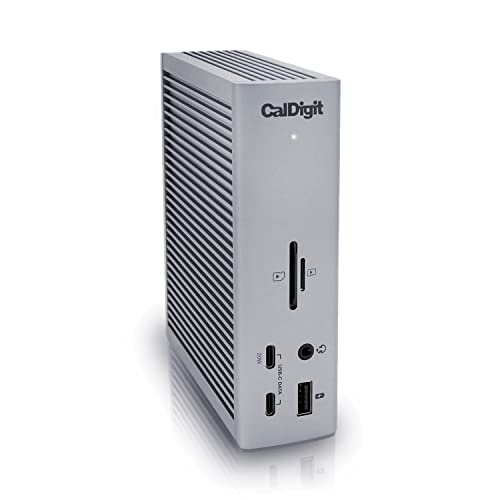
The CalDigit TS3 Plus is the best Thunderbolt 3 dock for Windows laptops in 2026. It offers 15 ports, dual 4K 60Hz or a single 5K 60Hz display, 87W of charging and a UHS-II card reader, and CalDigit documents Windows support as long as the Intel Thunderbolt firmware and drivers are current. Cheaper alternatives such as the Plugable TBT3-UDC3 and Cable Matters dual-monitor dock cover most desks, and the HP Thunderbolt Dock G2 and Kensington SD5200T make more sense in managed offices. All of these are Thunderbolt 3 designs, so they also work with newer Thunderbolt 4 laptops, but they run at Thunderbolt 3 capabilities.
Our top picks


As an Amazon Associate we earn from qualifying purchases at no extra cost to you.
Compare the seven docks at a glance
| Dock | Best for | Video output | Host charging | Price tier |
|---|---|---|---|---|
| CalDigit TS3 Plus | Best overall, many ports | 1 DisplayPort 1.2 plus Thunderbolt 3 port; dual 4K 60Hz or one 5K | 87W | Premium |
| OWC 14-Port Thunderbolt 3 Dock | Creators who need card readers and audio | Mini DisplayPort 1.2 plus Thunderbolt 3 port; dual 4K 60Hz or one 5K | 85W | Premium |
| Plugable TBT3-UDC3 | Best dual-display value | DisplayPort plus HDMI; dual 4K over Thunderbolt 3 | 96W | Mid-range |
| Plugable TBT3-UDV | Lowest-cost Thunderbolt dock with many USB-A ports | DisplayPort plus Thunderbolt 3 port; one 5K or two 4K | 60W | Budget to mid-range |
| HP Thunderbolt Dock G2 (120W) | Business fleets, up to four screens | 2 DisplayPort 1.4, VGA, USB-C with DP | Up to 100W on HP systems | Premium |
| Kensington SD5200T | Neat desk setup, daisy chaining | DisplayPort 1.2 plus Thunderbolt 3 port; dual 4K | 85W | Mid-range to premium |
| Cable Matters Dual Monitor Thunderbolt 3 Dock | Budget dual monitor | HDMI 2.0 plus DisplayPort | 60W | Budget |
Check these four things before you buy a Thunderbolt 3 dock for Windows
Windows laptops are less uniform than Macs when it comes to Thunderbolt, and several dock problems come from the laptop and not the dock. Run through these checks first.
- Look for the lightning-bolt logo on the port. Many USB-C ports on Windows laptops are plain USB-C without Thunderbolt. The Plugable TBT3-UDV, for instance, will not work when attached to a USB-C port that lacks Thunderbolt 3, and Cable Matters says the same for its docks.
- Confirm the laptop’s firmware and drivers are current. CalDigit states that Windows users must install the latest Intel Thunderbolt 3 firmware and drivers for the TS3 Plus. Updates usually come from the laptop maker, not from Windows Update alone.
- Approve the dock in the Thunderbolt software. Cable Matters notes that Windows computers need to approve the dock in the Intel Thunderbolt software. If a dock shows up as “device not approved”, the ports will stay dead until you accept it.
- Match the charging wattage to your charger. A dock that tops out at 60W will not keep up with a gaming or workstation laptop that ships with a 130W adapter.
Thunderbolt 3 versus Thunderbolt 4 docks on Windows
It is tempting to buy a newer Thunderbolt 4 dock, but compatibility is not always symmetrical. Kensington’s SD5700T is a Thunderbolt 4 dock, and Kensington’s own product sheet lists compatibility with Thunderbolt 4 Windows laptops and Thunderbolt 3 MacBooks. One review says it does not work with Thunderbolt 3 Windows laptops, and Kensington points those users to a different model. If you own a Thunderbolt 3 Windows laptop, a dock that is explicitly labelled Thunderbolt 3 is the safer choice. Thunderbolt 3 docks, in contrast, work with Thunderbolt 4 and USB4 laptops, although they stay at Thunderbolt 3 capabilities.
Best overall: CalDigit TS3 Plus
The TS3 Plus has been the reference Thunderbolt 3 dock for years, and CalDigit lists the following in its specifications: two Thunderbolt 3 ports, one DisplayPort 1.2 output, five USB-A 3.1 Gen 1 ports, two USB-C ports (one 10Gb/s Gen 2 on the rear and one Gen 1 on the front), an SD 4.0 UHS-II card reader with a theoretical 312MB/s, Gigabit Ethernet, optical S/PDIF and analog audio in and out. Charging reaches 87W. The video options are a single 5K display at 60Hz or two 4K displays at 60Hz. It weighs 1.04 lb (0.47 kg) and measures 5.15 x 1.57 x 3.87 inches, so it stands upright on a desk without taking much space.
Who it is for: photographers, video editors and developers who plug in many devices and want an established dock with long Windows track record.
Pros:
- Port count covers external drives, audio interfaces and card readers without a second hub
- Fast SD reader for camera cards
- 87W charging suits most 15-inch ultrabooks
Cons:
- No HDMI port, so HDMI monitors need an adapter on the DisplayPort or Thunderbolt output
- Premium pricing compared with the Plugable and Cable Matters options
Best for cards and audio: OWC 14-Port Thunderbolt 3 Dock
OWC’s 14-port dock (part number OWCTB3DK14PSG) also charges at up to 85W and supports a single 5K display at 60Hz or two 4K displays at up to 60Hz. The rear holds a Thunderbolt 3 host port for the laptop, a second Thunderbolt 3 port for daisy-chaining and displays, a Mini DisplayPort 1.2 output, four USB-A 3.1 Gen 1 ports (one with Battery Charging 1.2), Gigabit Ethernet and an S/PDIF digital audio output. On the front are SD 4.0 and microSD 4.0 readers, a hybrid headphone and microphone jack, a USB-C 3.1 Gen 2 port at 5V/3A (15W) and a USB-A port that meets Battery Charging 1.2. The dock needs Windows 10 or later and ships with a short 20.5-inch Thunderbolt 3 cable and an external power supply.
Who it is for: podcasters and field photographers who use both SD and microSD cards and need a headphone jack on the dock itself.
Pros: both card sizes, front USB-C and audio jacks, daisy-chain port.
Cons: the Mini DisplayPort output requires the right adapter or cable for your monitor, and the charger figures vary slightly between sources, so confirm against OWC’s current spec sheet.
Best dual-display value: Plugable TBT3-UDC3
The TBT3-UDC3 gives you 96W of charging, which is higher than many premium docks, and it drives two 4K monitors using a DisplayPort and an HDMI output. An included adapter lets it run dual HDMI instead. Plugable lists 11 ports: Gigabit Ethernet, a 3.5mm headset jack, a USB-A 3.2 Gen 2 port, two USB-C 10Gbps ports and two USB-A 3.1 Gen 1 ports on the front, with the host port also on the front. Windows 10 and later are supported over both Thunderbolt 3 and plain USB-C, but the video capacity differs sharply. Over a Thunderbolt 3 connection the dock handles dual 4K 60Hz. Over USB-C on Windows it supports one display up to 4096 x 2160 at 30Hz or dual 1920 x 1080 displays at 30Hz.
Who it is for: hybrid workers with an ultrabook, an HDMI monitor and a DisplayPort monitor who want a single cable.
Pros: strong charging, HDMI included, works with USB-C hosts in a limited way.
Cons: no card reader, and the front-mounted host port can look untidy on a desk.
Best budget Plugable option: TBT3-UDV
The TBT3-UDV is the single-display model. Its rear has a Thunderbolt 3 host port that outputs 60W, a second Thunderbolt 3 port for data or 15W output, one native DisplayPort, four USB-A 3.0 ports, Gigabit Ethernet and a 20V/6.75A power input. The front adds a USB-A 3.0 port with Battery Charging 1.2 and a combo audio jack. It supports one 5K display over Thunderbolt 3 or two 4K displays by using a Thunderbolt 3 or USB-C port plus the DisplayPort output. It will not function when attached to a USB-C port that lacks Thunderbolt 3.
Who it is for: home-office users with one 4K monitor, a wired network and many USB-A accessories.
Trade-off: 60W charging is too low for performance laptops, and it has no HDMI port, so you need a DisplayPort-to-HDMI adapter for most TVs and older monitors.
Best for business fleets: HP Thunderbolt Dock G2 (120W)
HP’s datasheet describes a dock with two DisplayPort 1.4 outputs, a VGA port, a downstream Thunderbolt 3 port, a USB-C port with DisplayPort 1.4 and 15W power output, a front USB-C port with 15W, three USB-A ports, Gigabit Ethernet and a combo audio jack. The host cable is fixed at 0.7 m. It can support up to four external displays depending on the notebook’s graphics: dual 4K 60Hz on DisplayPort 1.2 systems and triple 4K 60Hz on DisplayPort 1.4 DSC systems. The datasheet lists charging up to 100W for supported HP systems, and one review cites about 75W for non-HP machines. Operating systems include Windows 7 and Windows 10, Chrome and macOS. On non-HP Windows laptops, HP notes that Ethernet and audio drivers must be installed separately for headset switching.
It is also built for IT work, with PXE boot, Wake-on-LAN, MAC address pass-through and WLAN-LAN switching on supported systems. It weighs 1.76 lb.
Who it is for: offices that standardise on HP, Lenovo or Dell laptops with Thunderbolt 3 and want fleet-management features.
Trade-off: the fixed cable limits where you can place it, and the fully featured behaviour is aimed at HP machines.
Best for a tidy desk: Kensington SD5200T
The SD5200T carries one Thunderbolt 3 40Gbps connection to the laptop, with up to 85W of charging, and supports dual 4K displays through one DisplayPort 1.2 output and one Thunderbolt 3 port. A review also confirms single 5K support. It has two Thunderbolt 3 ports (one for the host at 85W and one downstream at 15W), two USB 3.0 ports, a USB-C port at 15W, Gigabit Ethernet and 3.5mm headphone and microphone jacks, and it can daisy-chain up to five Thunderbolt devices. Kensington lists Windows 10 and macOS 10.12 or later, and the DockWorks management software is Windows-only. The dock does not work with Chromebooks, accepts a VESA mounting plate (K33959WW, sold separately) and carries a three-year warranty.
Who it is for: hot-desking offices and anyone who wants to mount a dock under a desk.
Trade-off: relatively few USB-A ports for a dock in this class, and Kensington notes that the laptop must support Power Delivery for charging on Windows.
Best budget dual monitor: Cable Matters Dual Monitor Thunderbolt 3 Dock
Cable Matters sells an Intel-certified Thunderbolt 3 dock with one HDMI 2.0 and one DisplayPort output, 60W pass-through charging, two 10Gbps USB-A ports, Gigabit Ethernet and a 3.5mm TRRS audio jack. According to the retailer listing, it can run one 8K monitor over DisplayPort 1.4 or a 4K monitor on HDMI, and it works with Windows and Mac hosts that have a Thunderbolt 3 port. One caution: the DisplayPort output does not work with passive DisplayPort-to-HDMI adapters or cables, so use a real DisplayPort cable or an active adapter. The brand also lists a related dock that adds an SD slot and five USB 3.0 ports with one HDMI port, and a bus-powered dual-HDMI adapter that does not charge the laptop.
Who it is for: budget buyers with an ultrabook that has a Thunderbolt port and a 45W or 65W charger.
Trade-off: only two USB-A ports and no card reader.
Docks worth a mention but not a pick
- Belkin Thunderbolt 3 Dock Pro (F4U097): an aluminum dock with 12 ports, 85W charging, dual 4K 60Hz or one 5K and a full-size UHS-II SD reader per Belkin’s support pages. Belkin’s product page markup lists it as out of stock, so availability is uncertain.
- Dell WD19TB: a Thunderbolt dock that delivers up to 130W to Dell systems and up to 90W to non-Dell laptops, with two DisplayPort 1.4, one HDMI 2.0 and support for up to four displays. Dell’s own listing marks it as discontinued.
- Kensington SD5700T: a Thunderbolt 4 dock with 90W charging and dual 4K output. Check compatibility notes above before using it with a Thunderbolt 3 Windows laptop.
Decision matrix: match the dock to your desk
| Your setup | Pick | Reason |
|---|---|---|
| Many accessories, card readers, audio interface | CalDigit TS3 Plus | 15 ports and UHS-II reader |
| SD and microSD cards plus headphones | OWC 14-Port | Both slots and front audio jack |
| One DisplayPort and one HDMI monitor | Plugable TBT3-UDC3 | Both outputs, 96W charging |
| One 4K monitor and lots of USB-A devices | Plugable TBT3-UDV | Four rear USB-A plus front port |
| Managed laptops, up to four screens | HP Thunderbolt Dock G2 | PXE boot, Wake-on-LAN, DP 1.4 |
| Under-desk mounting, daisy chain | Kensington SD5200T | VESA plate option, five-device chain |
| Tight budget, ultrabook | Cable Matters dual-monitor dock | HDMI plus DisplayPort at the lowest tier |
Charging and bandwidth worked examples
Charging. Suppose your laptop ships with a 65W adapter and you also plug a phone into the dock’s 15W USB-C port. The laptop draws up to 65W, the phone up to 15W, and the remaining ports a few watts more. A dock with 85W to 96W of host charging covers this with room to spare, while a 60W dock leaves the laptop short under load. For a gaming or workstation laptop with a 130W or higher charger, none of the Thunderbolt 3 docks here will deliver full power, so keep the original charger connected.
Bandwidth. Thunderbolt 3 provides a 40Gbps link. One 4K 60Hz stream at 8-bit colour is about 11.9Gbps of raw video (3840 x 2160 x 60 x 24 bits), so two streams add up to roughly 23.9Gbps before encoding. Thunderbolt shares the remaining capacity with data traffic, which explains why a dock running dual 4K monitors can feel slower when you also copy large files to an external SSD. If you use heavy storage transfers, put the drive on the laptop’s own ports or on the dock’s USB-C 10Gbps port rather than daisy-chaining several devices.
Setup, troubleshooting and ownership
- Install laptop updates first. Update the BIOS, the Thunderbolt firmware and the Thunderbolt control software before connecting the dock for the first time.
- Connect power to the dock before the laptop. Docks with a 135W to 180W adapter need that adapter plugged in, otherwise the ports only receive bus power and the monitors stay dark.
- Use the supplied cable. Full 40Gbps Thunderbolt 3 speed needs a certified cable, and passive versions only reach about half a metre before an active cable is required. A cheap USB-C charging cable will cause the dock to fall back to USB speeds or not appear at all.
- Set the dock to approved. In the Thunderbolt software, choose “always connect” for a dock you trust so you do not have to approve it after each restart.
- Restart after sleep problems. If monitors do not wake, unplug the dock for ten seconds and check for newer BIOS and dock firmware. Sleep and wake bugs are the most common Windows complaint with docks of this generation.
The part that wears first is usually the plugs. A fixed cable like the one on the HP dock can become a weak spot if it is repeatedly bent, because you cannot swap it for a new one. Leave breathing room around the aluminum body, dust the vents occasionally and keep the power supply off the floor.
Frequently Asked Questions
Will a Thunderbolt 3 dock work with a Thunderbolt 4 laptop?
Yes. CalDigit states that the TS3 Plus works with Thunderbolt 4 laptops but operates at Thunderbolt 3 speeds and capabilities. You get the dock’s rated ports, display support and charging, not any extra Thunderbolt 4 features.
Can I use a Thunderbolt 3 dock on a plain USB-C port?
Often not. The Plugable TBT3-UDV will not work on USB-C ports without Thunderbolt 3, while the TBT3-UDC3 still functions but is limited to one display at 30Hz or two 1080p displays at 30Hz on Windows. Check for the lightning-bolt symbol on your laptop before buying.
Do I need to install drivers on Windows?
You need the laptop’s Thunderbolt firmware and drivers, and in some cases the Intel Thunderbolt software to approve the dock. Network and audio chips on non-HP laptops may also need separate drivers for full functionality with HP’s dock.
How many monitors can a Thunderbolt 3 dock run?
Most run two 4K displays at 60Hz or one 5K display. The HP Thunderbolt Dock G2 and the Dell WD19TB can support up to four displays depending on the laptop’s graphics, but the typical limit for the others is two.
Is a Thunderbolt 3 dock still worth buying in 2026?
Yes, if your laptop has a Thunderbolt 3 port and you want a proven dock. Thunderbolt 4 docks add features such as more downstream ports and mandatory minimums, but Thunderbolt 3 docks still deliver dual 4K, charging and fast wired networking for most desks.
Why does my laptop charge slowly on the dock?
The dock is probably delivering less wattage than your original charger, or the cable is not rated for full Power Delivery. Compare the dock’s charging figure with your charger label, and keep the original adapter connected for heavy workloads.
More from Amazon
Programs that pair well with the guide above. Offers and eligibility are set by Amazon and may change.
A free business account with business pricing and bulk-buying tools for work, shop or home office.
Create a business accountFree shipping on eligible items, Prime Video and more. Eligible new members can start with a free trial.
Start a Prime free trialAudiobooks and podcasts to listen to on the go. Eligible new members can start with a free trial.
Try Audible freeAd-free music streaming. Eligible new subscribers can start with a free trial.
Try Music Unlimited freeAs an Amazon Associate we earn from qualifying purchases.





Write Your Review
No reviews yet. Be the first to share your experience!