

Key takeaways
- Displays on Mac: dual 4K at 240Hz or dual 8K at 60Hz, on Macs that support those resolutions. On Thunderbolt 5 Windows laptops it can connect up to three displays.
- Dual USB controllers: the first Thunderbolt dock with two 10Gb/s USB controllers, so fast drives on opposite sides do not fight for bandwidth.
- Size: roughly 155 x 47 x 128mm and 900g. Requires macOS 15 or newer.
The best docking station for a MacBook Pro depends on which chip is inside it: owners of an M5 Pro or M5 Max (or an M4 Pro or Max) with Thunderbolt 5 ports should look at the CalDigit TS5 Plus, while owners of a base 14-inch model with Thunderbolt 4 ports are better served by the CalDigit TS4 or the Plugable TBT4-UD5. Paying for Thunderbolt 5 on a Thunderbolt 4 Mac adds nothing, and buying a Thunderbolt 4 dock for a Thunderbolt 5 Mac leaves speed and display capacity unused. The seven docks below are sorted by those two situations, plus one DisplayLink option for people who need more screens than their chip allows.
Our top picks


As an Amazon Associate we earn from qualifying purchases at no extra cost to you.
Quick comparison of the best MacBook Pro docks
| Dock | Best for | Host link | Charging to Mac | Ethernet | Card readers |
|---|---|---|---|---|---|
| CalDigit TS5 Plus | Best overall for Thunderbolt 5 Macs | Thunderbolt 5 (up to 120Gb/s with Bandwidth Boost) | Up to 140W | 10GbE | SD 4.0 and microSD 4.0 (UHS-II) |
| Anker Prime TB5 14-in-1 | Built-in cooling, compact tower | Thunderbolt 5 | Up to 140W | 2.5GbE | SD and TF |
| OWC Thunderbolt 5 Hub | Adding Thunderbolt ports, minimal desk space | Thunderbolt 5 (80Gb/s) | Up to 140W | None | None |
| Kensington SD5000T5 EQ | Triple-display dock with a 180W supply | Thunderbolt 5 (80Gb/s) | Up to 140W | 2.5GbE | UHS-II SD and microSD |
| CalDigit TS4 | Base M-series Macs with Thunderbolt 4 | Thunderbolt 4 (40Gb/s) | Up to 98W | 2.5GbE | UHS-II SD and microSD |
| Plugable TBT4-UD5 | Two monitors on a lean setup | Thunderbolt 4 | Up to 100W (96W certified) | Gigabit | SD and microSD |
| Plugable UD-ULTC4K | Three screens from a base chip (DisplayLink) | USB-C 10Gb/s | Up to 100W (96W certified) | Gigabit | UHS-II SD |
Figures are drawn from each manufacturer’s specification page and Apple’s published tech specs. Where retailers and makers disagree, this guide uses the maker’s number and says so.
Start with your Mac, not the dock
A dock cannot give a MacBook Pro more bandwidth or more displays than the chip supports. According to Apple’s tech specs, the 14-inch MacBook Pro with the base M5 chip has three Thunderbolt 4 ports plus HDMI, an SDXC slot and MagSafe 3, and drives up to two external displays (6K at 60Hz or 4K at 144Hz each) or one 8K display at 60Hz. The M5 Pro and M5 Max models carry three Thunderbolt 5 ports rated at up to 120Gb/s. Apple’s spec pages list up to three external displays for the M5 Pro and up to four for the M5 Max, though the figures differ slightly between regional pages, so read the sheet for your exact model.
That gives three buyer types. If your Mac has Thunderbolt 5 ports, a Thunderbolt 5 dock lets you use the larger display budget and 140W charging. If it has Thunderbolt 4 ports, any good Thunderbolt 4 dock saturates what the Mac can do. If you run an older base chip and want more monitors than Apple allows, DisplayLink is the workaround, with caveats covered below.
Best overall for Thunderbolt 5 Macs: CalDigit TS5 Plus
The TS5 Plus is the flagship for M-series Pro and Max laptops. CalDigit lists 20 ports: one Thunderbolt 5 host port, two downstream Thunderbolt 5 ports at 80Gb/s, five USB-C and five USB-A ports at 10Gb/s, a DisplayPort 2.1 output, SD 4.0 and microSD 4.0 slots, a 10 Gigabit Ethernet jack and separate audio connections. The host port delivers up to 140W, enough for a 16-inch MacBook Pro under load, and the dock uses a separate 330W power supply so the full 140W stays available as devices are added.
- Displays on Mac: dual 4K at 240Hz or dual 8K at 60Hz, on Macs that support those resolutions. On Thunderbolt 5 Windows laptops it can connect up to three displays.
- Dual USB controllers: the first Thunderbolt dock with two 10Gb/s USB controllers, so fast drives on opposite sides do not fight for bandwidth.
- Size: roughly 155 x 47 x 128mm and 900g. Requires macOS 15 or newer.
Who it is for: video editors, photographers, developers with NAS-based workflows and anyone running multiple fast SSDs. Pros: the only dock here with 10GbE; two card slots at the current UHS-II standard; headroom for a three-display Mac. Cons: premium tier; large separate power supply; you gain little unless the Mac has Thunderbolt 5 ports.
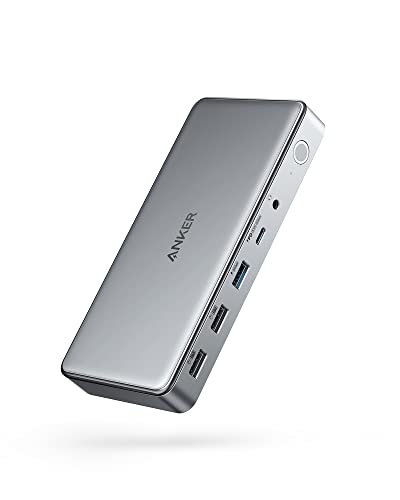
Best compact tower with active cooling: Anker Prime TB5 14-in-1
Anker’s Prime dock stands upright and looks closer to a small desktop than a hub. Per Anker’s product page it has one Thunderbolt 5 upstream port (up to 140W) and two Thunderbolt 5 downstream ports, two USB-C ports at 10Gb/s sharing 45W, three USB-A ports at 10Gb/s, 2.5GbE, an HDMI 2.1 output that shares one lane with a DisplayPort 2.1 output (you use one or the other), an audio jack and SD and TF card slots. It can output 8K at 60Hz to a single display. Thunderbolt 5 Windows laptops can drive two 8K screens.
- Cooling: active cooling keeps the internal 140W supply stable, which explains the dock’s weight of about 1,086g.
- Footprint: about 116 x 116 x 75mm, so it takes little desk area.
- Housekeeping: Anker asks users to check that Thunderbolt controller firmware is version 48.1 or higher, and gives a 24-month warranty.
Who it is for: Mac users who want a single box with an integrated power supply and no brick to hide. Pros: built-in supply; strong Thunderbolt 5 specification; small footprint. Cons: fan noise is possible in a quiet room; the shared HDMI and DisplayPort output means only one at a time; Anker’s pages and reviewers disagree on the minimum macOS version, so confirm yours before purchase.
Best for expanding ports: OWC Thunderbolt 5 Hub
OWC’s hub is not a full dock, which is its appeal. It provides one upstream Thunderbolt 5 port (80Gb/s, up to 140W) and three downstream Thunderbolt 5 ports at 15W each, plus a single 10Gb/s USB-A port. OWC supplies a 180W power supply and an 80cm Thunderbolt 5 cable, and the hub carries up to 120Gb/s of display bandwidth, allowing a mix of high-end screens. It has passive cooling, so it makes no sound, and OWC provides a two-year warranty. It has no Ethernet, SD reader or audio jack.
- Why it suits MacBook Pros: a 14-inch or 16-inch M5 Pro or M5 Max model has three Thunderbolt 5 ports, so the hub effectively turns one port into three while charging the Mac at 140W.
- Use case: a Mac connected to a Thunderbolt display, a fast external SSD and one more screen.
Who it is for: people who already have the card reader and the Ethernet cable elsewhere and need only more Thunderbolt connections. Pros: small, silent, full 140W charging; keeps Thunderbolt 5 bandwidth for downstream devices. Cons: no legacy ports at all; you will still need a hub for SD cards or Ethernet.
Best triple-display Thunderbolt 5 dock: Kensington SD5000T5 EQ
Kensington’s SD5000T5 EQ is an 11-in-1 Thunderbolt 5 dock that supports up to three 4K displays at 144Hz, or two 8K displays at 60Hz, according to its spec sheet. For MacBooks, Kensington lists up to two 6K displays at 60Hz on the base M4 and on M1, M2, M3 and M4 Pro and Max chips. The video outputs are Thunderbolt-only (three downstream Thunderbolt 5 ports), so there are no HDMI or DisplayPort jacks. The host port provides up to 140W and the dock ships with a 180W adapter.
- Ports: one downstream Thunderbolt 5 port at 60W and two at 15W, three USB-A 3.2 Gen 2 ports at 7.5W, 2.5GbE, UHS-II SD and microSD readers and a 3.5mm combo jack.
- Software: macOS 14.5 or later and Windows 11 (23H2 or later); driverless. The DockWorks utility is Windows-only.
- Fine print: Kensington notes your laptop needs USB-C PD 3.1 EPR support to receive the full 140W.
Who it is for: mixed Mac and Windows offices that want Thunderbolt 5 with a long-standing brand. Pros: three downstream Thunderbolt ports, one with 60W for charging a second device; broad OS support. Cons: no native HDMI or DisplayPort jack; Ethernet is 2.5GbE, not 10GbE; the DockWorks utility does not run on macOS.
Best for base-chip Macs: CalDigit TS4
If your MacBook Pro has Thunderbolt 4 ports, the older TS4 remains the sensible choice. It offers 18 ports, up to 98W laptop charging and three Thunderbolt 4 connections, along with five USB-A and three USB-C ports at 10Gb/s, a DisplayPort 1.4 jack, a 2.5GbE port and UHS-II SD and microSD readers. The 98W figure is, in CalDigit’s words, enough to power and charge the 16-inch MacBook Pro in most scenarios, and for a 14-inch base model it is more than the Mac can accept.
- Displays: one 8K display or dual 6K displays at 60Hz, depending on the host. A base M5 MacBook Pro tops out at two external screens regardless of dock.
- Size: about 141 x 42 x 113mm, 0.64kg, with a 230W external supply.
Who it is for: owners of a base M4 or M5 14-inch MacBook Pro who want a stable desk anchor and do not need Thunderbolt 5. Pros: mature firmware; plenty of ports; high wattage. Cons: larger power brick; only one DisplayPort jack; does not unlock extra screens on the base chip.
Best value for two screens: Plugable TBT4-UD5
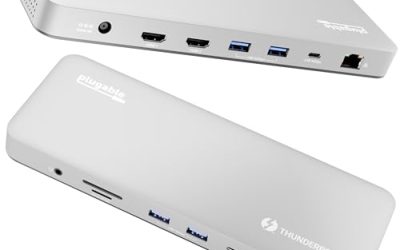
Plugable’s TBT4-UD5 is a 13-port Thunderbolt 4 dock that undercuts the premium brands while keeping the essentials. It lists up to 100W of power delivery (96W certified), two HDMI outputs that run dual 4K at 60Hz or a single 8K display over Thunderbolt, a downstream Thunderbolt 4 port at 15W, Gigabit Ethernet, SD and microSD slots, audio, USB-A and USB-C. It weighs about 365g and works with macOS 11 and later.
- Mac chips: Plugable’s materials say Pro and Max chips, base M4 and M5, and base M3 in clamshell mode can drive two displays. A base M1 or M2 is limited to one native display, and this dock does not change that.
- Limit: the HDMI jacks stop at 60Hz, so high-refresh monitors need a different connection.
Who it is for: home-office Mac owners who run two standard monitors and want a light, quiet box. Pros: two HDMI jacks that avoid adapters; light and compact; certified charging. Cons: Gigabit Ethernet only; one downstream Thunderbolt port; no 10Gb/s extras.
Best for three screens on a base chip: Plugable UD-ULTC4K
Base Apple chips cap external displays at one or two. Plugable’s UD-ULTC4K gets around that with DisplayLink, which compresses video and sends it over USB. Plugable lists three 4K displays at 60Hz, using two DisplayLink outputs plus one USB-C alternate-mode output, and the DisplayLink chipset is a DL-6950. The host link is USB-C at 10Gb/s, so it does not need Thunderbolt. The version 2 unit charges the laptop at up to 100W (certified for 96W) and ships with a 135W adapter on newer units. Other ports include four rear USB-A ports at 5Gb/s, Gigabit Ethernet, a front USB-C port at 10Gb/s and 20W, a UHS-II SD slot and audio in and out. It weighs about 626g.
- Driver required: on macOS you install the DisplayLink software and grant it screen-recording permission, and you should expect to re-approve it after major macOS updates.
- Trade-off: DisplayLink uses CPU time for compression, and protected video streams from some services may refuse to play on DisplayLink screens.
Who it is for: people on an M1, M2 or M3 MacBook Pro who need three monitors for spreadsheets, chat and documents. Pros: the cheapest route to three 4K screens on a limited chip; works with Windows and ChromeOS too. Cons: driver dependency; no Thunderbolt downstream ports; not suited to color-critical or high-refresh work.
Which dock for which MacBook Pro
| Your MacBook Pro | Monitors you want | Best match | Reason |
|---|---|---|---|
| M5 Pro or M5 Max, 16-inch | 2 to 3 high-resolution | CalDigit TS5 Plus | 140W, 10GbE, two card slots |
| M5 Pro or M5 Max, 14-inch | 2 to 3, minimal desk | Anker Prime TB5 | Compact tower, built-in supply |
| Thunderbolt 5 Mac with its own card reader and Ethernet needs met | Any | OWC Thunderbolt 5 Hub | Adds three Thunderbolt 5 ports |
| Mixed Mac and Windows team | 2 to 3 | Kensington SD5000T5 EQ | Driverless on both |
| Base M5 or M4, 14-inch | 2 | CalDigit TS4 or Plugable TBT4-UD5 | Matches Thunderbolt 4 ceiling |
| Older base-chip Mac | 3 | Plugable UD-ULTC4K | DisplayLink bypasses chip limit |
A worked example: what a 16-inch MacBook Pro needs
Take a 16-inch MacBook Pro whose original charger is rated at 140W. It might draw 100W to 120W during a long export while also charging its own battery. Plug it into a dock rated at 98W and the Mac pulls the difference from the battery, so the charge level falls slowly even though the cable is connected. A dock rated at 140W removes the gap. For a 14-inch base model with a 70W charger, the same arithmetic points the other way: a 98W dock offers 28W more than the Mac accepts, so there is no benefit to paying for a bigger rating.
Bandwidth works in a similar way. Two 6K displays at 60Hz plus a fast NVMe SSD on a 40Gb/s Thunderbolt 4 link consume most of the available capacity, because display data takes priority over storage traffic. On a Thunderbolt 5 link, Bandwidth Boost raises the display allocation to 120Gb/s, so the same SSD keeps its speed. That is the practical reason to buy Thunderbolt 5 for a Pro or Max Mac: it protects storage throughput when several screens are active.
How to choose: a short checklist
Identify your port generation
Open About This Mac, check the chip name, and compare it with Apple’s tech specs page for your model, which states whether the ports are Thunderbolt 4 (40Gb/s) or Thunderbolt 5 (up to 120Gb/s). That single check prevents the most expensive mistake in this category.
Decide how many cables you really need
A dock reduces your desk to one cable only if it includes your essentials. List the devices you plug in daily: monitors, keyboard dongle, Ethernet, SSD, webcam, card reader. The OWC hub suits a short list; the TS5 Plus suits a long one.
Plan for the power brick
The TS5 Plus uses a 330W supply, the TS4 a 230W supply, the Kensington and OWC hub 180W supplies, and the Anker Prime hides its supply inside. Decide where the brick will live before you commit.
Check the macOS requirement
Some Thunderbolt 5 docks list macOS 14.5 or macOS 15 as a floor. Update the operating system first, because older versions can cause missed ports or unstable display detection.
Living with a Mac dock: wear, updates and common mistakes
- Use the cable in the box. Thunderbolt 5 and Thunderbolt 4 cables look identical to charging cables, but only certified ones carry the full bandwidth and wattage.
- Keep the same port. Plug the dock into the same Mac port each day so macOS remembers your display arrangement.
- Update dock firmware. Display wake bugs, sleep drops and charging oddities are often fixed in firmware, delivered through each maker’s desktop utility.
- Clamshell mode. Closing the lid with external displays attached works with the Mac’s keyboard and mouse connected through the dock, but the Mac needs power attached to stay awake.
- Heat is normal. Aluminium bodies warm up; keep vents free and do not wrap cables over the dock.
- Drive power. Bus-powered SSDs plugged into low-wattage USB-A ports may disconnect; use a Thunderbolt or 20W-plus port instead.
The most common purchasing error is assuming that more ports means a better dock. A MacBook Pro already includes HDMI and an SD slot on the 14-inch and 16-inch models, so a dock that duplicates them adds cost without value. Match the dock to the things your Mac lacks: extra display capacity, fast Ethernet, USB-A for older accessories and a single-cable desk.
Frequently Asked Questions
Do I need a Thunderbolt 5 dock for a MacBook Pro?
Only if your Mac has Thunderbolt 5 ports, which means M4 Pro, M4 Max, M5 Pro and M5 Max models. Base chips use Thunderbolt 4, and a Thunderbolt 4 dock gets full performance from them. Thunderbolt 5 docks still work on Thunderbolt 4 Macs but run at the slower speed.
How many external monitors can a MacBook Pro run through a dock?
The chip sets the limit. Apple lists two external displays for the base M5, three for the M5 Pro and four for the M5 Max, although regional spec pages vary. A dock cannot add native displays beyond that, but a DisplayLink dock can raise the count at the cost of installing a driver.
Why does my Mac mirror instead of extend on some docks?
Some budget docks use a single video stream with a splitter, which macOS treats as identical screens. Docks that pass true DisplayPort streams or use DisplayLink support extended desktops. Check the dock’s macOS notes before buying.
Will a dock charge a 16-inch MacBook Pro fast enough?
It depends on the wattage. A 140W dock charges at the full rate, while 90W to 100W docks keep the battery topped up during light work but can lag during heavy rendering. Match the dock to the Mac’s original charger rating.
Is DisplayLink safe to use on a Mac?
It is widely used and works well for office applications, but it relies on a vendor driver and screen-recording permission, and it can be affected by macOS updates. If you need color accuracy, video editing or protected streaming on every screen, choose a native Thunderbolt dock instead.
Can I use the same dock with an iPad Pro or a Windows laptop?
Thunderbolt docks generally work with Windows laptops that have Thunderbolt or USB4 ports, and many support iPad Pro models with USB-C for storage and a single display. Features such as 140W charging and multi-display output depend on the host device, so expect fewer capabilities than on a MacBook Pro.
More from Amazon
Programs that pair well with the guide above. Offers and eligibility are set by Amazon and may change.
A free business account with business pricing and bulk-buying tools for work, shop or home office.
Create a business accountFree shipping on eligible items, Prime Video and more. Eligible new members can start with a free trial.
Start a Prime free trialAudiobooks and podcasts to listen to on the go. Eligible new members can start with a free trial.
Try Audible freeAd-free music streaming. Eligible new subscribers can start with a free trial.
Try Music Unlimited freeAs an Amazon Associate we earn from qualifying purchases.





Write Your Review
No reviews yet. Be the first to share your experience!