

Key takeaways
- Dual 4K 60Hz from a laptop that natively supports only one external screen
- Up to 100W charging covers most thin-and-light laptops and many 14-inch workstations
- Both HDMI and DisplayPort outputs, so you can mix monitors without adapters
- Card readers are built in, which saves a separate dongle for photographers and field staff
The best DisplayLink docking station for most people in 2026 is the Plugable UD-6950PDH, because it drives two 4K monitors at 60Hz from a single USB-C or USB-A cable and charges the laptop at up to 100W. If you need three screens, the Plugable UD-6950PDZ or UD-ULTC4K fit better, and if you need four, the Kensington SD4790P or the Wavlink quad-display dock are the realistic options. DisplayLink docks exist for one reason: they add extra monitors to laptops whose USB-C port normally supports only one external display, such as many entry-level Windows machines, Chromebooks and Apple Silicon MacBooks.
This guide compares seven current DisplayLink docks by what they actually put on your desk: how many monitors, which refresh rate, how much charging power reaches the laptop, and which ports sit on the front versus the back. Specs below come from manufacturer pages and spec sheets, with notes where retailer listings disagree.
Our top picks


As an Amazon Associate we earn from qualifying purchases at no extra cost to you.
Quick comparison of the seven picks
| Pick | Best for | Displays | Laptop charging | Price tier |
|---|---|---|---|---|
| Plugable UD-6950PDH | Best overall dual-monitor dock | 2 x 4K 60Hz | Up to 100W | Mid-range |
| Plugable UD-6950PDZ | Triple-monitor desks | 3 x 4K (60Hz needs a USB4/Thunderbolt 4 host) | Up to 100W on the updated model | Premium |
| Plugable UD-ULTC4K | Triple 4K with fast USB-C | 3 x 4K 60Hz | Up to 100W | Premium |
| Kensington SD4790P | Four-monitor and managed offices | Up to 4 x 4K 60Hz (3 on M1 to M3 Macs) | Up to 100W | Premium |
| Kensington SD4782P | Mixed USB-C and USB-A laptop fleets | 2 x 4K 60Hz | Up to 100W (EQ model) | Mid-range to premium |
| Wavlink WL-UG75PD1-4D2 | Quad display with 2.5G Ethernet | 4 x 4K, or 2 x 8K | Up to 100W | Premium |
| StarTech DK30A2DH | Budget dual-monitor dock for older laptops | 2 x 4K 60Hz | None | Budget to mid-range |
What DisplayLink does and why it matters
A normal USB-C dock passes the laptop’s own DisplayPort signal through to the monitors. That is called DisplayPort Alt Mode, and it is limited by what the laptop’s graphics hardware exposes on that port. If your laptop exposes one stream, you get one monitor, no matter how many video ports the dock has. DisplayLink is a different method. A driver on the laptop captures the extra screens, compresses the image, sends it over ordinary USB data, and a chip in the dock decompresses it and drives the monitor. The laptop sees the dock as a USB graphics adapter rather than a display output.
The practical result is that DisplayLink docks work on hardware where Alt Mode cannot: USB-A laptops, Chromebooks, older ultrabooks and Apple Silicon MacBooks that are capped at one external display. The cost is that the compression and driver add some load, which is why every vendor in this category tells you the docks are meant for office and productivity work and not for gaming or colour-critical editing.
The bandwidth arithmetic behind the compression
A single uncompressed 4K signal at 60Hz with 8-bit colour needs roughly 3840 x 2160 x 60 x 24 = 11.9 Gbps. Two such screens need about 23.9 Gbps and three need about 35.8 Gbps. A USB 3.0 port moves 5 Gbps and a USB 3.2 Gen 2 port moves 10 Gbps, so raw video simply does not fit. DisplayLink closes the gap by compressing the picture, which works well for text, spreadsheets and browser windows because most of the screen does not change from frame to frame. Full-screen video and fast 3D motion are the hardest content for it, and that is where you may notice softness or lag.
Best overall: Plugable UD-6950PDH
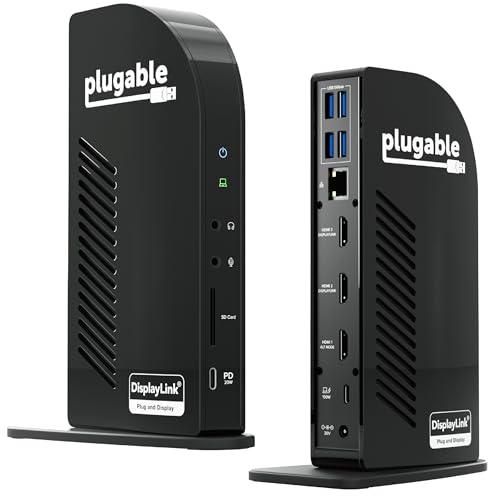
The UD-6950PDH is built around DisplayLink’s DL-6950 chip and drives two 4K monitors at 60Hz. According to Plugable’s specifications, it offers a USB-C host connection with 100W Power Delivery 3.0, a downstream USB-C port, four USB-A ports, two DisplayPort 1.2 outputs, two HDMI outputs, Gigabit Ethernet, SD and microSD slots and a 3.5mm audio jack. It ships with a 134W power supply, which leaves enough headroom to charge a 65W or 90W laptop while the peripherals run.
Who it suits: remote workers and office staff who want two big monitors, wired Ethernet and a single cable to the laptop. Because it works from a normal USB-C port and does not require Thunderbolt, it is the safest default for mixed Windows, ChromeOS and Mac households.
Pros:
- Dual 4K 60Hz from a laptop that natively supports only one external screen
- Up to 100W charging covers most thin-and-light laptops and many 14-inch workstations
- Both HDMI and DisplayPort outputs, so you can mix monitors without adapters
- Card readers are built in, which saves a separate dongle for photographers and field staff
Cons:
- Every data port runs at 5Gb/s, so it is a display dock first and not an external-drive dock
- DisplayLink software is required, and it is a poor fit for gaming or colour-accurate photo work
Best for three monitors: Plugable UD-6950PDZ
The UD-6950PDZ is the 12-in-1 triple-display sibling. It supports three 4K monitors through any combination of HDMI and DisplayPort outputs. The detail that matters is refresh rate: Plugable states that all three screens run at 60Hz when the laptop connects over USB4 or Thunderbolt 4, while a standard USB-C DisplayPort Alt Mode connection drops them to 30Hz. Plugable also updated the model in February 2025, moving from 60W to 100W laptop charging and from a smaller power brick to a 135W supply. Some marketplace stock still carries the older spec, so check the rear label or the box before you assume the wattage.
It has six USB-A 5Gbps ports (two on the front, four on the back), Gigabit Ethernet, audio, and no downstream USB-C ports. The warranty is two years with lifetime North American support.
Who it suits: analysts, traders and developers who keep three windows open all day and own a recent laptop with a Thunderbolt 4 or USB4 port. If your laptop only has plain USB-C, plan on 30Hz for one of the three screens, which is fine for static dashboards and chat windows but noticeable when scrolling.
Trade-off: no USB-C data port on the dock itself, so any USB-C accessory needs an adapter.
Best triple dock with fast USB-C: Plugable UD-ULTC4K
The UD-ULTC4K is the older Plugable triple-display design that has been revised. The current version lists a USB-C host link at 10Gbps with 100W Power Delivery (certified at 96W), three displays at up to 3840 x 2160 and 60Hz through any mix of HDMI 2.0 and DisplayPort 1.2 connections, and a 135W power adapter. On the front are a USB-C port with up to 10Gbps data and 20W charging, an SD card reader and separate 3.5mm audio in and out jacks. On the back are four USB 3.0 ports at 5Gbps and Gigabit Ethernet. It measures about 20 x 7.3 x 13.6 cm and weighs 624 grams.
Plugable notes that the original release had a different port layout (one HDMI and two DisplayPort outputs, one 5Gbps USB-C port), so confirm which revision you are buying. HDCP is not supported, which means some protected streaming content may refuse to play on DisplayLink-driven monitors.
Who it suits: people who want three 4K screens and a fast front USB-C port for a phone or SSD without moving up to a Thunderbolt dock.
Trade-off: the 624-gram body is bulkier than the dual-monitor docks, and protected video playback is a known limitation.
Best for four monitors: Kensington SD4790P
The SD4790P is a hybrid dock that combines USB-C Alt Mode with two DisplayLink connections to reach four 4K screens at 60Hz. It carries six video ports (three HDMI and three DisplayPort++), and Kensington lists up to four external displays on Windows and ChromeOS laptops and up to three on M1, M2 and M3 MacBooks. Two displays work plug-and-play over USB-C Alt Mode; the DisplayLink driver is needed for the others.
Power Delivery 3.0 provides up to 100W to the host, backed by a 150W power supply, and the dock can keep charging connected accessories even when the laptop is unplugged. Ports include two front USB-C 3.2 Gen 2 ports, four rear 5Gbps USB-A ports, Gigabit Ethernet and a combo audio jack. A three-year warranty and the optional DockWorks management software make it easier to justify for an office rollout. Windows 10 and later, macOS 11 and later and ChromeOS 114 and later are supported.
Who it suits: trading desks, support teams and IT departments that standardise on one dock for many laptops.
Trade-off: if the laptop connects over USB-A, Power Delivery is not passed through unless you add Kensington’s optional power splitter, which is sold separately.
Best for mixed USB-C and USB-A fleets: Kensington SD4782P
The SD4782P is the dual-4K Kensington dock. It has two DisplayPort++ and two HDMI outputs, runs two external 4K monitors at 60Hz in any combination, and charges the laptop at up to 100W on the EQ version, which ships with a 170W power supply. Front and rear connections include one 10Gbps USB-A port, one 10Gbps USB-C port at 5V/3A, four 5Gbps USB-A ports, Gigabit Ethernet and a combo audio jack. It supports Windows 7 and later, macOS 10.14 and later and Chrome OS 44 and later, so it covers older fleets that newer docks have dropped.
The non-EQ variant ships with a 100W power splitter for USB-A hosts instead. That is the main reason to buy it for a mixed fleet: the same dock works with newer USB-C laptops and with older USB-A models, with a splitter supplying charging in the second case. One retailer lists the model as end-of-life, so check stock before you plan a large order.
Who it suits: small businesses and schools with a blend of laptop ages.
Trade-off: availability is thinning, and it is limited to two displays.
Best quad-display dock with 2.5G Ethernet: Wavlink WL-UG75PD1-4D2
Wavlink sells several DisplayLink quad-display docks that differ mainly in their video outputs. The 2025-edition WL-UG75PD1-4D2 has four DisplayPort 1.4 outputs and can drive one display at 10K, two at 8K or four at 4K. Power Delivery to the host reaches 100W from a 160W (20V, 8A) adapter. The shared feature set across the line includes two USB-C ports at up to 10Gbps (one providing 30W downstream), three USB-A ports at up to 10Gbps and an RJ45 port, which on this model is 2.5G Ethernet. SD 4.0 and TF 4.0 slots reach about 312 MB/s, and there is a 3.5mm audio and mic jack.
The model suffix matters. The 4H2 version uses four HDMI ports for quad 4K at 60Hz, and the DH2 version combines two HDMI and two DisplayPort outputs. If your monitors are HDMI-only, buy the HDMI version, because a DisplayPort-only dock needs adapters. Wavlink says the docks work with USB-C, USB4 and Thunderbolt 3 and 4 computers, and a DisplayLink driver is required.
Who it suits: multi-monitor workstations that also want faster wired networking than Gigabit.
Trade-off: brand support and driver polish are less established than at Kensington or Plugable, so keep the DisplayLink driver current.
Best budget pick: StarTech DK30A2DH
The DK30A2DH uses a DisplayLink-certified DL-6950 chipset and supports dual 4K at 60Hz in three combinations: two DisplayPort, two HDMI or one of each. It works with laptops that have either a USB-C or a USB-A port, and the I/O includes two DisplayPort, two HDMI, one USB-C 3.0 port, six USB-A 3.0 ports, Gigabit Ethernet, 3.5mm audio and a microphone jack. The USB 3.0 link runs at 5Gbit/s and supports UASP for faster storage transfers. It measures 28 x 226 x 87 mm, weighs about 15.17 ounces and carries a three-year warranty with free lifetime technical support. It supports Windows, macOS, ChromeOS and Ubuntu.
The important limit is that it does not provide USB-C Power Delivery. The laptop keeps its own charger plugged in, so you manage two cables on the desk.
Who it suits: students and home users with an older laptop and its own charger who just need two more screens.
Trade-off: no laptop charging, so it is not a one-cable solution.
A legacy name you will still see: Dell D6000S
Many office buyers still search for the Dell D6000 and its D6000S revision. Both use the DL-6950 chip and offer one 5K display at 60Hz or up to three 4K displays (two at 60Hz, one at 30Hz), with 65W laptop charging, four USB-A 3.2 Gen 1 ports, a USB-C data port, two DisplayPort 1.2 outputs, one HDMI 2.0 output and Gigabit Ethernet. One retailer lists the D6000S as end-of-life, and the original D6000 is now mostly a renewed-market product. They are workable for budget deployments, but the 65W ceiling is below the 90W or 100W that current workstation laptops expect.
How to choose: decision matrix
| Your situation | Choose | Why |
|---|---|---|
| Two monitors, one cable, 65W to 90W laptop | Plugable UD-6950PDH | Dual 4K 60Hz and up to 100W charging |
| Three monitors and a Thunderbolt 4 or USB4 laptop | Plugable UD-6950PDZ | Three 4K screens at 60Hz on the right host |
| Three monitors on plain USB-C, plus a fast front port | Plugable UD-ULTC4K | 10Gbps host link and front USB-C |
| Four monitors or managed office rollout | Kensington SD4790P | Hybrid design, DockWorks, three-year warranty |
| Mix of USB-C and USB-A laptops | Kensington SD4782P | Splitter option for USB-A hosts |
| Monitors with DisplayPort inputs and faster LAN | Wavlink WL-UG75PD1-4D2 | Four DP 1.4 outputs and 2.5G Ethernet |
| Old laptop that charges separately | StarTech DK30A2DH | Dual 4K at the lowest tier, USB-A or USB-C host |
Power budget worked example
A dock’s 100W rating is the most it can pass to the laptop, and it comes out of a power supply that also feeds the USB ports. Take a 14-inch laptop with a 65W charger. The dock needs to send at least 65W to the laptop, plus power for a phone on the front USB-C port (about 15W to 20W) and an SSD (a few watts). That is roughly 90W in total, which fits comfortably inside a 134W to 170W adapter. Now take a 16-inch workstation laptop with a 140W charger. A dock limited to 100W will keep it running but not charge it at full speed under heavy load, so battery percentage may fall slowly during long render sessions. Match the dock’s PD figure to your laptop’s charger rating, and if the two differ, expect the lower number to apply.
Setup, maintenance and common mistakes
- Install the driver before plugging the dock in. The DisplayLink driver installs automatically on Windows and ChromeOS in most cases, but macOS needs the DisplayLink Manager app and a screen-recording permission in System Settings. Without that permission the extra monitors stay black.
- Use the cable in the box. Thin charging-only USB-C cables cause dropouts. Plugable specifically recommends the included cable or one rated for video, data and charging.
- Update the dock firmware. Vendors such as Kensington and Plugable publish firmware that fixes sleep and wake problems.
- Set the monitor mode first. If a monitor shows a lower refresh rate than expected, open display settings and force 60Hz. If it stays at 30Hz, you may be on an Alt Mode connection with only partial bandwidth.
- Keep video playback on the laptop screen. Full-screen movies are the content most likely to stutter on a DisplayLink output, and HDCP-protected streams may be blocked.
Docks run warm because the chip does continuous compression. Leave space around the vents, wipe dust from them every few months and avoid stacking the dock under a monitor stand with no airflow. The power adapter is the component most likely to fail first, and a dock that restarts under load is often a weak adapter or a loose DC plug.
DisplayLink compared with the alternatives
| Method | Extra monitors on a one-display laptop | Laptop load | Best use |
|---|---|---|---|
| DisplayLink dock | Yes, via driver and compression | Moderate, uses CPU and a driver | Office work, dashboards, documents |
| USB-C Alt Mode dock | No, limited by the laptop’s video output | Very low | Single monitor, gaming on one screen |
| MST (daisy-chained) dock | Mirrors only on macOS, works on Windows | Low | Windows laptops with DisplayPort 1.4 |
| Thunderbolt dock | Two 4K 60Hz native, no driver | Very low | Creative work, color accuracy |
If your laptop has a Thunderbolt 4 port and you only need two monitors, a Thunderbolt dock avoids the driver and gives lower latency. DisplayLink wins when the laptop is the limiting factor.
Frequently Asked Questions
Is a DisplayLink dock good for gaming?
No. DisplayLink compresses the image and adds latency, so manufacturers themselves recommend it for productivity rather than games. For gaming, connect the main monitor directly to the laptop’s own video output and use the dock for secondary screens such as chat or browser windows.
Do I need to install a driver?
Yes. Windows and ChromeOS can fetch the driver automatically, while macOS requires the DisplayLink Manager app plus screen-recording permission. Without the driver the dock still provides USB and Ethernet but not the additional monitors.
Can a DisplayLink dock add more than one monitor to an Apple Silicon MacBook?
Yes. Base M1, M2 and M3 MacBooks natively support a single external display, and DisplayLink docks are the standard workaround. Kensington lists three displays on M1 to M3 Macs for the SD4790P, while Windows and ChromeOS laptops can use four.
Why does my third monitor run at 30Hz?
On triple-display docks the third screen often uses Alt Mode bandwidth. Plugable states that the UD-6950PDZ runs all three displays at 60Hz only over a USB4 or Thunderbolt 4 connection, and it drops to 30Hz over standard USB-C.
Will a DisplayLink dock charge my laptop?
Most do, provided the model includes Power Delivery. The Plugable, Kensington and Wavlink docks here supply up to 100W, while the StarTech DK30A2DH does not charge the laptop at all. Check the wattage against your laptop’s original charger.
Does DisplayLink work with a USB-A laptop?
Yes, which is one of its main advantages. The StarTech DK30A2DH and Kensington SD4782P both work over USB-A, although charging requires a separate charger or Kensington’s power splitter.
More from Amazon
Programs that pair well with the guide above. Offers and eligibility are set by Amazon and may change.
A free business account with business pricing and bulk-buying tools for work, shop or home office.
Create a business accountFree shipping on eligible items, Prime Video and more. Eligible new members can start with a free trial.
Start a Prime free trialAudiobooks and podcasts to listen to on the go. Eligible new members can start with a free trial.
Try Audible freeAd-free music streaming. Eligible new subscribers can start with a free trial.
Try Music Unlimited freeAs an Amazon Associate we earn from qualifying purchases.





Write Your Review
No reviews yet. Be the first to share your experience!