

Key takeaways
- Compare five USB-C docks that work with Chromebooks, from dual 4K DisplayLink models to a single-monitor business dock, and match charging and screens.
- Top Pick: Plugable UD-6950PDH
- Runner-up: Anker 563 USB-C Docking Station
- Also consider: Targus DOCK310USZ
The best laptop dock for a Chromebook is the Plugable UD-6950PDH, because Plugable lists it as compatible with ChromeOS 100 and newer, it drives two 4K monitors at 60Hz from one USB-C cable, and it charges the Chromebook at up to 100W while adding five USB ports, Ethernet, and card readers. For three monitors, the Anker 563 adds a third screen over DisplayLink. For a smaller desk, the Targus DOCK310USZ covers dual monitors with 65W charging, the Plugable UD-3900PDZ covers three screens at a lower tier, and the Dell WD19S suits a single-monitor business desk.
A Chromebook dock is a narrower purchase than a Windows dock, and the difference is the display path. Many Chromebooks drive only one external monitor over native USB-C video, so a dock that relies on native video alone can leave a second monitor dark. DisplayLink docks get around that limit by sending compressed video over an ordinary USB data connection, and DisplayLink support is built into ChromeOS, so no separate driver install is needed. The five docks below were chosen for ChromeOS compatibility first, then for monitor count, charging, and ports.
As an Amazon Associate, we earn from qualifying purchases.
Table of Contents
- How to Choose a Laptop Dock for Chromebook
- Plugable UD-6950PDH
- Anker 563 USB-C Docking Station
- Targus DOCK310USZ
- Plugable UD-3900PDZ
- Dell WD19S
- Who Should Skip a Laptop Dock
- Frequently Asked Questions
- Conclusion
- Product and ASIN Reference
How to Choose a Laptop Dock for Chromebook
Start with the display path, because it decides how many monitors you actually get. A native USB-C dock uses DisplayPort Alt Mode, and many Chromebooks support only one external display that way. A DisplayLink dock compresses video inside the dock and sends it over a plain USB data connection, which is how a Chromebook with a one-display native limit can still run two or three external screens. DisplayLink support is built into ChromeOS, and Plugable recommends ChromeOS version 100 or later.
Next, count monitors honestly. Two screens cover almost every Chromebook desk: email and documents on one, a video call or reference page on the other. A third screen costs CPU load, because the Chromebook processor compresses the picture. DisplayLink also has two hard limits. Protected video such as Netflix or Hulu may not play on a DisplayLink screen, because HDCP is not supported, and fast video, gaming, or color-critical editing are weaker fits than documents and calls.
Then match charging wattage to the Chromebook. Most Chromebooks ship with a 45W or 65W charger, so a dock that passes 65W covers most models, and a 100W dock gives headroom for larger Chromebooks. USB-C Power Delivery negotiates, so a 100W dock does not force 100W into a 45W Chromebook. Finally, check the Chromebook USB-C port itself: it must carry data, video, and charging, and budget Chromebooks sometimes have a second USB-C port that carries data only. Thunderbolt docks are the wrong class here, because Chromebooks do not have Thunderbolt ports.
Plugable UD-6950PDH

The Plugable UD-6950PDH is the best all-around laptop dock for a Chromebook, because Plugable lists it as compatible with ChromeOS 100 and newer. Its DisplayLink DL-6950 chip drives two 4K monitors at 60Hz through two HDMI ports, two DisplayPort ports, or one of each, which adds a second screen even on Chromebooks whose native video supports only one external display. The dock charges the Chromebook at up to 100W and adds five USB ports, Gigabit Ethernet, SD and microSD card readers, and 3.5mm audio, all over a single USB-C cable. Two limits: HDCP is not supported, so protected streaming may not play on the dock screens, and DisplayLink video uses some Chromebook processor time.
| Specs | Details |
|---|---|
| Brand | Plugable |
| Model | UD-6950PDH |
| ASIN | B09TQY97MJ |
| Video | DisplayLink DL-6950, dual 4K at 60Hz |
| Video outputs | 2 HDMI, 2 DisplayPort |
| Laptop charging | Up to 100W |
| USB ports | 5 |
| Network | Gigabit Ethernet |
| Card readers | SD, microSD |
| OS support | Windows 10+, macOS 11+, ChromeOS 100+ |
| Best for | Dual 4K monitors, full desk setups |
| Tier | Premium |
Anker 563 USB-C Docking Station
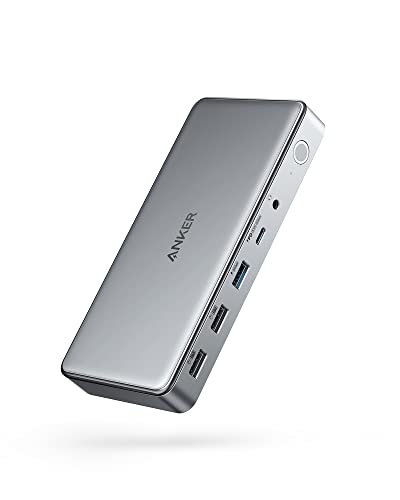
The Anker 563 USB-C Docking Station is the pick for a Chromebook desk that needs three monitors. It is a DisplayLink dock with two HDMI ports and one DisplayPort, and Anker lists it in its docking-stations-for-Chromebook collection. One monitor runs at 4K at 30Hz, two at 4K plus 2K, and three at 4K plus two 2K screens at 60Hz. It ships with a 180W adapter, charges the Chromebook at up to 100W, and adds a 30W USB-C port for a phone, two USB-A ports, a USB-C data port, Gigabit Ethernet, SD and microSD slots, and a 3.5mm jack. Two caveats: the 2K outputs do not support HDCP, and Anker own store listed the dock as sold out at research time, so confirm a live offer before buying.
| Specs | Details |
|---|---|
| Brand | Anker |
| Model | 563 USB-C Docking Station (10-in-1), A8395 |
| ASIN | B09XH3PD25 |
| Video | DisplayLink, up to 3 monitors |
| Video outputs | 2 HDMI, 1 DisplayPort |
| Laptop charging | Up to 100W |
| Phone charging | 30W USB-C |
| USB ports | 2 USB-A, 1 USB-C data |
| Network | Gigabit Ethernet |
| Card readers | SD, microSD |
| Best for | Three monitors, triple-screen desks |
| Tier | Premium |
Targus DOCK310USZ

The Targus DOCK310USZ is the compact dual-monitor pick for a Chromebook. It is a DisplayLink dock with two HDMI outputs for dual 4K monitors, and Targus markets its universal docks as working across Windows, Mac, Android, and iOS, and DisplayLink support built into ChromeOS covers the Chromebook side. The dock charges the Chromebook at up to 65W, which matches the charger rating of most Chromebooks, and it is a smaller box than the premium DisplayLink docks. The port count is deliberately smaller: four USB ports, Gigabit Ethernet, and a 3.5mm audio jack, with no card reader, and the box includes a 1m USB-C cable. HDCP is not supported, and the 65W ceiling means a large Chromebook may charge more slowly under heavy load.
| Specs | Details |
|---|---|
| Brand | Targus |
| Model | DOCK310USZ Universal USB-C DV4K |
| ASIN | B08PMH27YL |
| Video | DisplayLink, dual 4K |
| Video outputs | 2 HDMI |
| Laptop charging | Up to 65W |
| USB ports | 4 |
| Network | Gigabit Ethernet |
| Card readers | None |
| Best for | Compact dual-monitor desks |
| Tier | Mid-range |
Plugable UD-3900PDZ

The Plugable UD-3900PDZ is the best value triple-screen dock for a Chromebook. Its Amazon listing states compatibility with Windows, macOS, and ChromeOS, and it gives three HDMI outputs: one 4K screen at 30Hz, or two 1080p screens at 60Hz, or three screens with the 4K output at 30Hz and the other two at 1080p. It charges the Chromebook at up to 100W and carries six USB ports at 5Gbps, Gigabit Ethernet, and SD and microSD slots. The trade is resolution: a single 4K screen runs at 30Hz rather than 60Hz. Like the other DisplayLink docks here, it needs no separate driver on ChromeOS, and the same limits apply: no HDCP.
| Specs | Details |
|---|---|
| Brand | Plugable |
| Model | UD-3900PDZ |
| ASIN | B08DDH5CPW |
| Video | DisplayLink, up to 3 monitors |
| Video outputs | 3 HDMI |
| Laptop charging | Up to 100W |
| USB ports | 6 at 5Gbps |
| Network | Gigabit Ethernet |
| Card readers | SD, microSD |
| OS support | Windows, macOS, ChromeOS |
| Best for | Three screens on a lower tier |
| Tier | Budget |
Dell WD19S

The Dell WD19S is the single-monitor business pick for a Chromebook, and it is the only dock in this roundup without a DisplayLink chip. It connects over USB-C with two DisplayPort 1.4 outputs, one HDMI 2.0 output, five USB ports, Gigabit Ethernet, and a 180W adapter delivering up to 130W of charging. On a Chromebook, the native Alt Mode path drives the displays the Chromebook graphics chip supports, so this is the dock for one large external monitor, a wired network, and a full set of peripherals on one cable. The honest limit is the monitor count: many Chromebooks support only one external display over native video, so confirm the exact model supports more displays first. The 130W delivery covers any Chromebook with a wide margin.
| Specs | Details |
|---|---|
| Brand | Dell |
| Model | WD19S, 180W adapter |
| ASIN | B08XNJDRFB |
| Video | Native DisplayPort Alt Mode, no DisplayLink |
| Video outputs | 2 DisplayPort 1.4, 1 HDMI 2.0 |
| Laptop charging | Up to 130W |
| USB ports | 5 |
| Network | Gigabit Ethernet |
| Card readers | None |
| Best for | One large monitor, business desks |
| Tier | Mid-range |
Who Should Skip a Laptop Dock
Skip a dock entirely if the Chromebook already has every port the desk needs and the setup is a single monitor plugged straight into the laptop. A dock adds a cable, a power brick, and a box on the desk, and none of that helps a one-screen desk. A small USB-C hub with one HDMI output and two USB ports covers that desk for less, and it travels better.
Skip a DisplayLink dock if the desk is for gaming, video editing, or color-critical photo work. DisplayLink compresses video and uses Chromebook processor time, and it does not support HDCP, so protected streaming and fast, color-accurate video are weaker fits. A native Alt Mode dock with one monitor is the better match, and the Dell WD19S above is the native pick.
Frequently Asked Questions
Can a Chromebook run two external monitors?
Yes, with the right dock. Many Chromebooks drive only one external display over native USB-C video, so a second screen needs a DisplayLink dock. DisplayLink support is built into ChromeOS, so a DisplayLink dock adds two screens without a separate driver install.
Do I need to install drivers for a dock on ChromeOS?
No. DisplayLink support is built into ChromeOS, and Plugable recommends ChromeOS version 100 or later with the latest Stable channel updates. Native Alt Mode docks need no driver either. The only step is opening ChromeOS display settings to arrange the connected screens.
Will a 100W dock damage a Chromebook with a 45W charger?
No. USB-C Power Delivery negotiates, and the Chromebook draws only the wattage it needs, so a 100W dock delivers 45W to a 45W Chromebook and keeps the rest for the dock and for charging phones.
Why is streaming video blank on my dock-connected monitor?
The usual cause is HDCP, the copy protection that streaming services use. DisplayLink docks do not support HDCP, so protected video such as Netflix or Hulu may not play on a screen connected through a DisplayLink dock. Move the streaming window to the Chromebook built-in screen, or use a native Alt Mode dock such as the Dell WD19S.
Conclusion
The best laptop dock for a Chromebook is the one that matches the display path to the desk. The Plugable UD-6950PDH leads this roundup because Plugable lists it for ChromeOS 100 and newer, it drives two 4K monitors at 60Hz, and it charges at up to 100W with a full port mix. The Anker 563 adds a third screen, the Targus DOCK310USZ covers dual monitors in a compact box, the Plugable UD-3900PDZ covers three screens at a lower tier, and the Dell WD19S suits a single large monitor.
Before buying, check the exact Chromebook model for its total external display limit, whether its USB-C port carries video as well as data and charging, and the charger wattage it ships with.
More from Amazon
Programs that pair well with the guide above. Offers and eligibility are set by Amazon and may change.
A free business account with business pricing and bulk-buying tools for work, shop or home office.
Create a business accountFree shipping on eligible items, Prime Video and more. Eligible new members can start with a free trial.
Start a Prime free trialAudiobooks and podcasts to listen to on the go. Eligible new members can start with a free trial.
Try Audible freeAd-free music streaming. Eligible new subscribers can start with a free trial.
Try Music Unlimited freeAs an Amazon Associate we earn from qualifying purchases.


Write Your Review
No reviews yet. Be the first to share your experience!